Deactivate In-Store
What this guide covers
Disables a POS terminal or kiosk from receiving menu updates and processing orders. This action is reversible — the device can be reactivated at any time.
This guide assumes the device is managed as part of a Byte POS deployment in Admin Portal.
If the market is not using Byte POS, Byte Connect must be part of Byte Commerce onboarding, and the operational controls for the market POS may differ from the device deactivation flow shown here.
Steps
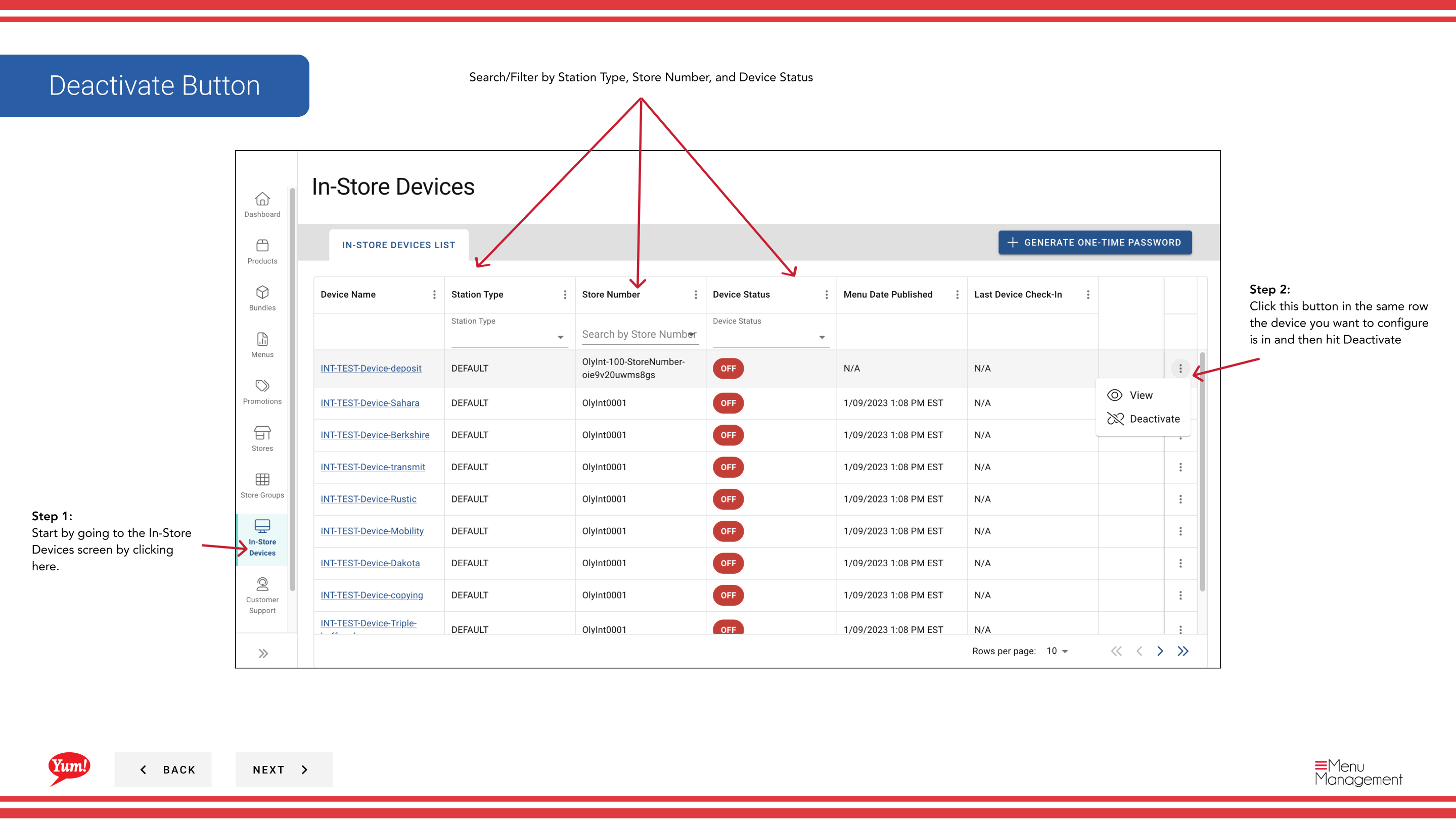
Step 1: Navigate to the In-Store Devices section using the left-hand navigation menu.
Step 2: Find the device you want to deactivate. You can search or filter by Station Type, Store Number, or Device Status.
Step 3: Click the ⋮ (three-dot menu) button in the same row as the device, then select Deactivate.
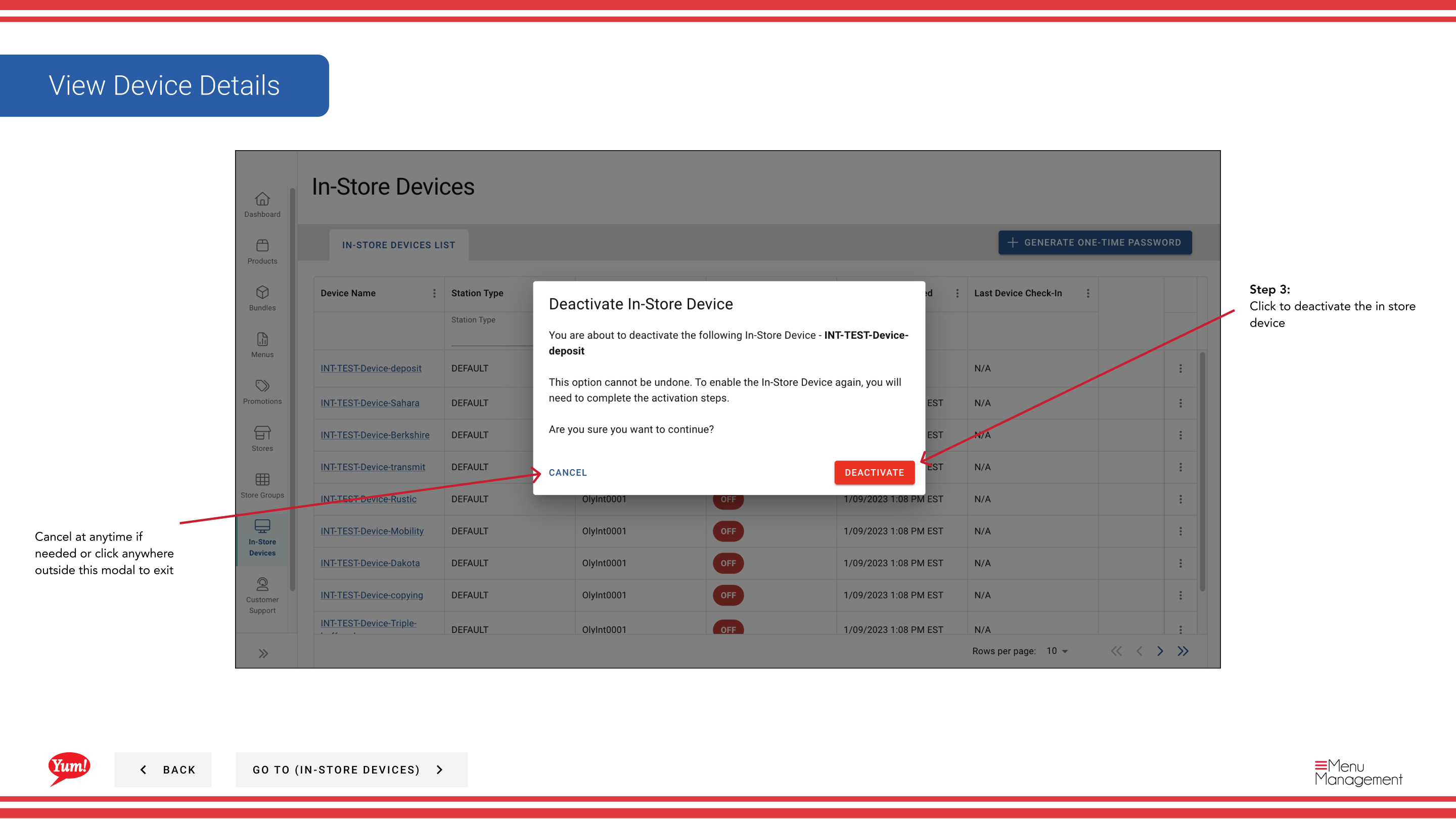
Step 4: A confirmation modal appears asking you to confirm deactivation. Review the device name to ensure you are deactivating the correct device.
Step 5: Click Confirm to deactivate the device. The device will immediately stop receiving menu updates and cannot process orders. Click Cancel or click outside the modal to keep the device active.
Deactivating a device prevents it from receiving menu updates and processing orders until it is reactivated. Customers at that location will not be able to order.
Deactivation is reversible. If you need to reactivate the device later, you can do so using the same menu. You may need to generate a new one-time password to re-authenticate the device.
Related guides
Part of the Admin Portal Guide · Section: In-Store Devices