View In-Store Device Details
What this guide covers
Displays the complete information for a POS terminal or kiosk, including device name, type, status, and menu publish history — used for device auditing and troubleshooting.
This device-detail view is written for Byte POS device management in Admin Portal.
If the market is not on Byte POS, Byte Connect is the bridge between Byte Commerce and the market POS, and the device visibility or support workflow may differ from what is shown here.
Steps
Step 1: Navigate to the In-Store Devices section using the left-hand navigation menu.
Step 2: Find the device you want to view. You can search or filter by Station Type, Store Number, or Device Status.
Step 3: Click the ⋮ (three-dot menu) button in the same row as the device, then select View.
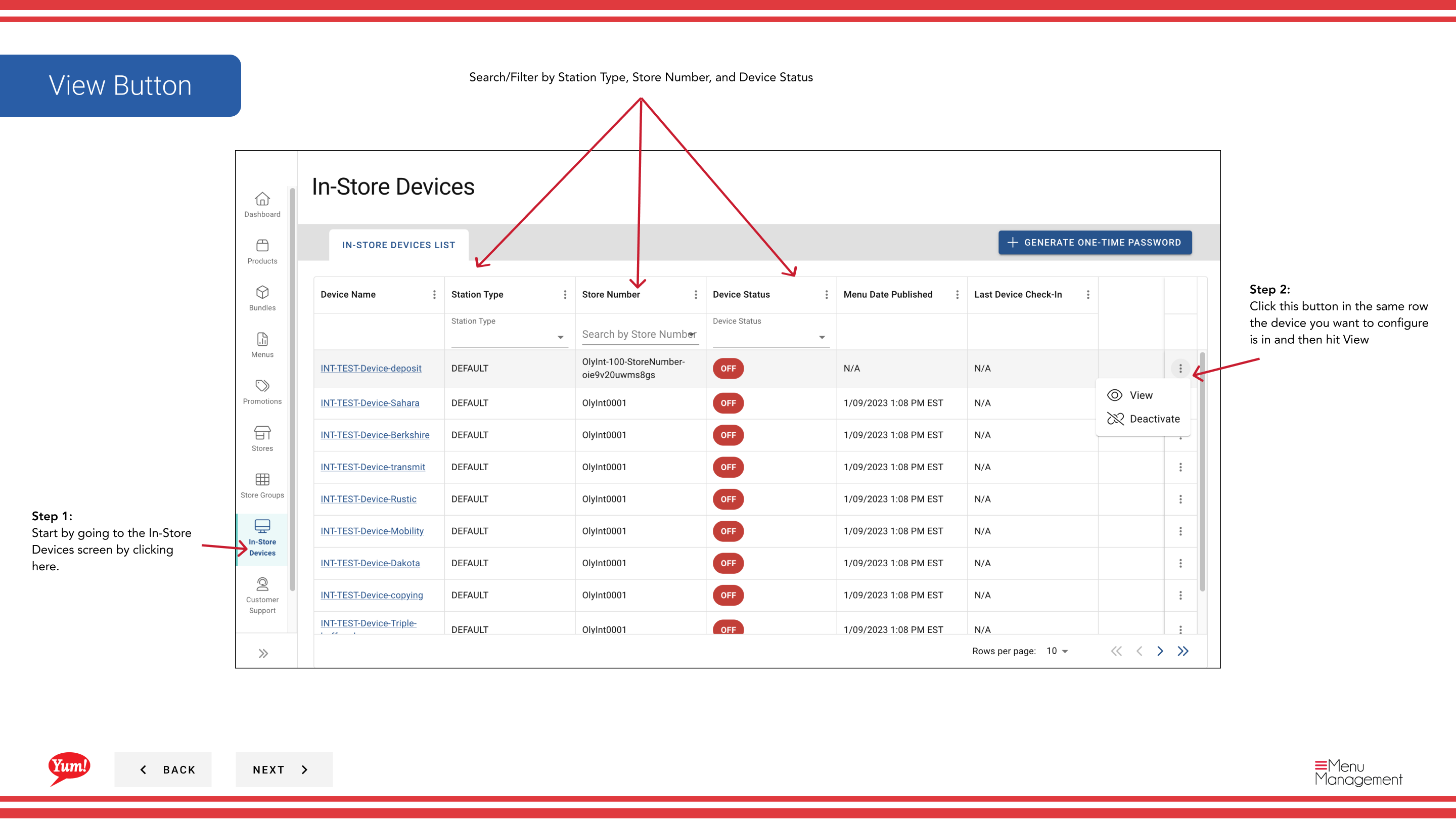
Step 4: The device details panel opens, displaying the following information:
| Field | What it shows |
|---|---|
| Device Name | Name/identifier of the device |
| Station Type | Type of device (e.g., POS Terminal, Kiosk) |
| Device Status | Active or Inactive |
| Menu Publish Date | When the last menu update was sent to this device |
| Last Device Check-In | When the device last communicated with Atlas |
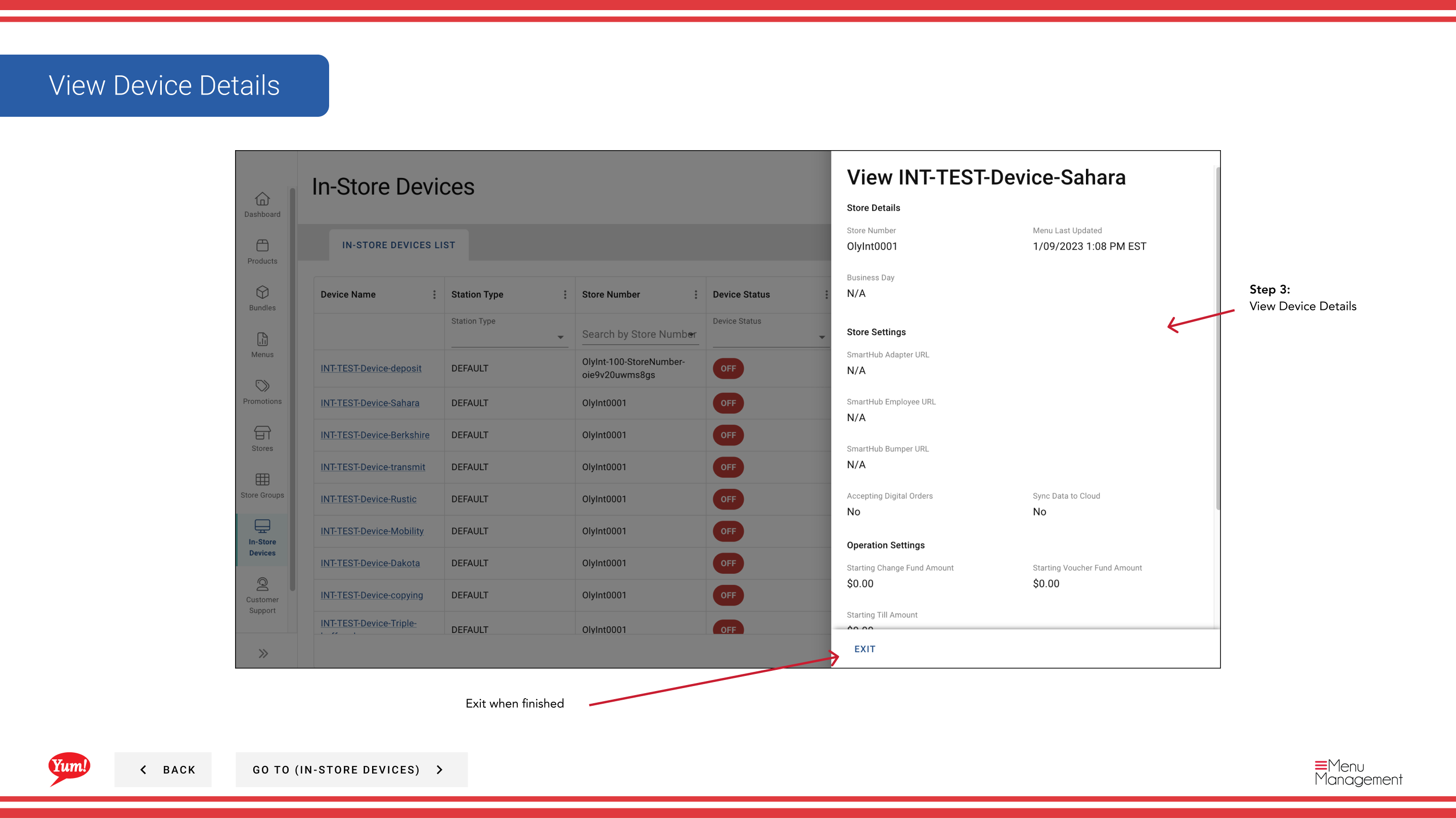
Step 5: Review the device details. Use this information to verify the device is active and receiving menu updates correctly. If Last Device Check-In is old (more than a day or two), the device may have connectivity issues.
Check the Device Status to confirm the device is active. An inactive device will not receive menu updates or process orders.
Related guides
Part of the Admin Portal Guide · Section: In-Store Devices