Customer Search
What this guide covers
Finds a customer account by name, email, or phone number to view their profile and order history — used by support teams to assist customers with account issues or reset passwords.
Steps
Step 1: Navigate to the Customer Support section using the left-hand navigation menu.
Step 2: Fill in as many search fields as possible to narrow down your results:
| Field | What to enter | Notes |
|---|---|---|
| First Name | Customer's first name | Optional |
| Last Name | Customer's last name | Optional |
| Email Address | Customer's registered email | Must match their account email |
| Phone Number | Customer's registered phone | Must match their account phone |
The more fields you fill, the better your results.
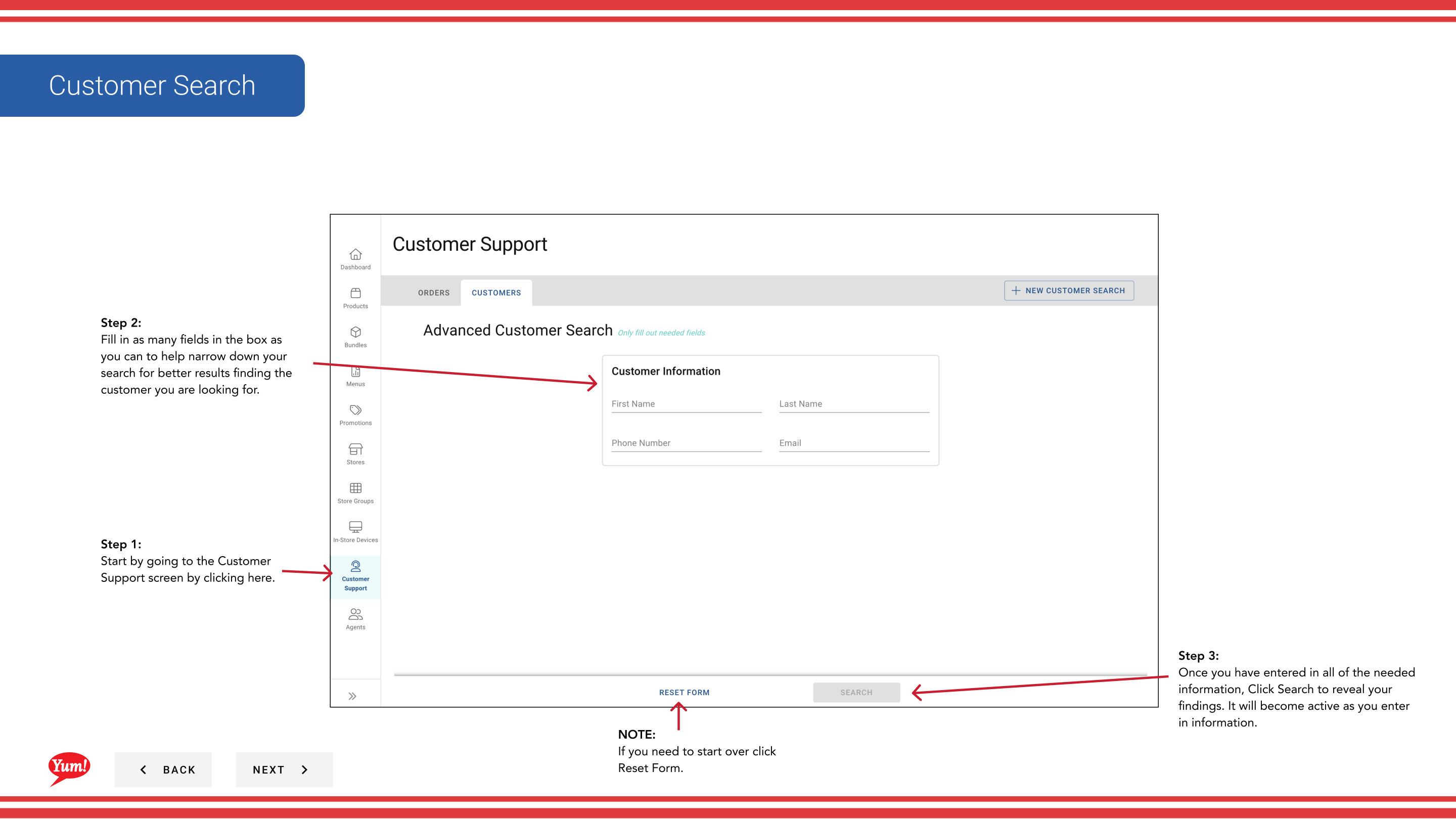
Step 3: The Search button becomes active as you enter information. Click Search to reveal the matching customers.
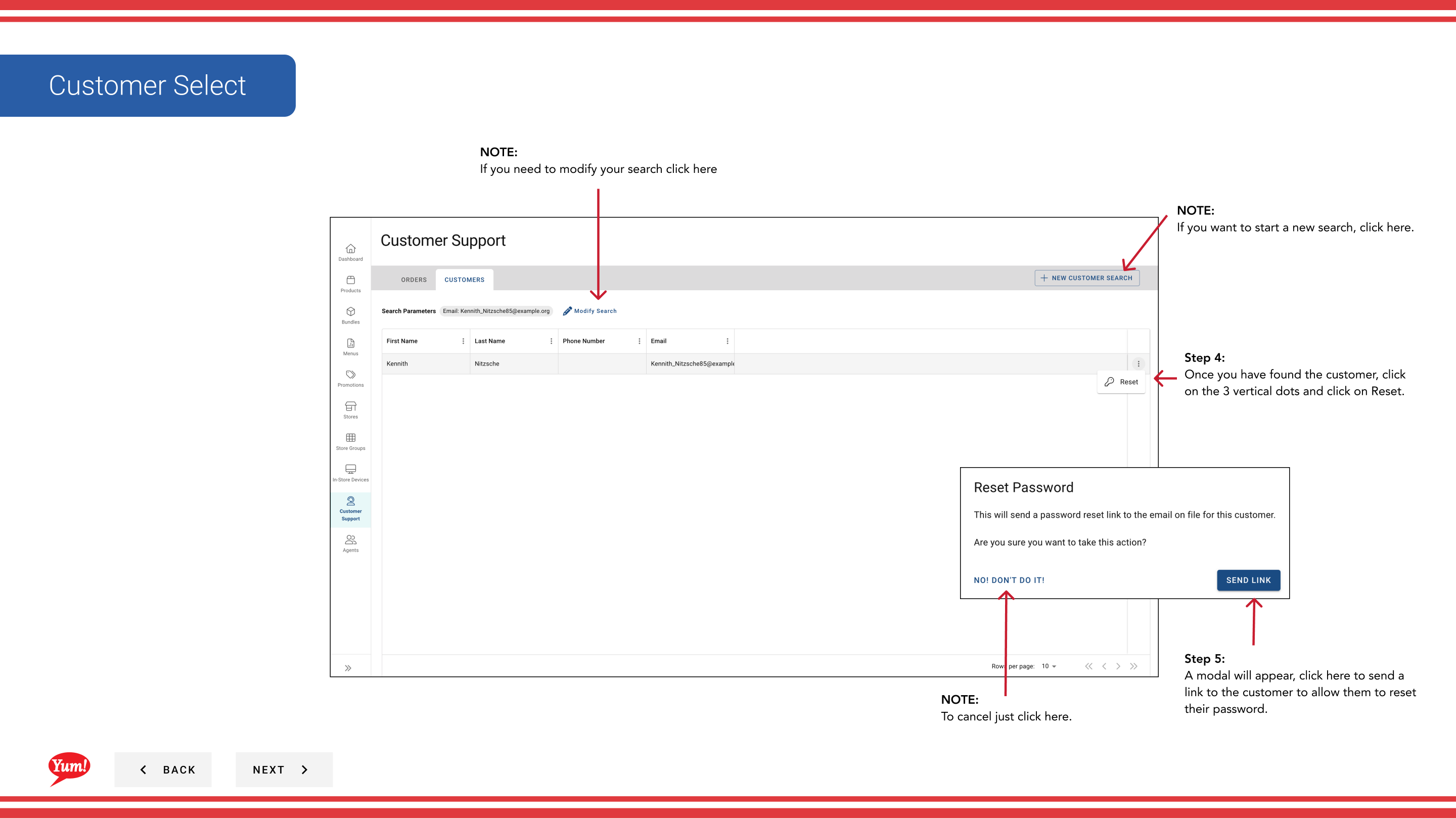
Step 4: Review the search results. Once you find the customer, click the ⋮ (three-dot menu) button in the same row to see available actions.
Step 5: To send the customer a password reset link, click Reset in the menu.
Step 6: A confirmation modal appears. Click Send Reset Link to email the customer a temporary password reset link.
The reset link is temporary and typically expires after a set period (often 24 hours). The customer will receive an email with instructions to set a new password.
If you need to adjust your search, click Reset Form to clear all fields and start a new search.
Only send reset links at the customer's request or after verifying their identity to prevent account security issues.
Related guides
Part of the Admin Portal Guide · Section: Customer Support