Order Search
What this guide covers
Finds a specific customer order using filters like Order ID, date, or customer name — the primary tool for support agents investigating order issues, issuing refunds, or resending receipts.
Steps
Step 1: Navigate to the Customer Support section using the left-hand navigation menu.
Step 2: Fill in as many search fields as possible to narrow down your results:
| Section | Fields | Notes |
|---|---|---|
| Order Information | Order ID, Order Date, Store, Order Status | Order ID is the most precise — use it if available. |
| Delivery Address | Street, City, Postcode | Use to filter by delivery location. |
| Customer Information | Customer Name, Email Address, Phone Number | Fill in first name, last name, or both. |
The more fields you fill, the more accurate your results.
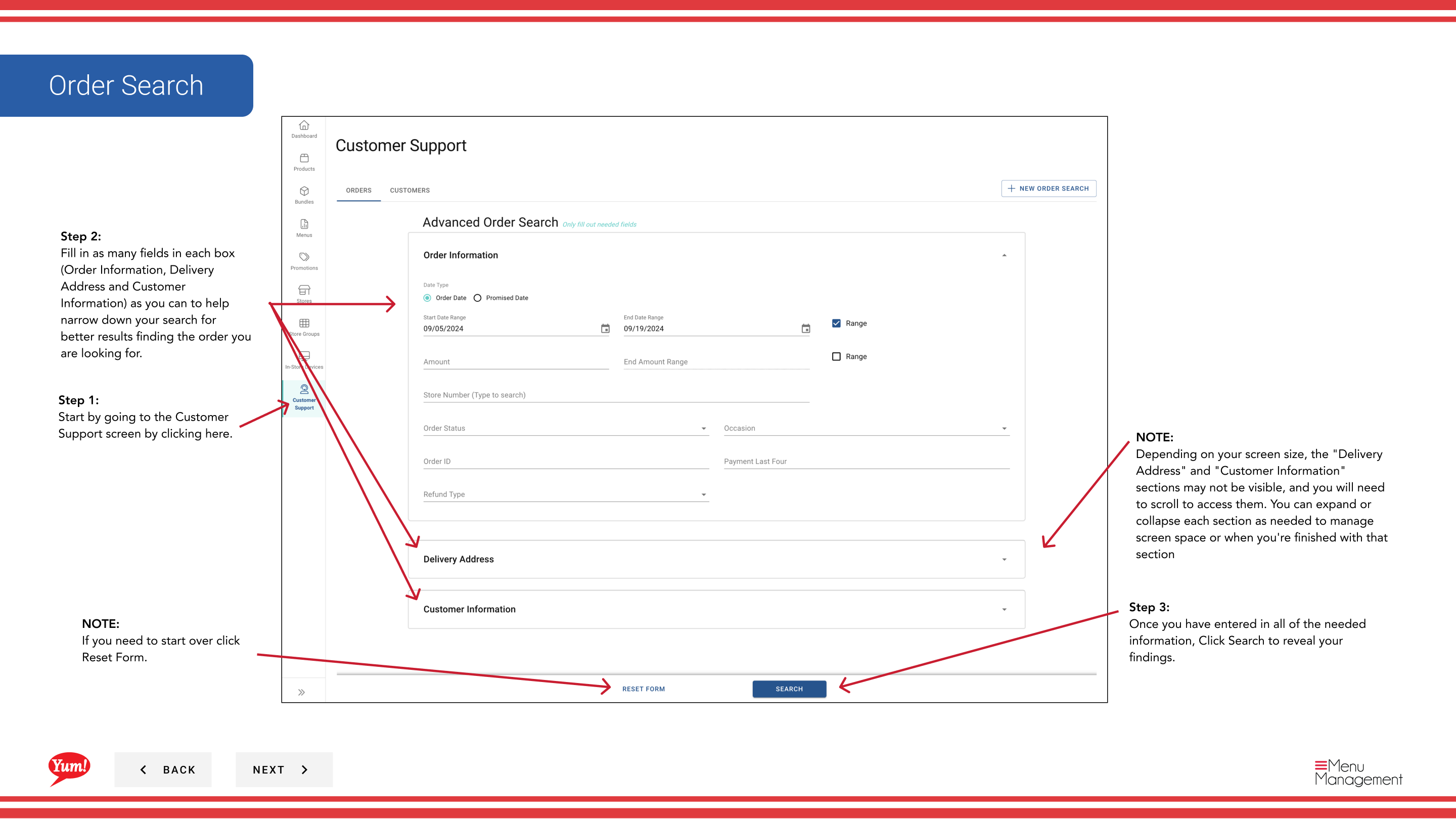
Step 3: Click Search to reveal your results.
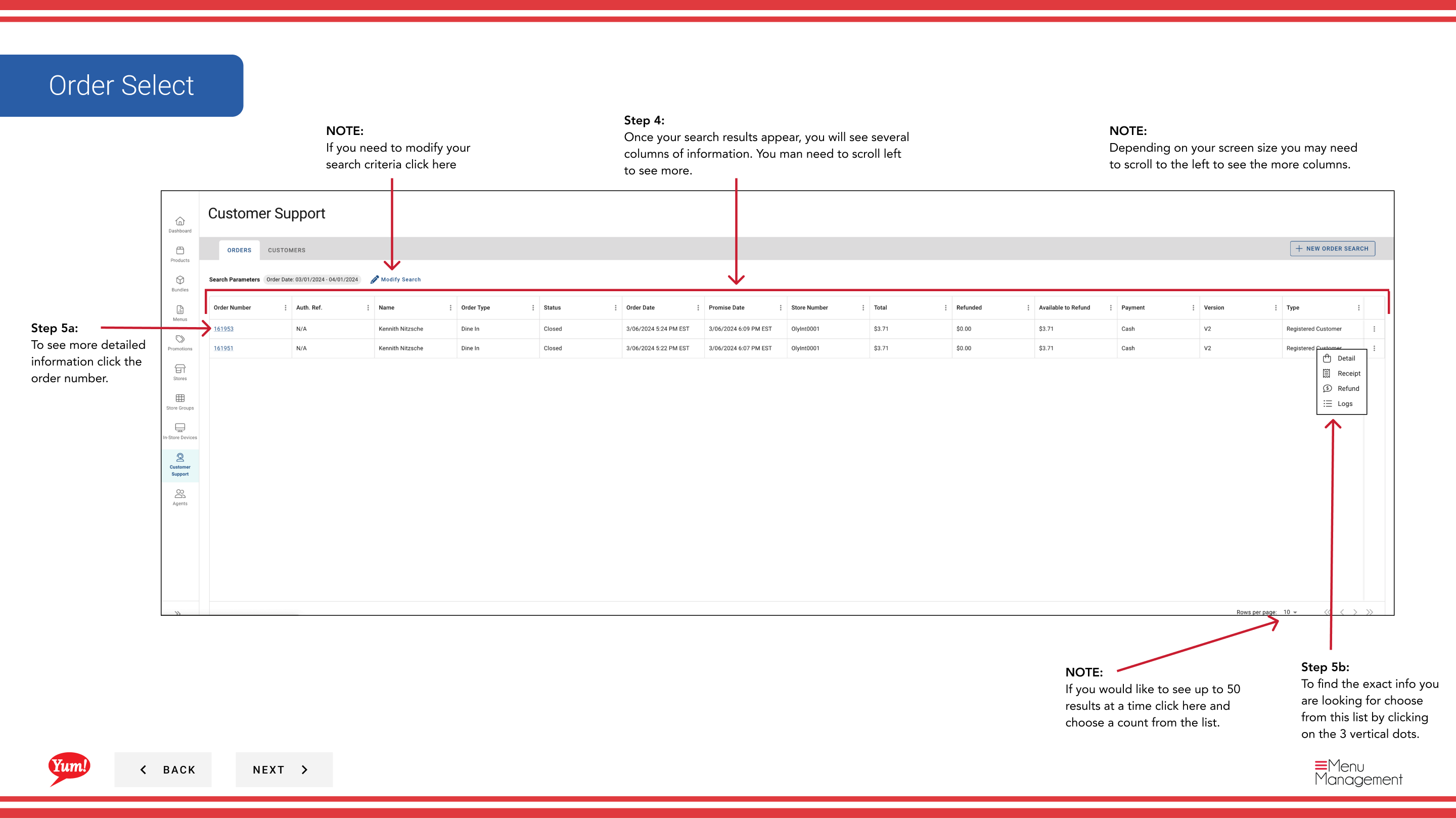
Step 4: Your search results appear in a table with columns of order information. You may need to scroll left or right to see all columns. Use the ⋮ (three-dot menu) in the results header to show or hide specific columns.
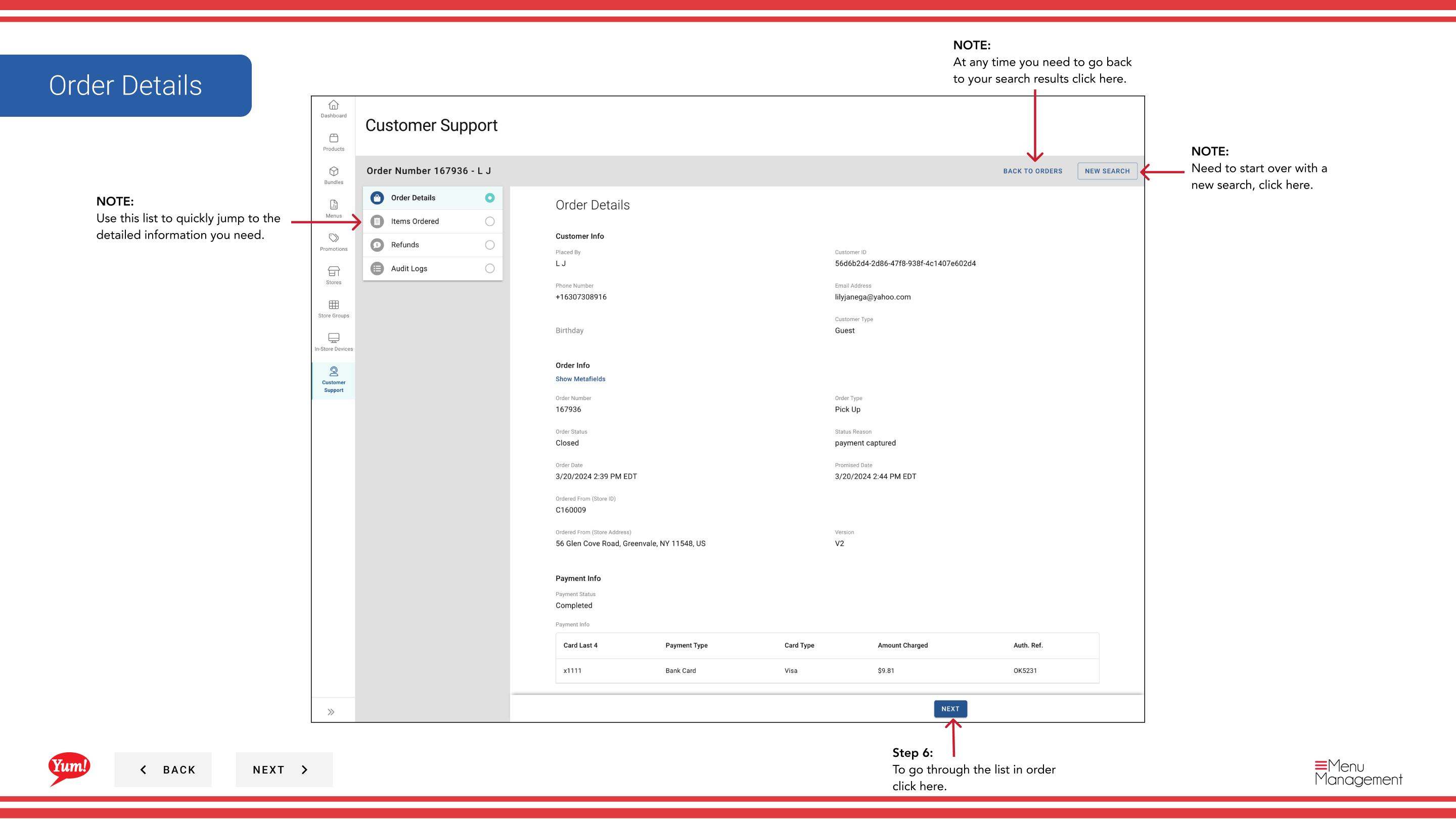
Step 5: Click the Order Number to open the full order detail view with all transaction information.
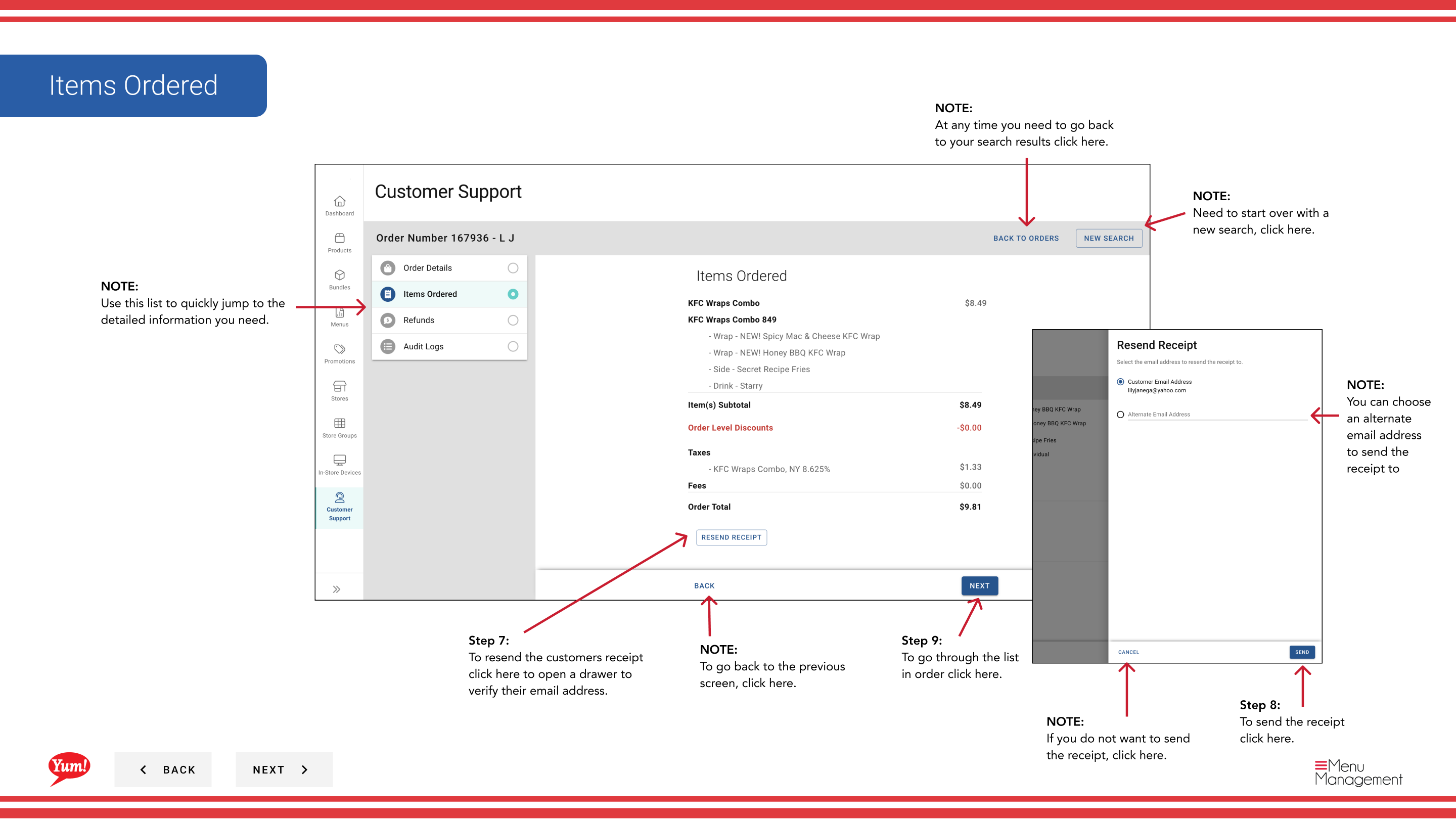
Resending Receipts
Step 6: From the order detail view, click the receipt icon or navigate to the receipt option in the menu.
Step 7: A drawer opens. Verify the customer's email address or enter an alternate email if needed.
Step 8: Click Send to email the receipt to the customer.
You can send receipts to an alternate email address if the customer's registered email is incorrect or outdated.
Issuing Refunds
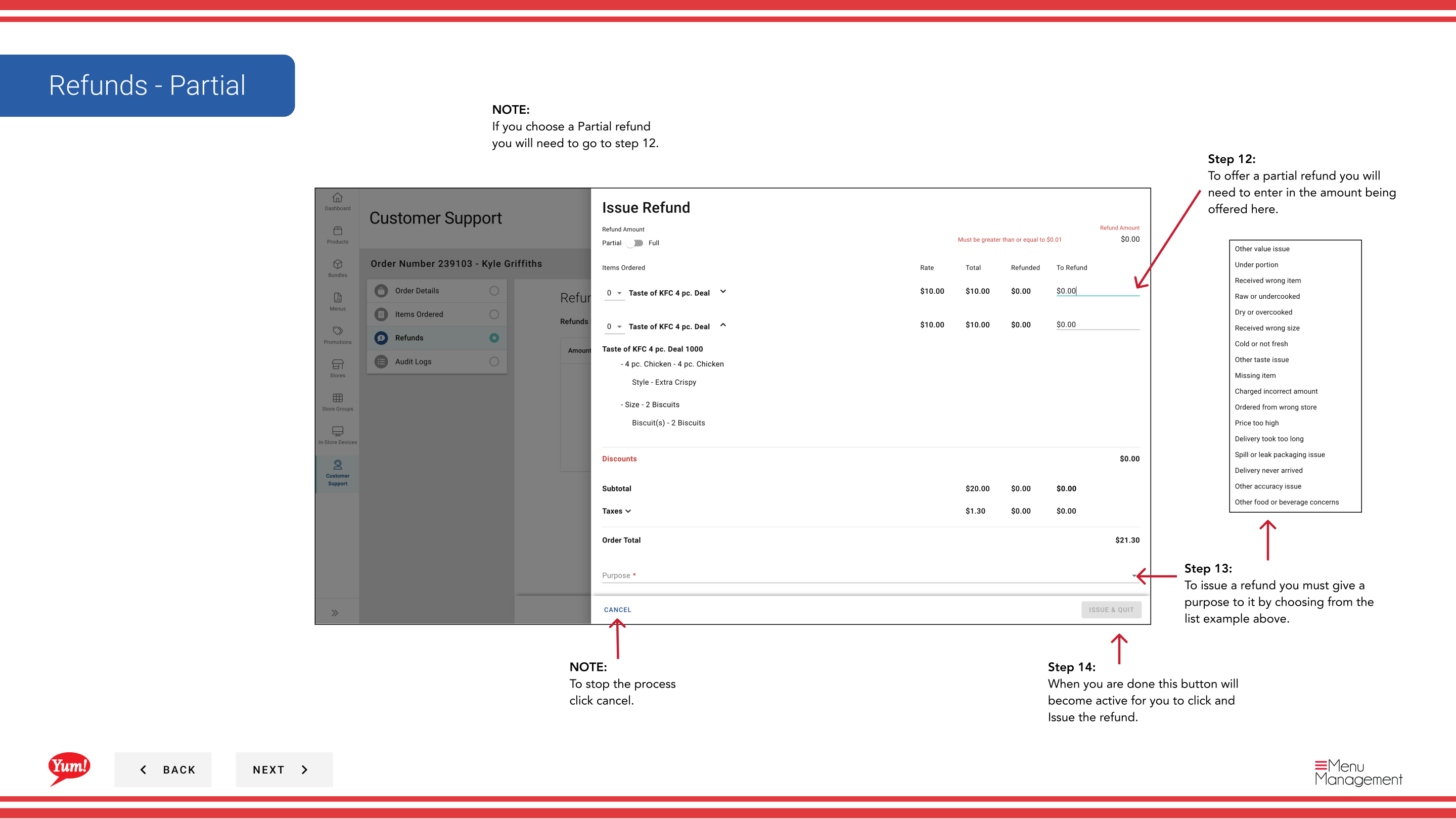
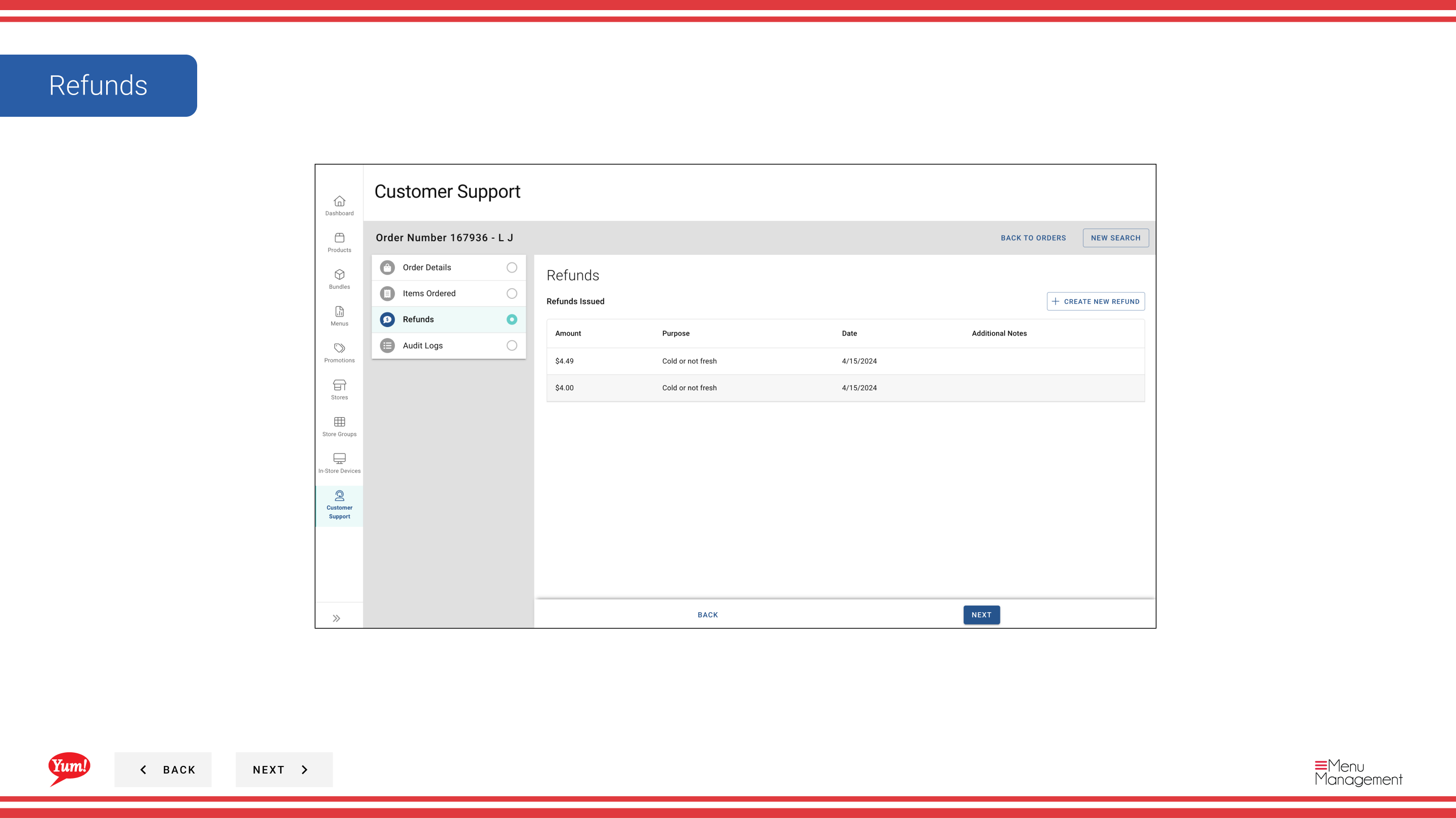
Step 9: From the order detail view, click the refund icon or navigate to the refund option.
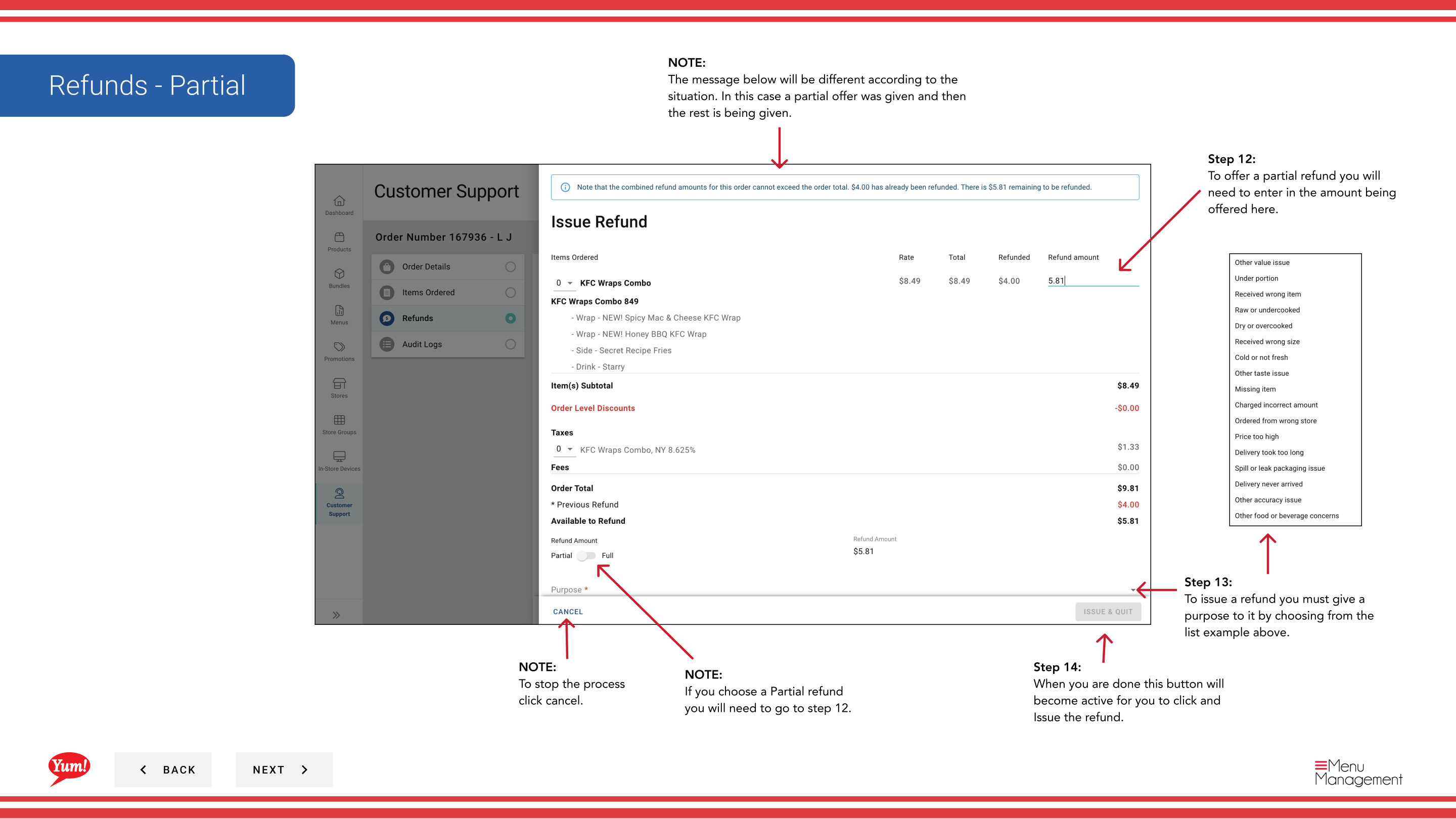
Step 10: Select the refund type:
| Option | What to do |
|---|---|
| Full Refund | Refund the entire order amount |
| Partial Refund | Refund only part of the order — you'll enter the amount to refund |
Step 11: Select a Refund Reason from the dropdown (required):
| Reason | When to use |
|---|---|
| Order Error | The order was placed incorrectly |
| Missing Items | Delivered items were missing from order |
| Customer Complaint | Customer is unsatisfied for other reasons |
| Other | For issues not covered above |
Step 12: If issuing a Partial Refund, enter the refund amount in the Refund Amount field.
Step 13: Click Issue Refund once the button becomes active (all required fields filled).
Refunds are permanent. Once issued, the customer's payment method will be credited. Verify the reason and amount before clicking Issue Refund.
Navigation Tips
On smaller screens, the "Delivery Address" and "Customer Information" sections may not be visible by default. Scroll down or click the section headers to expand them.
If you need to adjust your search, click Reset Form to clear all fields and start over.
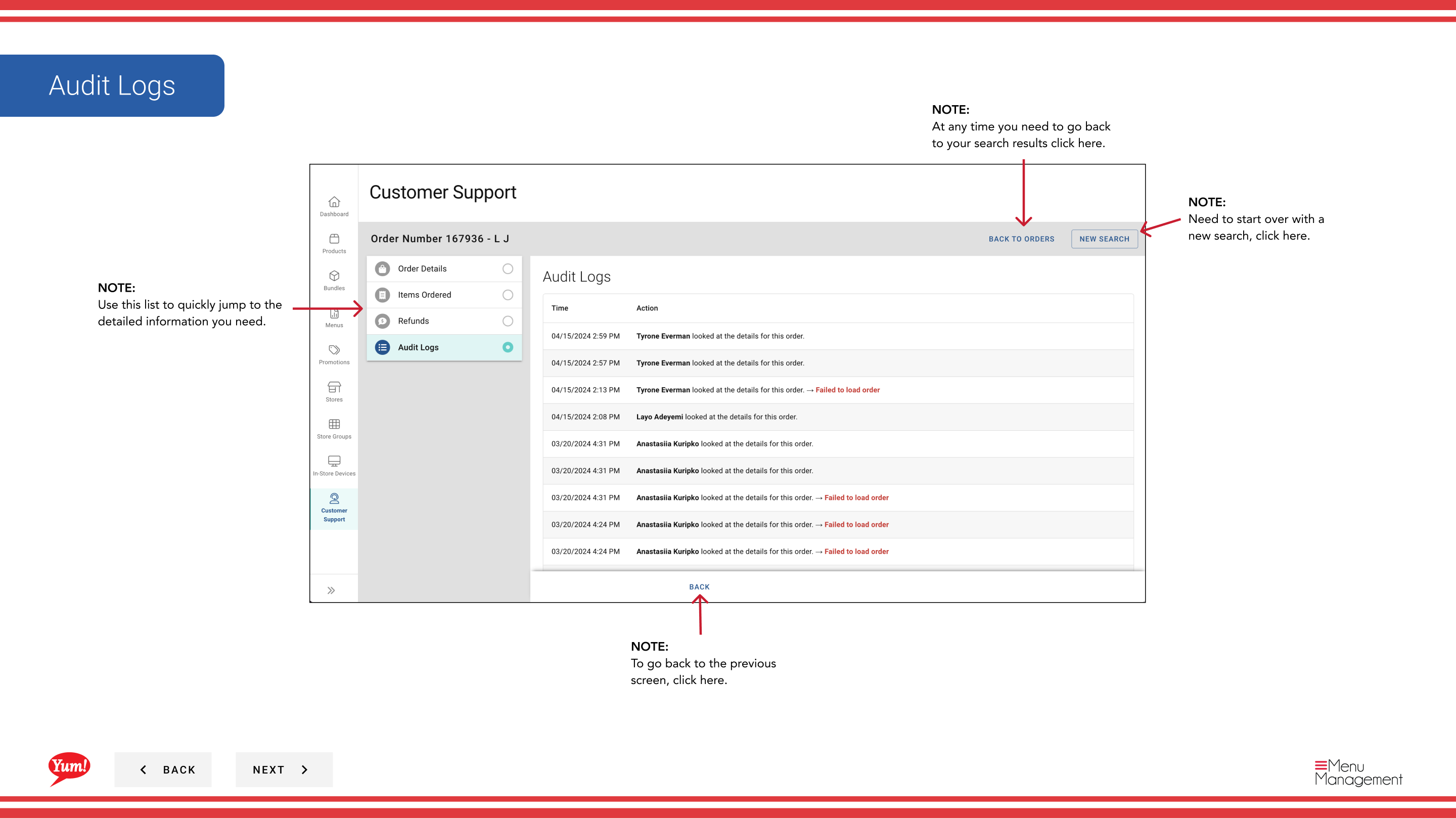
To change result display, click the ⋮ (three-dot menu) in the results header to show/hide columns or adjust results per page (up to 50).
Related guides
Part of the Admin Portal Guide · Section: Customer Support