View a Store’s Publish History / Copy Menu Publish Job ID
What this guide covers
Displays a log of all menu publish jobs for a store, including status and timestamps. You can view details of each publish job and copy the Menu Publish Job ID for support purposes.
Steps
Step 1: Navigate to the Stores section using the left-hand navigation menu.
Step 2: Click the Publish History tab at the top of the Stores page.
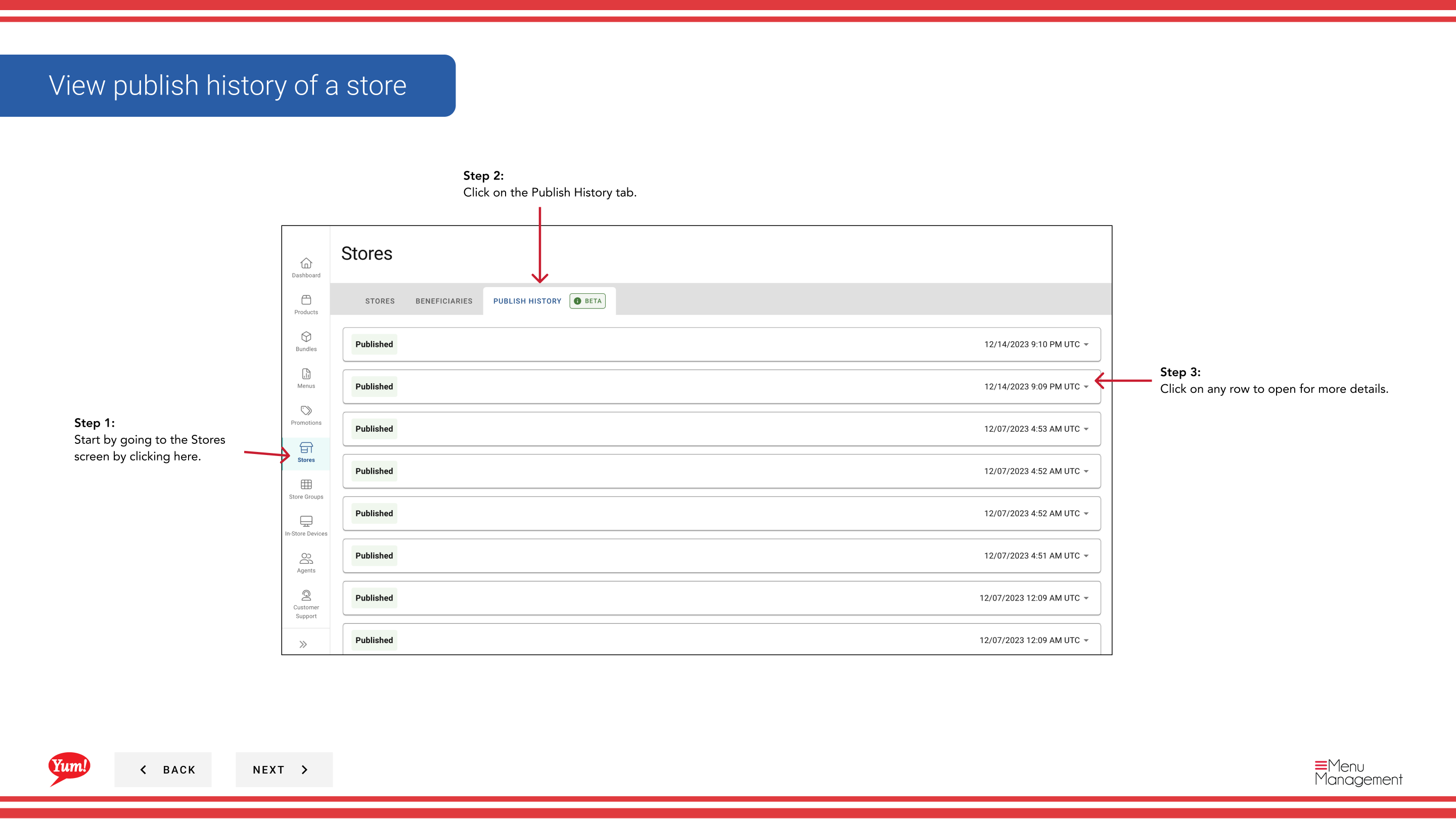
Step 3: The publish history table shows:
- Menu — Name of the published menu
- Channel — Ordering channel (Digital, Kiosk, In-Store, etc.)
- Status — Publication status (Success, Pending, Failed, etc.)
- Timestamp — Date and time of the publish job
Click on any row to open the full details, including the Menu Publish Job ID.
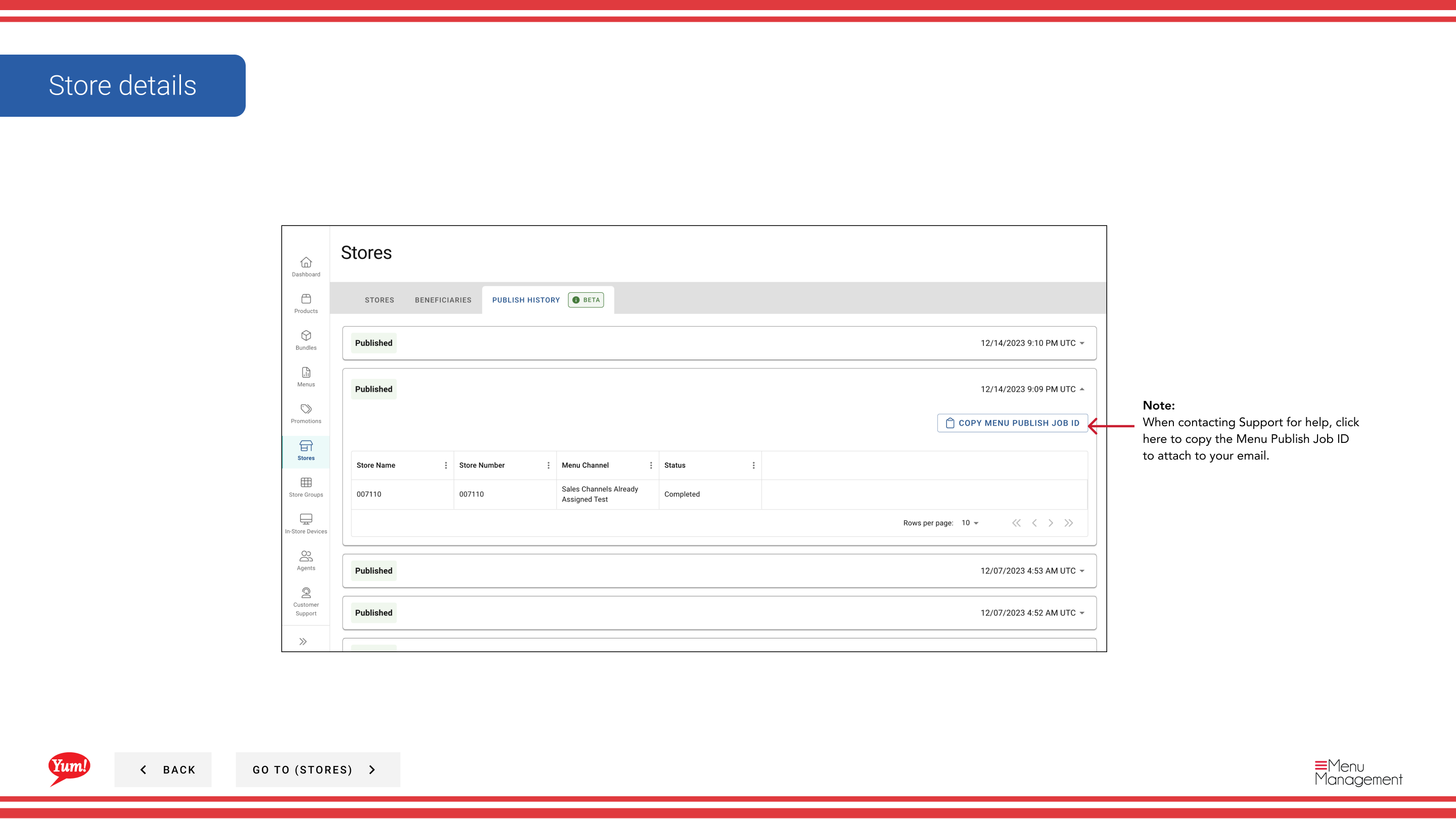
Step 4: To copy the Menu Publish Job ID (useful for contacting support), click the copy icon next to the Job ID field in the details panel.
When to use Menu Publish Job ID: When contacting Atlas Support about a publish issue, include the Menu Publish Job ID to help the support team quickly locate the specific job and diagnose the issue.
Related guides
- Publish a Menu — Publish menus to channels
- View a Store’s Menu — See currently assigned menus
Part of the Admin Portal Guide · Section: Stores