View a Store’s Menu
What this guide covers
Displays all menus assigned to a store, showing which menu is active on each ordering channel (Digital, Kiosk, In-Store, etc.).
Steps
Step 1: Navigate to the Stores section using the left-hand navigation menu.
Step 2: Search for the store by Name, Store Number, or Franchise Code using the search box.
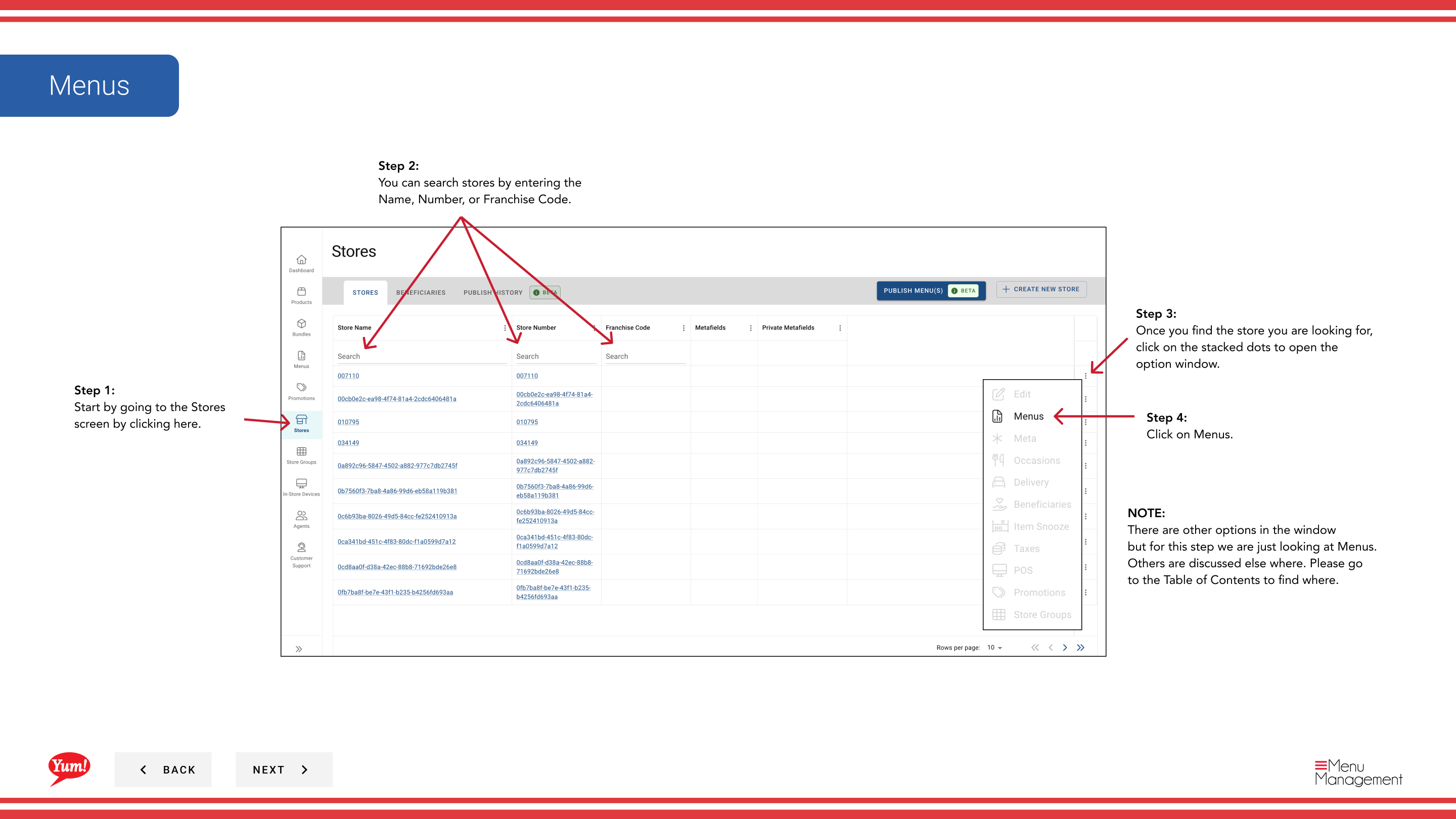
Step 3: Once you find the store, click the three-dot menu (•••) icon to open the options menu.
Step 4: Click Menus from the dropdown menu. This displays all menus assigned to this store, organized by channel.
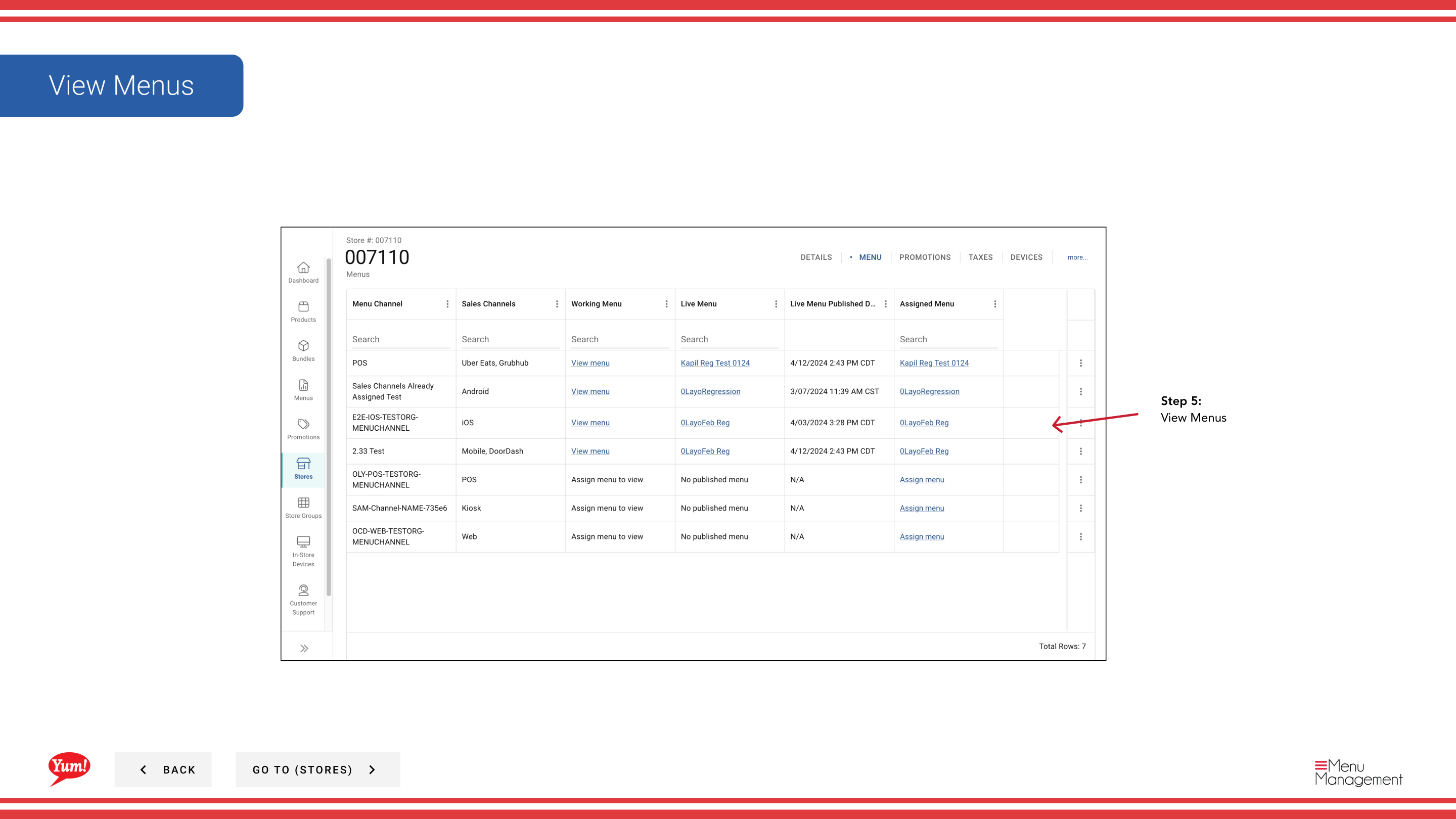
The menu table shows:
- Channel — The ordering channel (e.g., Digital, Kiosk, In-Store)
- Menu Name — The name of the assigned menu
- Status — Current publication status (Published, Draft, etc.)
From this view, you can also assign new menus, publish menus, edit patch lists, or transfer patch lists. Use the menu buttons or three-dot menu on each channel row to access these options.
Related guides
- Assign New Menu — Link a menu to a store channel
- Publish a Menu — Make a menu live to customers
- Edit Patch List — Override items in a menu for this store
Part of the Admin Portal Guide · Section: Stores