Publish Menu
What this guide covers
Triggers a menu publish directly from the store's Menus view, pushing the current menu configuration live to ordering channels.
Steps
Step 1: Navigate to the Stores section using the left-hand navigation menu.
Step 2: Search for the store by Name, Store Number, or Franchise Code using the search box.
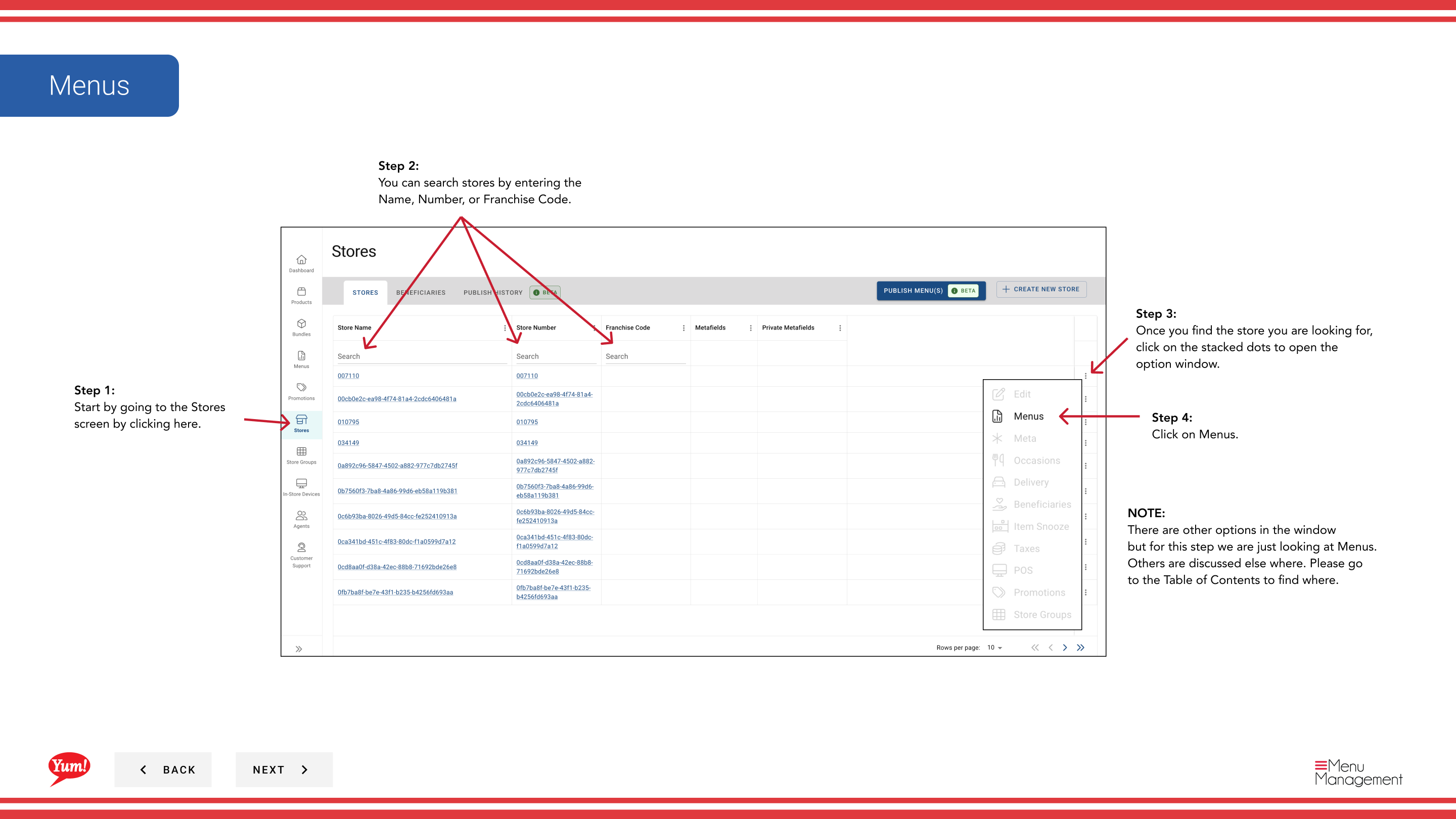
Step 3: Once you find the store, click the three-dot menu (•••) icon to open the options menu.
Step 4: Click Menus from the dropdown menu. This displays the menus assigned to this store by channel.
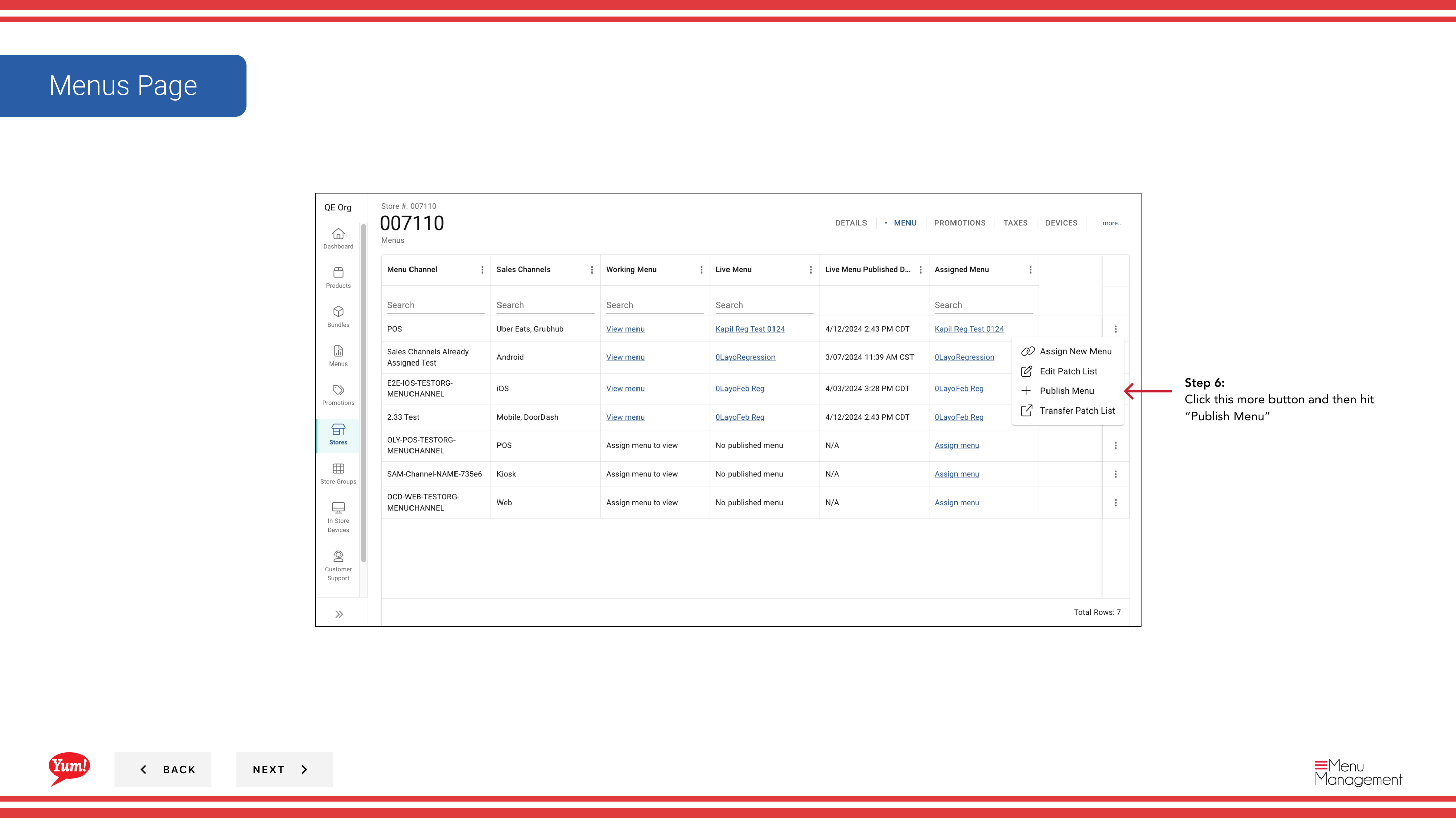
Step 5: Locate the channel you want to publish, and click the more menu button (⋯) on that row.
Step 6: Click Publish Menu from the options menu.
Step 7: Review the menu configuration and any pending changes.
Step 8: Click the Publish button to push the menu live to customers.
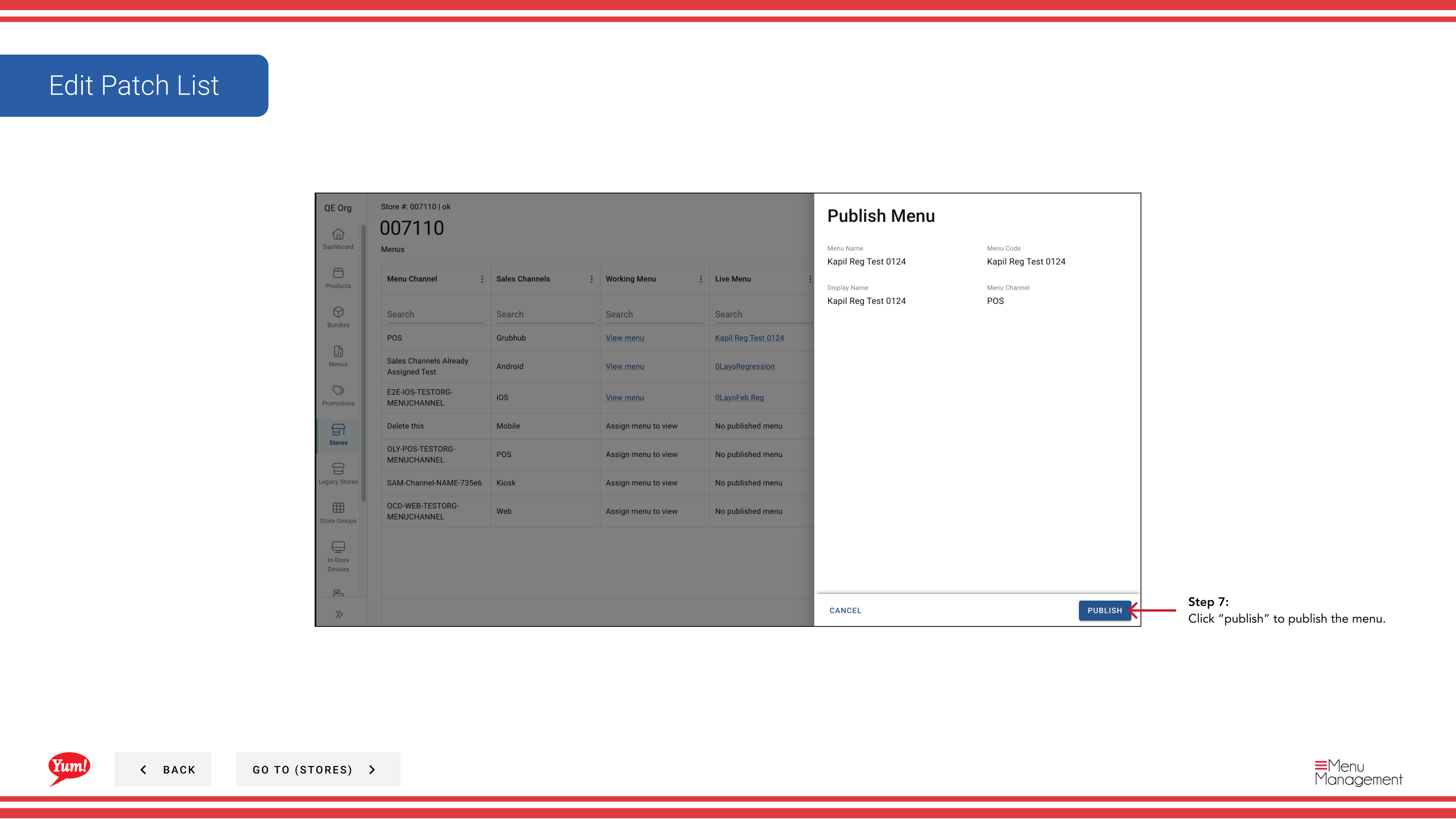
When to use: Use this method when publishing from within a store's menu view. Use Publish a Menu if you need to publish menus across multiple stores or channels at once.
Publishing a menu immediately makes changes visible to customers. Review all changes before clicking Publish.
Related guides
- View a Store's Menu — See assigned menus
- Publish a Menu — Publish multiple stores at once
- Edit Patch List — Modify menu overrides before publishing
Part of the Admin Portal Guide · Section: Stores