View Promotions
What this guide covers
Displays all promotions currently assigned to a store, allowing you to search and filter by promotion name or redemption code.
Steps
Step 1: Navigate to the Stores section using the left-hand navigation menu.
Step 2: Search for the store by Name, Store Number, or Franchise Code using the search box.
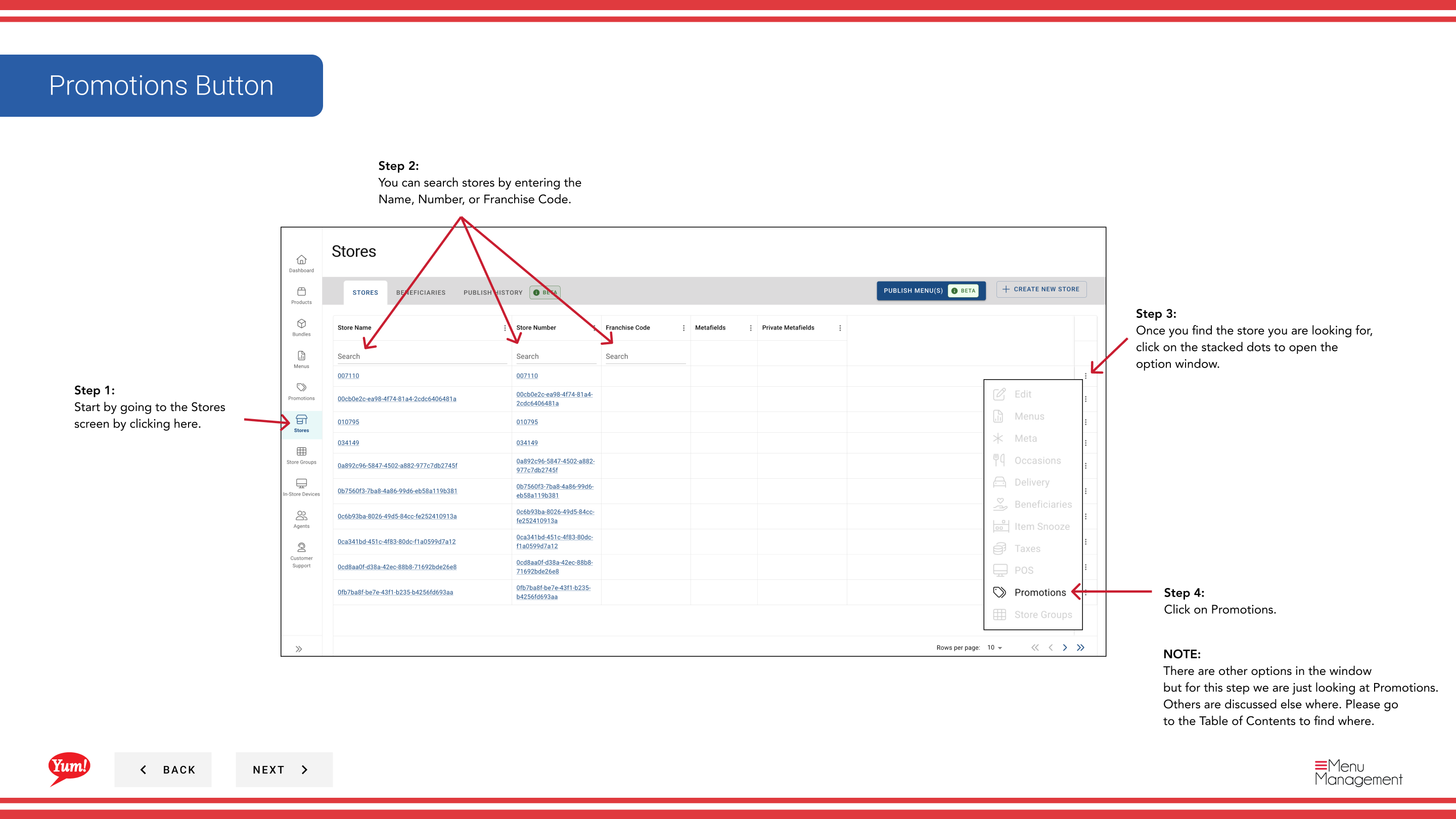
Step 3: Once you find the store, click the three-dot menu (•••) icon to open the options menu.
Step 4: Click Promotions from the dropdown menu. This displays all promotions linked to the selected store.
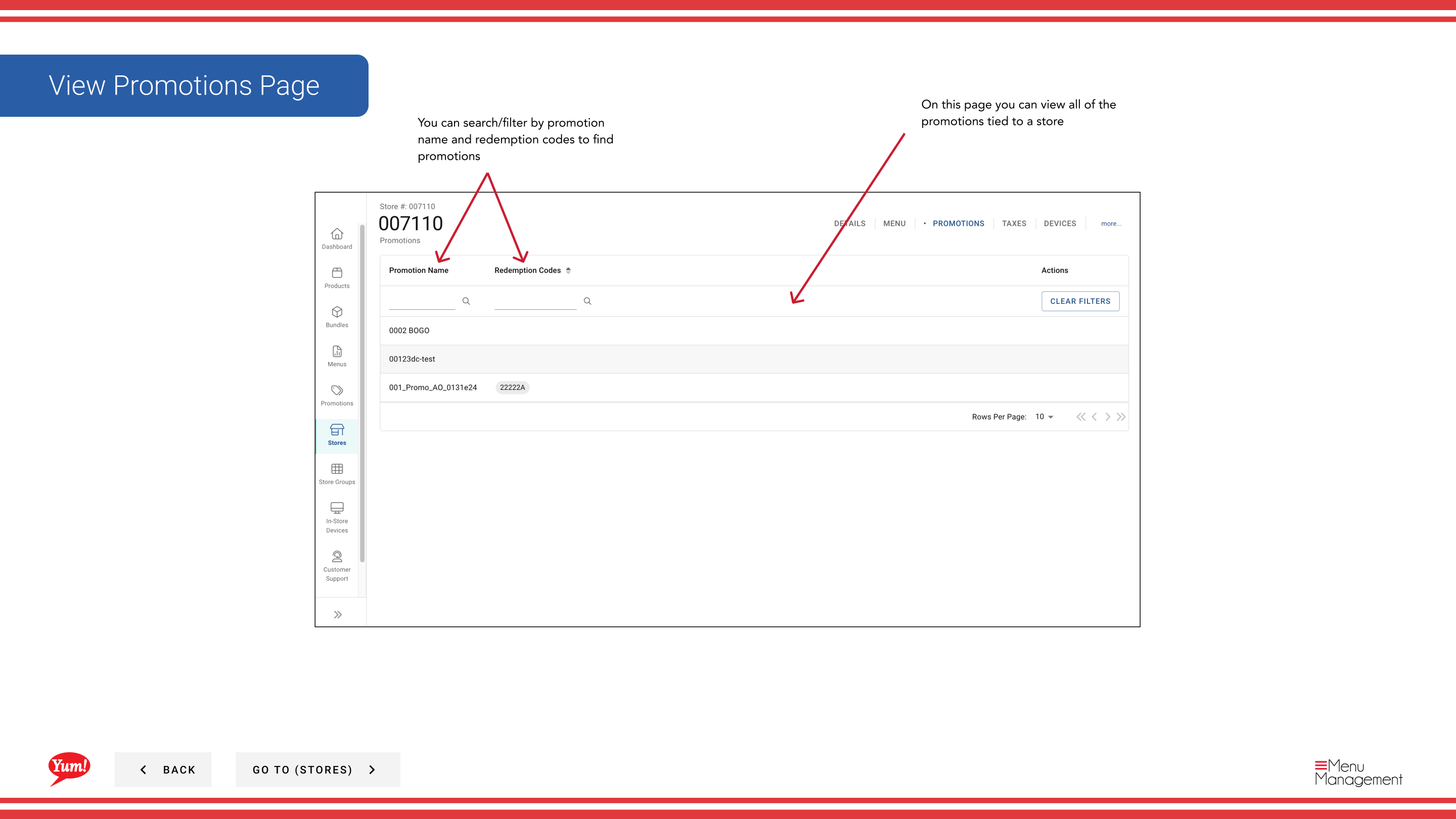
Step 5: Use the search and filter options to find specific promotions:
- Search by Promotion Name to find promotions by display name
- Search by Redemption Code to find promotions by their redemption or promo code
The promotions table shows:
- Promotion Name — Display name of the promotion
- Redemption Code — Code customers enter to redeem the promotion
- Status — Active, Inactive, or other status
- Valid From / To — Promotion start and end dates
Use filters to narrow the promotion list if your store has many active promotions. This helps you quickly verify which promotions are currently running.
Related guides
- Edit Store Details — View other store information
Part of the Admin Portal Guide · Section: Stores