Appear in Search Result (Turn On or Off)
What this guide covers
Controls whether a store appears in customer-facing search results, allowing operators to hide a location without fully removing it.
Steps
Step 1: Navigate to the Stores section using the left-hand navigation menu.
Step 2: Search for the store by Name, Store Number, or Franchise Code using the search box.
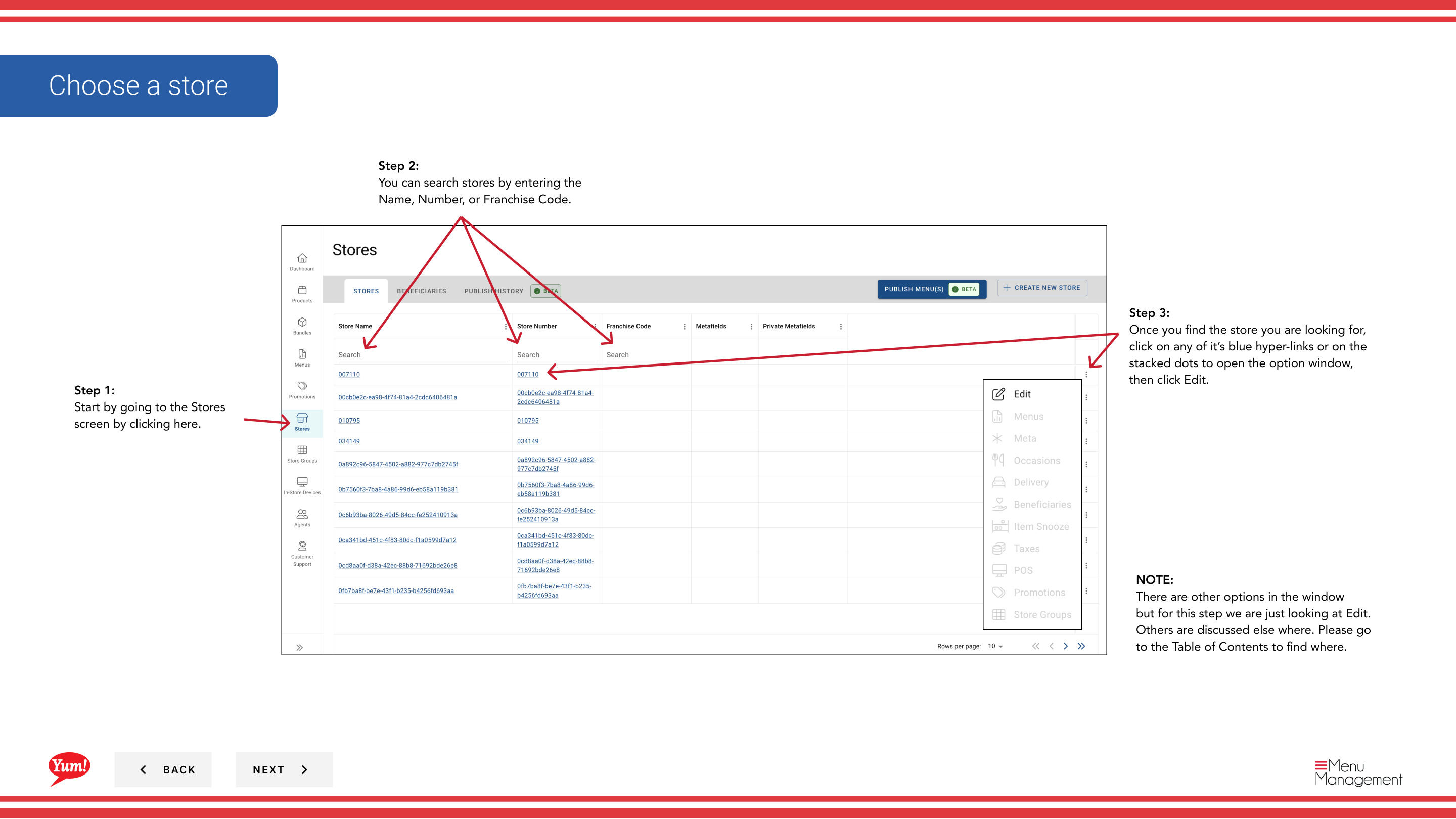
Step 3: Once you find the store, click the store name (or any blue hyperlink) to view the store details, or click the three-dot menu (•••) icon and select Edit.
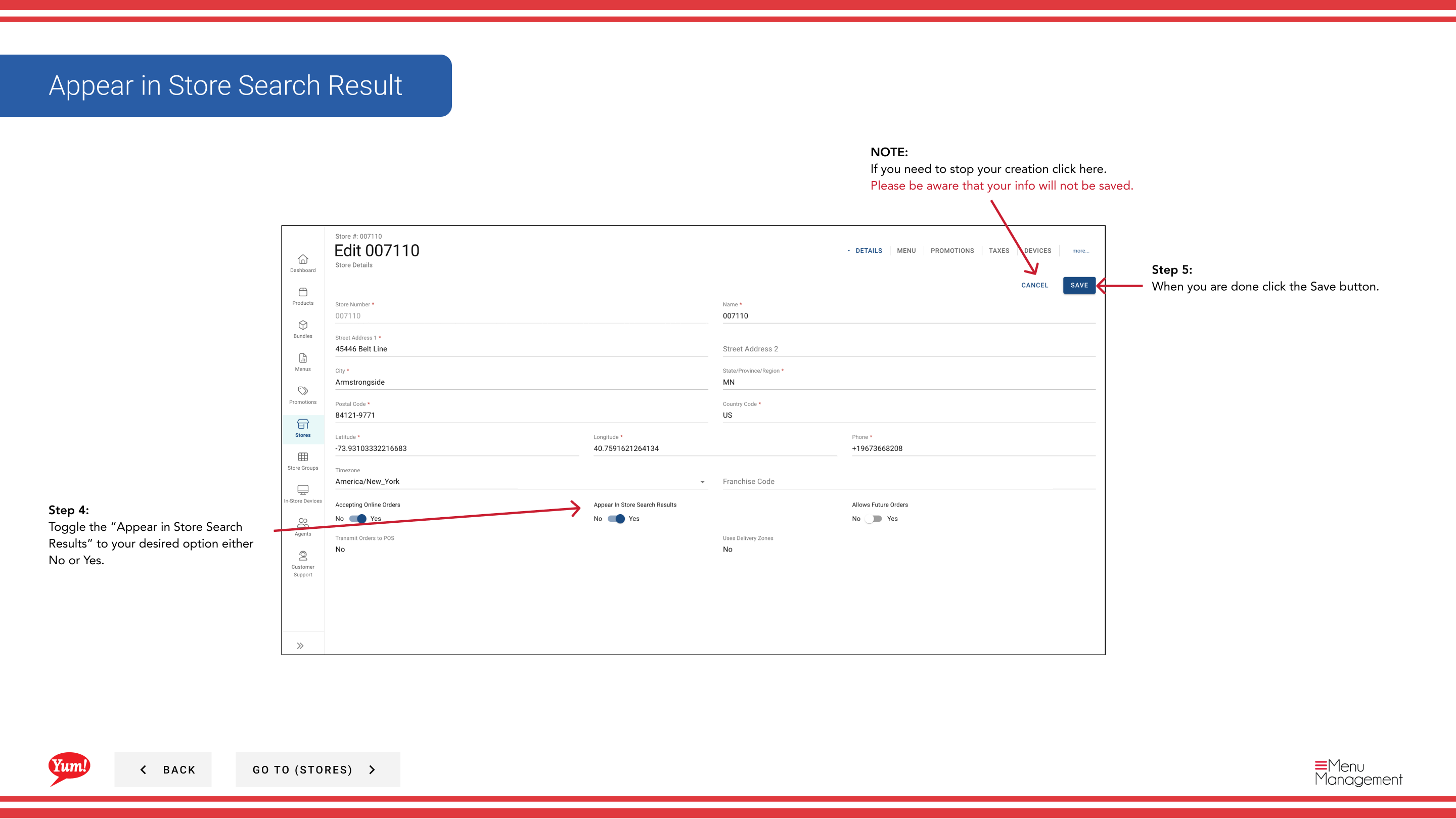
Step 4: Locate the Appear in Store Search Results toggle and set it to your desired state:
- Yes: Store appears in customer search results
- No: Store is hidden from customer search results but is not deleted
Step 5: Click the Save button to apply the change.
Use No to temporarily hide a location from customers while keeping it in Atlas for administrative purposes (e.g., during renovations, seasonal closures, or when preparing a new location before launch).
Clicking Cancel at any time discards your change.
Related guides
- Edit Store Details — Update other store information
- Accept Online Orders (Turn On or Off) — Control order acceptance separately
Part of the Admin Portal Guide · Section: Stores