View Taxes
What this guide covers
Displays all tax rule groups and associated tax rules applied to a store, separated by store group — used to verify tax configuration for compliance purposes.
Steps
Step 1: Navigate to the Stores section using the left-hand navigation menu.
Step 2: Search for the store by Name, Store Number, or Franchise Code using the search box.
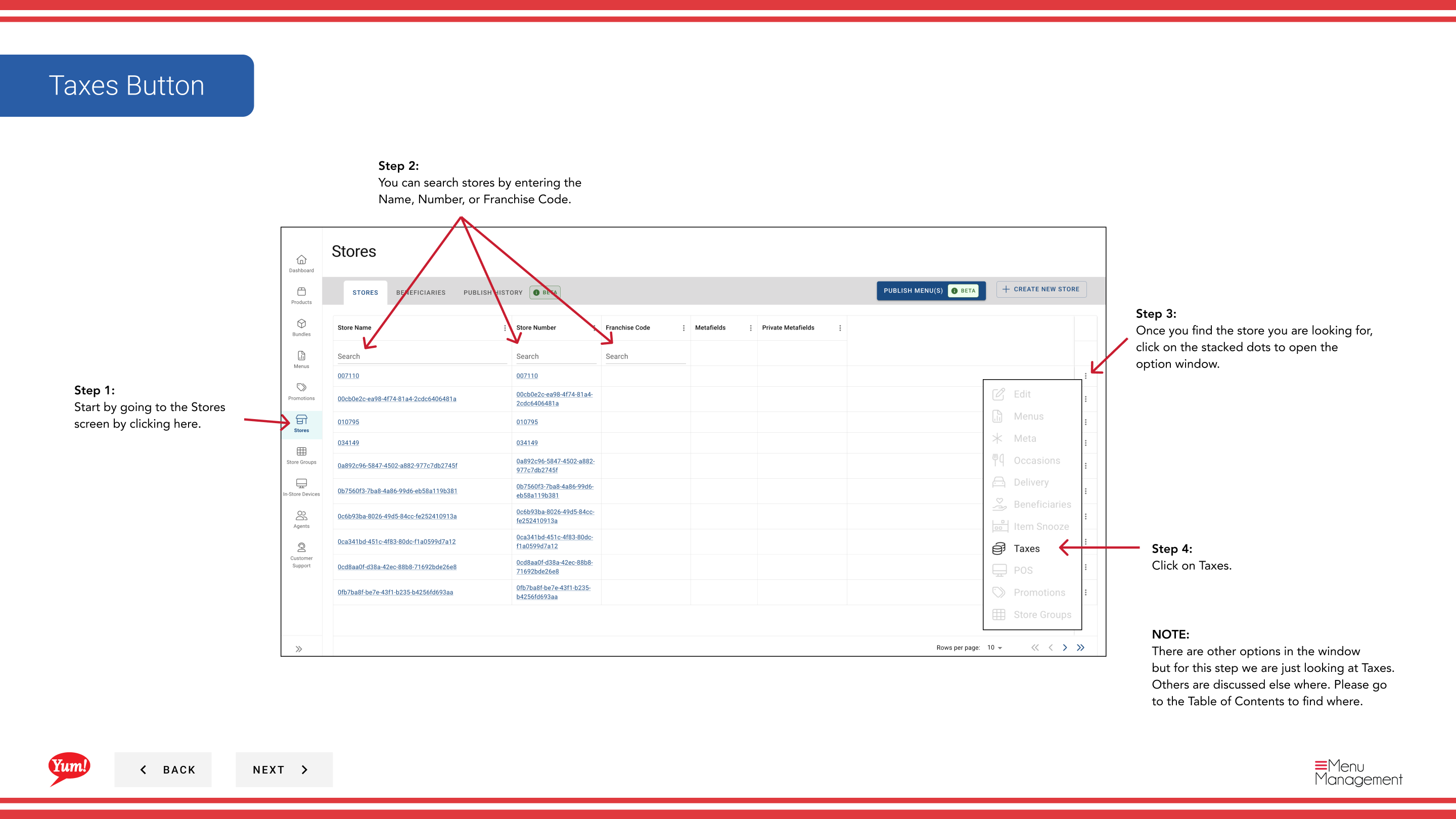
Step 3: Once you find the store, click the three-dot menu (•••) icon to open the options menu.
Step 4: Click Taxes from the dropdown menu. This displays all tax rule groups and rules configured for the selected store.
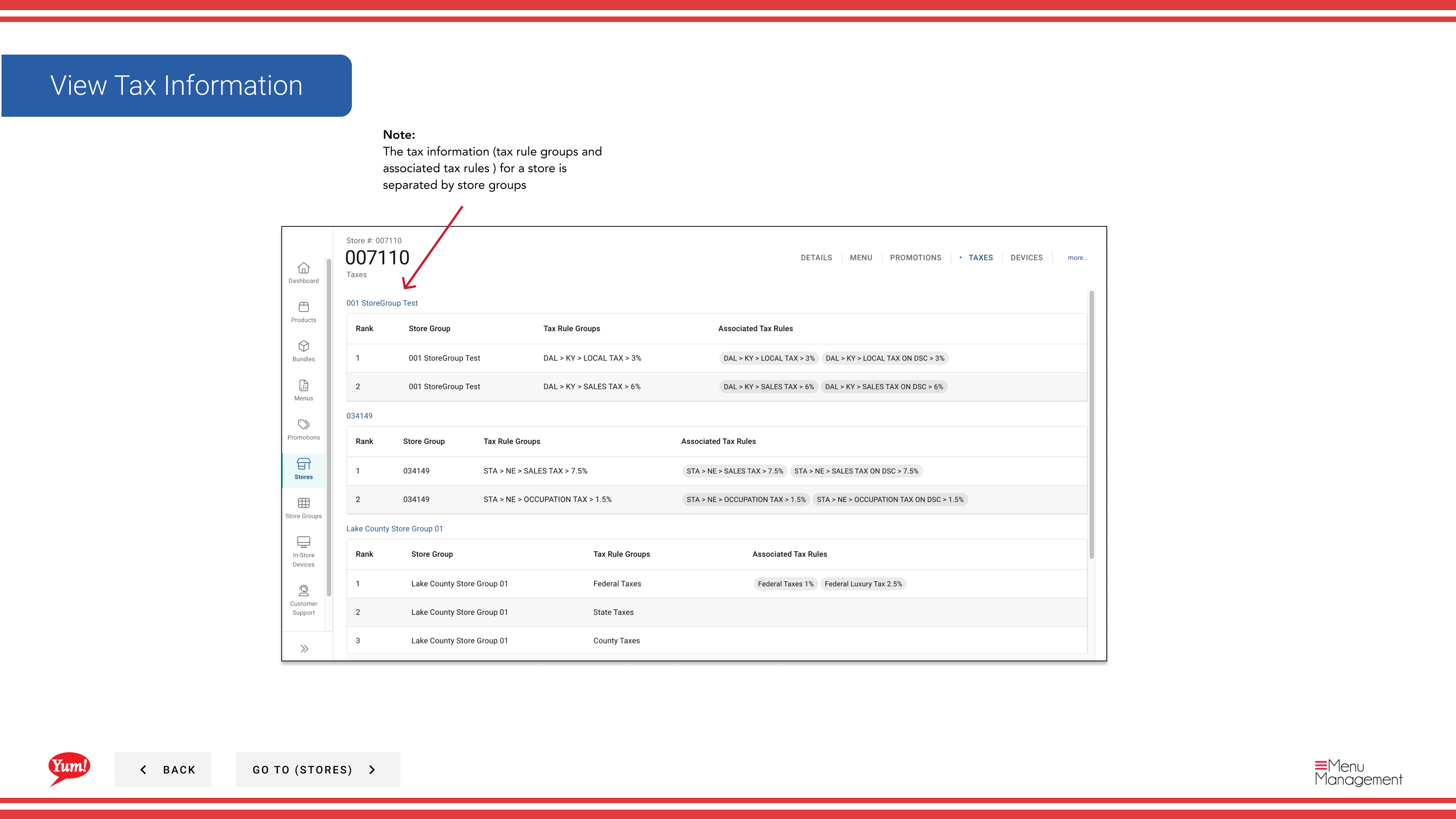
Step 5: Review the tax rules displayed. The table is organized by Store Group, showing:
- Store Group Name — The store group this tax rule belongs to
- Tax Rule Group — The name of the tax rule group
- Tax Rules — Individual tax rules applied (e.g., federal, state, local rates)
- Tax Rate — The percentage or amount applied
Tax information is separated by store group because different store groups may have different tax requirements by region or jurisdiction. If your store belongs to multiple store groups, you will see separate sections for each.
Use this view to verify that the correct tax rates are configured for your store's location before publishing menus to live ordering channels.
Related guides
- Edit Store Details — View other store information
- View/Unassign a Store's Store Groups — See which store groups this store belongs to
Part of the Admin Portal Guide · Section: Stores