Publish a Menu
What this guide covers
Publishes the assigned menu to the store's live ordering channels, making menu changes visible to customers.
Steps
Step 1: Navigate to the Stores section using the left-hand navigation menu.
Step 2: Click the Publish Menu button or tab. This opens the publish workflow.
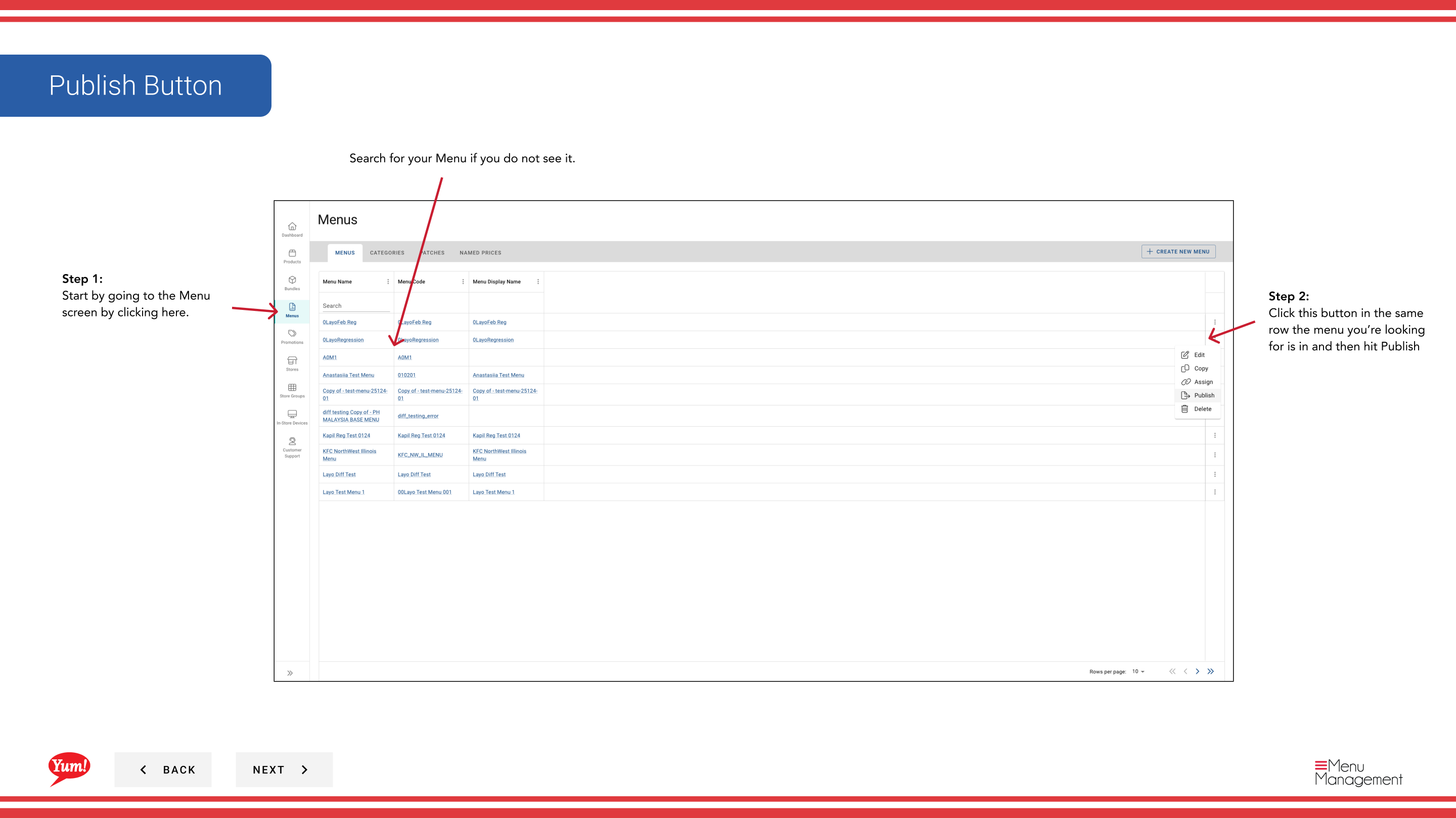
Step 3: Select the store(s) you want to publish menus for. You can search by store name, number, or code if the list is long.
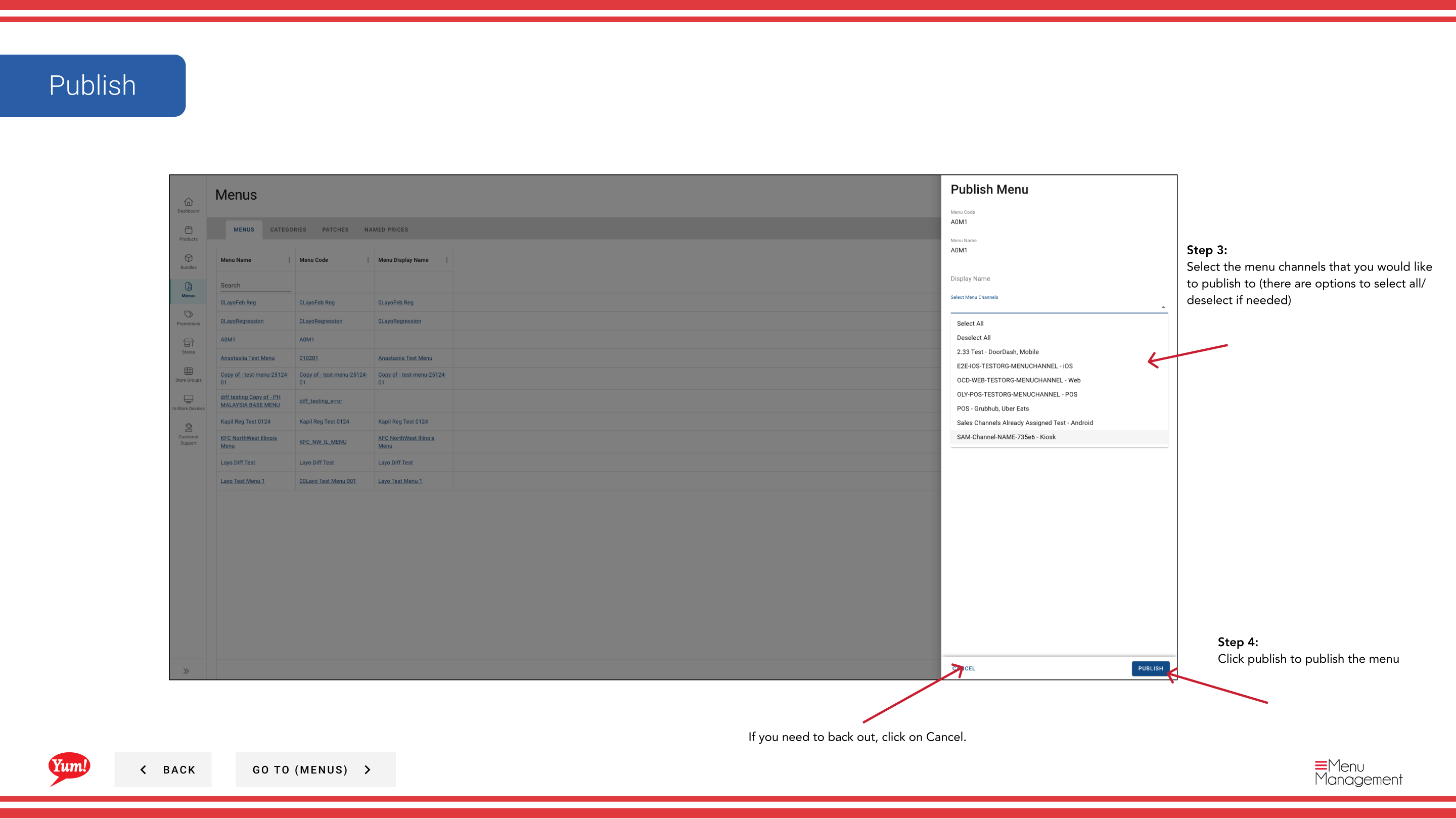
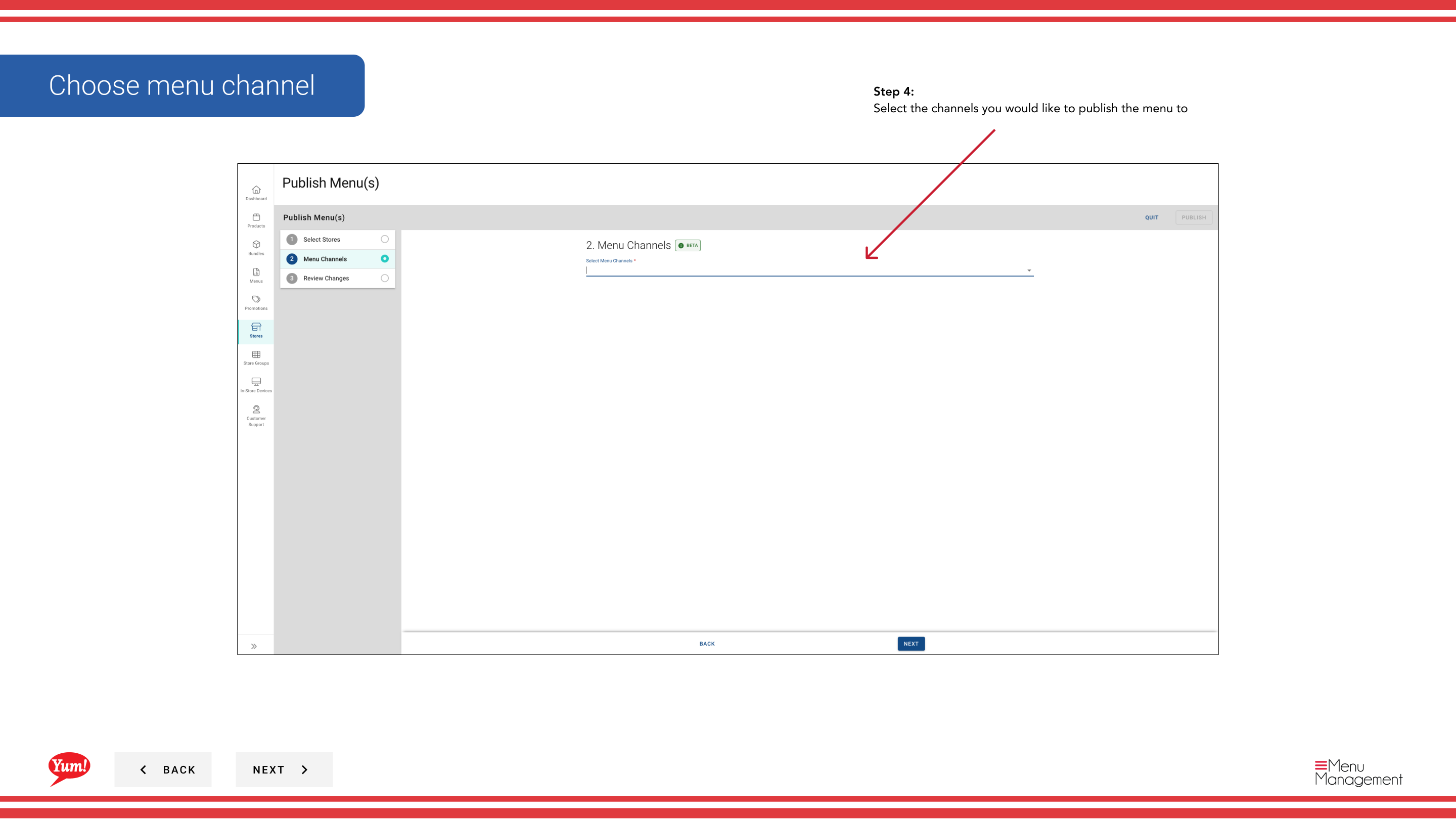
Step 4: Select the channels you want to publish to (e.g., Digital, Kiosk, In-Store). You can publish to multiple channels at once.
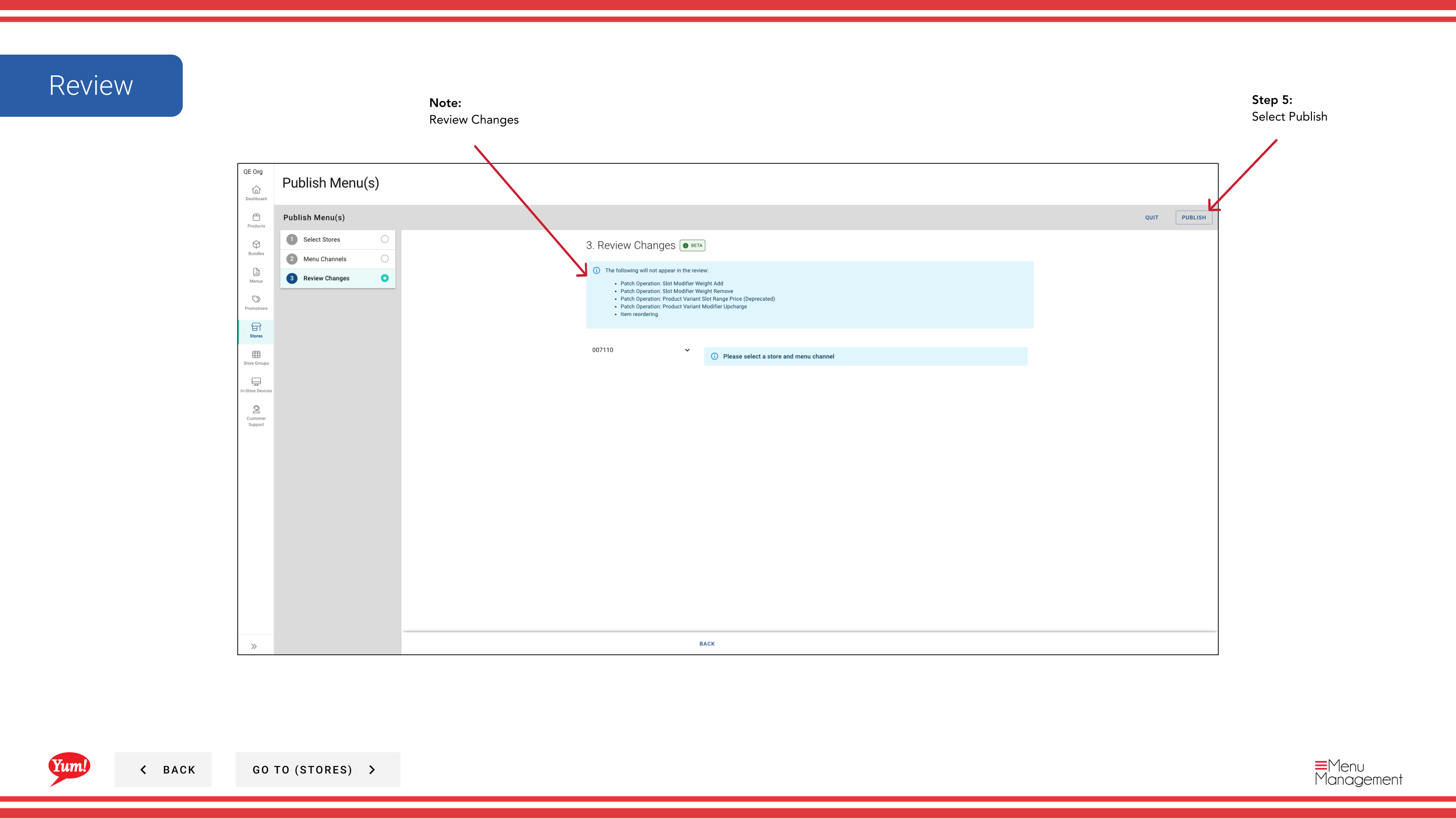
Step 5: Review the changes to be published. Click Review Changes if you need to verify what will be sent to customers.
Step 6: Once you've reviewed and confirmed, click the Publish button to push the menu live to the selected channels.
Before publishing: Verify that the correct menu is assigned to each channel in the store's Menu settings. Use View a Store's Menu to confirm the assignments.
Publishing a menu immediately makes changes visible to customers. Review all changes before clicking Publish.
Related guides
- View a Store's Menu — See assigned menus
- Assign New Menu — Link a menu to a channel before publishing
- Publish Menu — Alternative method to publish from the store Menus tab
Part of the Admin Portal Guide · Section: Stores