Create a Choice
What this guide covers
Creates a selection slot within a bundle (e.g., "Choose Your Side" or "Select Your Drink"), letting customers personalise their combo by selecting from available products.
Steps
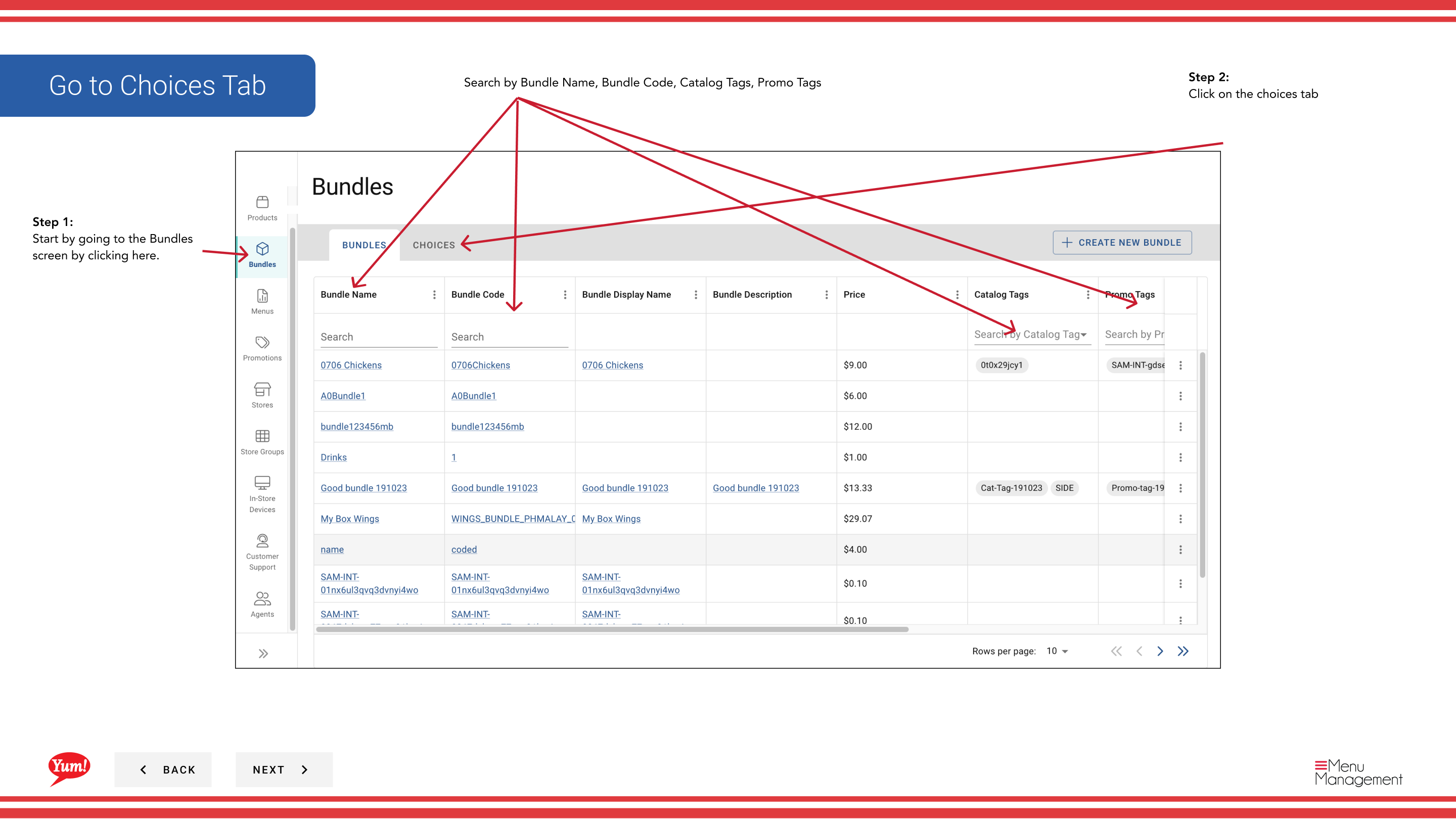
Step 1: Navigate to the Bundles section using the left-hand navigation menu.
Step 2: Click the Choices tab at the top of the Bundles screen.
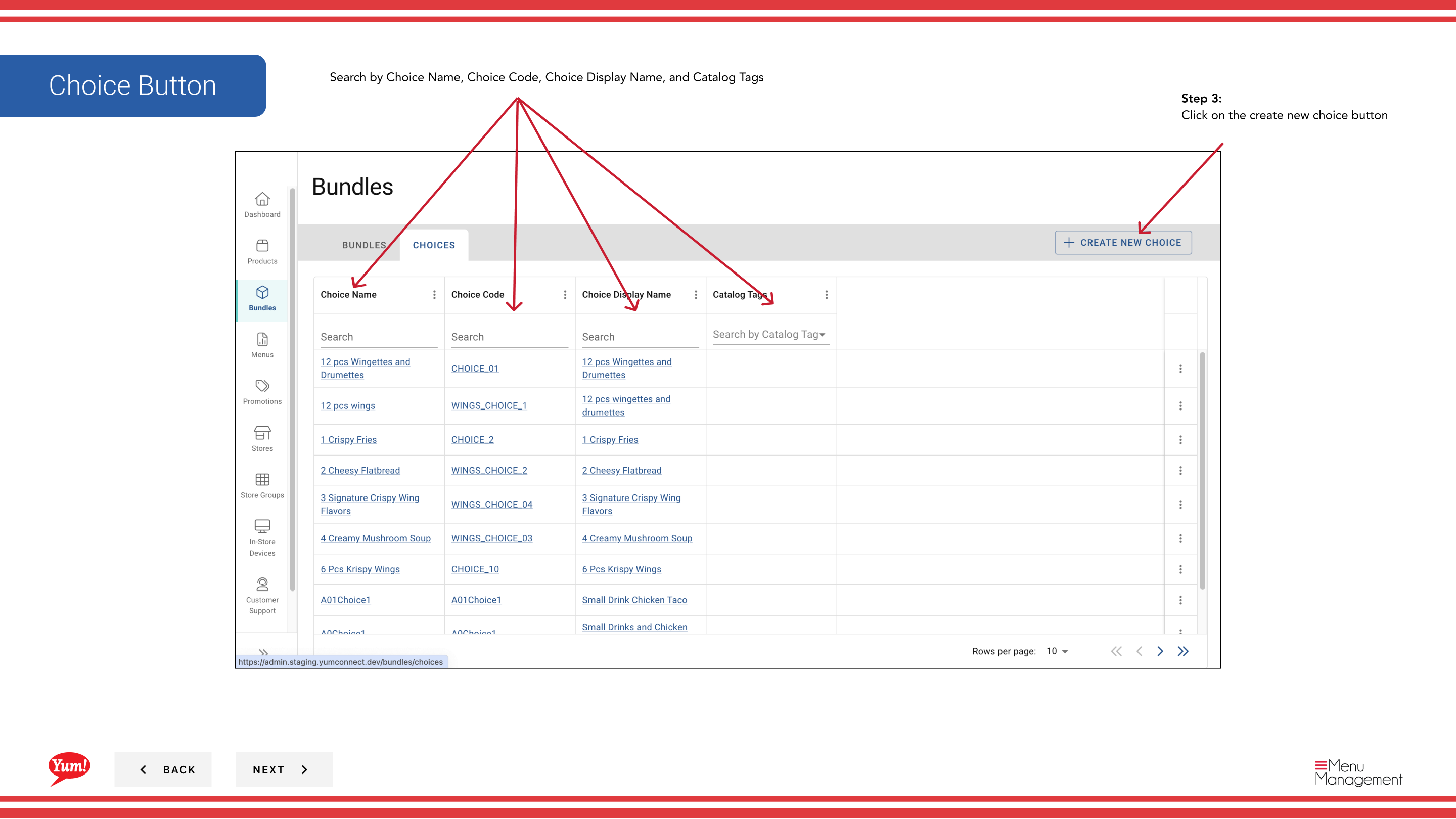
Step 3: Click the + Create New Choice button.
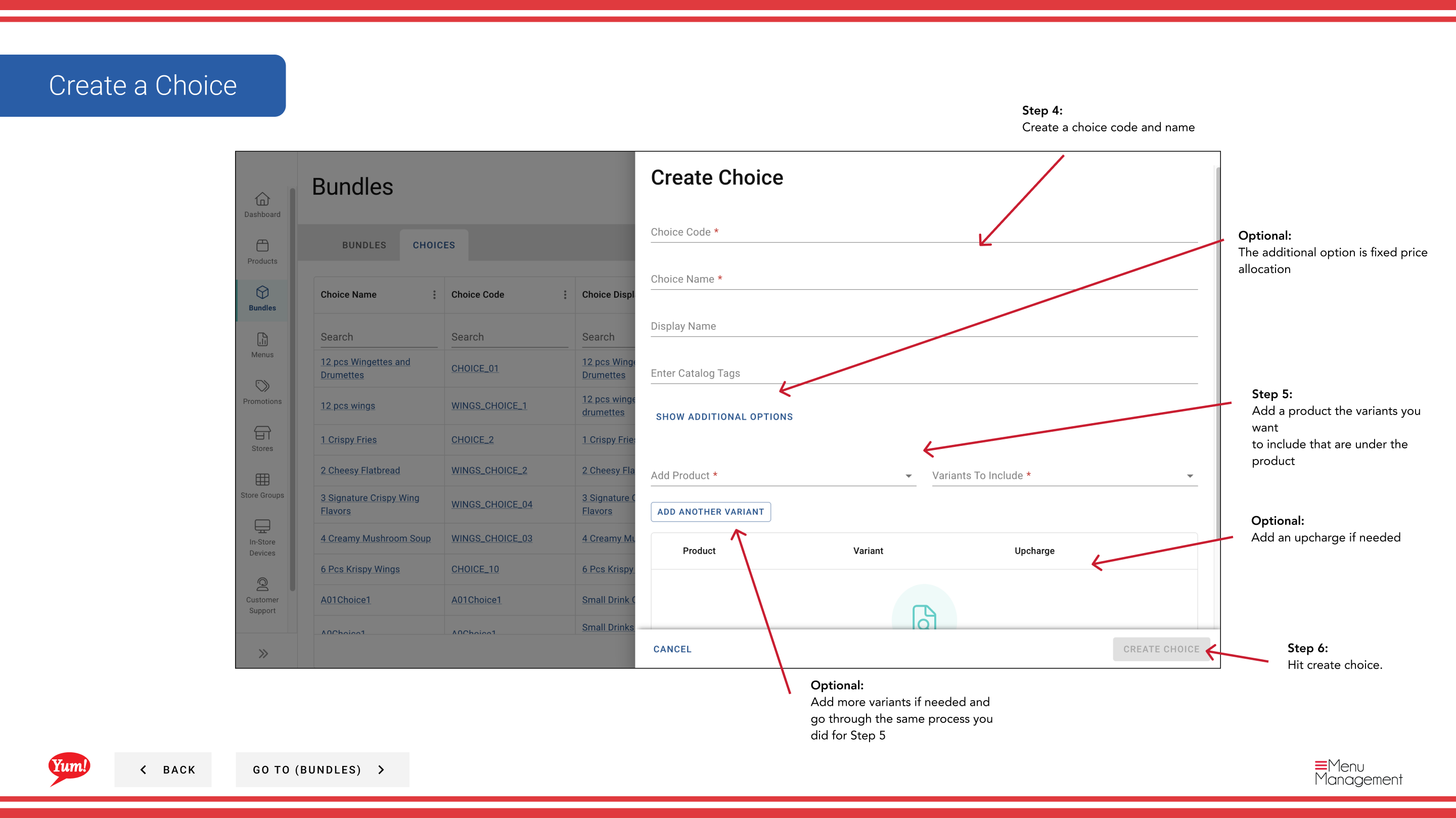
Step 4: Fill in the choice details:
| Field | What to enter | Notes |
|---|---|---|
| Choice Code * | Unique identifier | Use uppercase letters, numbers, and hyphens — e.g., CHOICE-SIDE |
| Choice Name * | Label shown to customers | e.g., "Choose Your Side", "Select Your Drink" |
| Choice Display Name | Shorter name for limited space | Defaults to Choice Name if left blank |
| Min Quantity | Minimum selections required | Set to 0 to make the choice optional |
| Max Quantity | Maximum selections allowed | e.g., 1 for single-select, 2 for dual-select |
Step 5: Add products and variants to this choice:
- Click the Products field and search for the product you want to include
- Select the product — a list of available variants appears
- Check the variants you want customers to be able to select (e.g., "Regular Fries", "Large Fries")
- Click Add to include this product
Step 6: Repeat Step 5 for any additional products or variants you want in this choice.
Step 7: Click Create Choice to save the choice.
You can search for choices later by Choice Name, Choice Code, Choice Display Name, or Catalog Tags to quickly find what you need.
Related guides
Part of the Admin Portal Guide · Section: Bundles