Delete a Bundle
What this guide covers
Permanently removes a bundle from the catalogue and all menus where it is assigned.
Steps
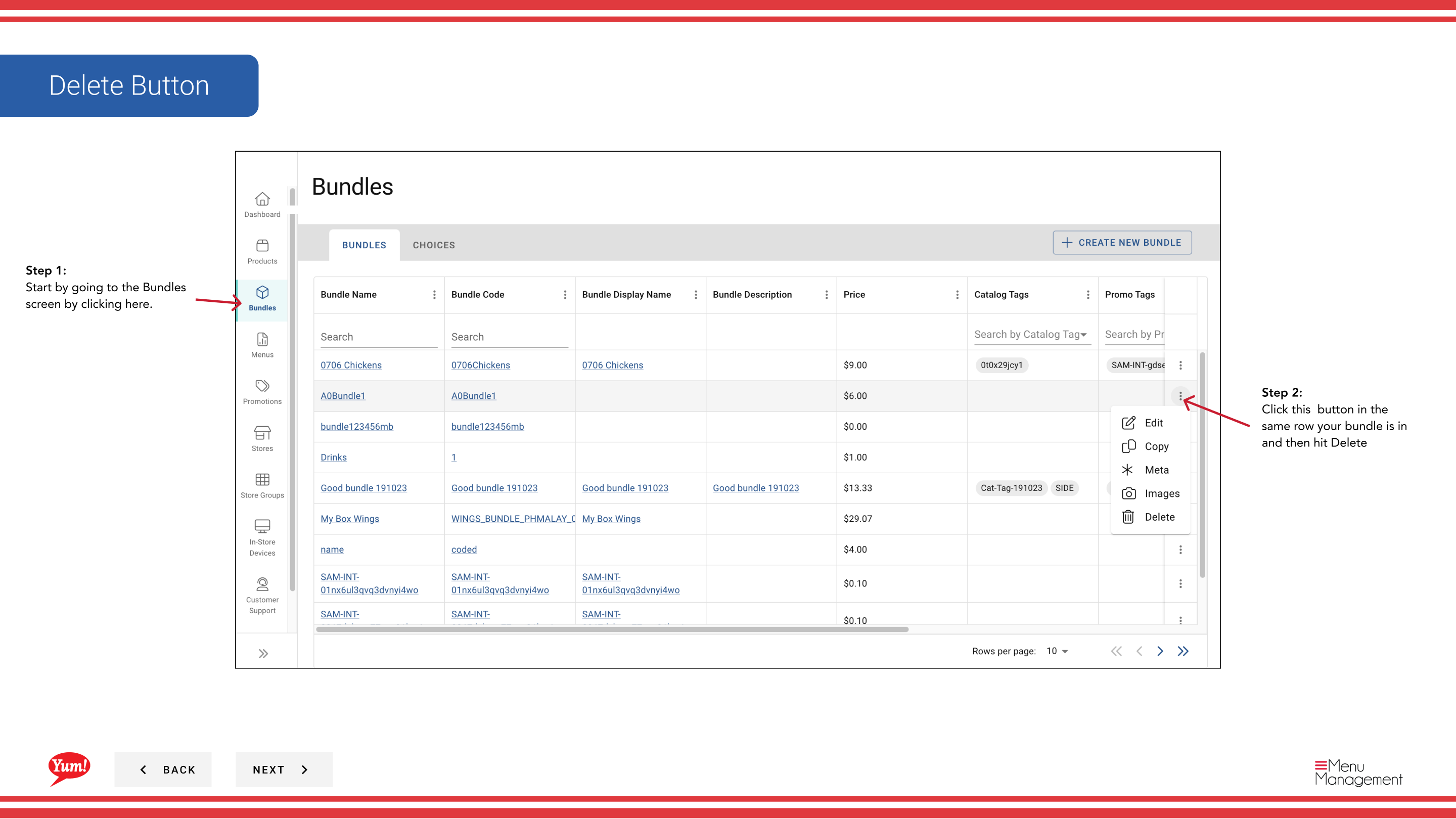
Step 1: Navigate to the Bundles section using the left-hand navigation menu.
Step 2: Find the bundle you want to delete by searching by Bundle Name, Bundle Code, Catalog Tags, or Promo Tags.
Step 3: Click the ⋮ (three-dot menu) button in the same row as the bundle, then select Delete.
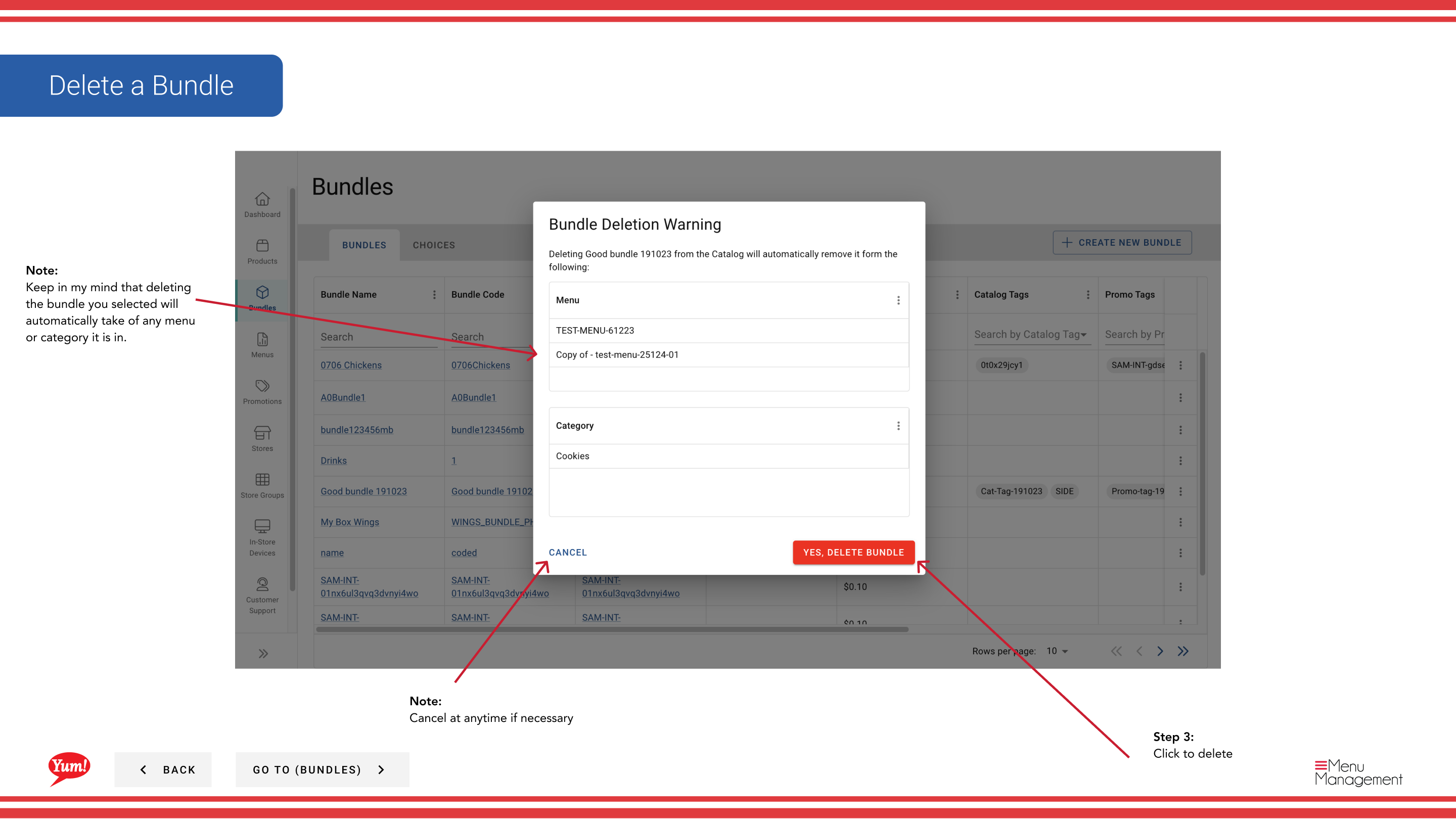
Step 4: A confirmation modal appears asking you to confirm the deletion. Click Confirm to delete the bundle, or click outside the modal or Cancel to keep it.
caution
This action is permanent. Deleting a bundle will automatically remove it from all menus and categories where it is assigned. You cannot undo this action.
Related guides
Part of the Admin Portal Guide · Section: Bundles