Add Metafields to a Bundle
What this guide covers
Attaches custom key-value data to a bundle for integrations, compliance, or internal tracking — only add metafields if your technical team has specified exact keys and values.
Steps
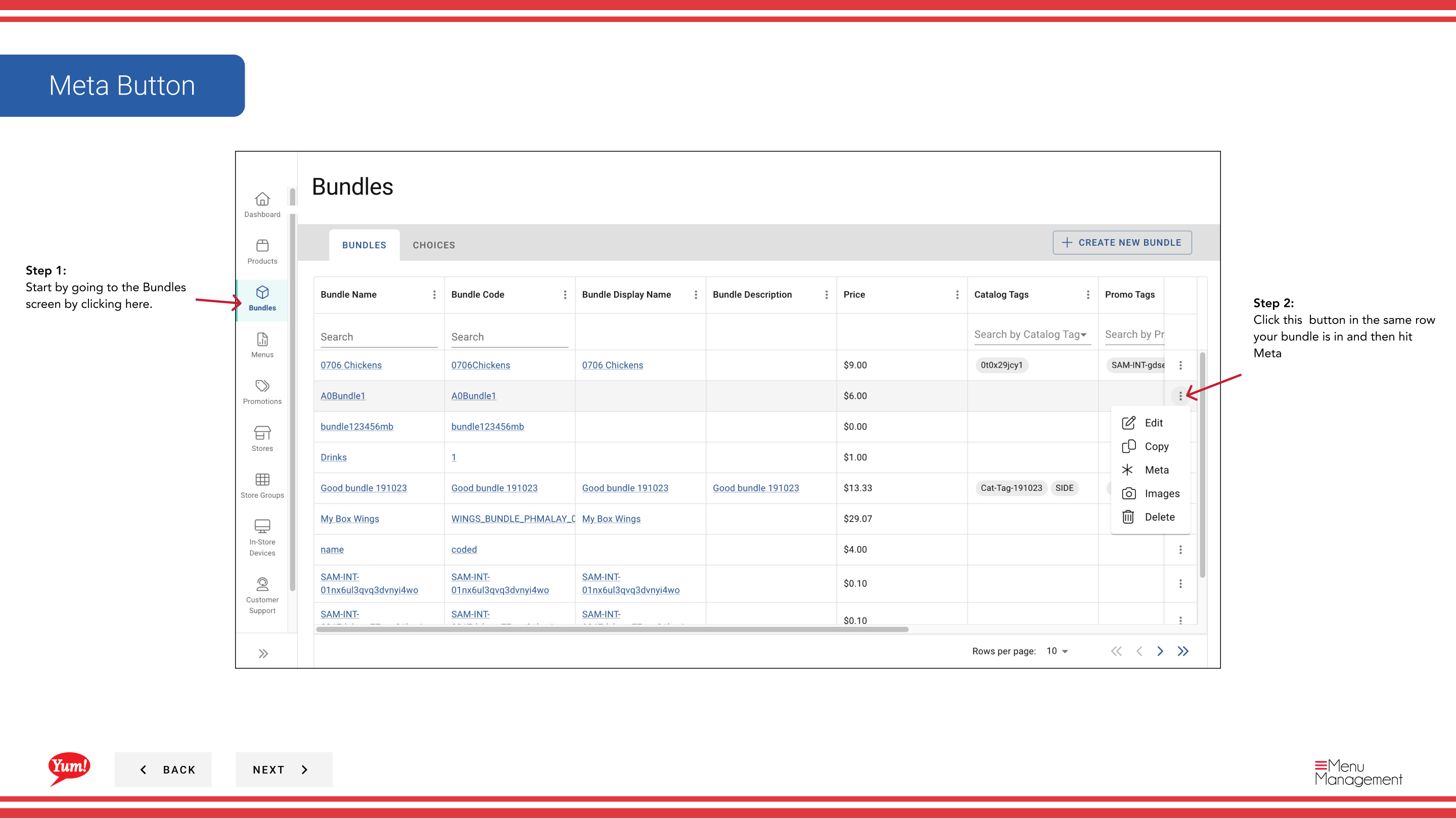
Step 1: Navigate to the Bundles section using the left-hand navigation menu.
Step 2: Find the bundle you want to add metafields to by searching by Bundle Name, Bundle Code, Catalog Tags, or Promo Tags.
Step 3: Click the ⋮ (three-dot menu) button in the same row as the bundle, then select Meta.
Step 4: A drawer opens with two sections: Public Metafields and Private Metafields. You can add either or both.
For Public Metafields (visible to integrations):
Step 5: Click Add Metafield in the Public Metafields section.
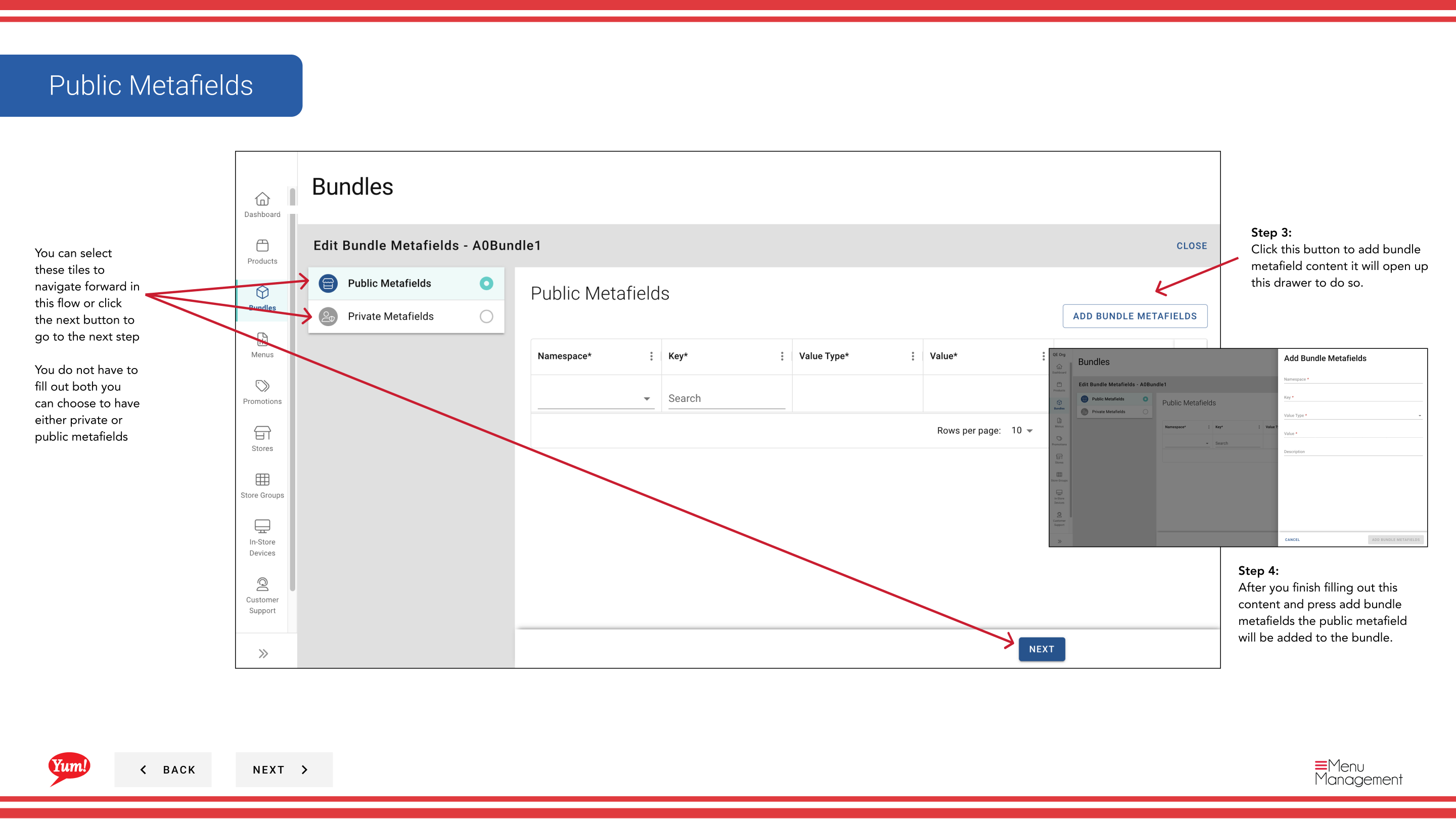
Step 6: Fill in the key-value pairs:
- Key: The metadata field name (e.g.,
external_id,supplier_code) - Value: The corresponding value (e.g.,
12345)
Click Add Metafield to confirm.
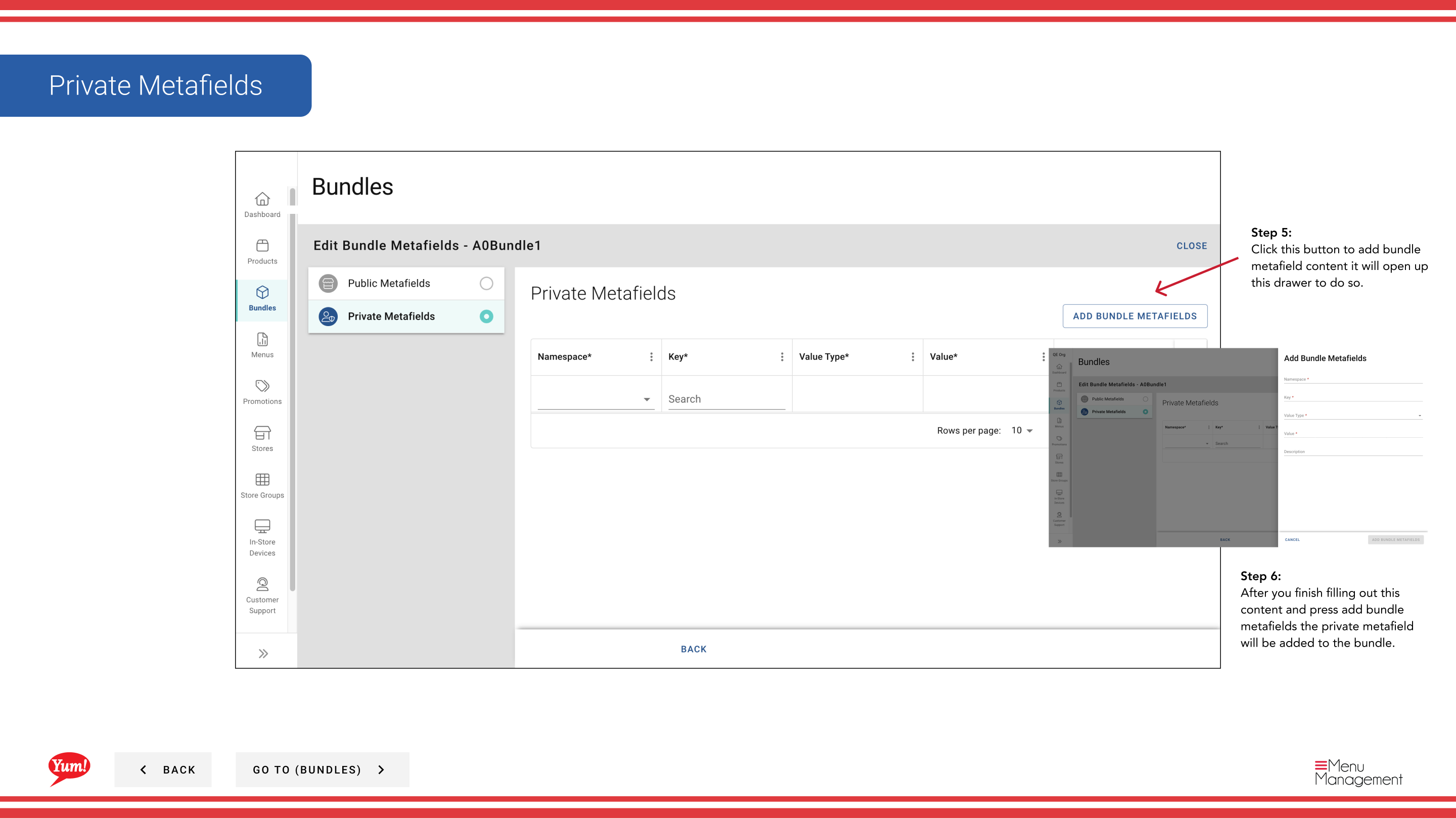
For Private Metafields (internal use only):
Step 7: Click Add Metafield in the Private Metafields section.
Step 8: Fill in the key-value pairs using the same format as above.
Click Add Metafield to confirm.
Step 9: Once all metafields are added, click Save to commit the changes.
Only add metafields if your technical team has specified the exact keys and values needed for integrations or compliance. Incorrect metafields can break integrations.
You can add multiple public and private metafields. You are not required to add both — choose only what your system needs.
Related guides
Part of the Admin Portal Guide · Section: Bundles