Copy a Bundle
What this guide covers
Duplicates an existing bundle to quickly create similar offerings with the same choices and configuration.
Steps
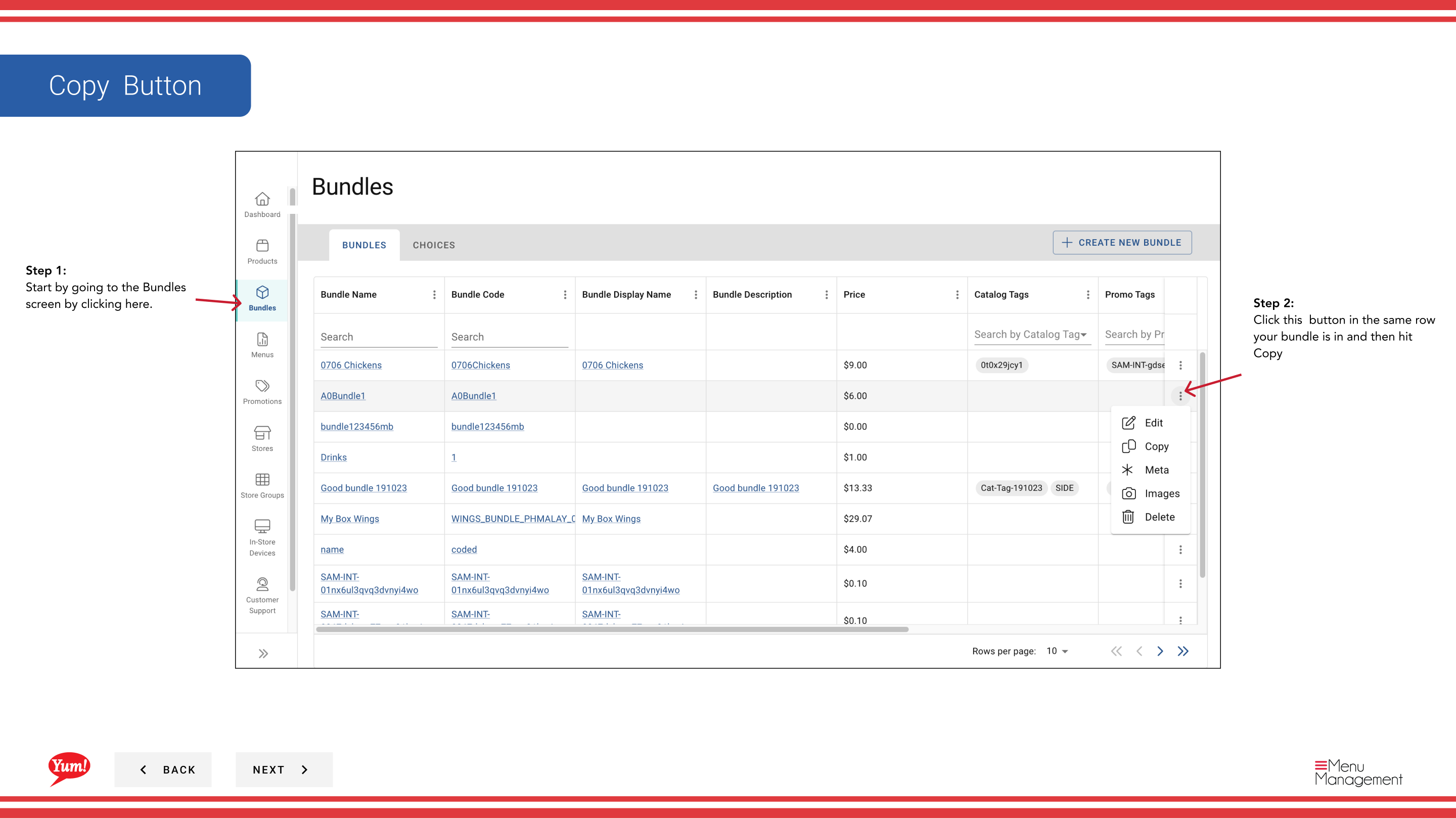
Step 1: Navigate to the Bundles section using the left-hand navigation menu.
Step 2: Find the bundle you want to copy by searching by Bundle Name, Bundle Code, Catalog Tags, or Promo Tags.
Step 3: Click the ⋮ (three-dot menu) button in the same row as the bundle, then select Copy.
Step 4: A form opens to create the new bundle. Enter a unique Bundle Code (required).
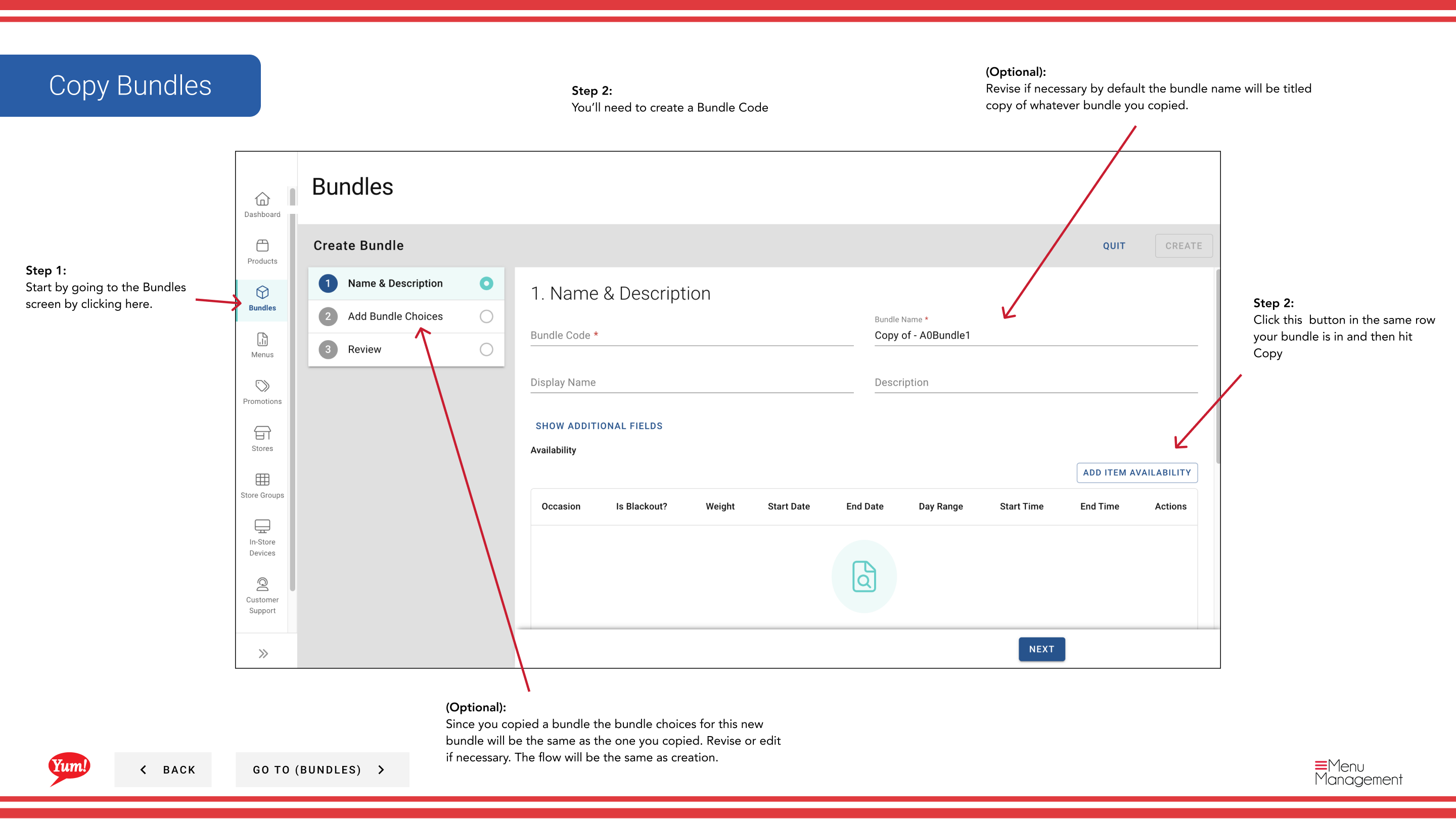
Step 5: Adjust the Bundle Name if needed. By default, it will be "Copy of [Original Name]" — you can change this to something more descriptive.
Step 6: Review all other fields (Description, Choices, etc.). The copied bundle includes all choices from the original. Modify any fields as needed.
Step 7: Click Create to finish copying the bundle.
The copied bundle inherits all choices and configuration from the original. You can edit any of these details before or after creation.
Related guides
Part of the Admin Portal Guide · Section: Bundles