Add an Image to a Bundle
What this guide covers
Uploads or links a display image to a bundle so customers see the correct combo visual when ordering on online channels.
Steps
Step 1: Navigate to the Bundles section using the left-hand navigation menu.
Step 2: Find the bundle you want to add an image to by searching by Bundle Name, Bundle Code, Catalog Tags, or Promo Tags.
Step 3: Click the ⋮ (three-dot menu) button in the same row as the bundle, then select Images.
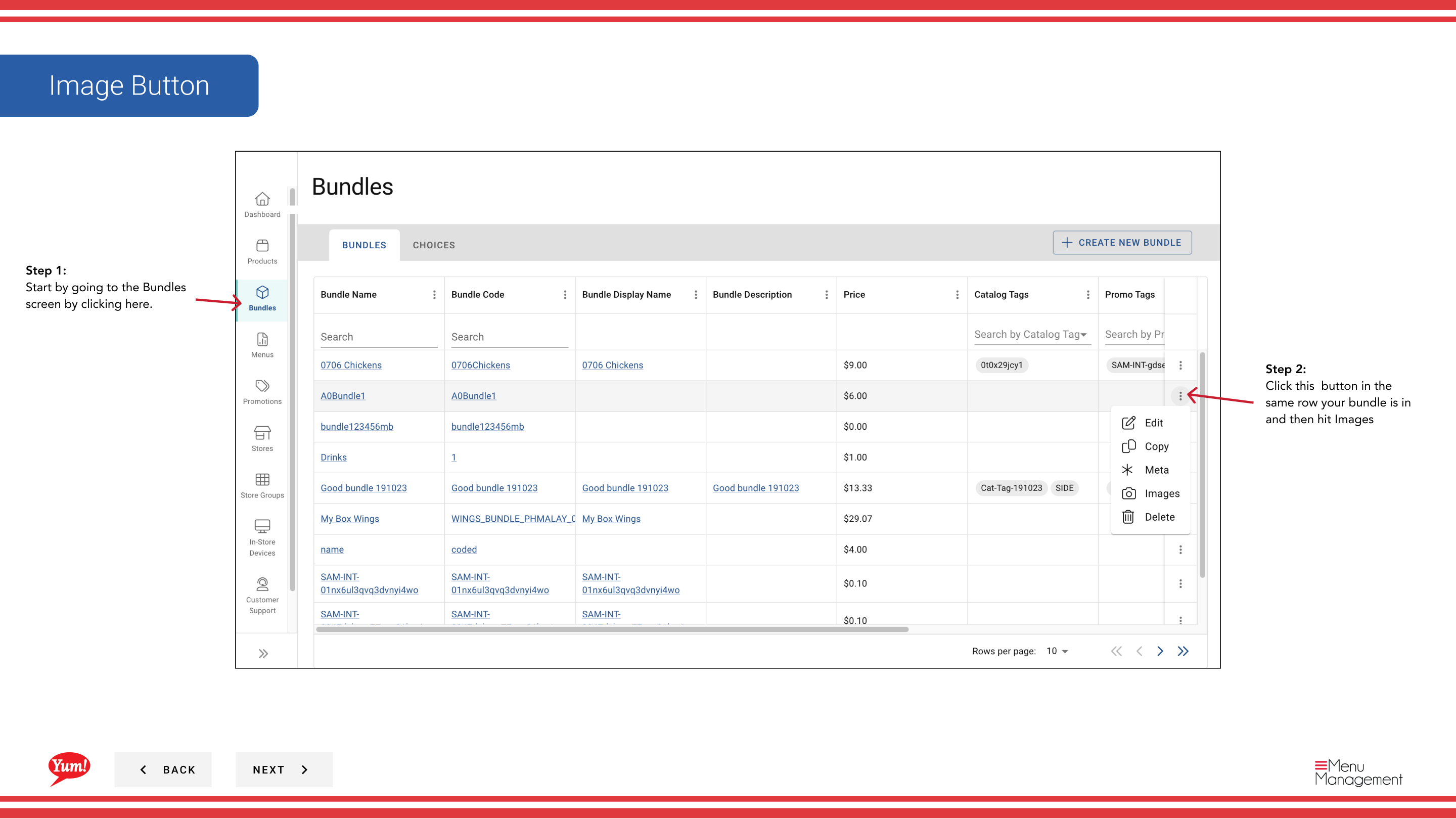
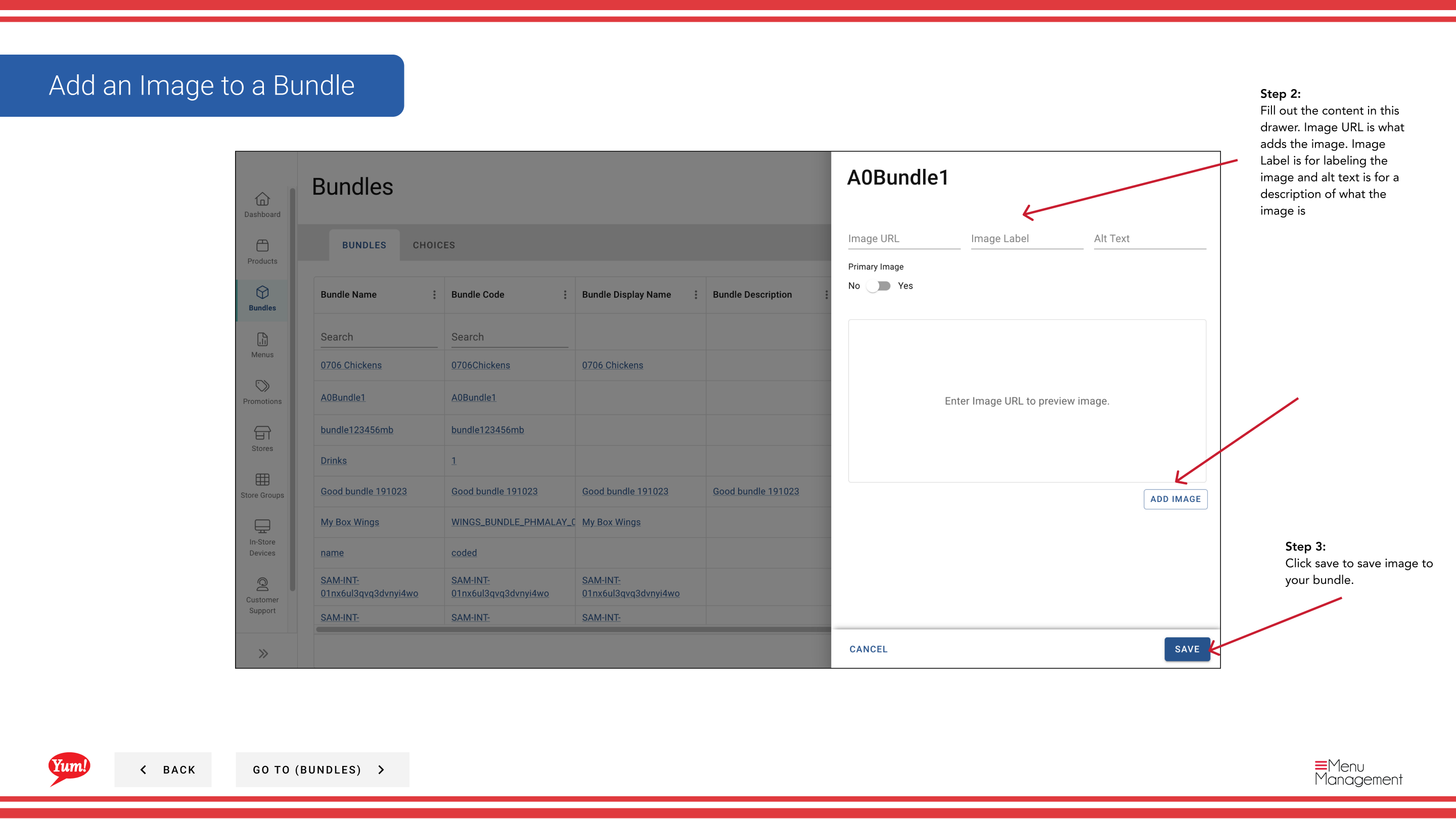
Step 4: A drawer opens with image fields. Fill in the following information:
| Field | What to enter | Notes |
|---|---|---|
| Image URL | Full URL to the image file | e.g., https://cdn.example.com/bundle-3pc.jpg. The image should be in a standard format (JPG, PNG). |
| Image Label | Name or title for the image | e.g., "3-Piece Meal" or "Main Product Image" |
| Alt Text | Description of what the image shows | Used for accessibility and displays if the image cannot load |
| Primary Image | Yes or No | Toggle to "Yes" to set this as the main image displayed on ordering channels |
Step 5: Click Save to attach the image to the bundle.
tip
You can add multiple images to a bundle. Set one as the Primary Image (Yes) so customers see the best representation on ordering platforms.
Related guides
Part of the Admin Portal Guide · Section: Bundles