Add Metafields to a Category
What this guide covers
Attaches custom key-value data to a category for integration with external systems or market-specific requirements. Only add metafields if your technical team has specified the exact keys and values needed.
Steps
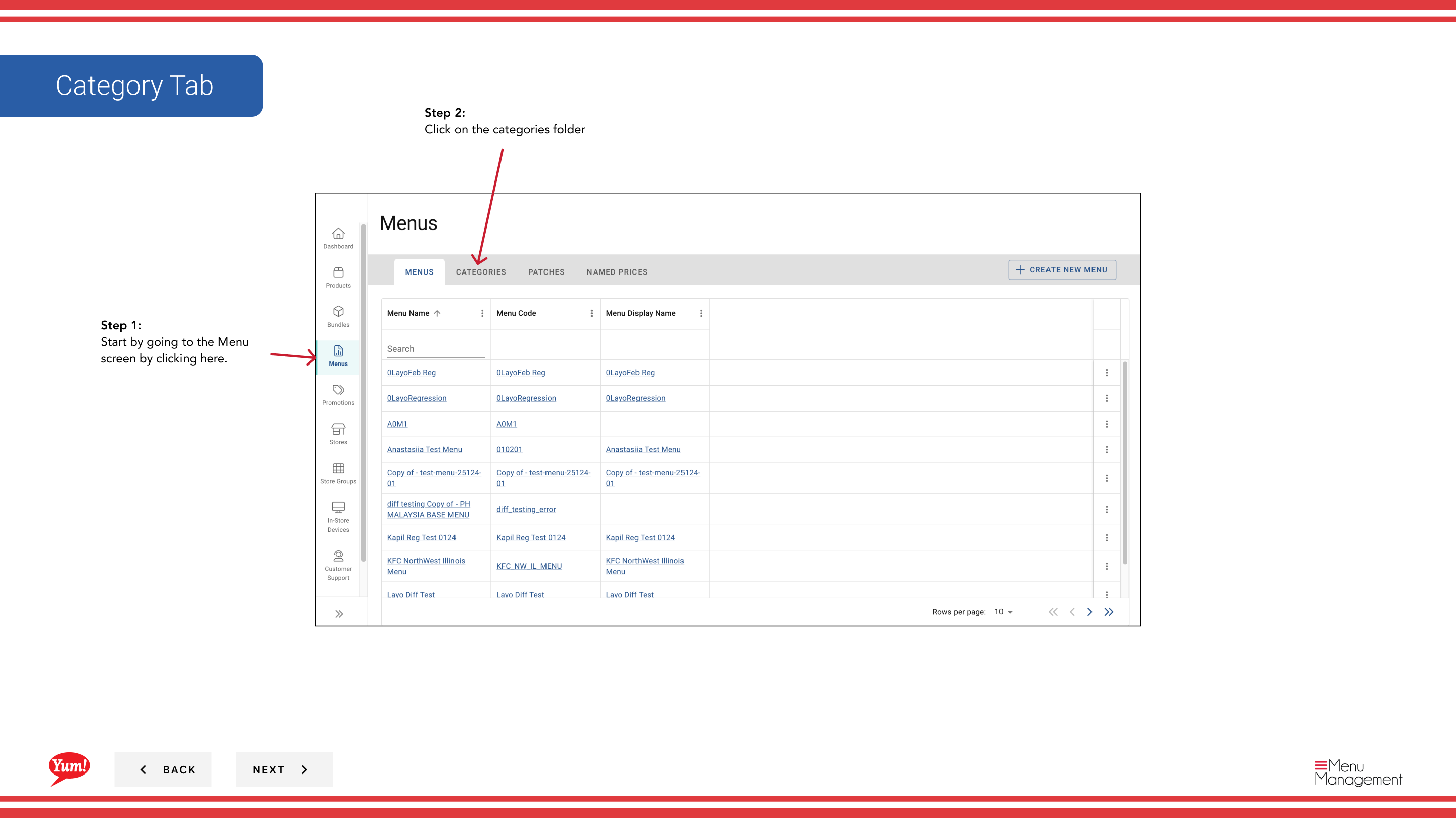
Step 1: Navigate to the Menus section using the left-hand navigation menu.
Step 2: Click on the Categories folder to view all categories.
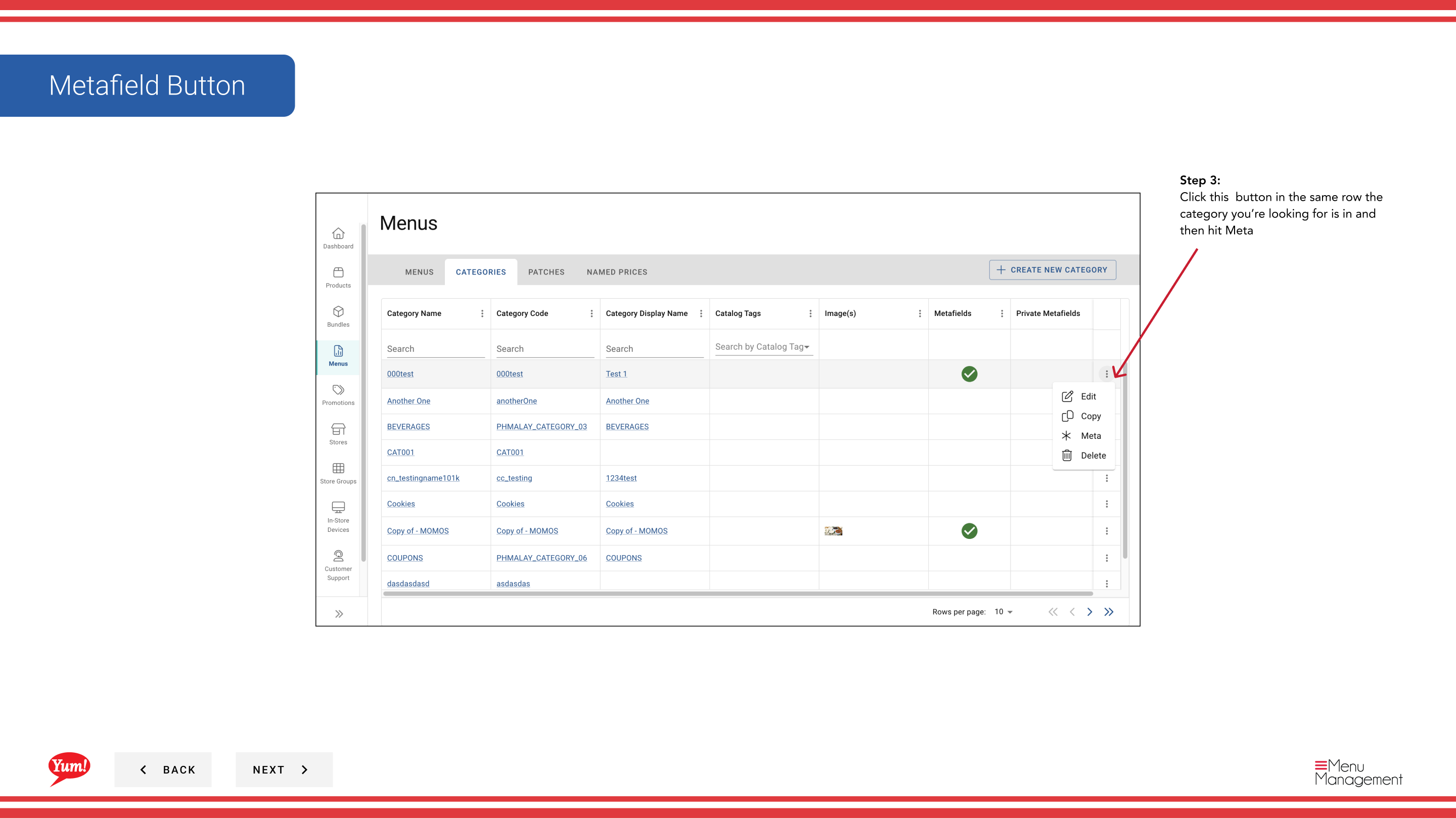
Step 3: Find the category you want to add metafields to, click the action menu (three dots) in the same row, and select Meta.
Step 4: Click the Add Metafield button to open the metafield entry form.
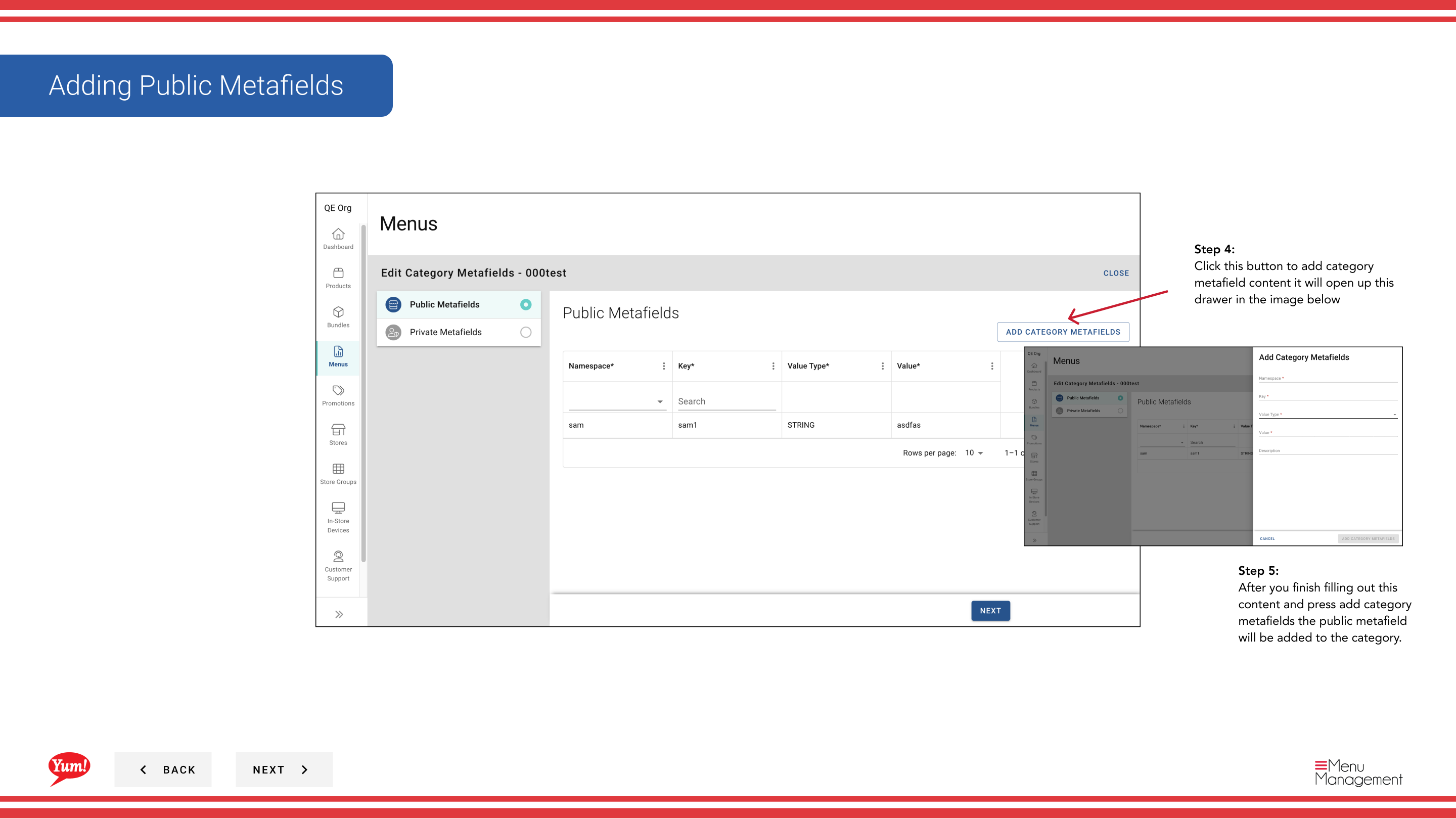
Step 5: Fill in the metafield details:
| Field | What to enter | Notes |
|---|---|---|
| Key * | The field name as required by your integration | e.g., display_order, region, supplier_id. Ask your technical team for exact key names. |
| Value * | The data value for this key | e.g., 1, APAC, SUP-12345. Must match the format expected by your integration. |
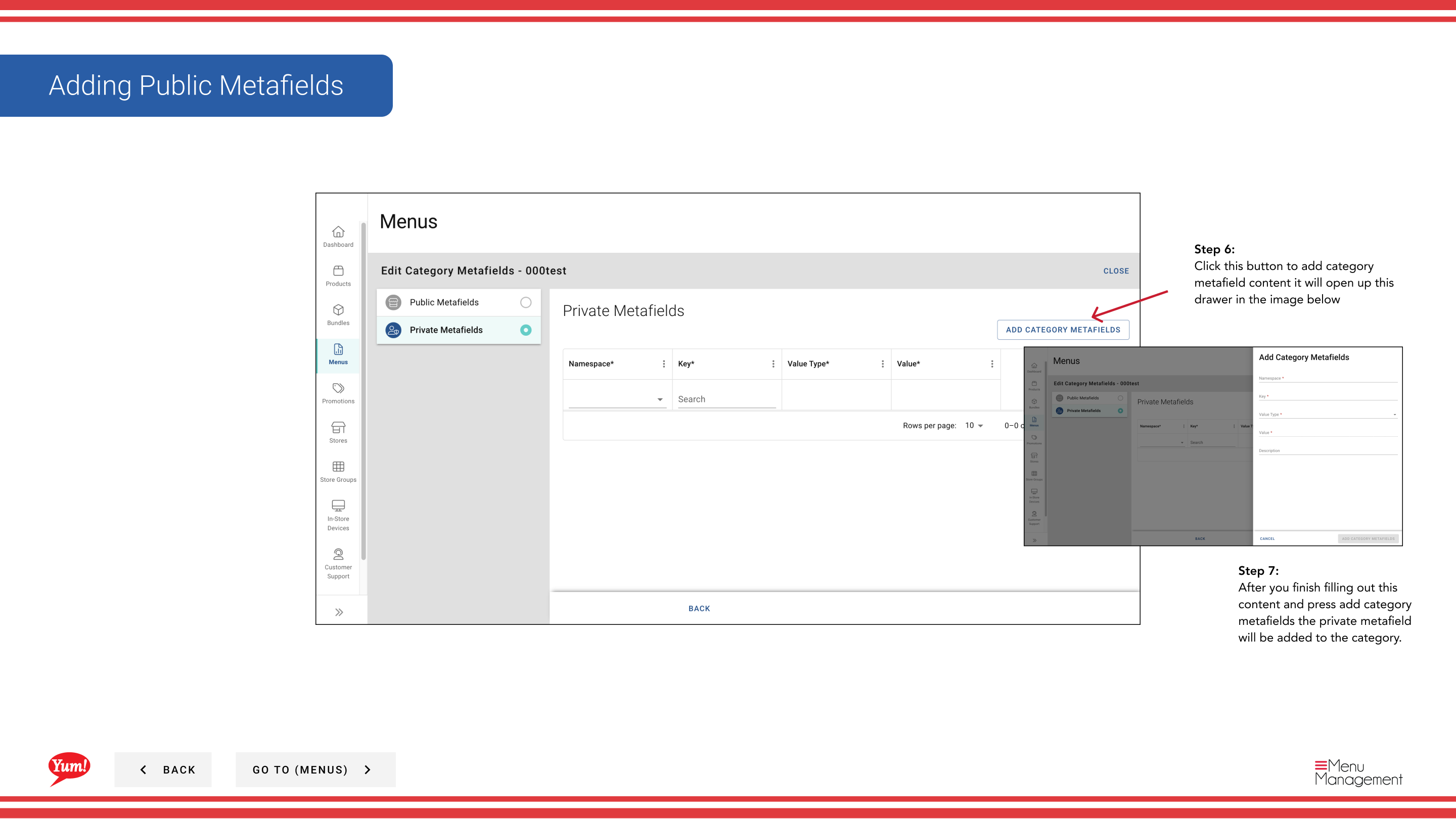
| Type | Public or Private | Public: Visible to external integrations. Private: Visible only to your team. |
Click Add Metafield to save this entry.
Step 6: To add more metafields, repeat Step 4–5 for each key-value pair needed.
Step 7: Once you have added all required metafields, click Save or Close to confirm and apply the changes to the category.
Only add metafields if your technical team has specified the exact keys and values to use. Incorrect metafields may break integrations or cause unexpected behavior.
Related guides
- Edit a Category — Edit other category details
- Create a Category — Create a new category
Part of the Admin Portal Guide · Section: Menus