Copy a Category
What this guide covers
Duplicates an existing category to speed up menu structuring without having to recreate it from scratch.
Steps
Step 1: Navigate to the Menus section using the left-hand navigation menu.
Step 2: Click on the Categories folder to view all categories.
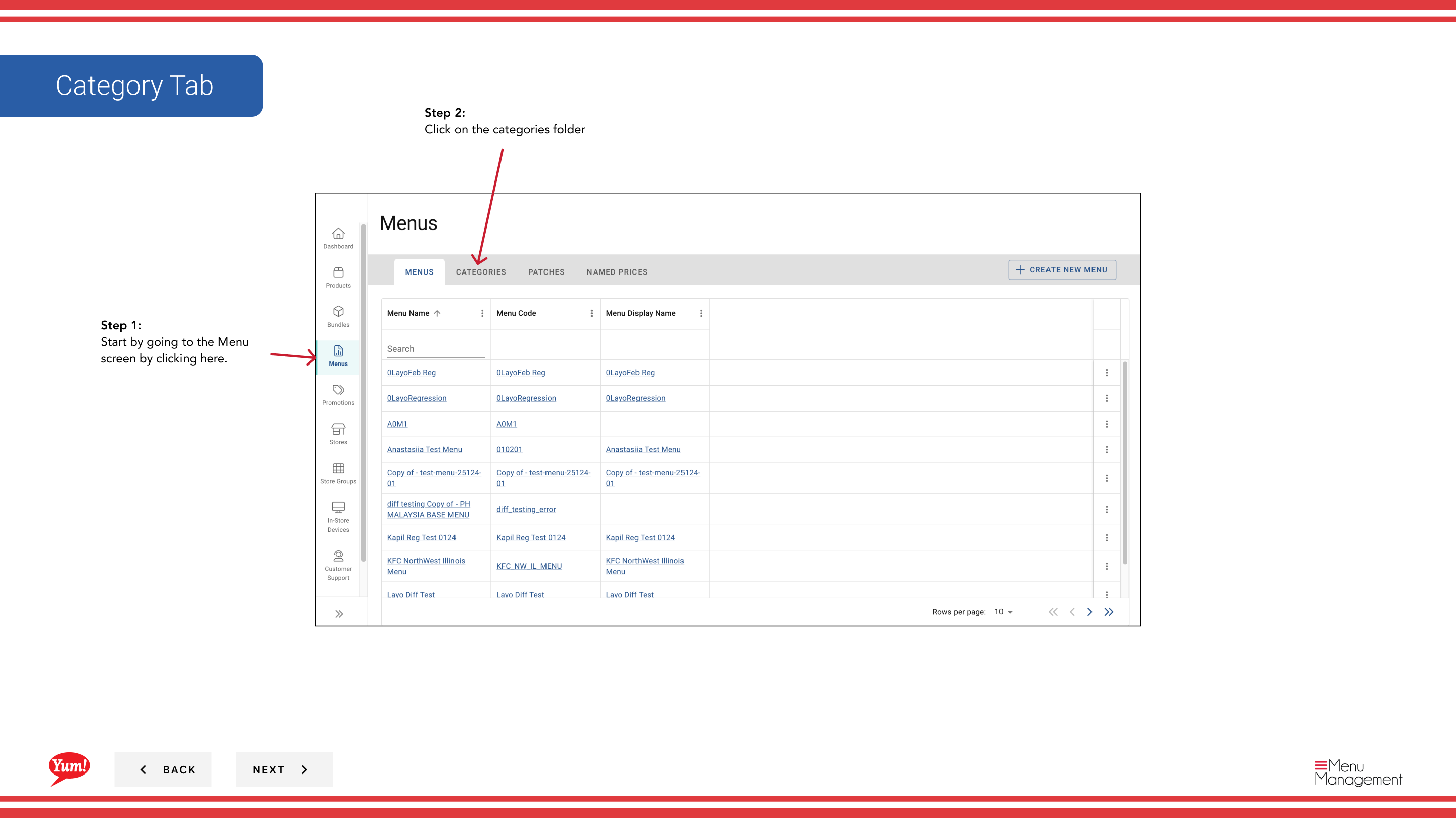
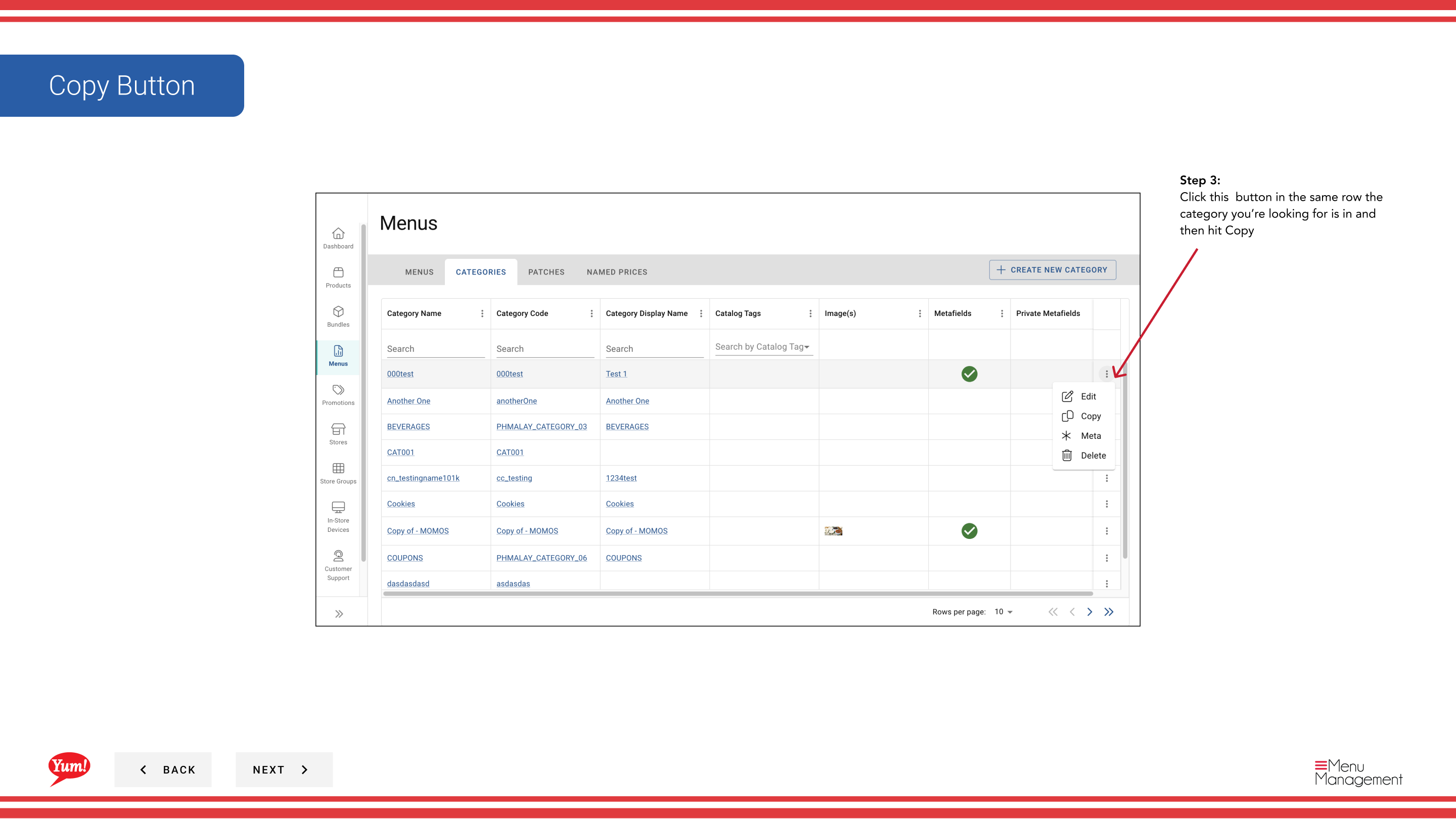
Step 3: Find the category you want to copy, click the action menu (three dots) in the same row, and select Copy.
Step 4: The category form will appear with fields pre-filled from the original. Update the required fields:
| Field | What to enter | Notes |
|---|---|---|
| Category Code * | A unique identifier for the new category | Use uppercase letters and hyphens — e.g., CAT-CHICKEN-GRILLED. Must be different from the original. Cannot be changed after creation. |
| Category Name * | The display name for this category | e.g., "Grilled Chicken". Change from the original if needed. Shown to customers on the menu. |
| Display Name | Optional alternate name | Copied from original but can be updated. |
| Description | Optional internal notes | Copied from original but can be updated. |
| Available Hours | Optional time window | Copied from original but can be updated. |
All configuration from the original category (display settings, availability hours, tags) is copied automatically.
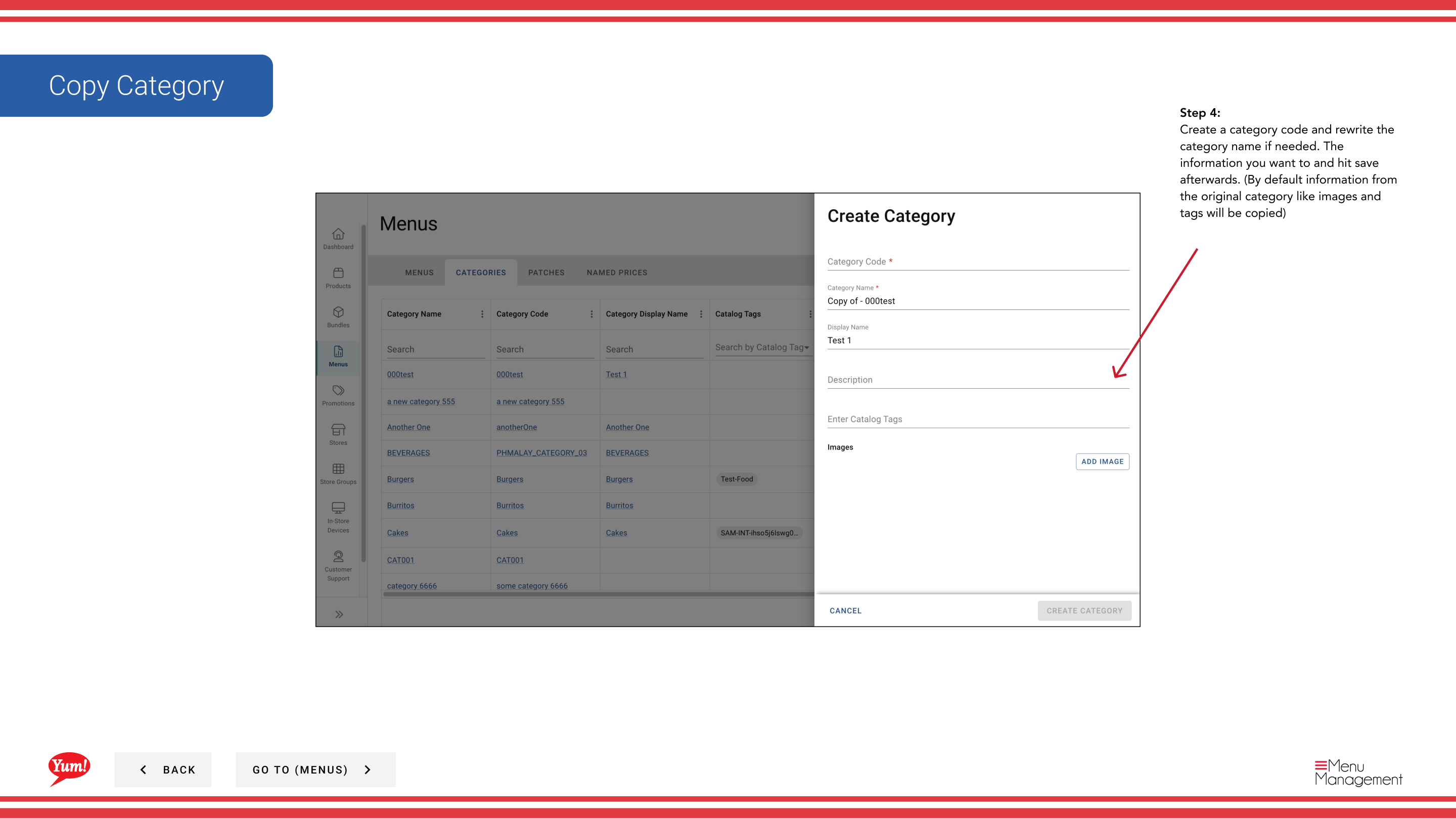
Step 5: Click Create to save the copied category.
The copied category will have the same configuration as the original but with a new unique category code. You can edit it further after creation if needed.
Related guides
- Edit a Category — Modify the copied category
- Create a Category — Create a new category from scratch
- Delete a Category — Remove a category
Part of the Admin Portal Guide · Section: Menus