Publish a Menu
What this guide covers
Pushes an assigned menu to live digital ordering channels. This process makes the menu available to customers for ordering.
Steps
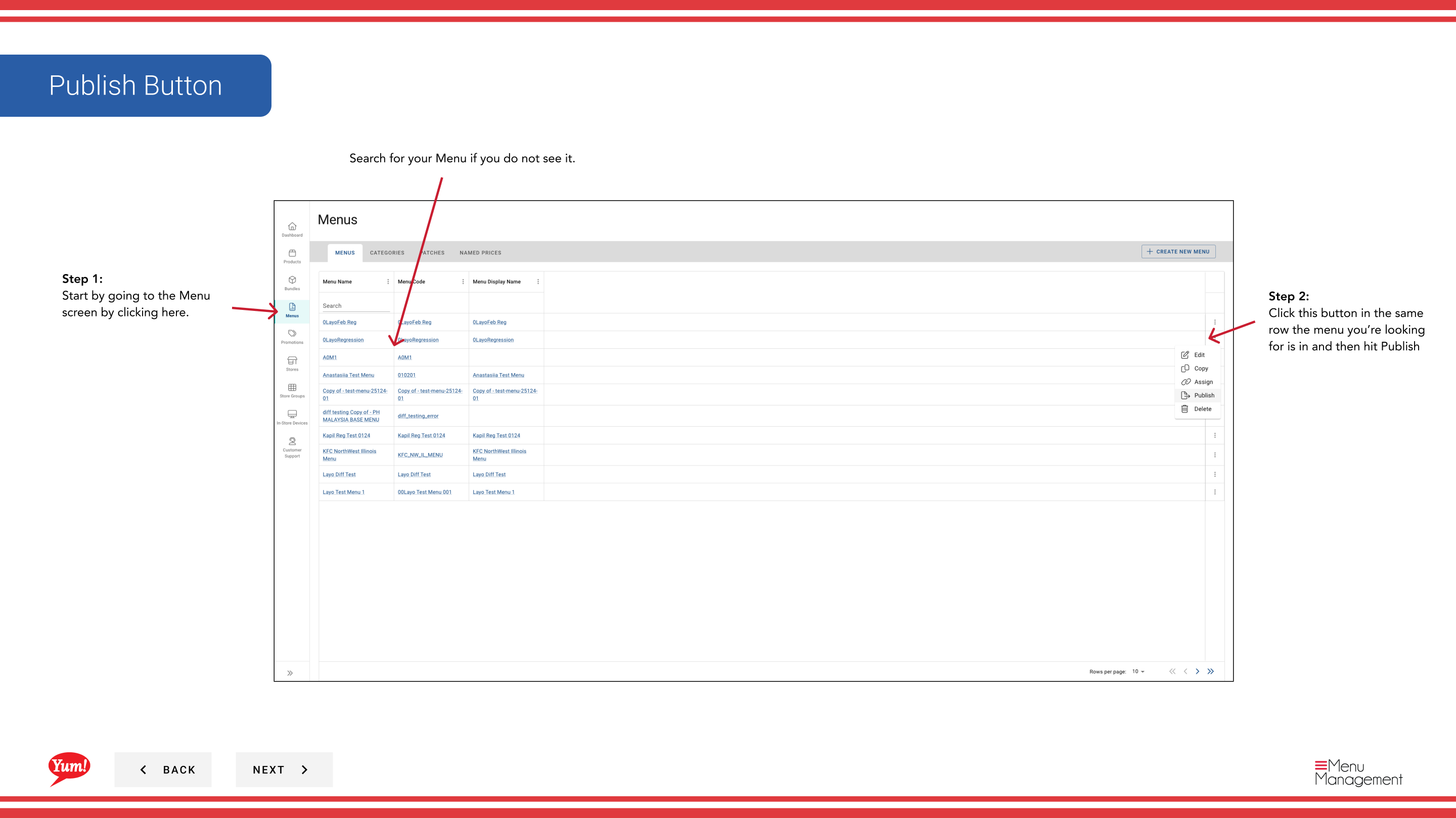
Step 1: Navigate to the Menus section using the left-hand navigation menu.
Step 2: Find the menu you want to publish in the menus list, click the action menu (three dots) in the same row, and select Publish.
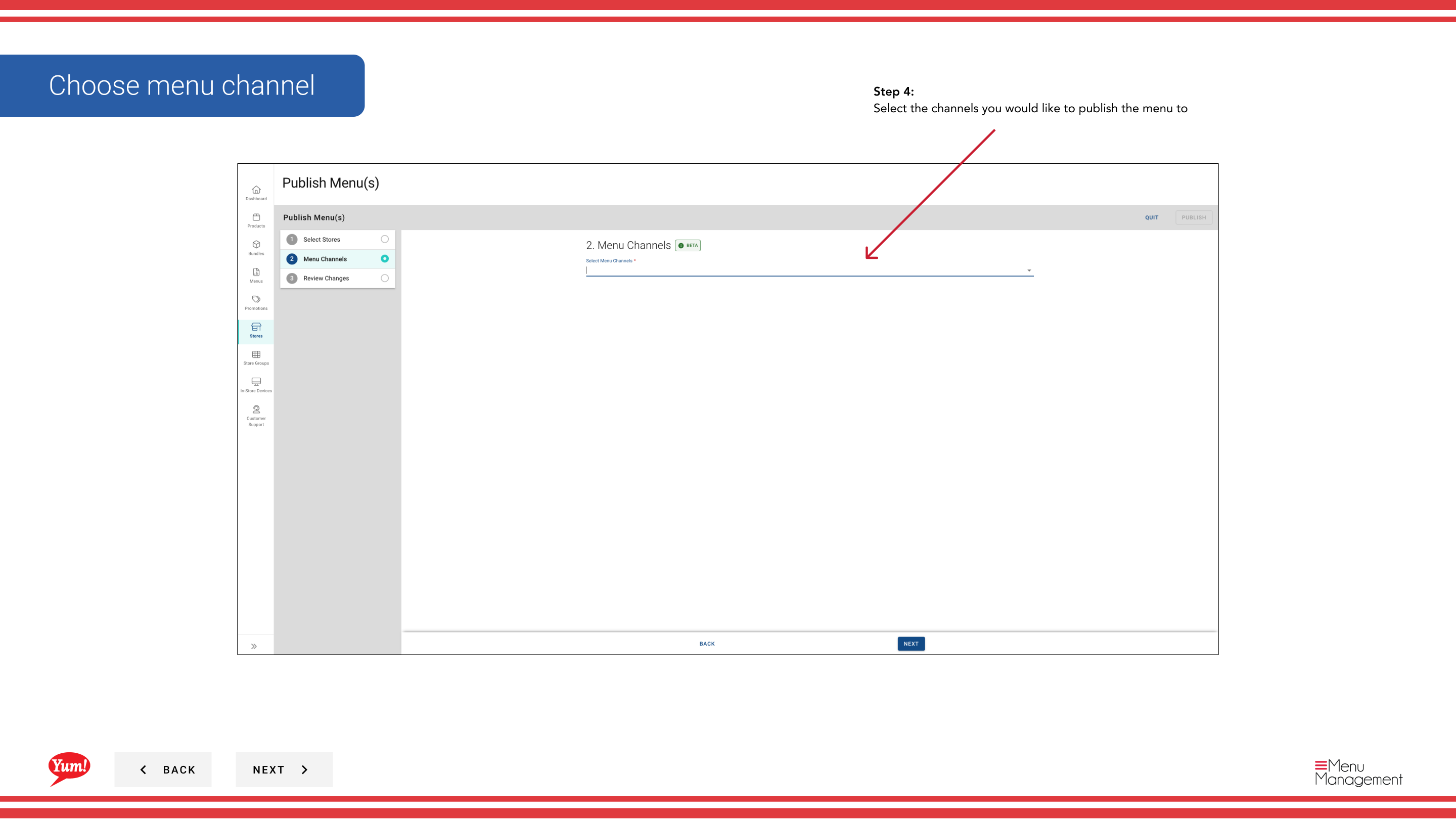
Step 3: On the Channels step, select which channels to publish this menu to. You can use the Select All or Deselect All options to quickly toggle all channels.
| Field | What to enter | Notes |
|---|---|---|
| Channels * | Select one or more channels | Choose the channels where this menu should go live (e.g., web, mobile, delivery platforms). Only selected channels will receive the menu. |
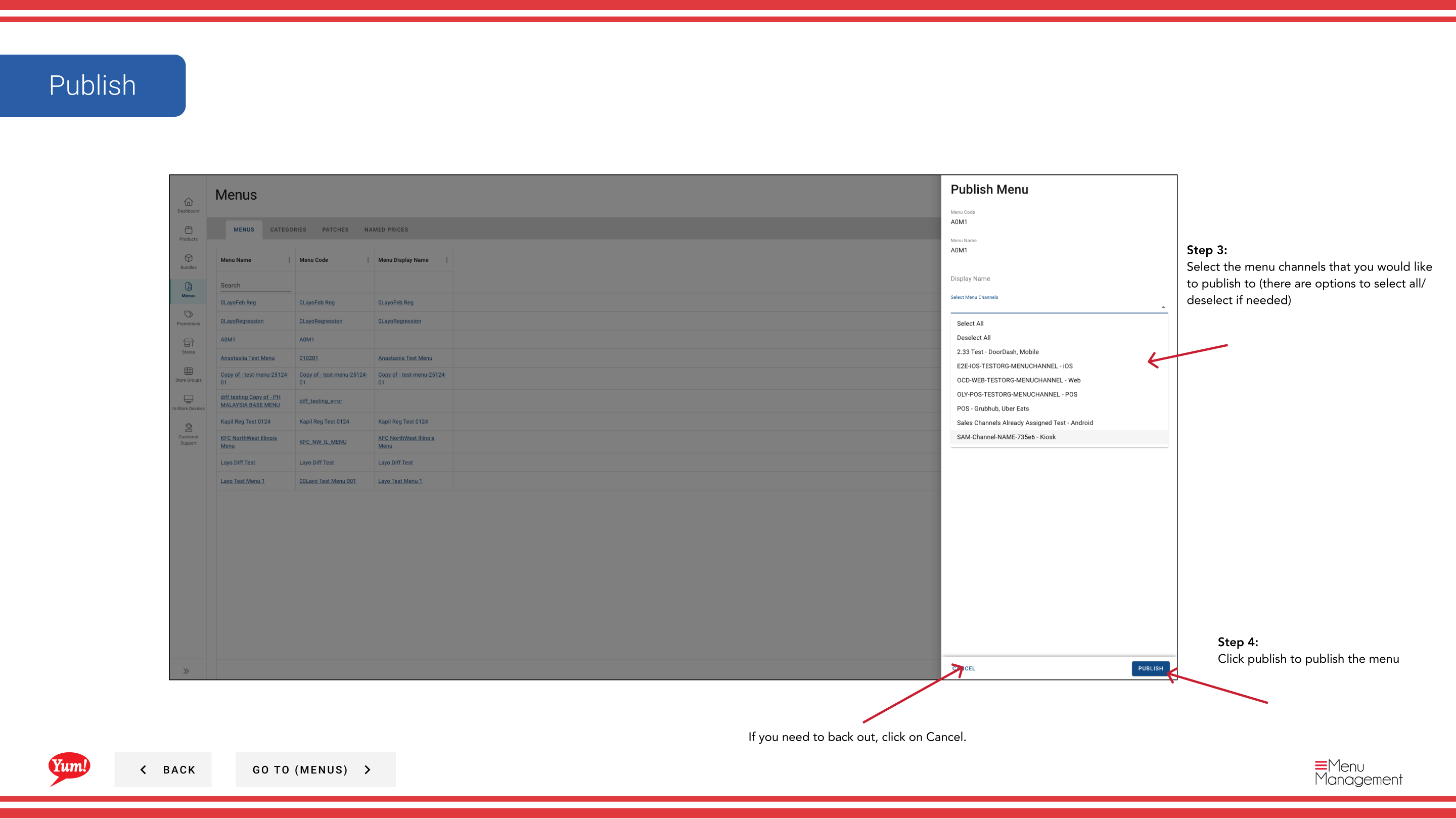
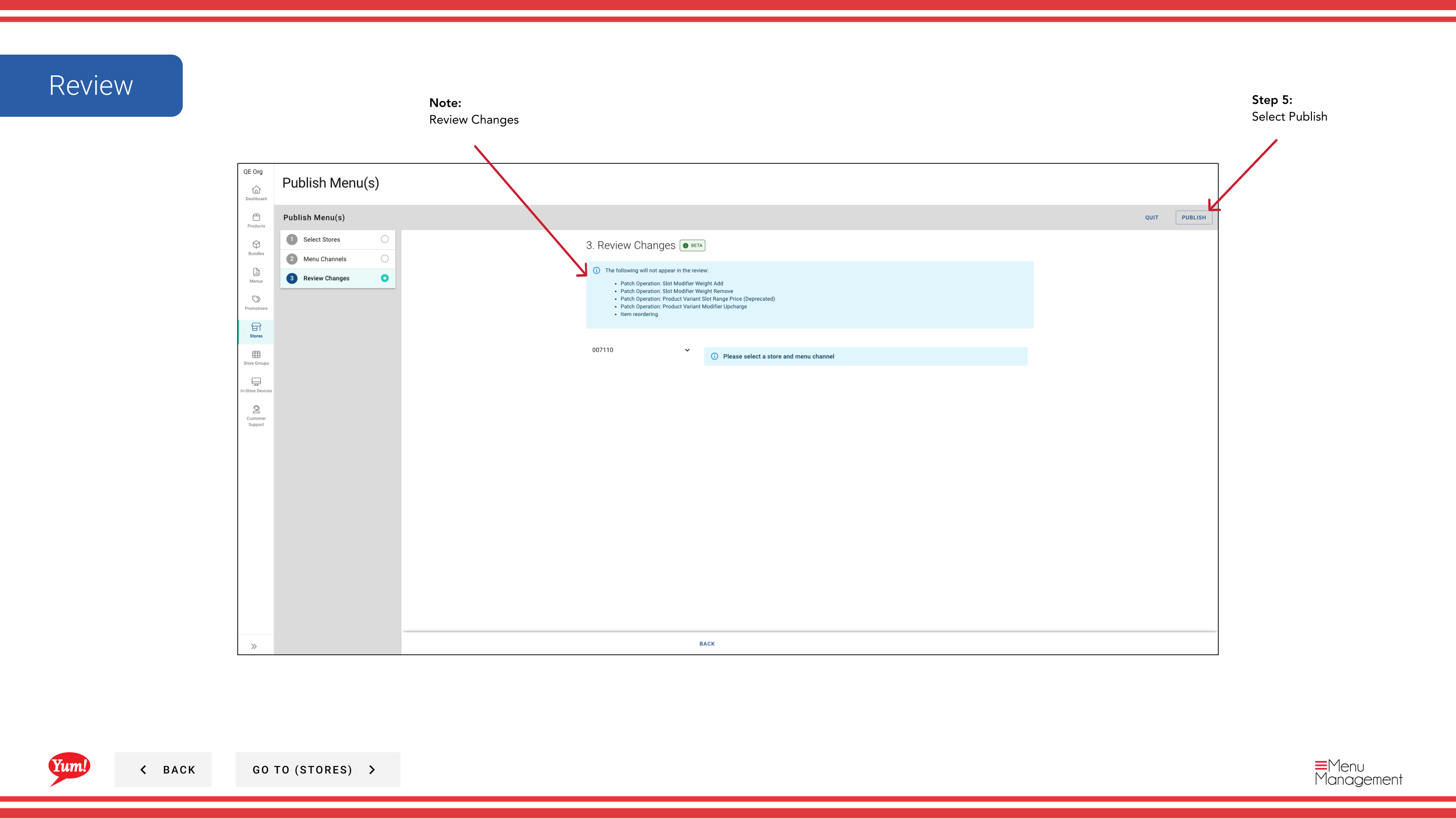
Step 4: Review your selections on the Summary tab and then click Publish to push the menu live.
Publishing may take a few minutes to complete. Check the Publish History tab to monitor the status of your publication.
You can only publish menus that have been assigned to stores. If a menu is not yet assigned, assign it first using the Assign a Menu guide.
Related guides
- Assign a Menu — Assign a menu to stores and channels before publishing
- Edit a Menu — Update menu contents before publishing changes
Part of the Admin Portal Guide · Section: Menus