Delete a Menu
What this guide covers
Permanently removes a menu from the system when it is no longer in use.
Steps
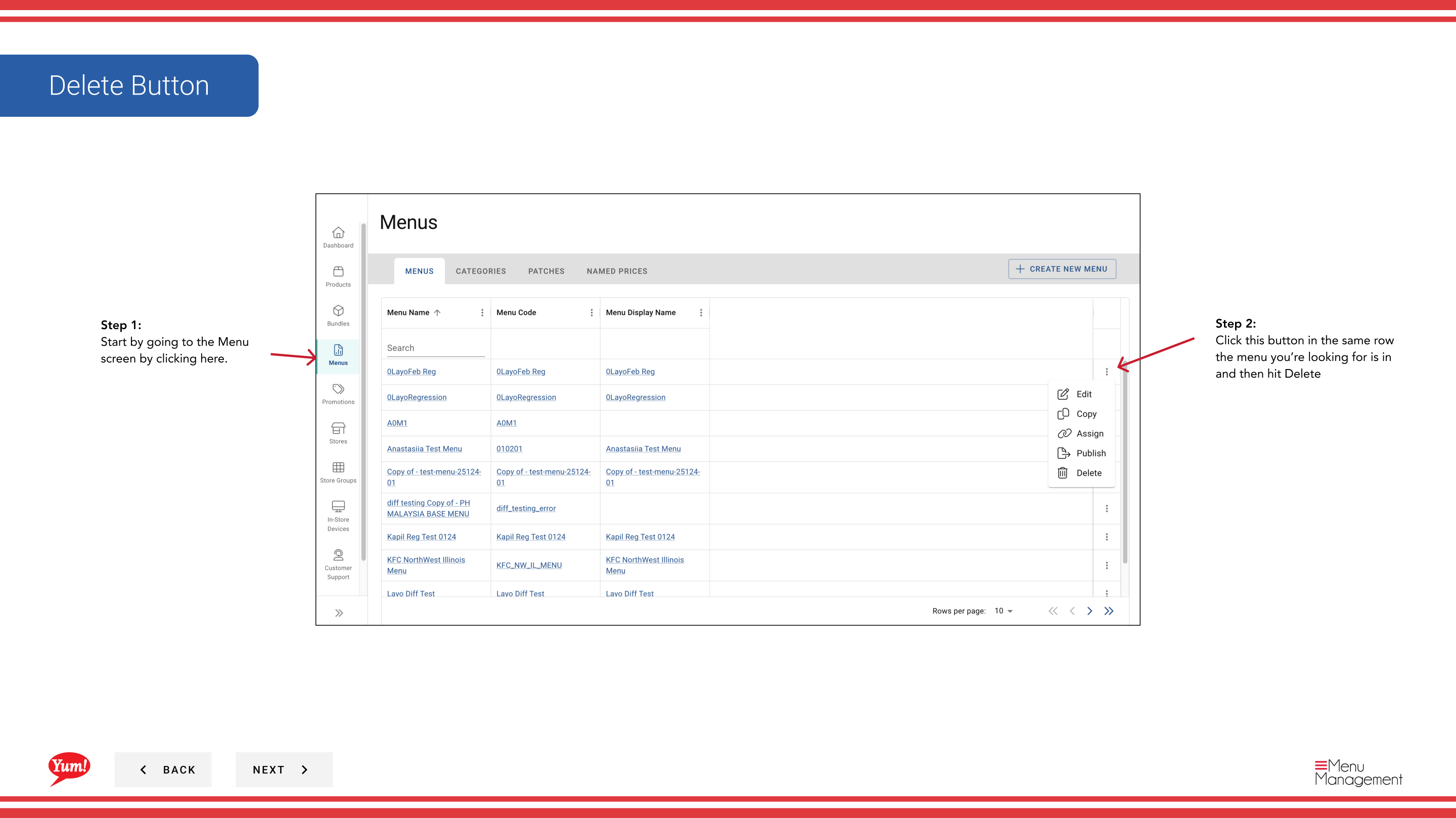
Step 1: Navigate to the Menus section using the left-hand navigation menu.
Step 2: Find the menu you want to delete in the menus list, click the action menu (three dots) in the same row, and select Delete.
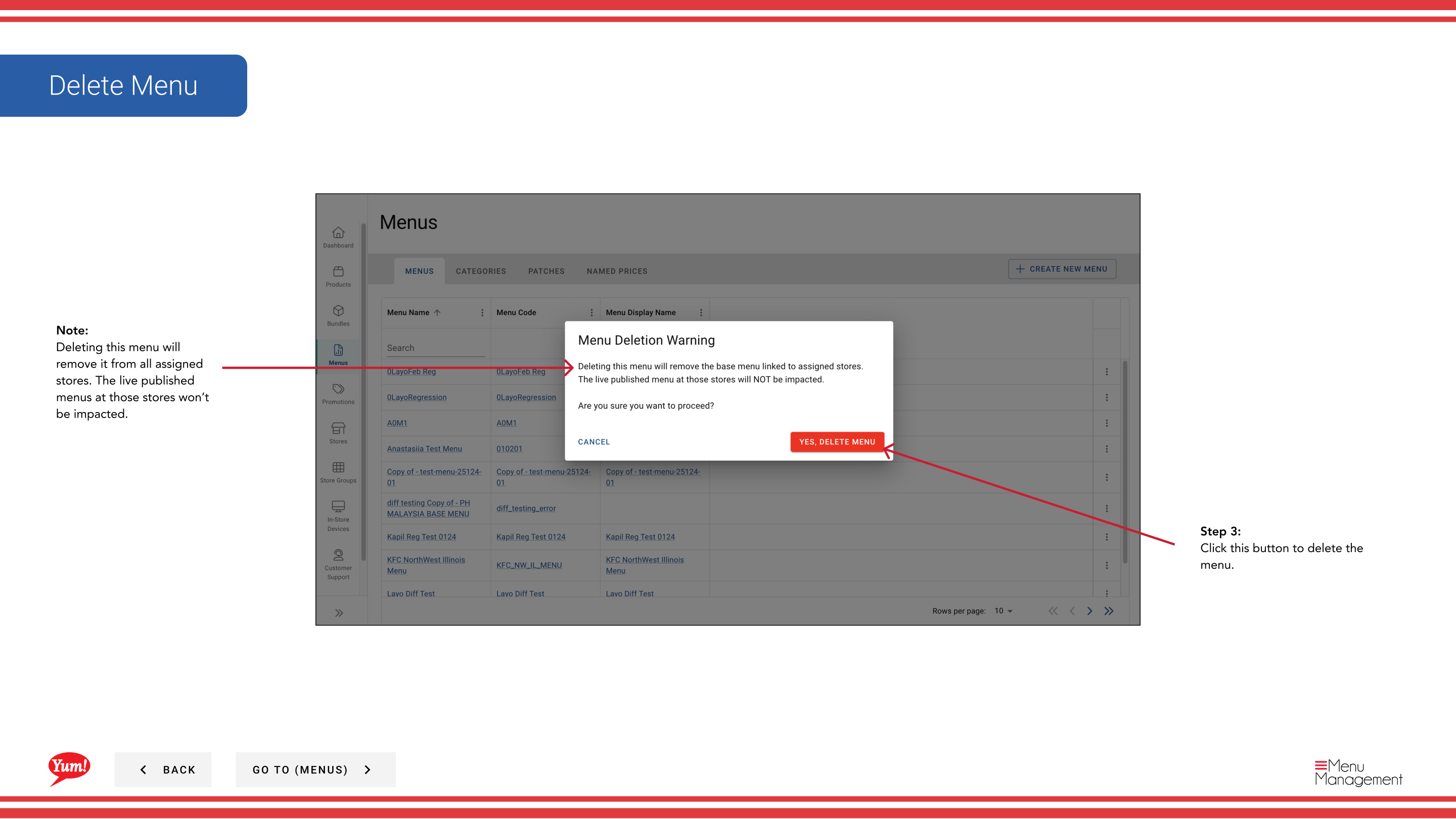
Step 3: A confirmation dialog will appear. Click the Delete button to permanently remove the menu.
caution
Deleting this menu will remove it from all assigned stores. However, live published menus at those stores will not be affected — only future menu assignments will be impacted. This action cannot be undone.
Related guides
- Copy a Menu — Create a backup copy before deleting
- Assign a Menu — Assign a different menu to affected stores
Part of the Admin Portal Guide · Section: Menus