Advanced Promotions Search
What this guide covers
Provides enhanced filtering and search capabilities across all promotions, allowing operators to locate specific promotions by complex criteria — useful when searching for all promotions that contain a specific item, tag, or condition.
Steps
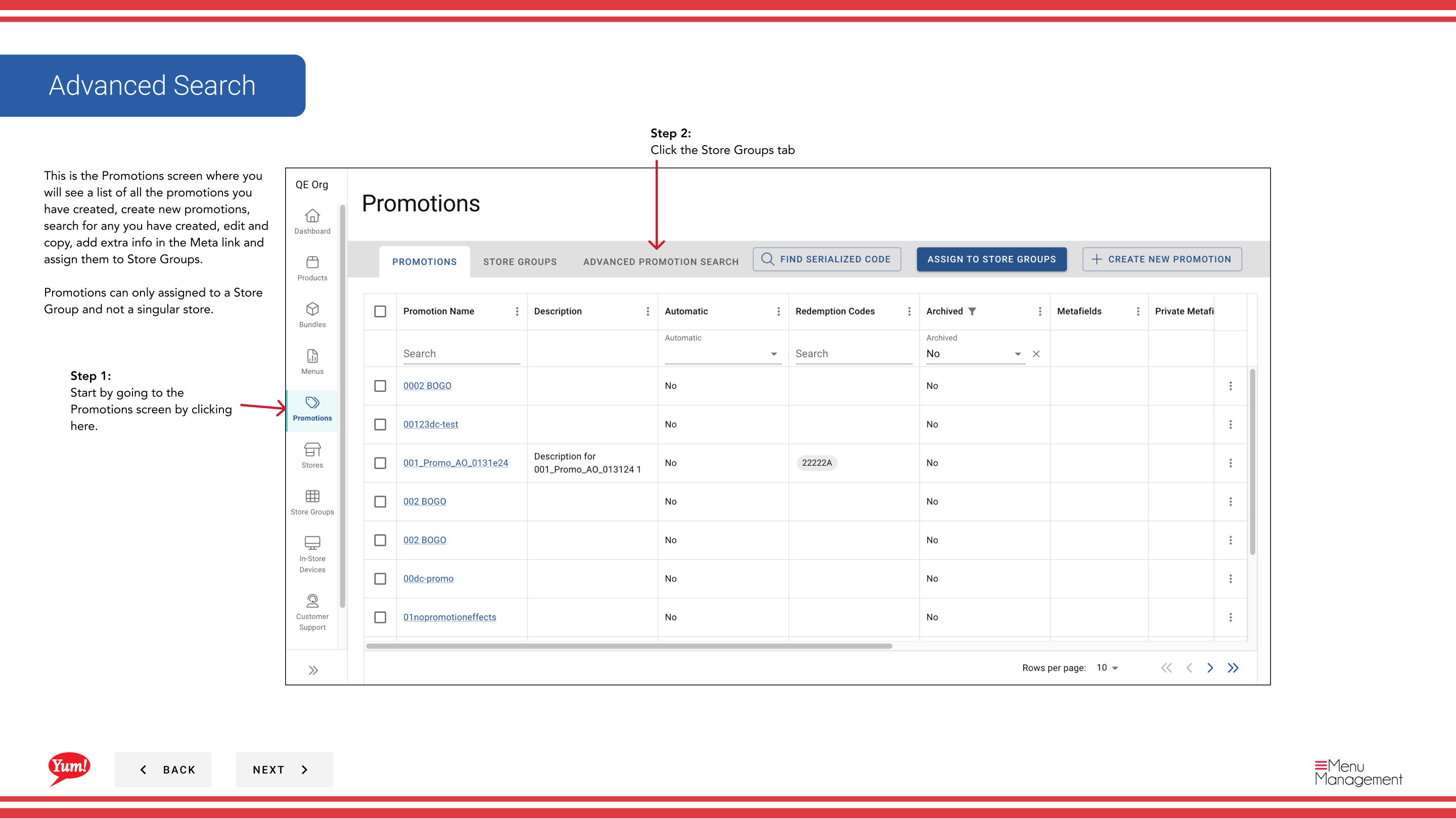
Step 1: Navigate to the Promotions section using the left-hand navigation menu.
Step 2: Click the Store Groups tab.
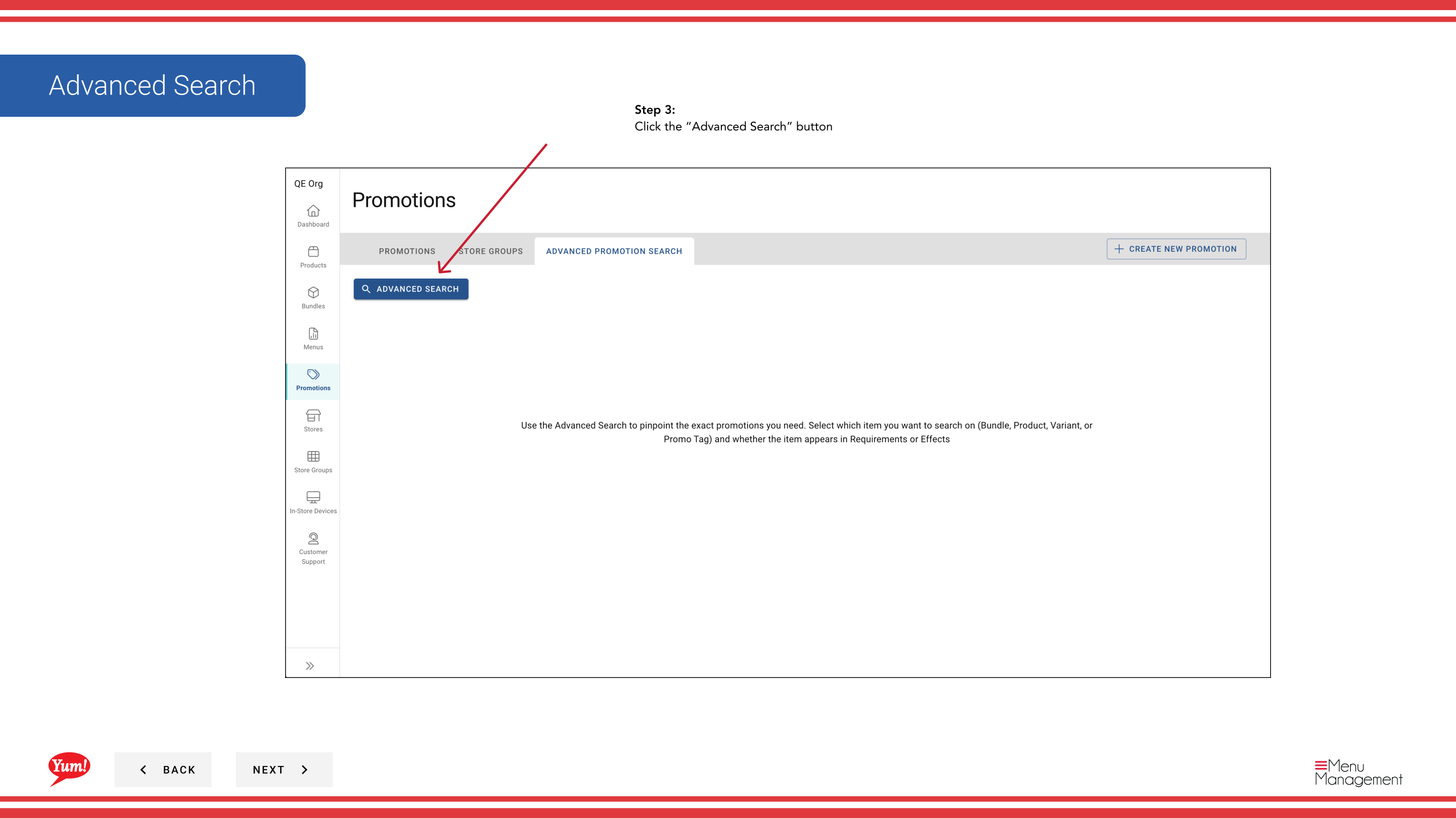
Step 3: Click the Advanced Search button.
Step 4: Select where to search for your target item by choosing from the dropdown:
| Option | Meaning |
|---|---|
| Requirements | Search only within promotion requirements |
| Effects | Search only within promotion effects |
| Both | Search in both requirements and effects |
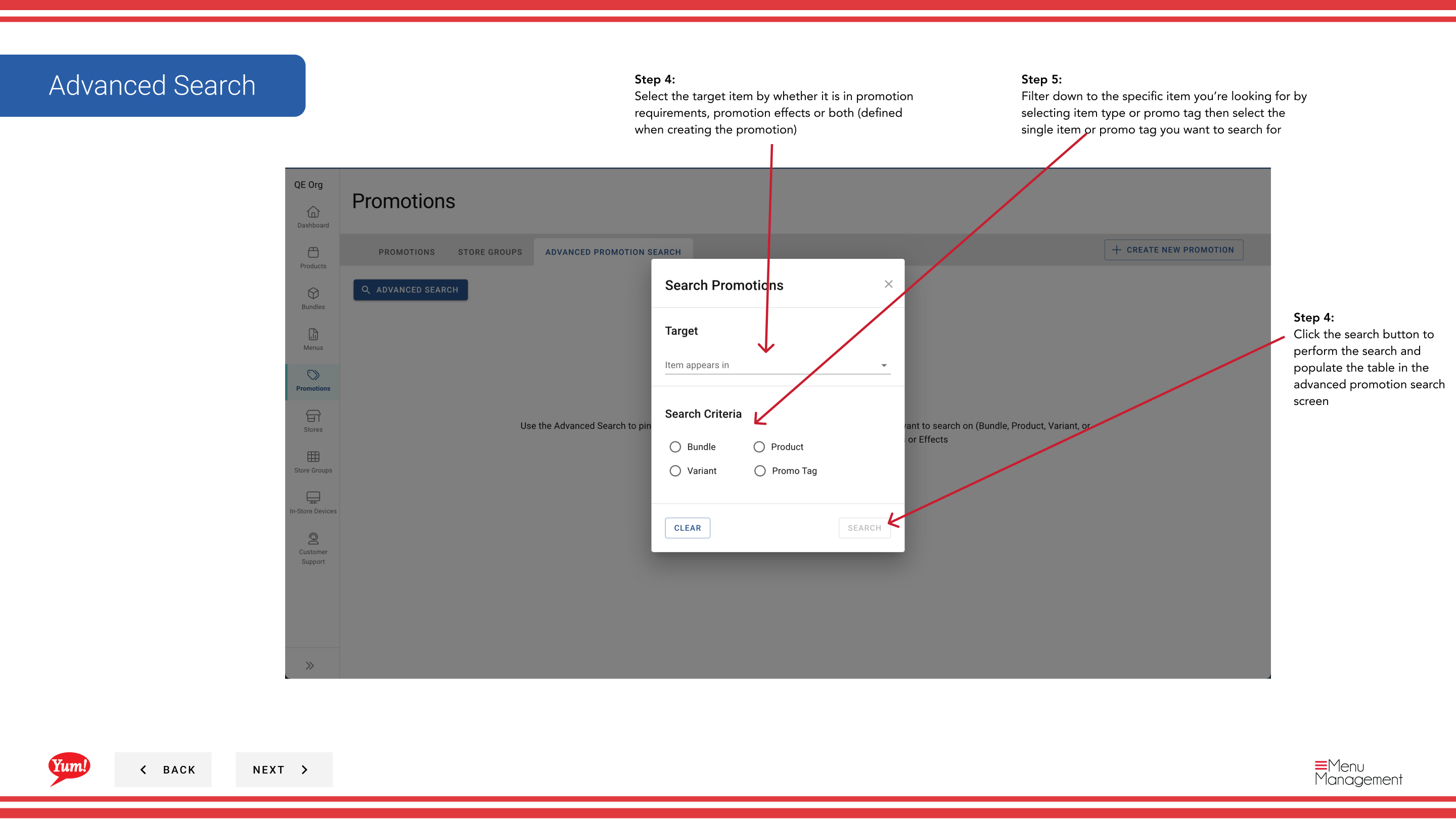
Step 5: Click the Search button to populate the results table.
Step 6: Refine your search by selecting:
- Item Type — Filter by the type of item you’re searching for
- Promo Tag — Filter by promotion tag
Then select the specific item or tag you want to search for.
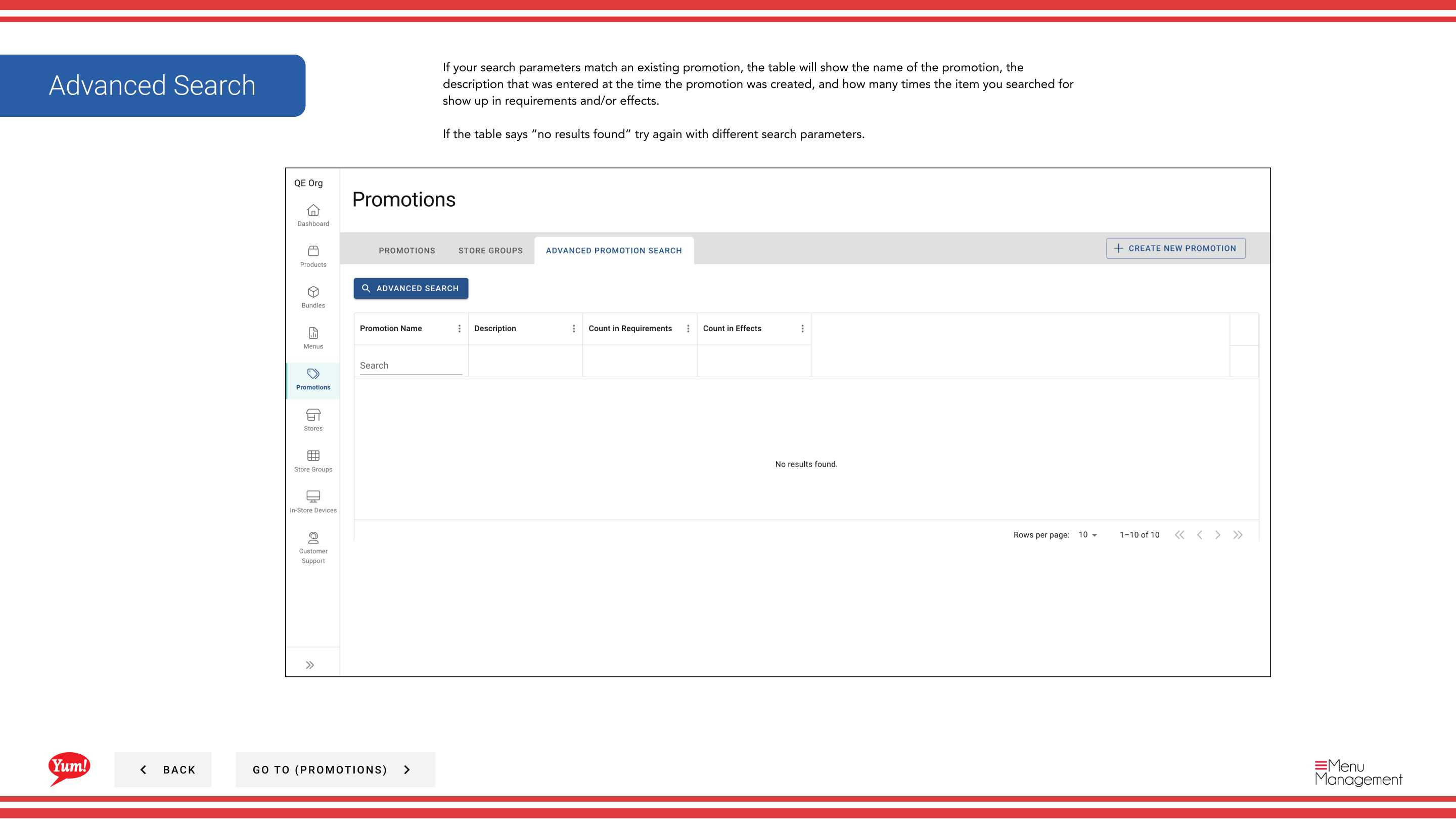
Step 7: Review the search results. The table will display:
- Promotion Name — The name of the matching promotion
- Description — The description entered when the promotion was created
- Match Count — How many times the item appears in requirements and/or effects
If no results are found, try adjusting your search parameters or using different item types or tags.
Related guides
Part of the Admin Portal Guide · Section: Promotions