Delete a Store Group
What this guide covers
Permanently removes a store group from the system.
Steps
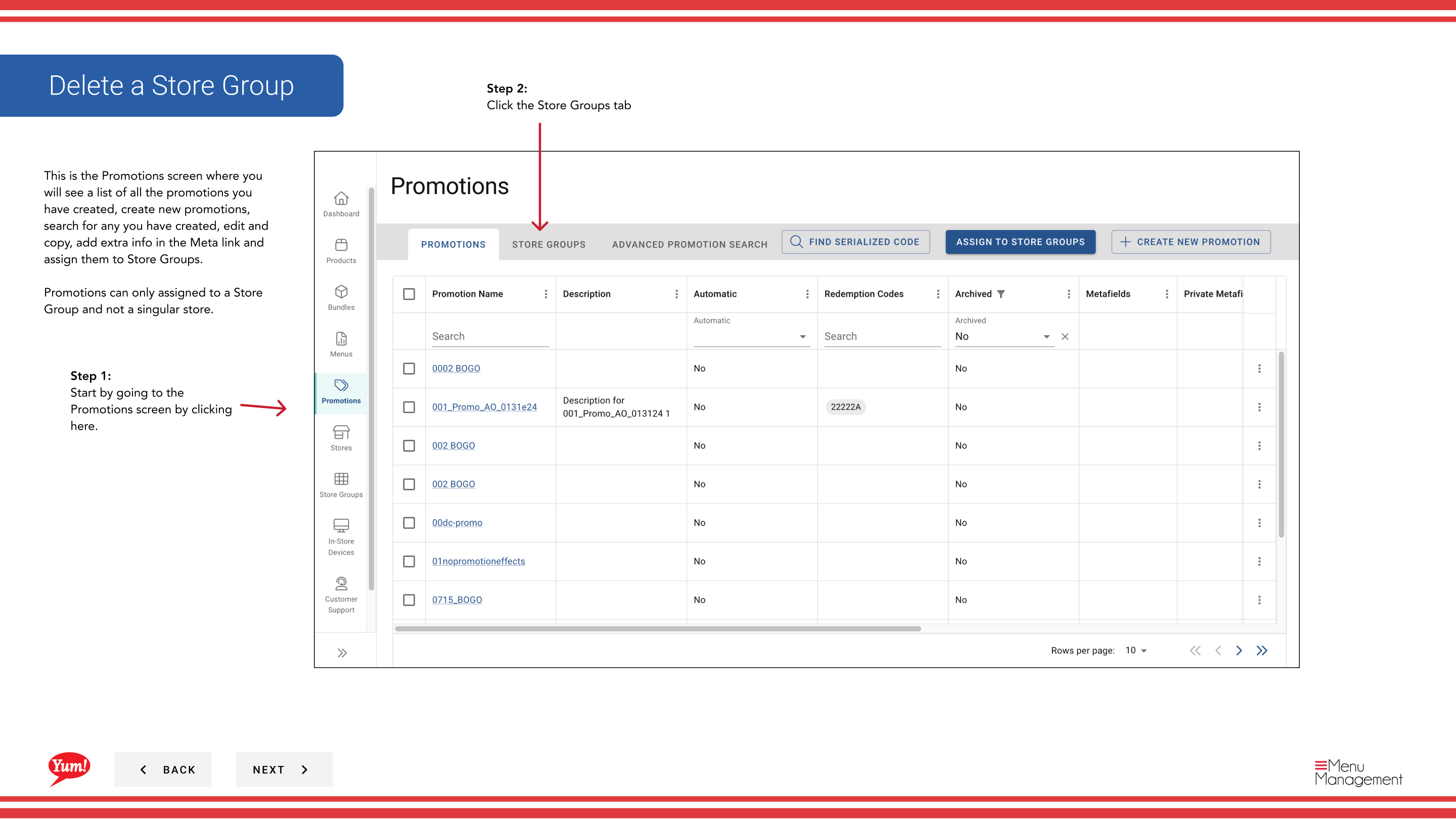
Step 1: Start by going to the Promotions screen by clicking here. Step 2: Click the Store Groups tab
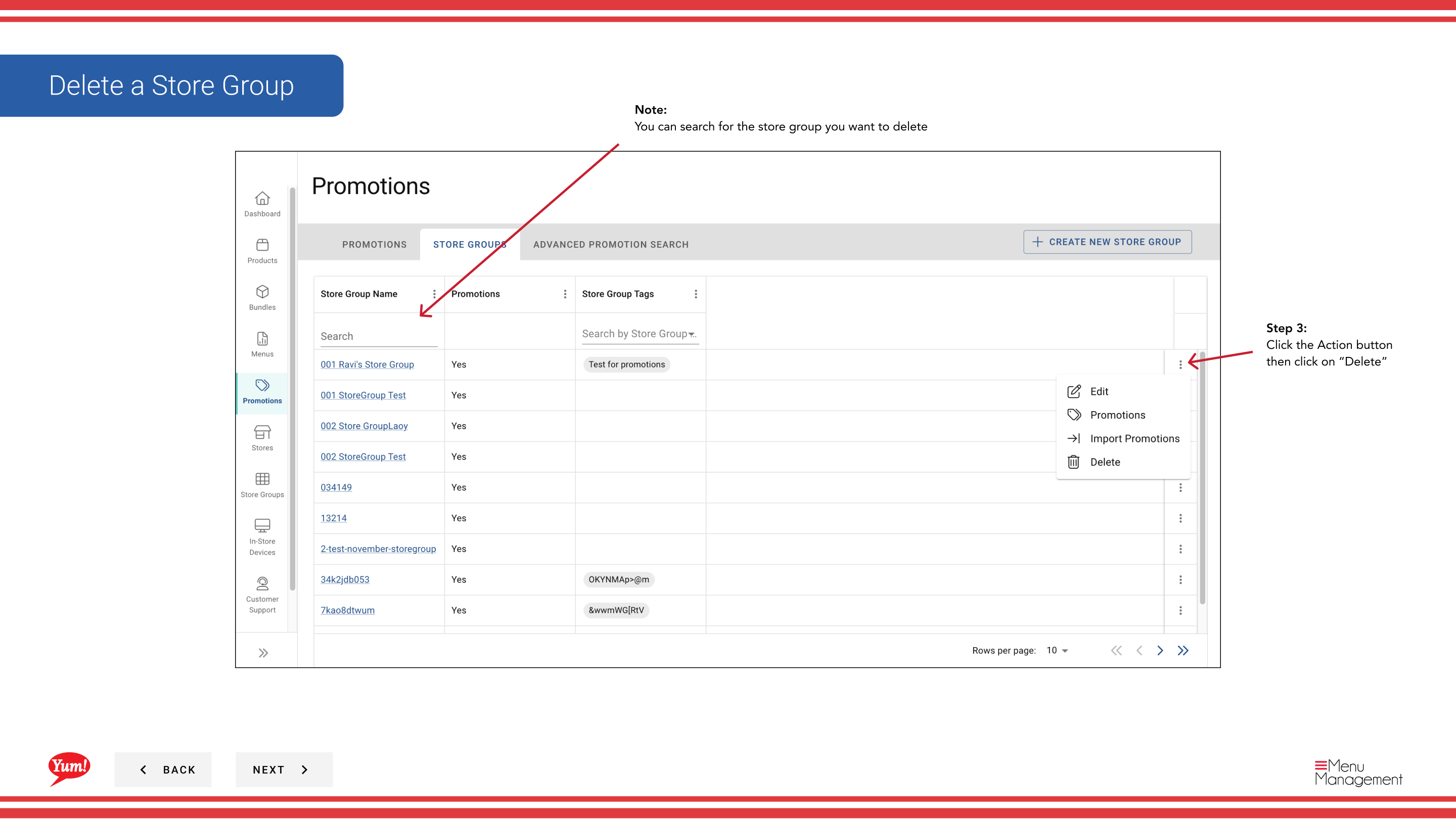
Step 3: Click the Action button then click on “Delete”
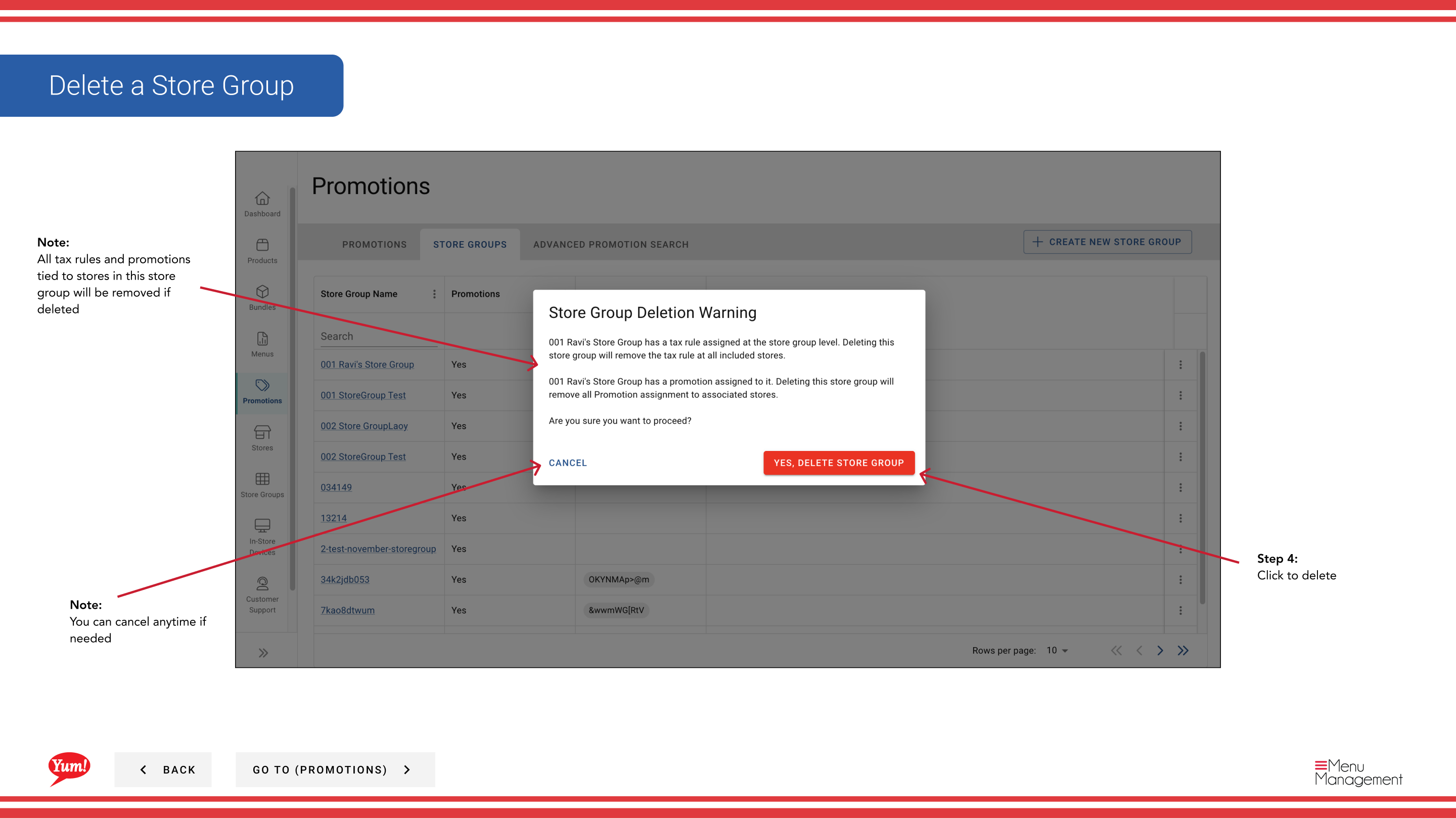
Step 4: Click to delete
Notes
note
You can search for the store group you want to delete
note
You can cancel anytime if needed
note
All tax rules and promotions tied to stores in this store group will be removed if deleted
Additional information
- Promotions - Delete a Store Group
- This is the Promotions screen where you will see a list of all the promotions you have created, create new promotions, search for any you have created, edit and copy, add extra info in the Meta link and assign them to Store Groups. Promotions can only assigned to a Store Group and not a singular store.
Part of the Admin Portal Guide · Section: Promotions