View Promotions for a Store Group
What this guide covers
Lists all promotions assigned to a store group for visibility and auditing purposes.
Steps
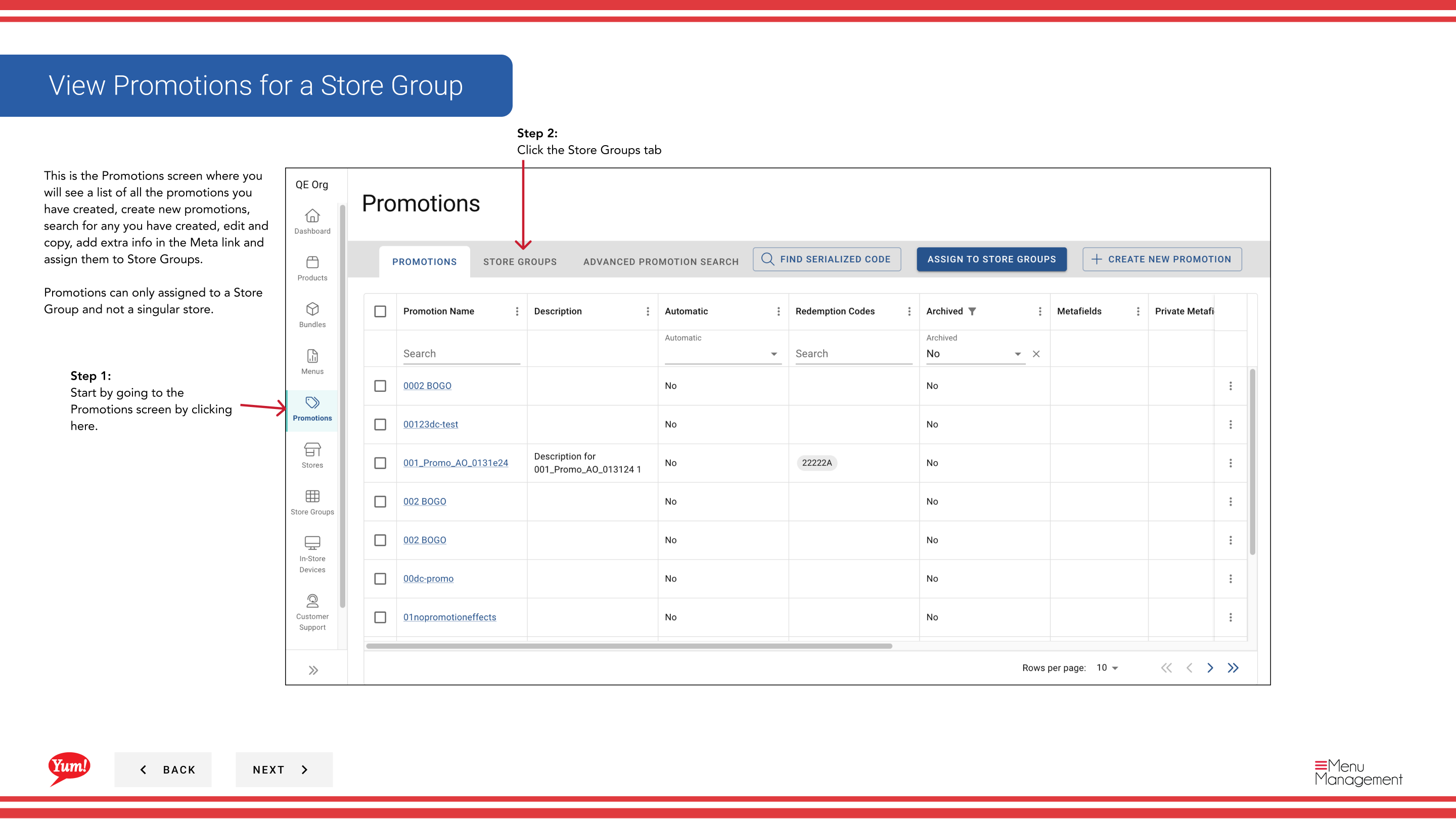
Step 1: Navigate to the Promotions section using the left-hand navigation menu.
Step 2: Click the Store Groups tab.
Step 3: Find the store group you want to view promotions for by browsing the table or using the search bar.
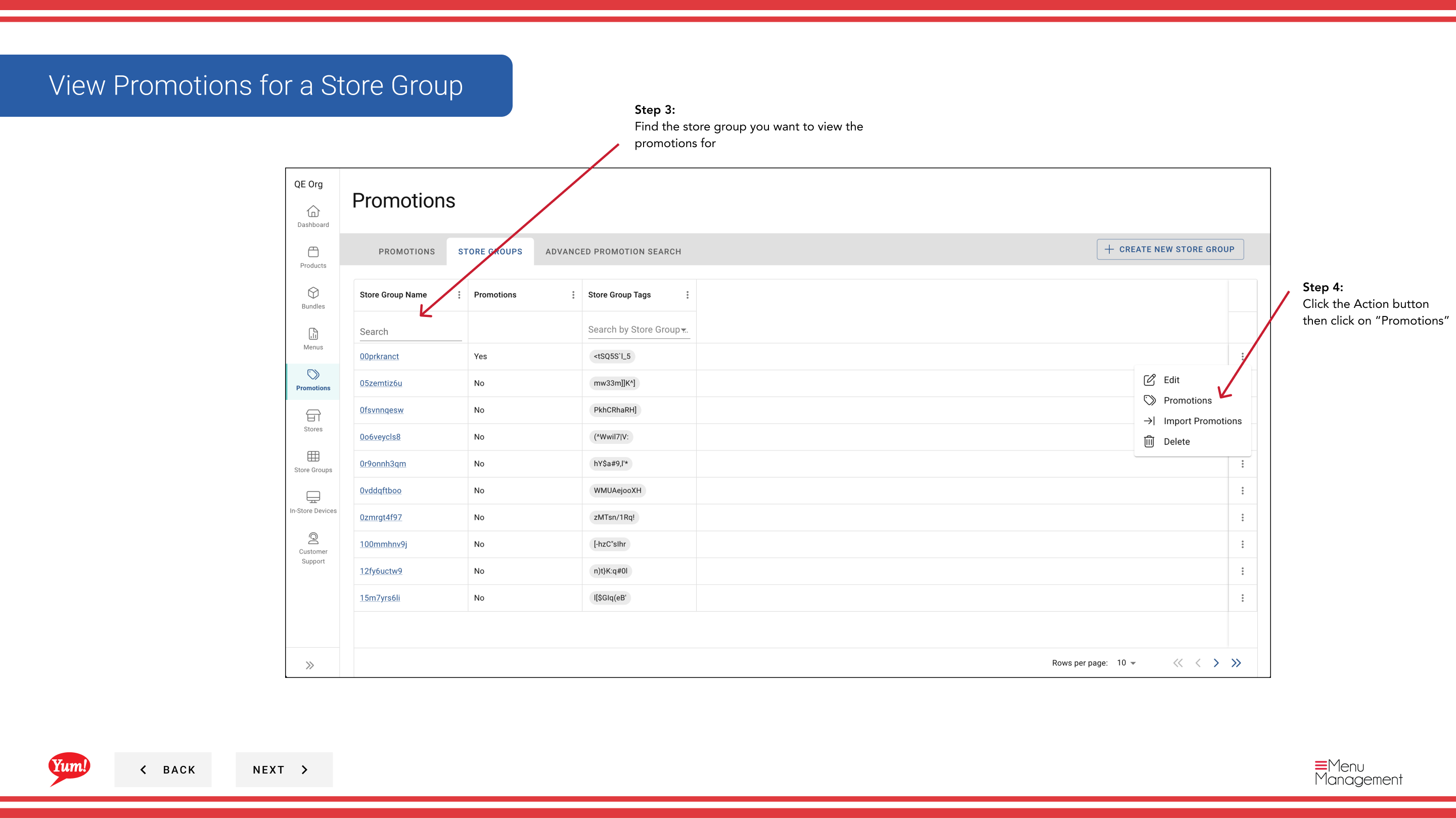
Step 4: Click the action menu button (three dots) next to the store group name, then select Promotions.
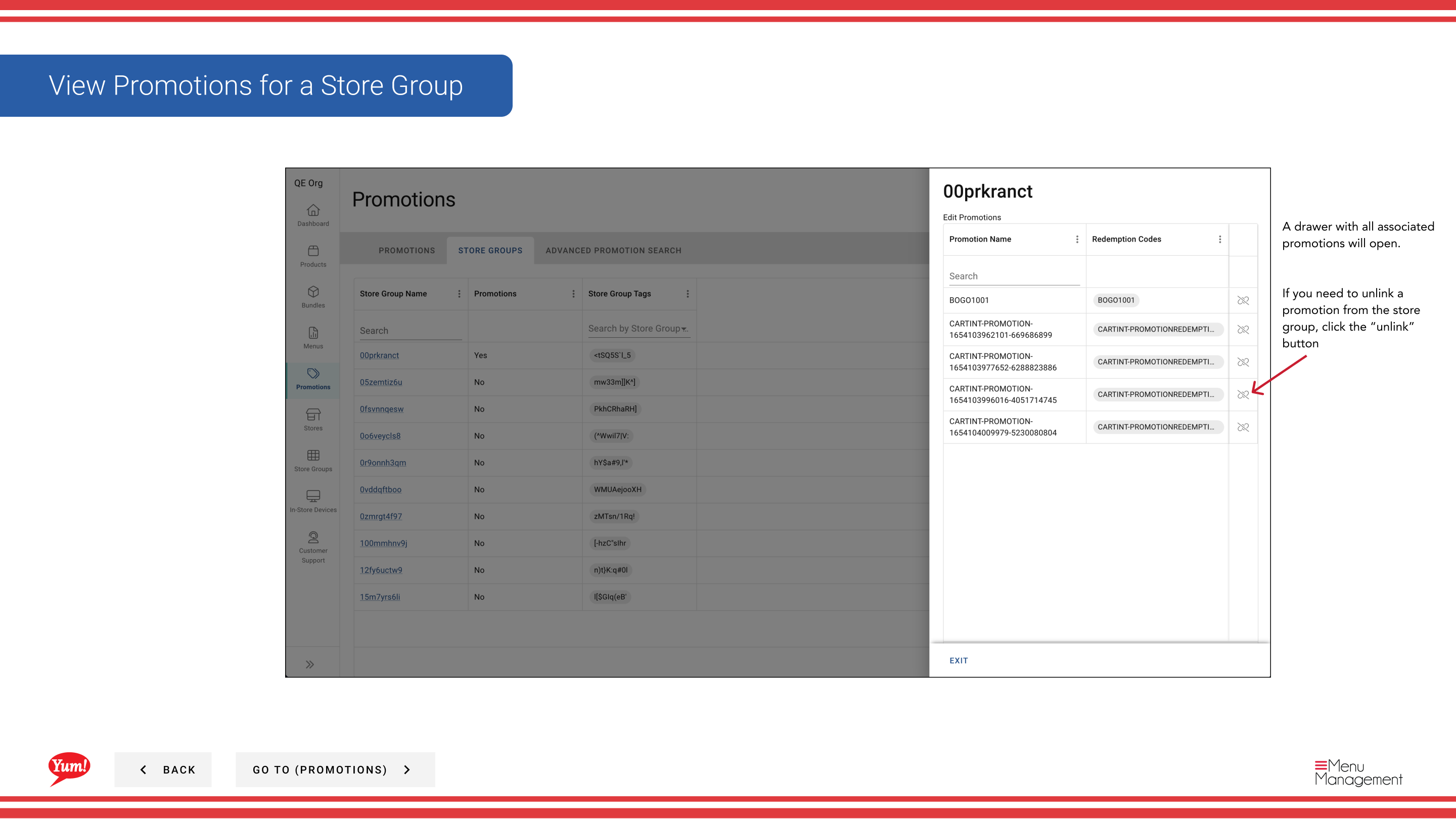
Step 5: A drawer panel will open showing all promotions assigned to this store group. The list includes:
- Promotion Name — The customer-facing name of the promotion
- Description — Brief description of the promotion
- Status — Whether the promotion is active or archived
Step 6 (Optional): To remove a promotion from the store group, click the Unlink button next to the promotion name. You will be asked to confirm the removal.
Unlinking a promotion from a store group makes it immediately unavailable at all stores in that group.
Related guides
- Assign Promotions to Store Groups
- Edit Promotions (from Store Groups)
- Unassign Promotions from Store Group
Part of the Admin Portal Guide · Section: Promotions