Edit Promotions
What this guide covers
Adds or removes promotion assignments for a specific store group, allowing you to modify which promotions are active at member stores.
Steps
Step 1: Navigate to the Store Groups section using the left-hand navigation menu.
Step 2: Find the store group whose promotions you want to modify. Click the action menu button (three dots) next to the store group name.
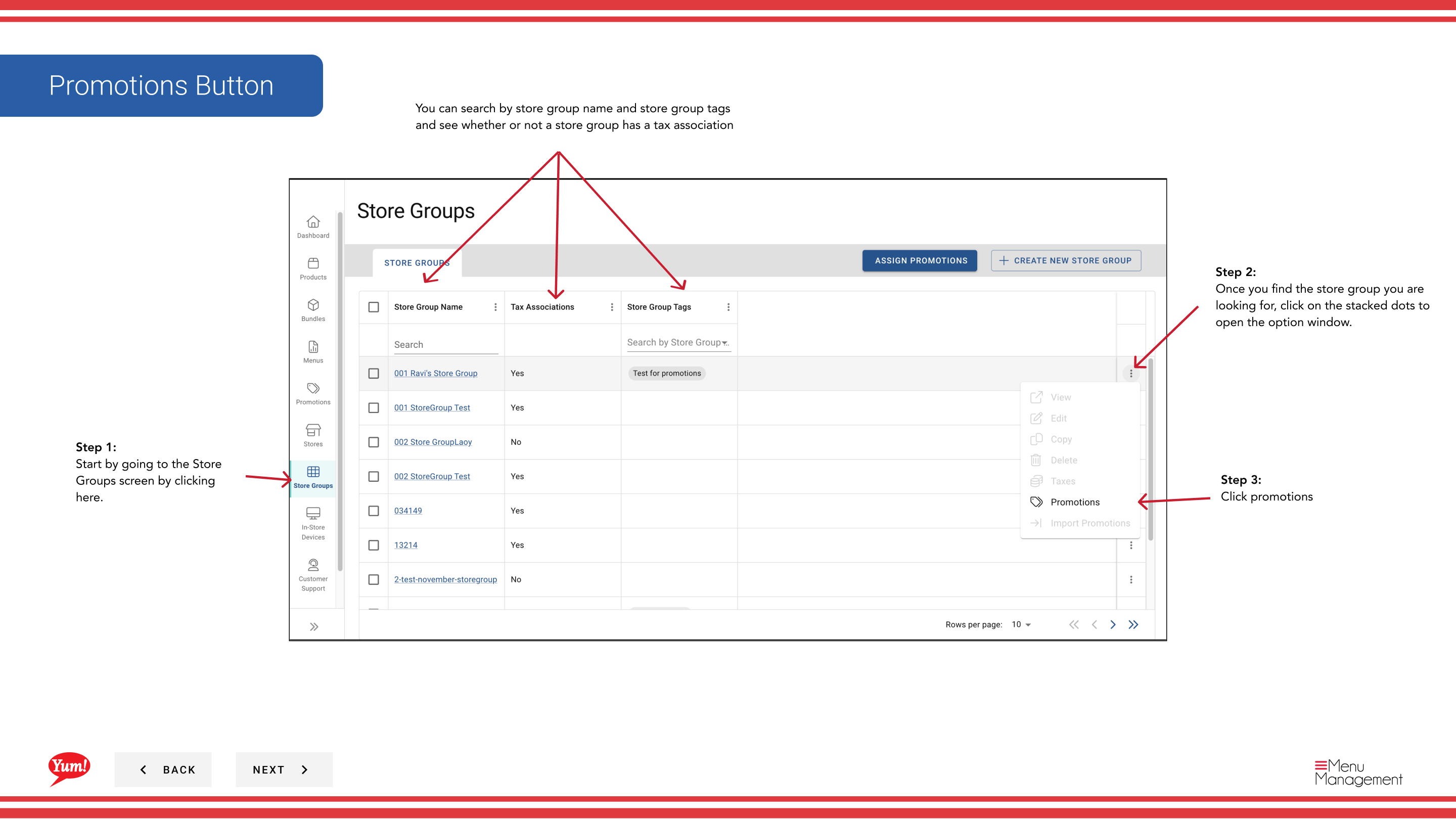
Step 3: Click Promotions from the dropdown menu.
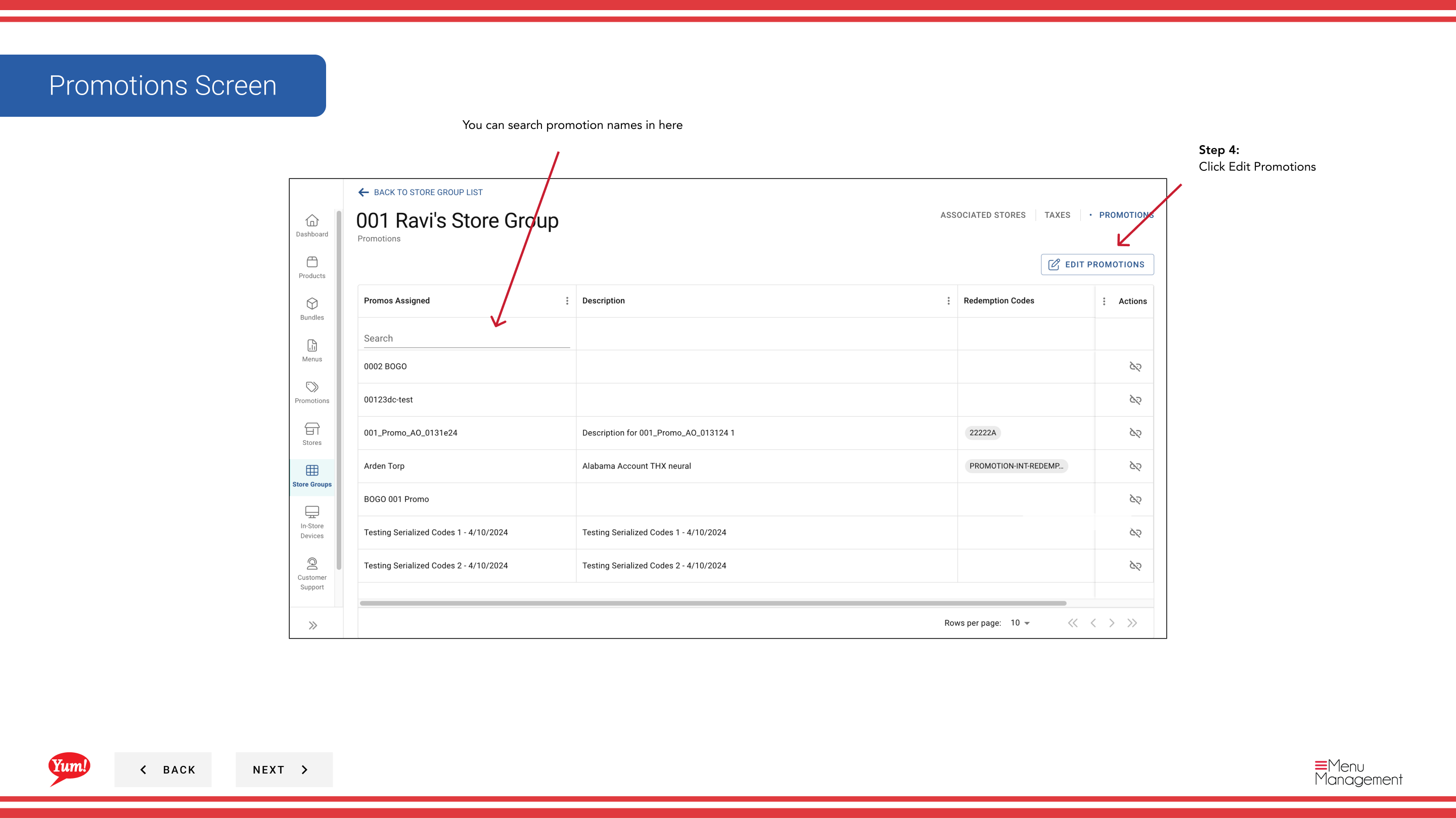
Step 4: A promotions drawer will open. Click the Edit Promotions button to enter edit mode.
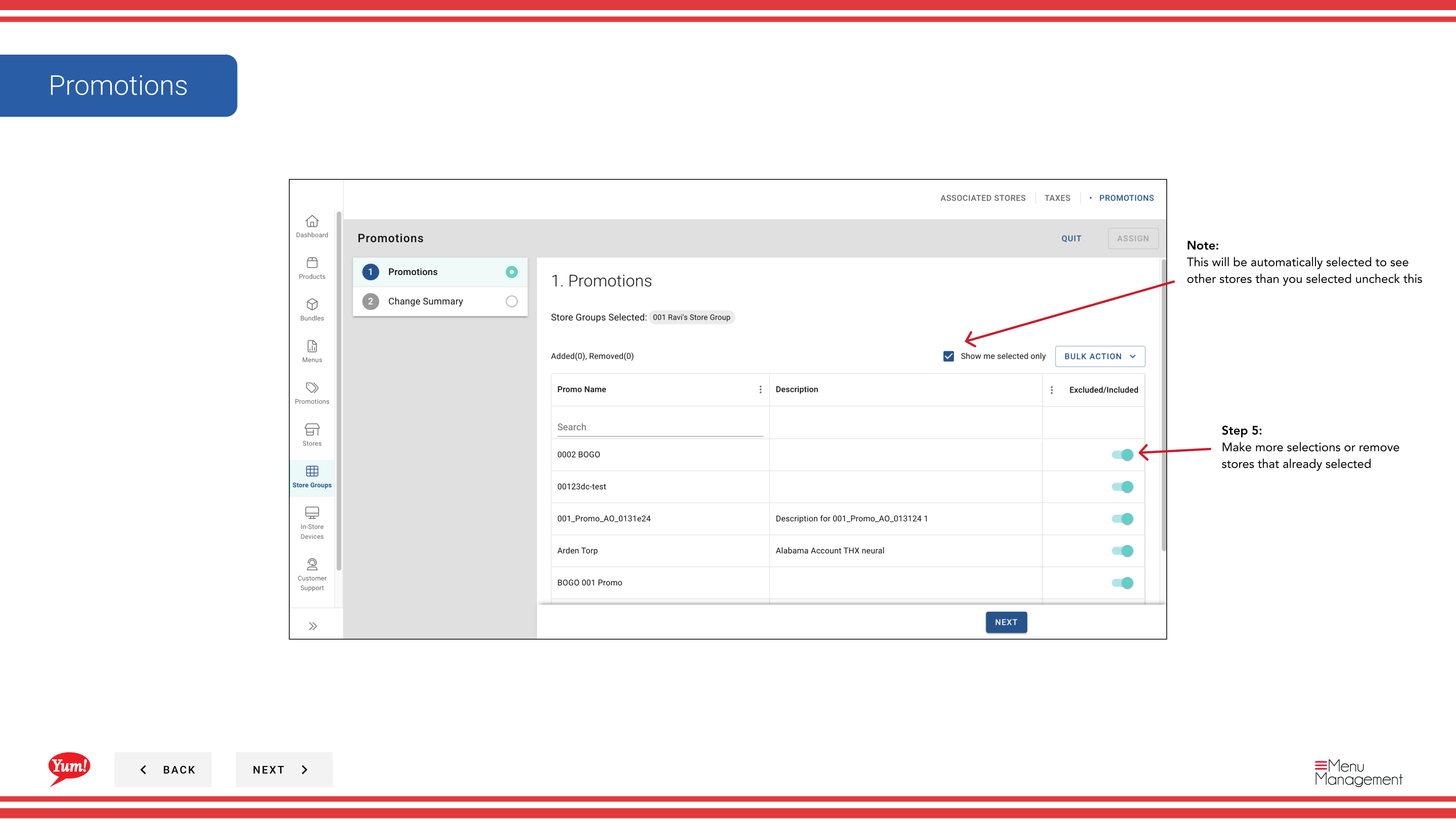
Step 5: Make changes to the promotion assignments:
- To add a promotion: Check the checkbox next to promotion names you want to add
- To remove a promotion: Uncheck the checkbox next to promotion names you want to remove
- Search for specific promotions using the search bar
- Toggle the "Show other promotions" switch to view promotions not currently assigned (if checked, you can see all available promotions; if unchecked, you see only currently assigned ones)
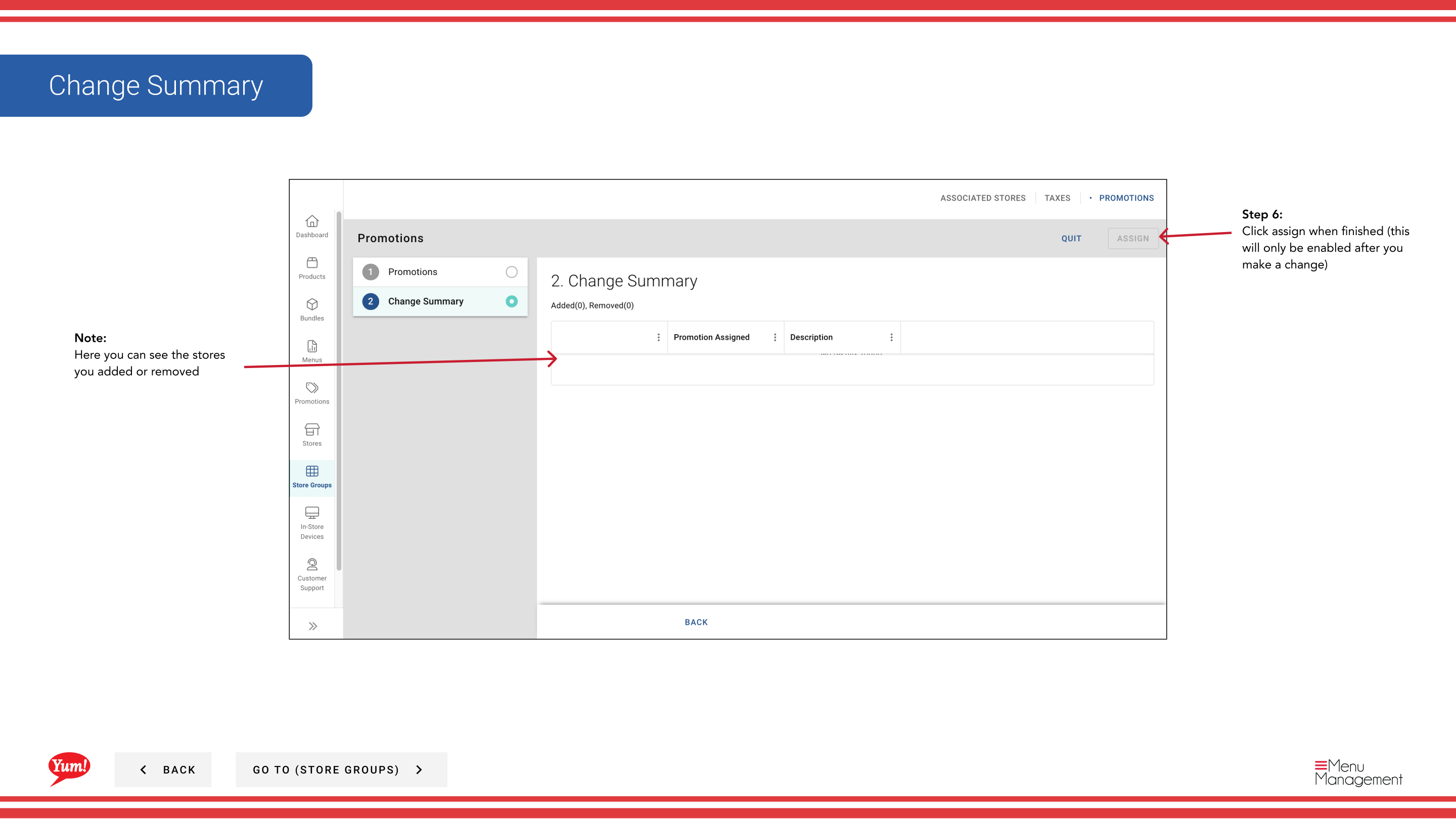
Step 6: Review your changes in the summary section showing promotions added and removed. Click the Assign button to apply the changes. (The Assign button is only enabled after you make changes.)
Changes to promotion assignments take effect immediately for all stores in this store group.
You can search promotion names in the search bar to quickly find promotions you want to add or remove.
Related guides
- Assign Promotions
- Unassign Promotions from Store Group
- Import Promotions for a Store Group
- View Promotions for a Store Group (Promotions section)
Part of the Admin Portal Guide · Section: Store Groups