Delete a Store Group
What this guide covers
Permanently removes a store group from the system, along with all associated promotions and tax rules.
Steps
Step 1: Navigate to the Store Groups section using the left-hand navigation menu.
Step 2: Find the store group you want to delete by browsing the table or using the search bar. Click the action menu button (three dots) next to the store group name.
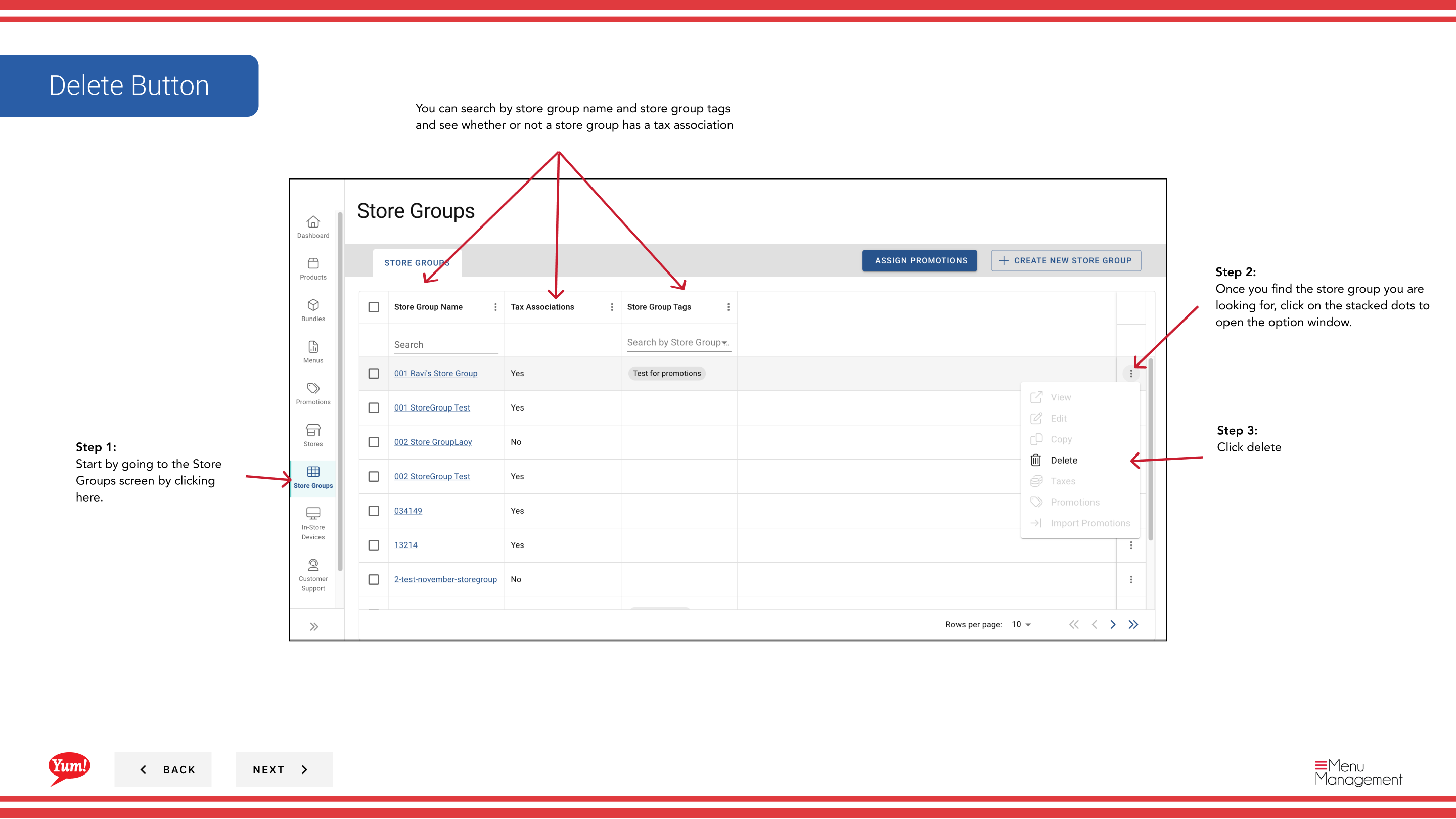
Step 3: Click Delete.
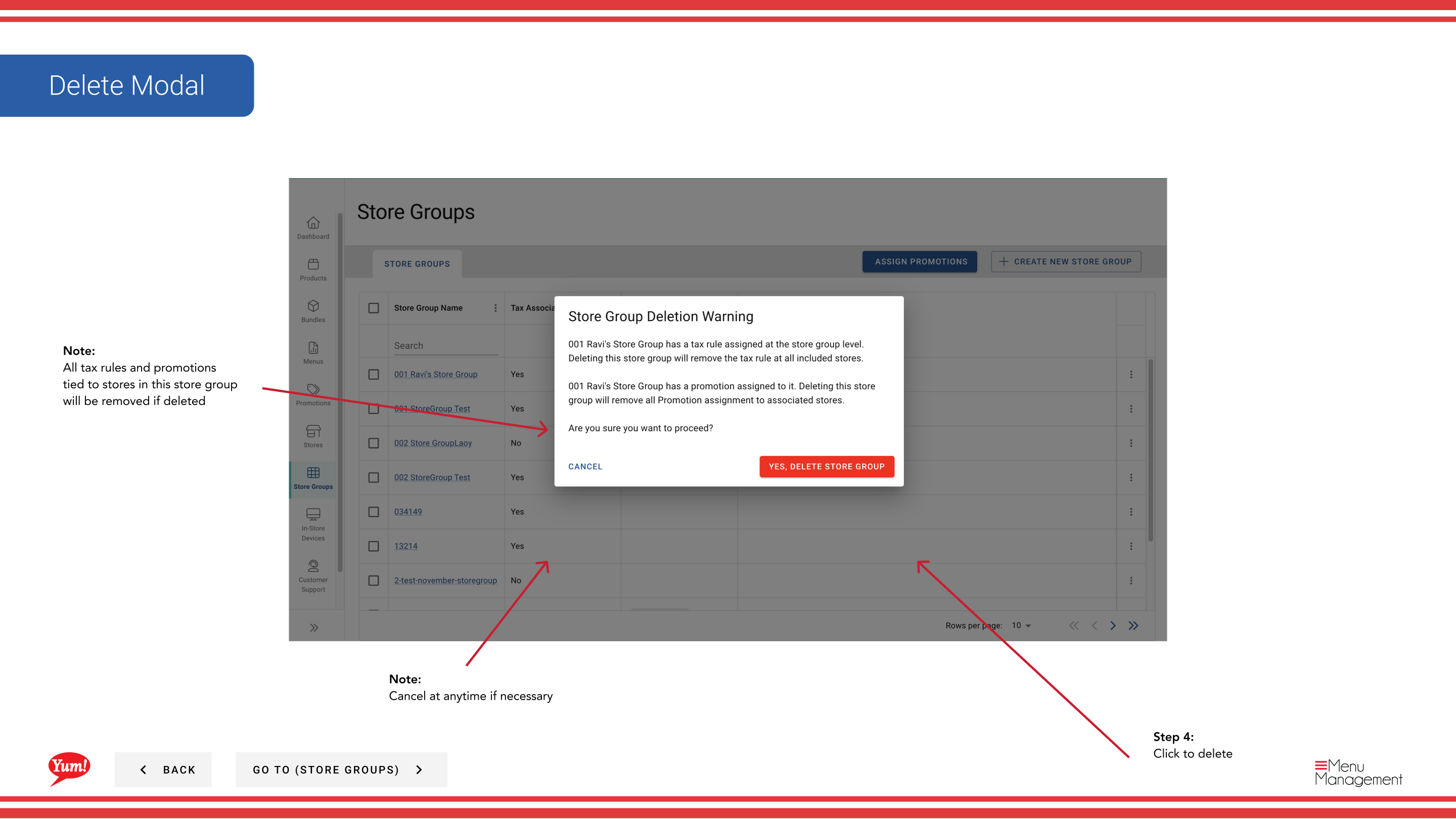
Step 4: A confirmation dialog will appear. Review the warning message and click the Delete Store Group button to confirm permanent deletion.
caution
This action is permanent and cannot be undone. Deleting a store group will:
- Remove the store group from the system
- Unlink all promotions assigned to this store group
- Unlink all tax rules associated with this store group
- The member stores themselves are not deleted, only their grouping and assignments
tip
If you need to keep the store group configuration for future use, consider copying it before deletion.
Related guides
Part of the Admin Portal Guide · Section: Store Groups