Create Tax Rules
What this guide covers
Defines individual tax rules within a store group, specifying the tax rates, conditions, and product filters applied to items sold at member stores.
Steps
Step 1: Navigate to the Store Groups section using the left-hand navigation menu.
Step 2: Find the store group where you want to create a tax rule. Click the action menu button (three dots) next to the store group name.
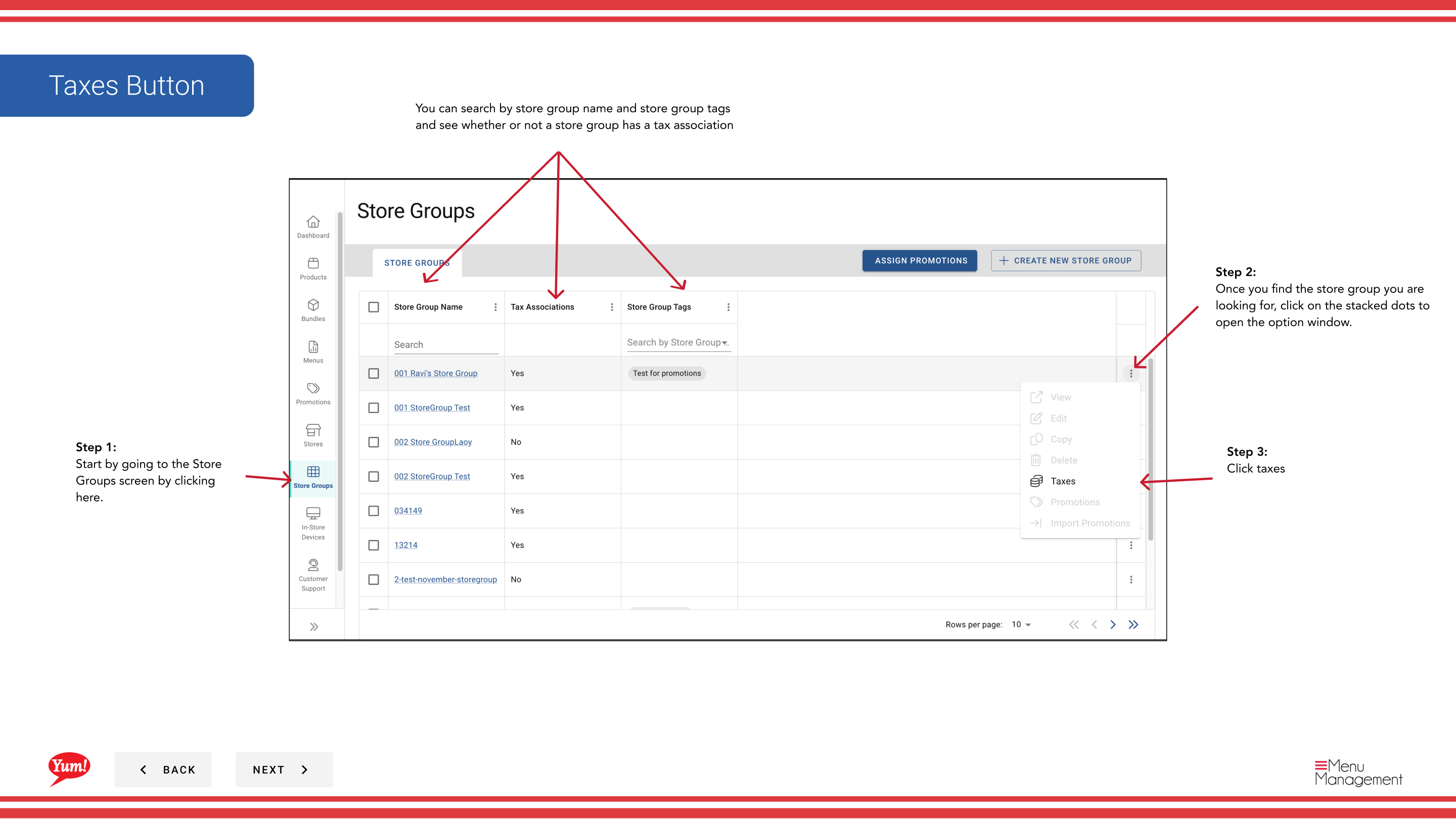
Step 3: Click Taxes from the dropdown menu.
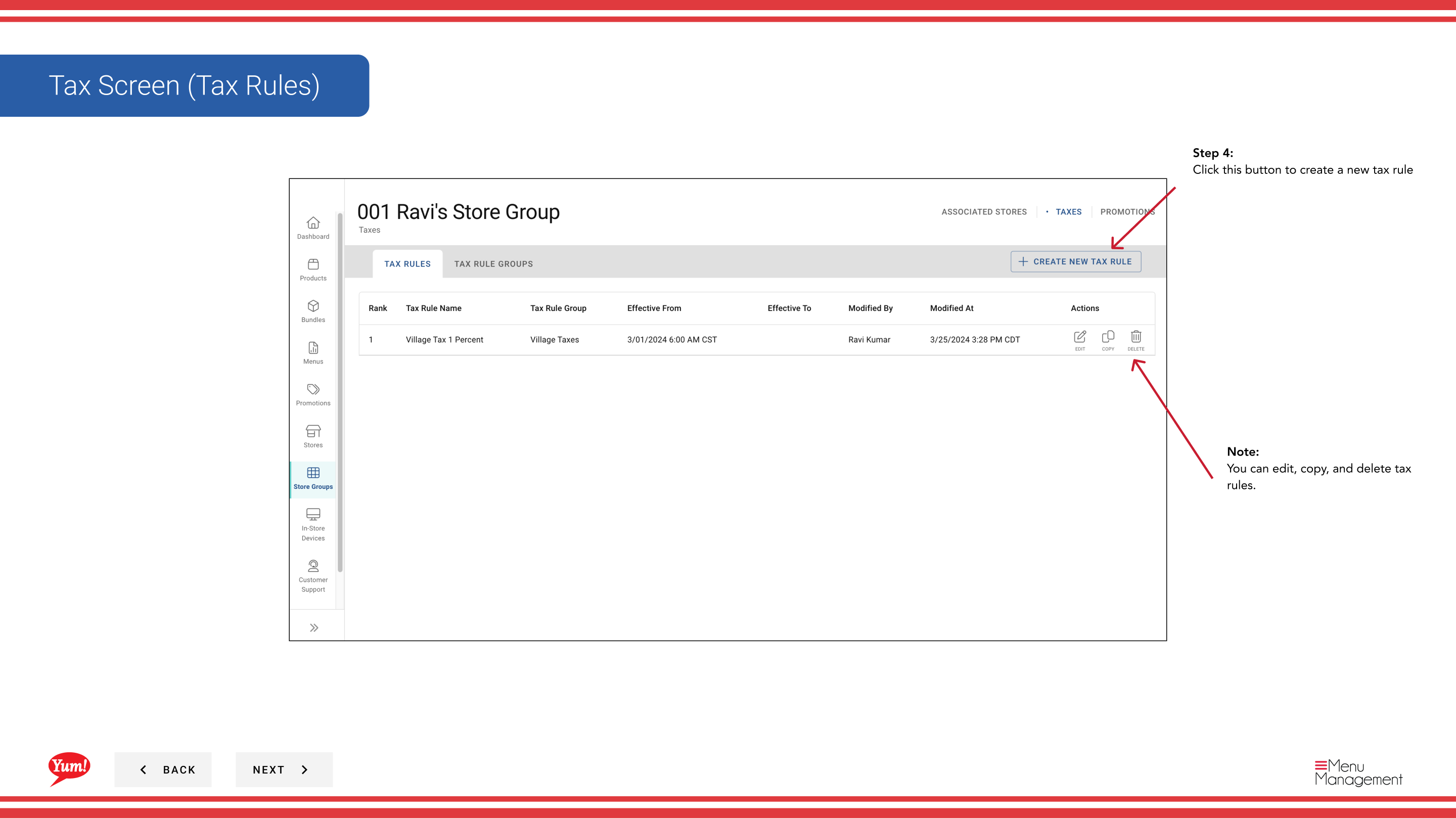
Step 4: Click the + Create New Tax Rule button.
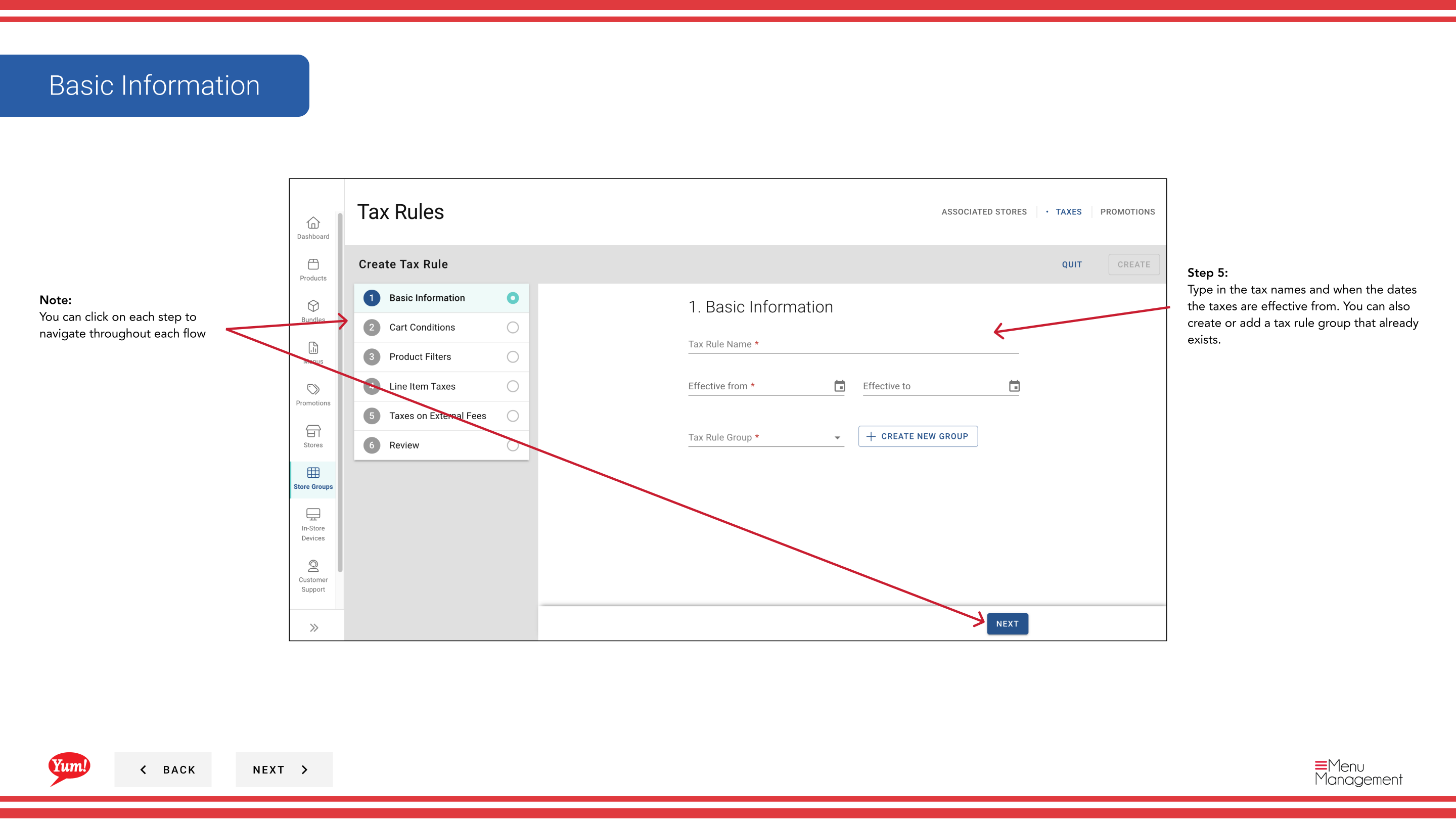
Step 5: Fill in the basic tax rule information. Fields marked with * are required.
| Field | What to enter | Notes |
|---|---|---|
| Tax Name * | Internal name for this rule | e.g., "Standard GST 10%", "Delivery Surcharge Tax". Visible to operators. |
| Effective From Date * | Date this rule takes effect | You can use past dates for historic records. Format: DD/MM/YYYY. |
| Tax Rule Group | Assign to an existing or new group | Optional. Groups multiple related tax rules together for easier management. |
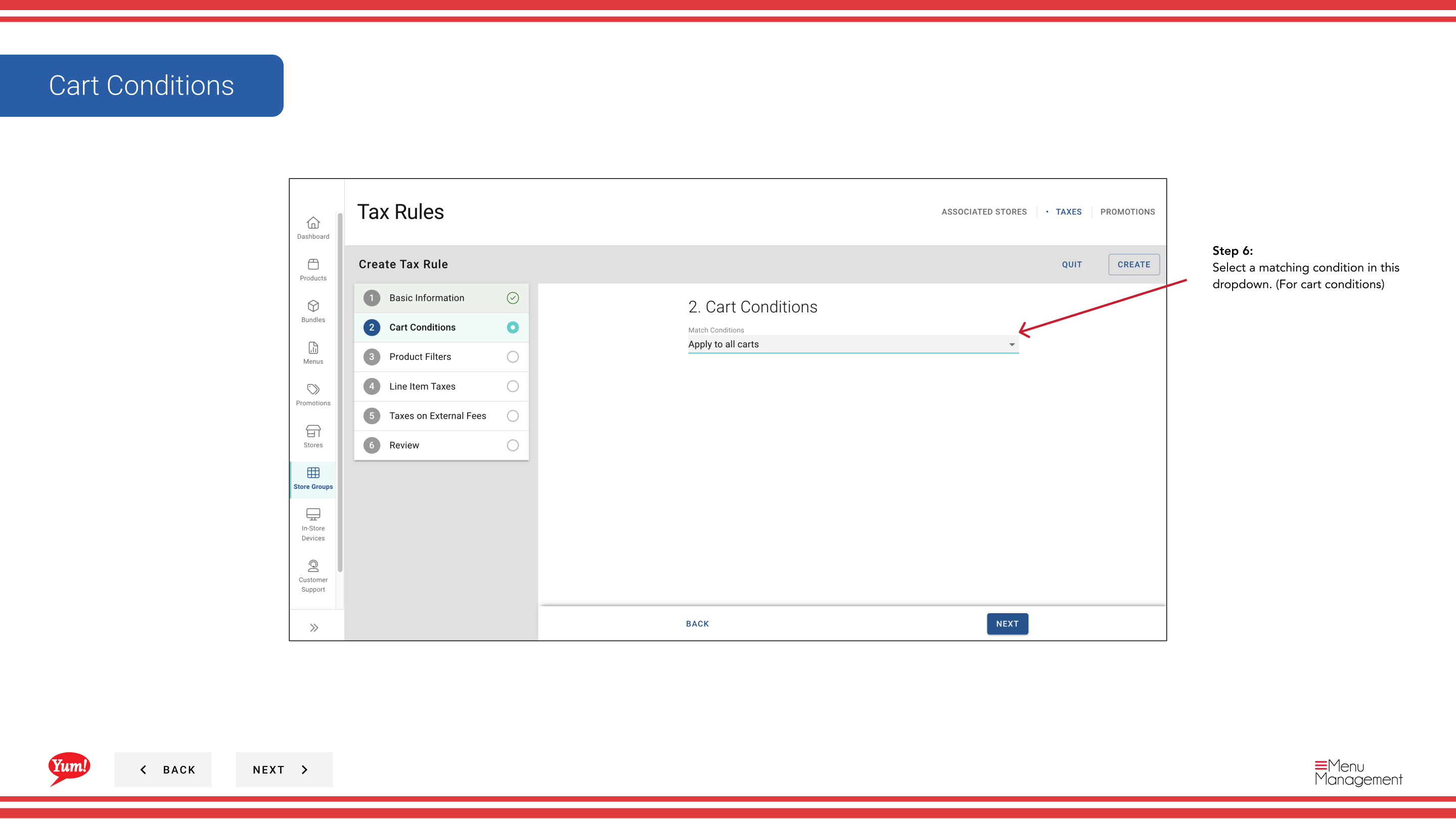
Step 6: Add conditions that trigger this tax rule. This section is optional.
| Field | What to enter | Notes |
|---|---|---|
| Cart Conditions | Select conditions based on overall order | e.g., "Order contains delivery", "Cart total exceeds $50". Choose from dropdown. |
| Product Filters | Select which products/categories this applies to | e.g., "Only menu items in Burgers category". Choose from dropdown. |
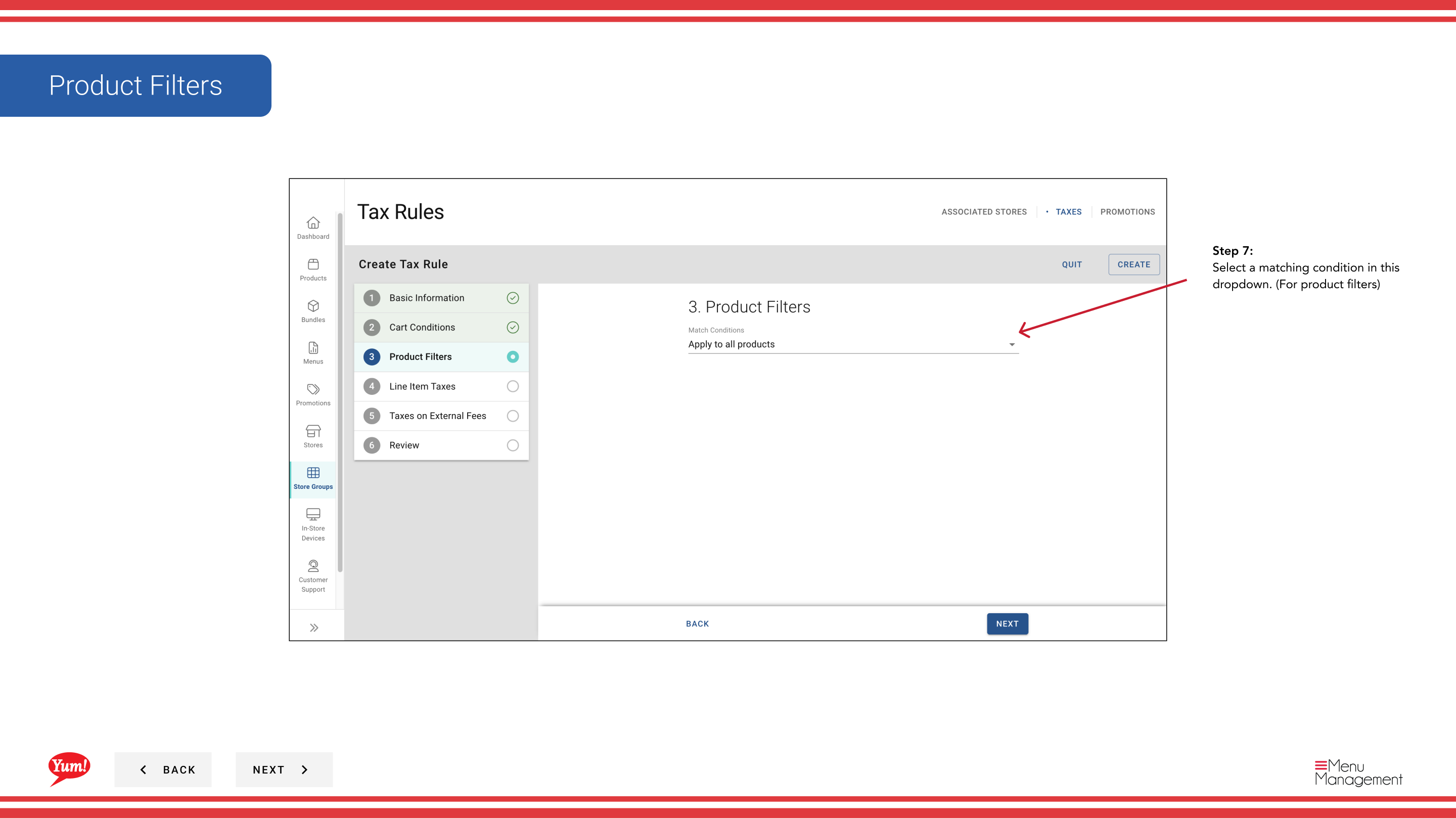
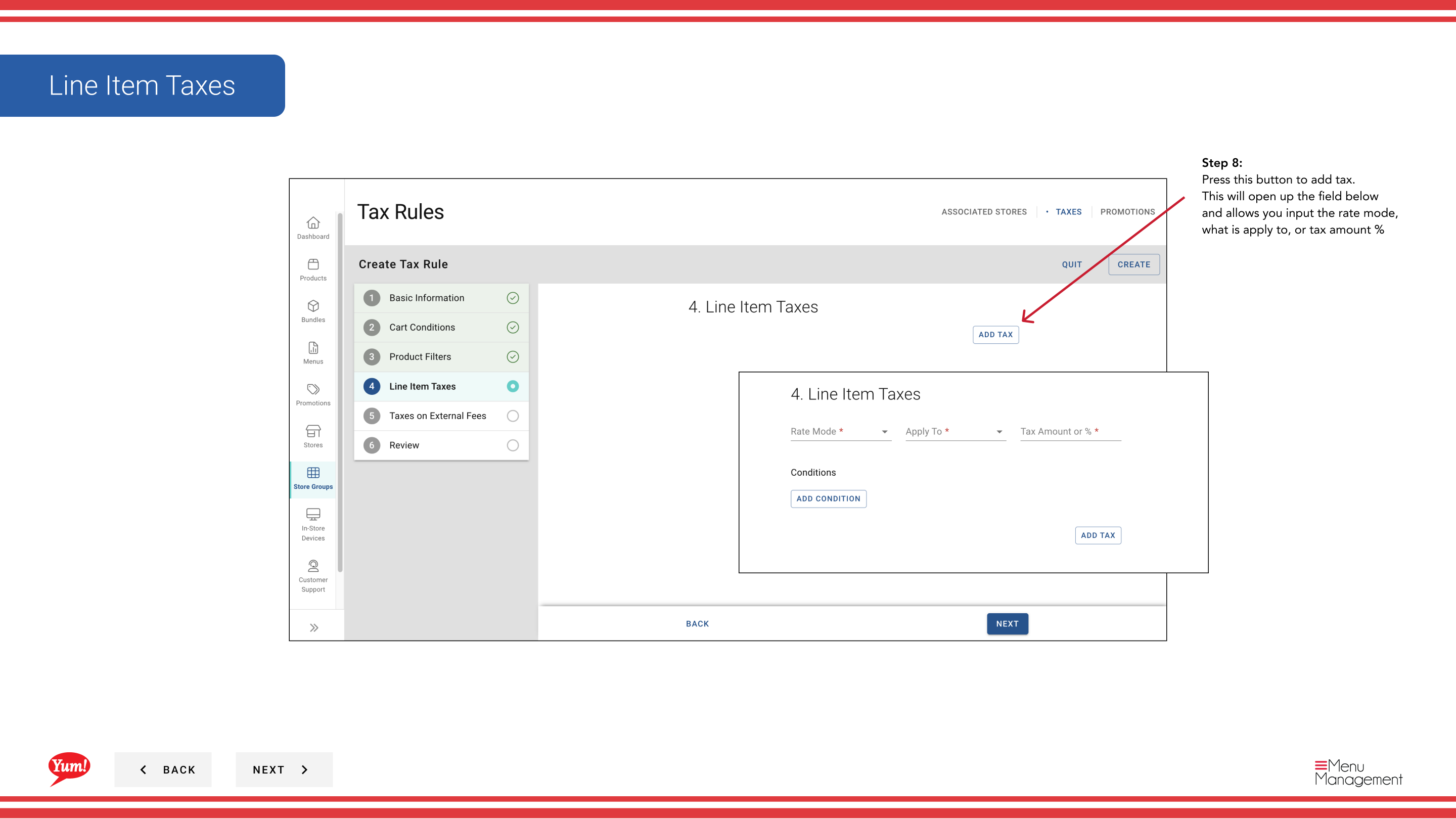
Step 7: Click the + Add Tax button to define the tax calculation.
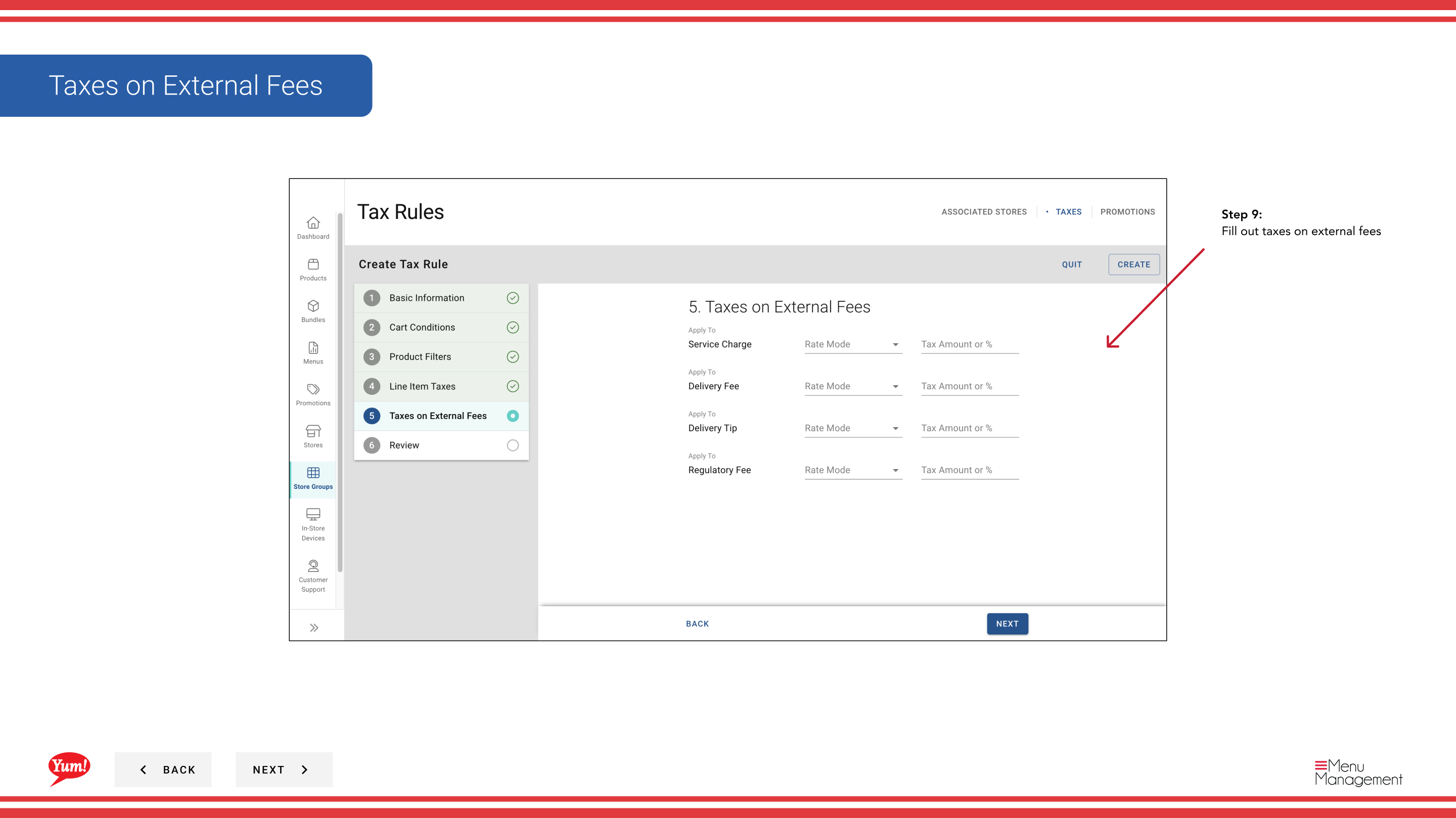
Step 8: Fill in the tax calculation details:
| Field | What to enter | Notes |
|---|---|---|
| Rate Mode | Choose how tax is calculated | Percentage (e.g., 10% GST) or Fixed Amount (e.g., $0.50 per item) |
| Applied To | What the tax applies to | e.g., Subtotal, Delivery Fee, or specific item categories |
| Tax Amount % | Enter the tax rate as a percentage | For percentage mode only. Enter numbers only (e.g., 10 for 10% GST) |
Step 9: (Optional) Fill out Taxes on External Fees if you need to apply taxes to fees from third-party delivery platforms.
Step 10: Click to create the tax rule. A review screen will show all information you've entered. Click Create to save.
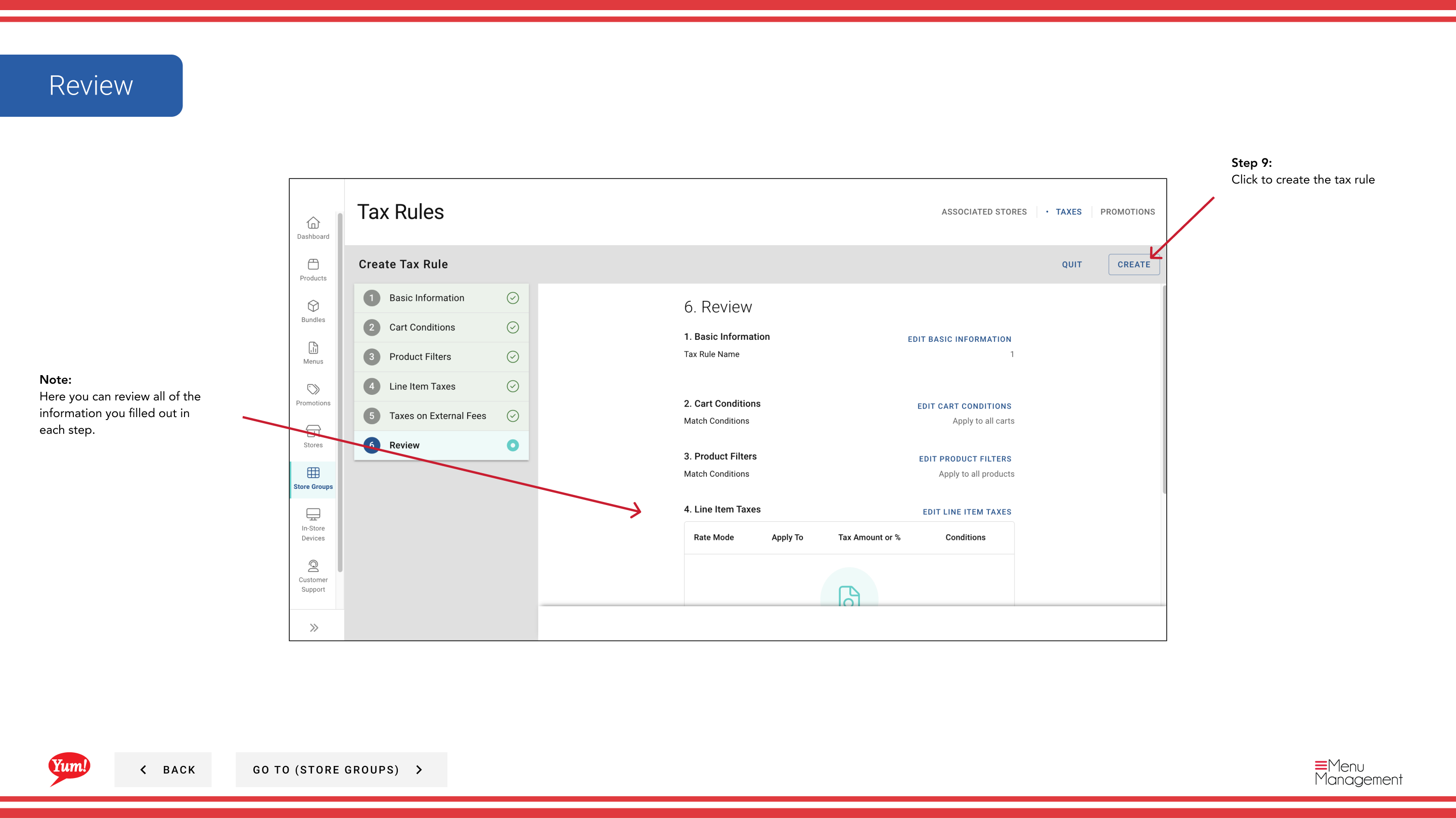
You can click on any step number in the wizard to navigate to that section without losing your changes. You can also edit, copy, and delete tax rules after creation.
Create a Tax Rule Group first if you want to organize related tax rules together. See Create Tax Rule Group for instructions.
Related guides
Part of the Admin Portal Guide · Section: Store Groups