Create Tax Rule Group
What this guide covers
Creates a named tax rule group that bundles multiple related tax rules together, allowing you to organize and reuse tax configurations across store groups.
Steps
Step 1: Navigate to the Store Groups section using the left-hand navigation menu.
Step 2: Find the store group where you want to create a tax rule group. Click the action menu button (three dots) next to the store group name.
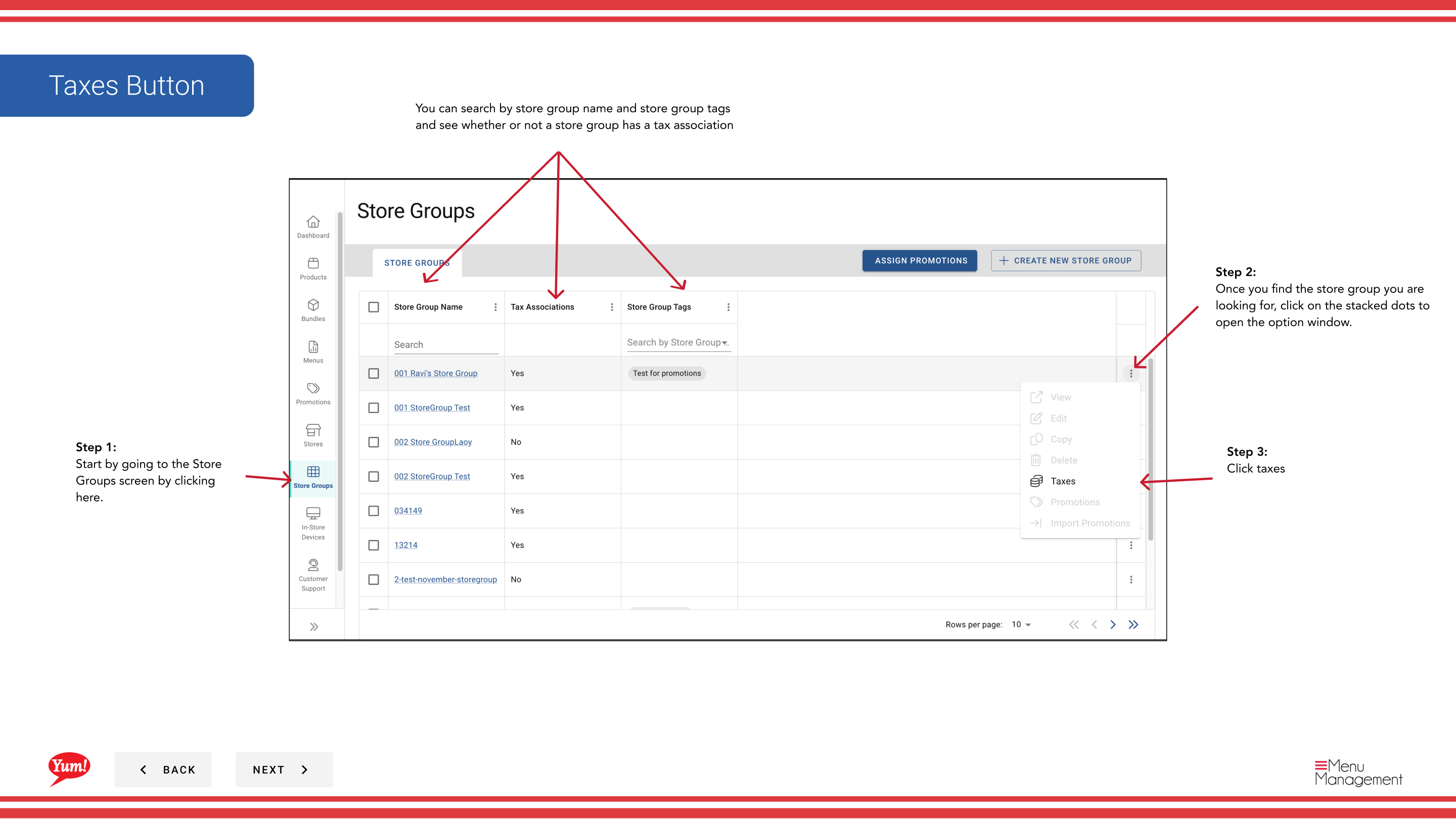
Step 3: Click Taxes from the dropdown menu.
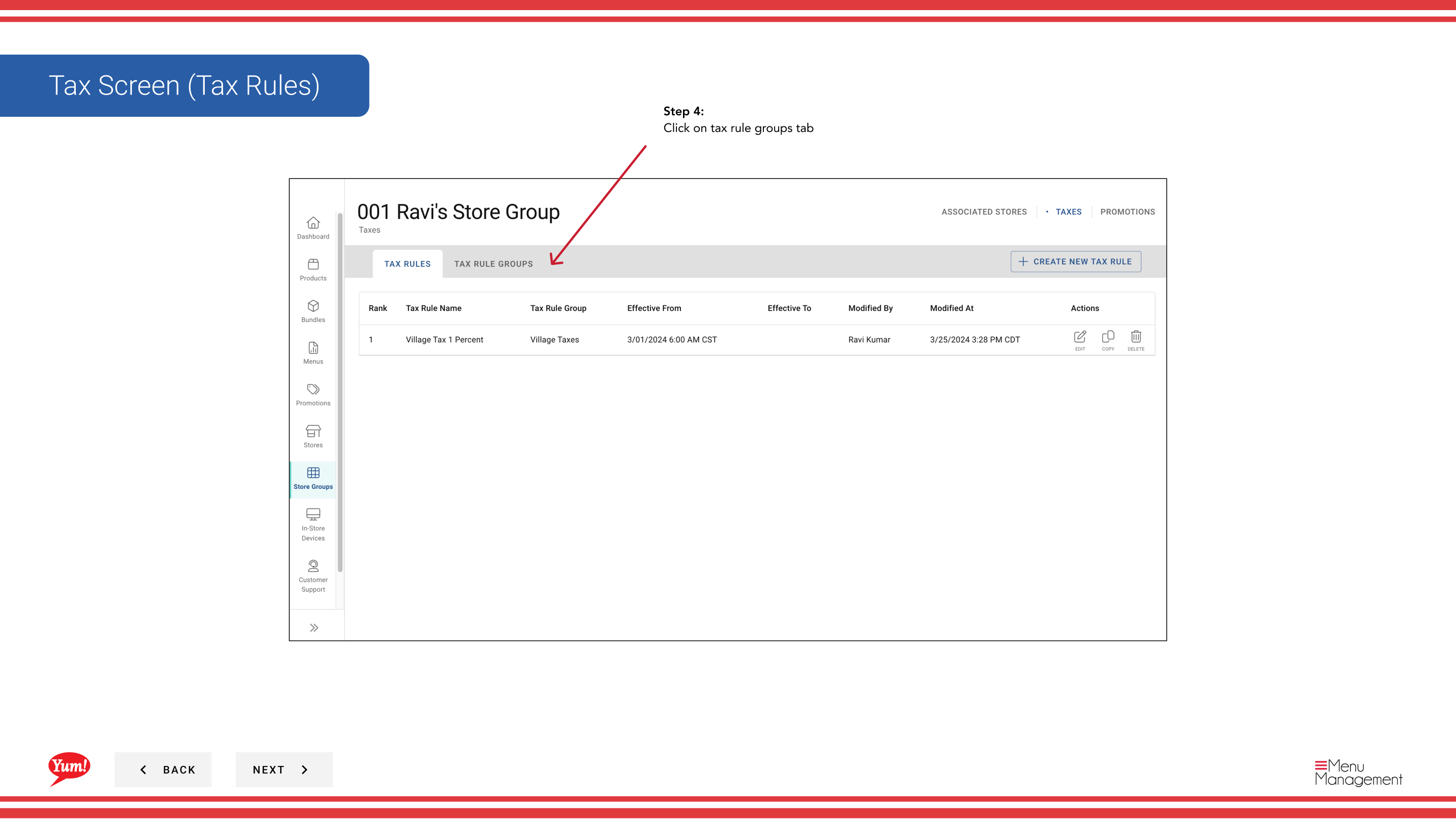
Step 4: Click the Tax Rule Groups tab.
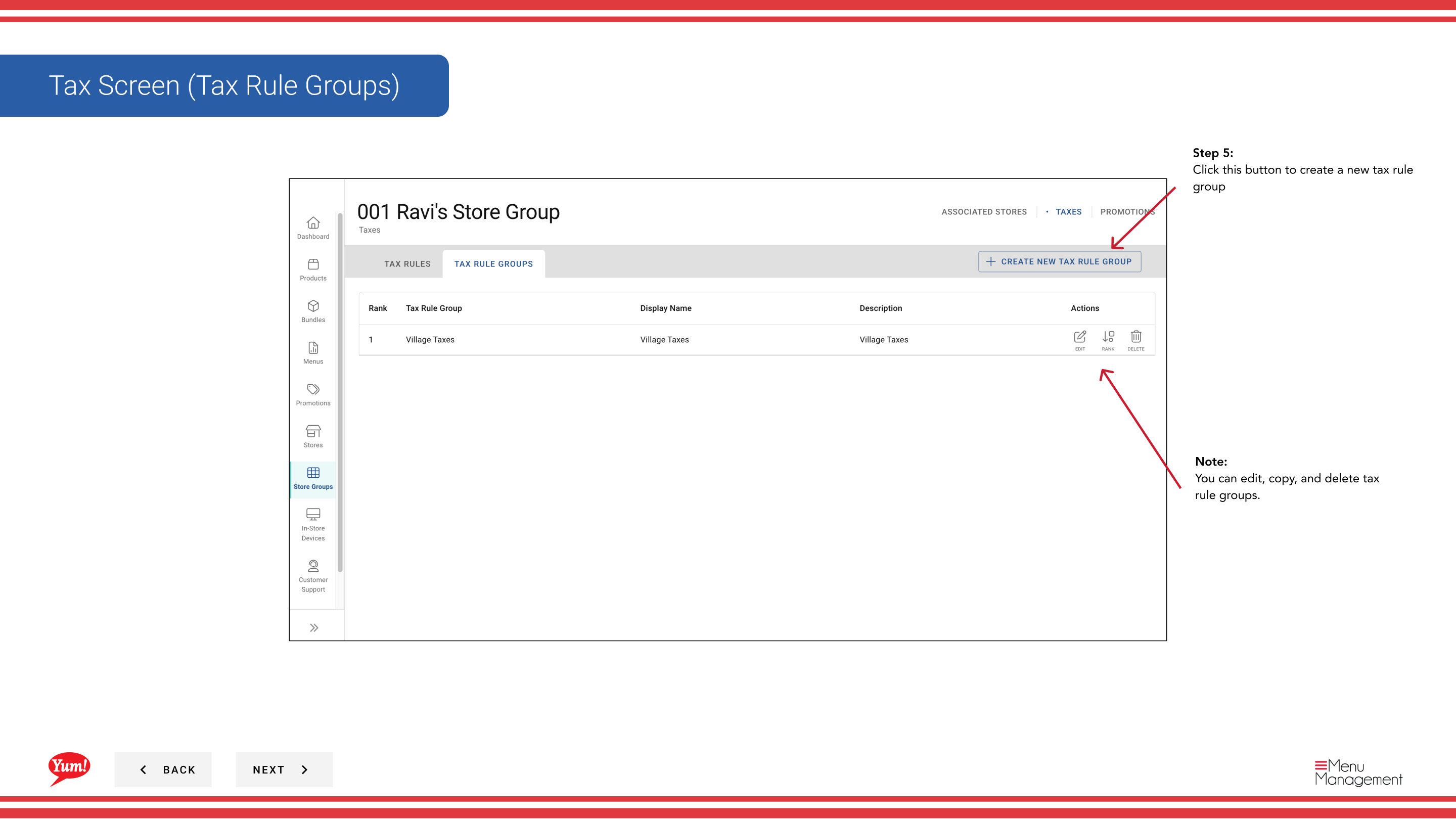
Step 5: Click the + Create New Tax Rule Group button.
Step 6: Fill in the tax rule group details. Fields marked with * are required.
| Field | What to enter | Notes |
|---|---|---|
| Tax Rule Group Name * | Descriptive name for this group | e.g., "Standard GST Group", "NSW Reduced Tax Rules". Should indicate what taxes are included. |
| Display Name * | Name shown in the interface | Usually same or similar to the Tax Rule Group Name. |
| Description | Optional explanation of the group's purpose | e.g., "GST rules applicable to New South Wales locations". |
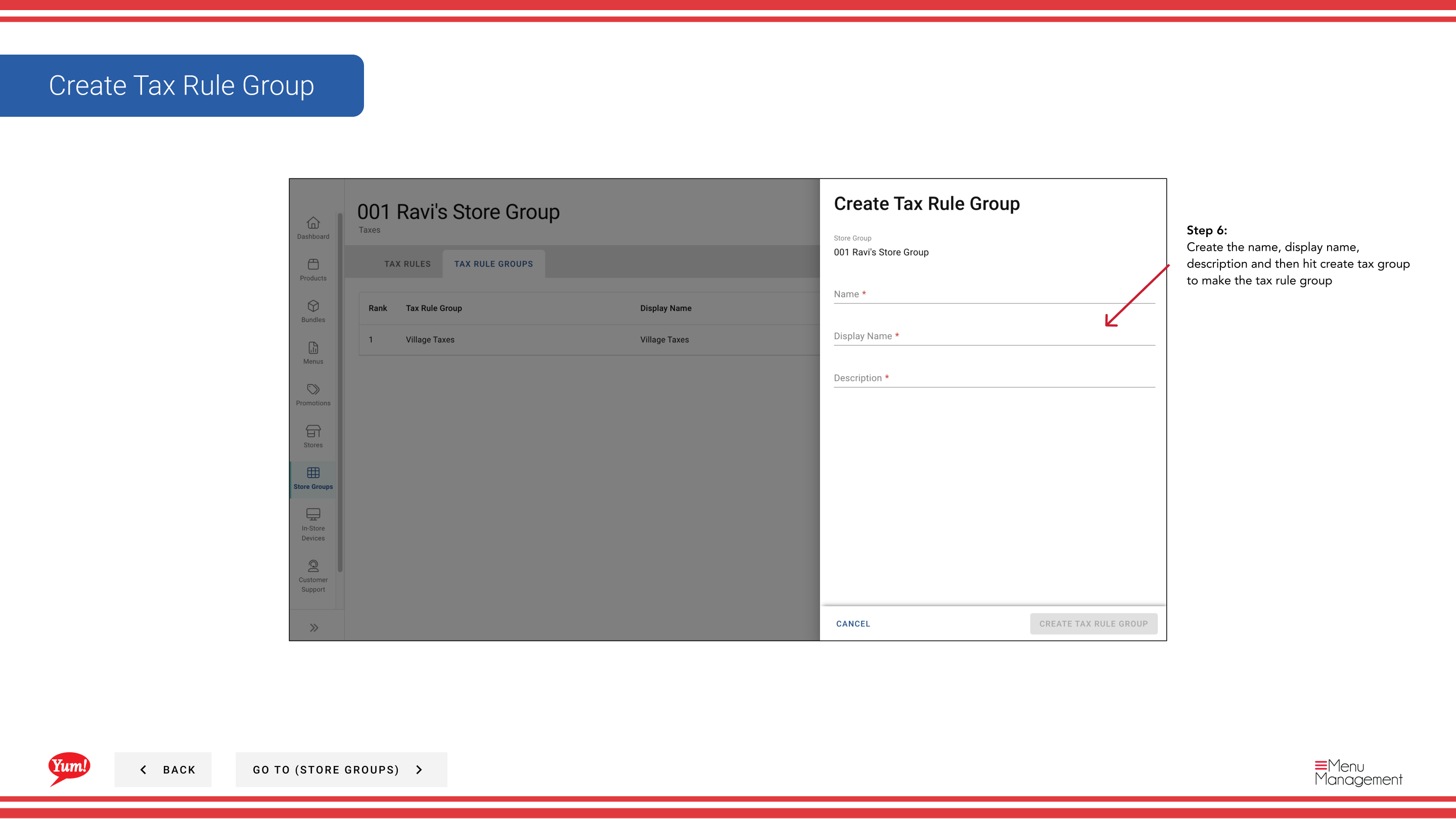
Step 7: Click the Create Tax Group button to save the tax rule group.
Once created, a tax rule group is independent and can be used across multiple store groups. You can edit, copy, and delete tax rule groups at any time from this screen.
After creating a tax rule group, you'll need to add individual tax rules to it. See Create Tax Rules for that step.
Related guides
Part of the Admin Portal Guide · Section: Store Groups