Copy a Store Group
What this guide covers
Duplicates a store group configuration as a starting point for a new group, copying stores and tags but creating an independent new store group.
Steps
Step 1: Navigate to the Store Groups section using the left-hand navigation menu.
Step 2: Find the store group you want to copy by browsing the table or using the search bar. Click the action menu button (three dots) next to the store group name.
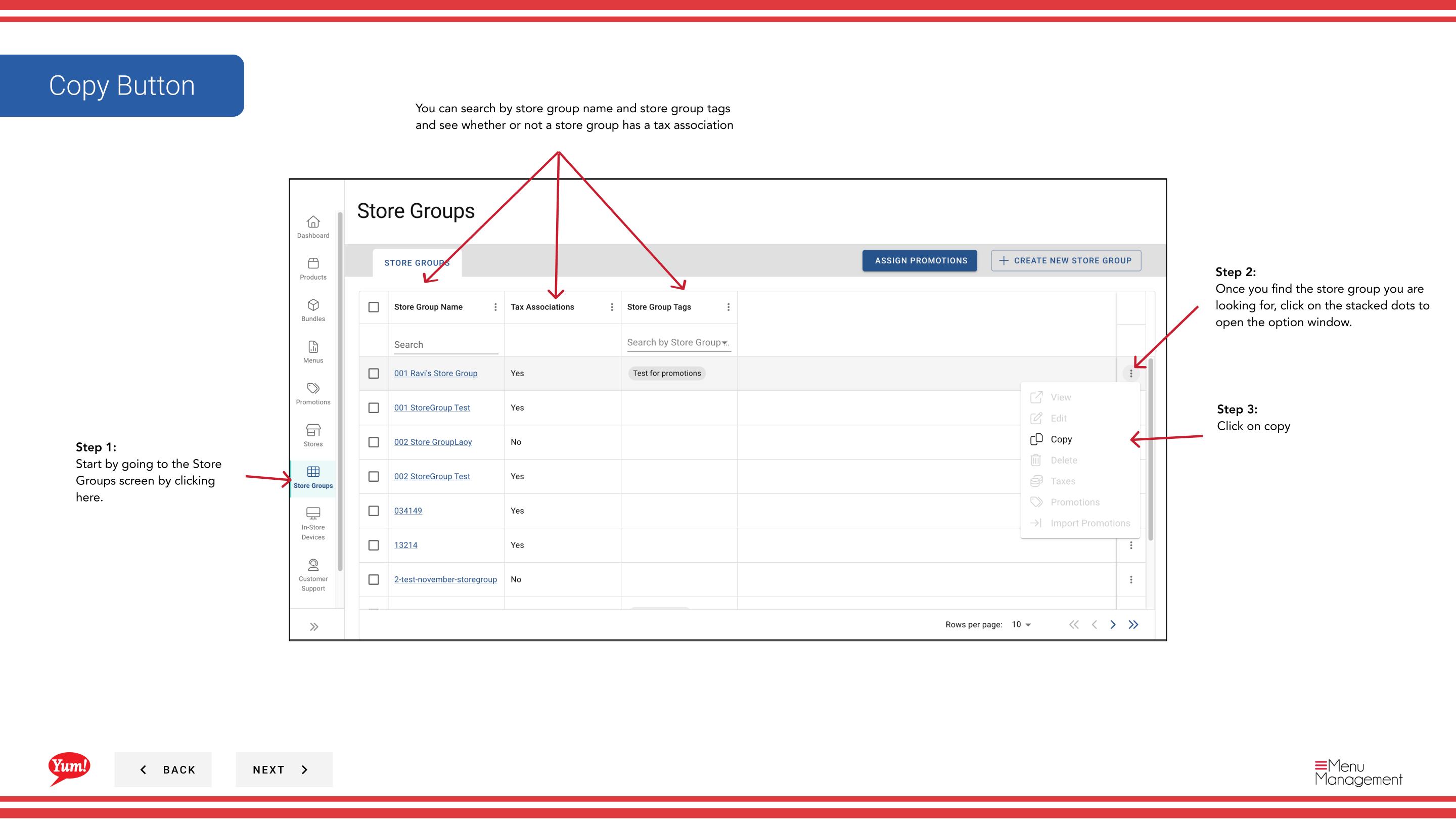
Step 3: Click Copy.
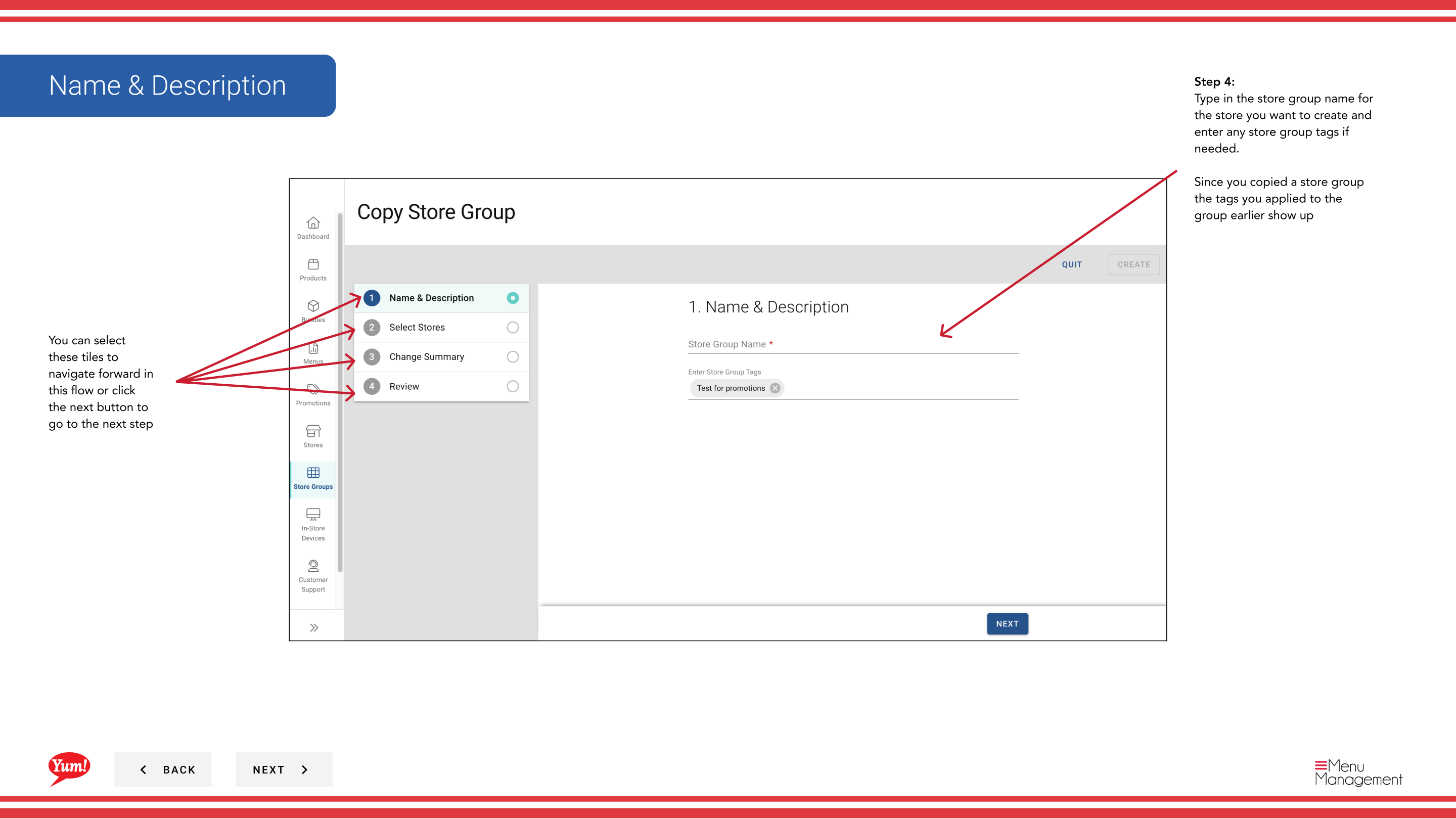
Step 4: Update the store group details:
| Field | What to enter | Notes |
|---|---|---|
| Store Group Name * | A new, unique name for this group | The system copies the original name; you must change it. e.g., "NSW Franchise Group - Copy". |
| Store Group Tags | Labels for filtering and reporting | Tags from the original group are automatically included. You can add or remove as needed. |
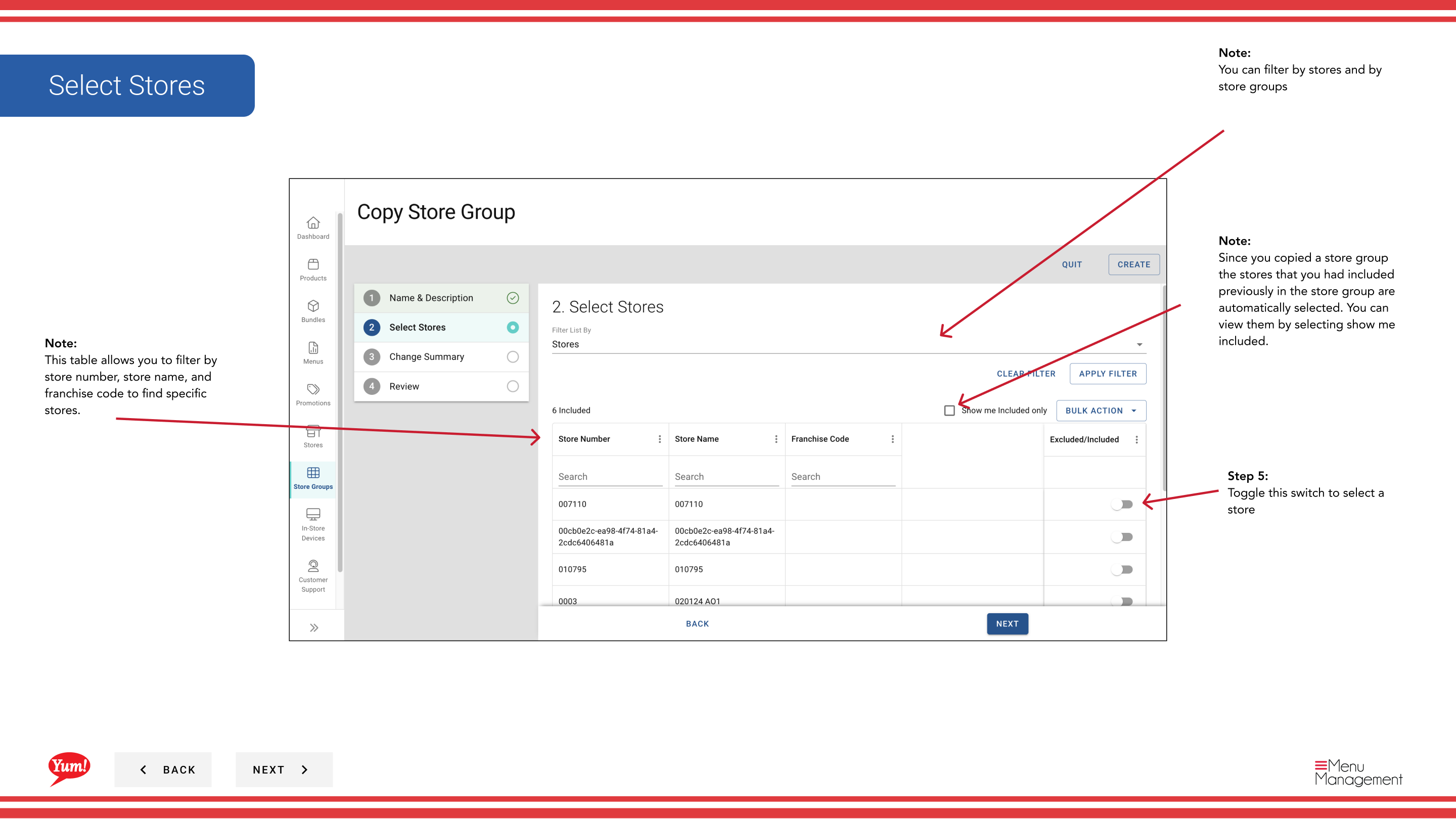
Step 5: Review and adjust store membership if needed:
- Stores from the original group are automatically selected (toggle switches are ON)
- Toggle OFF to remove any stores you don’t want in the new group
- Toggle ON to add additional stores
- Use the "Show me included" filter to quickly view only selected stores
- Filter by Store Number, Store Name, or Franchise Code to find specific stores
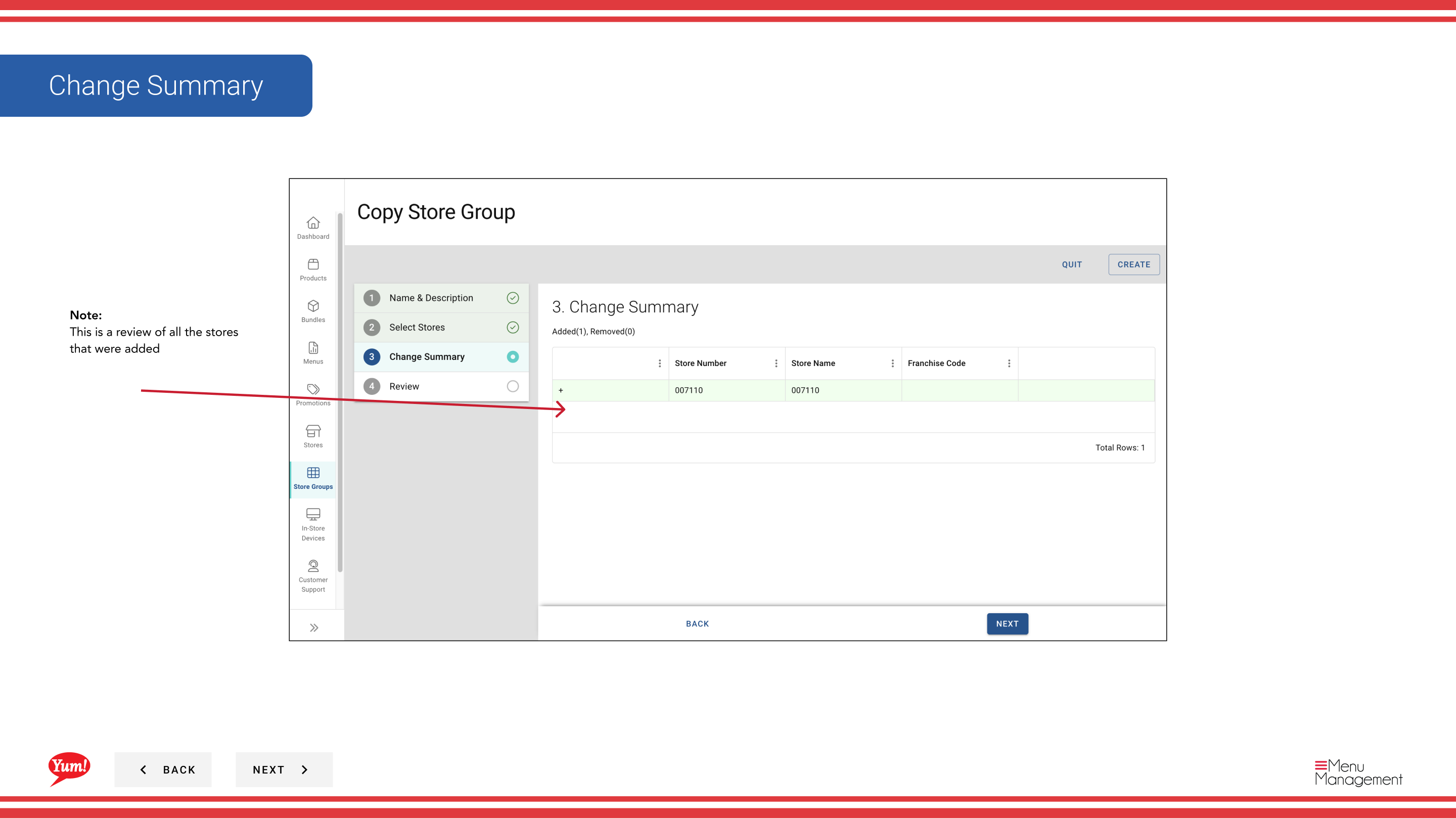
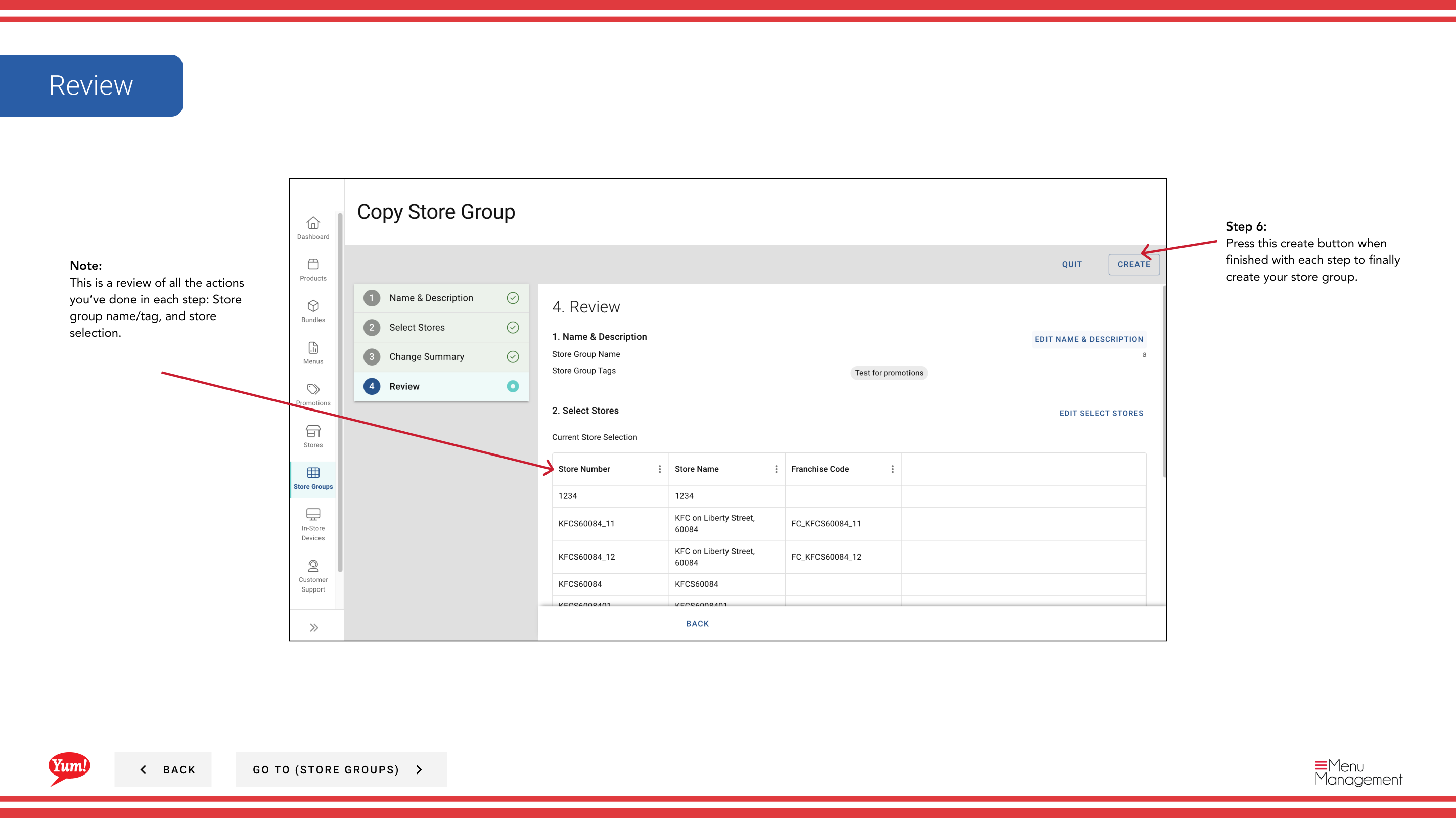
Step 6: Review the summary of all changes and click the Create button to save the new store group.
The copied store group is independent from the original. Changes made to either group will not affect the other. Store membership is automatically copied from the original group but can be modified before saving.
Related guides
Part of the Admin Portal Guide · Section: Store Groups