Unassign Promotions from Store Group
What this guide covers
Removes one or more promotions from a store group, immediately deactivating them across all member stores.
Steps
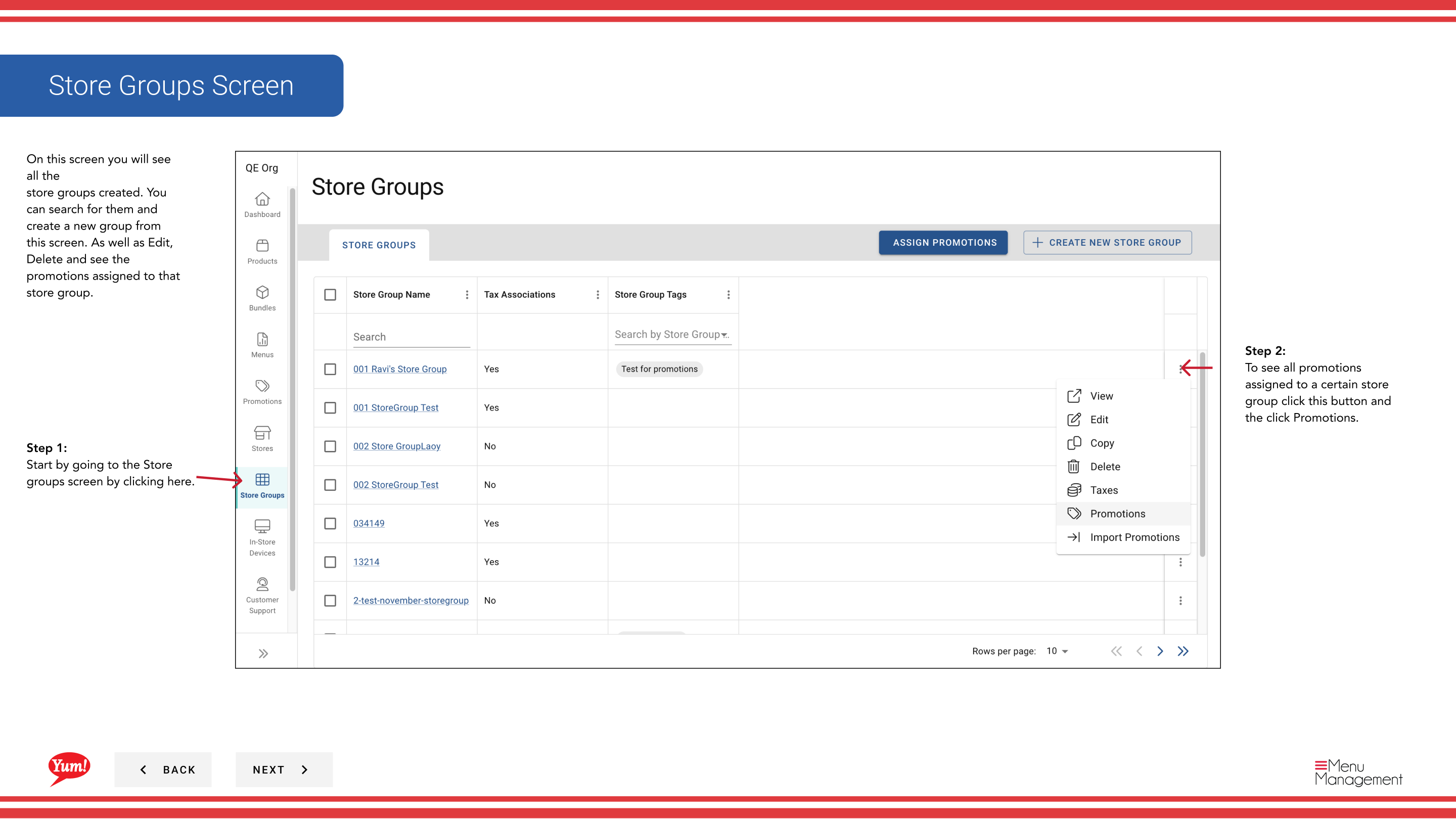
Step 1: Navigate to the Store Groups section using the left-hand navigation menu.
Step 2: Find the store group whose promotions you want to remove. Click the action menu button (three dots) next to the store group name, then click Promotions.
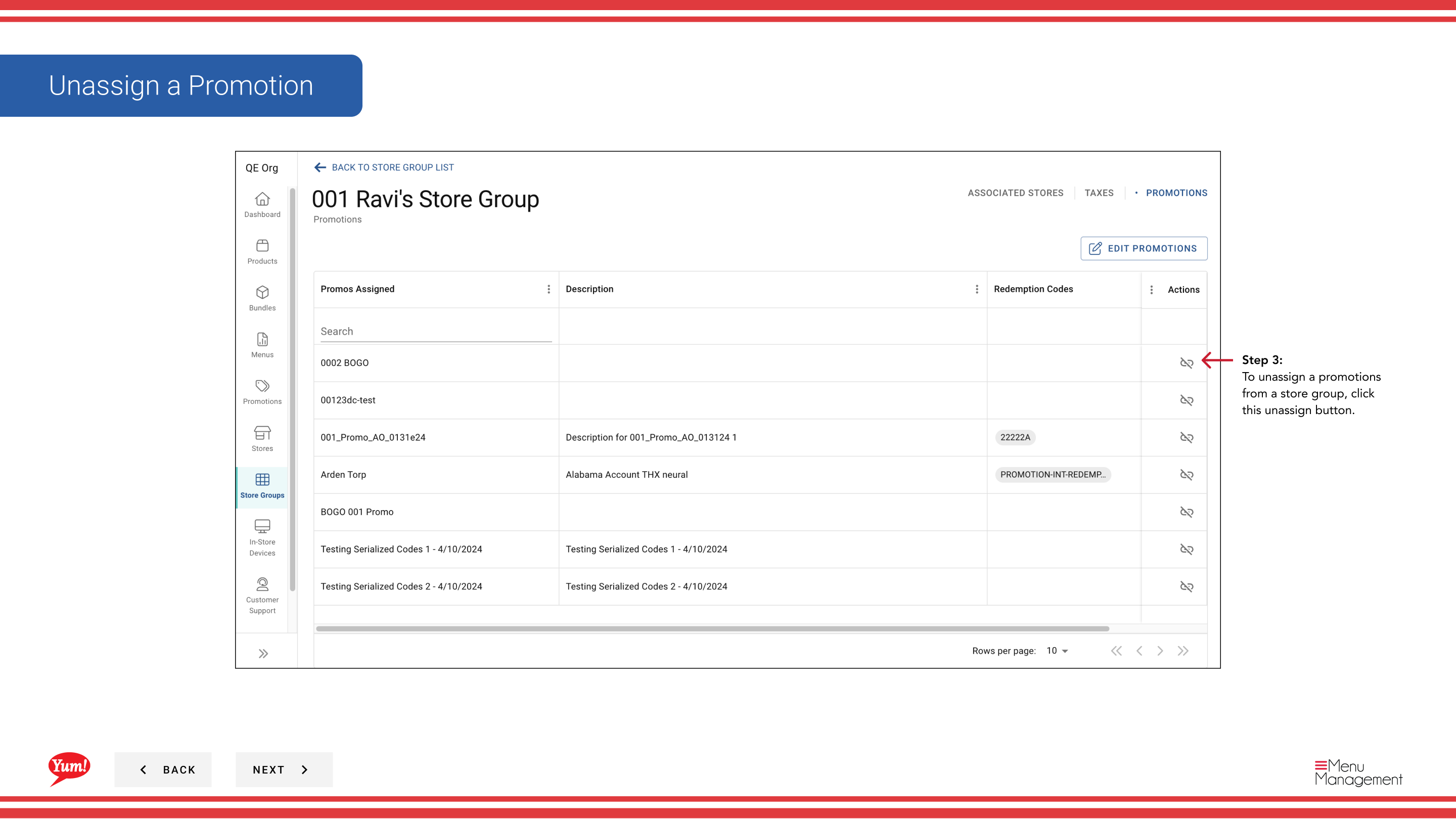
Step 3: A drawer will open showing all promotions currently assigned to this store group. To remove a promotion, click the Unassign button next to the promotion name.
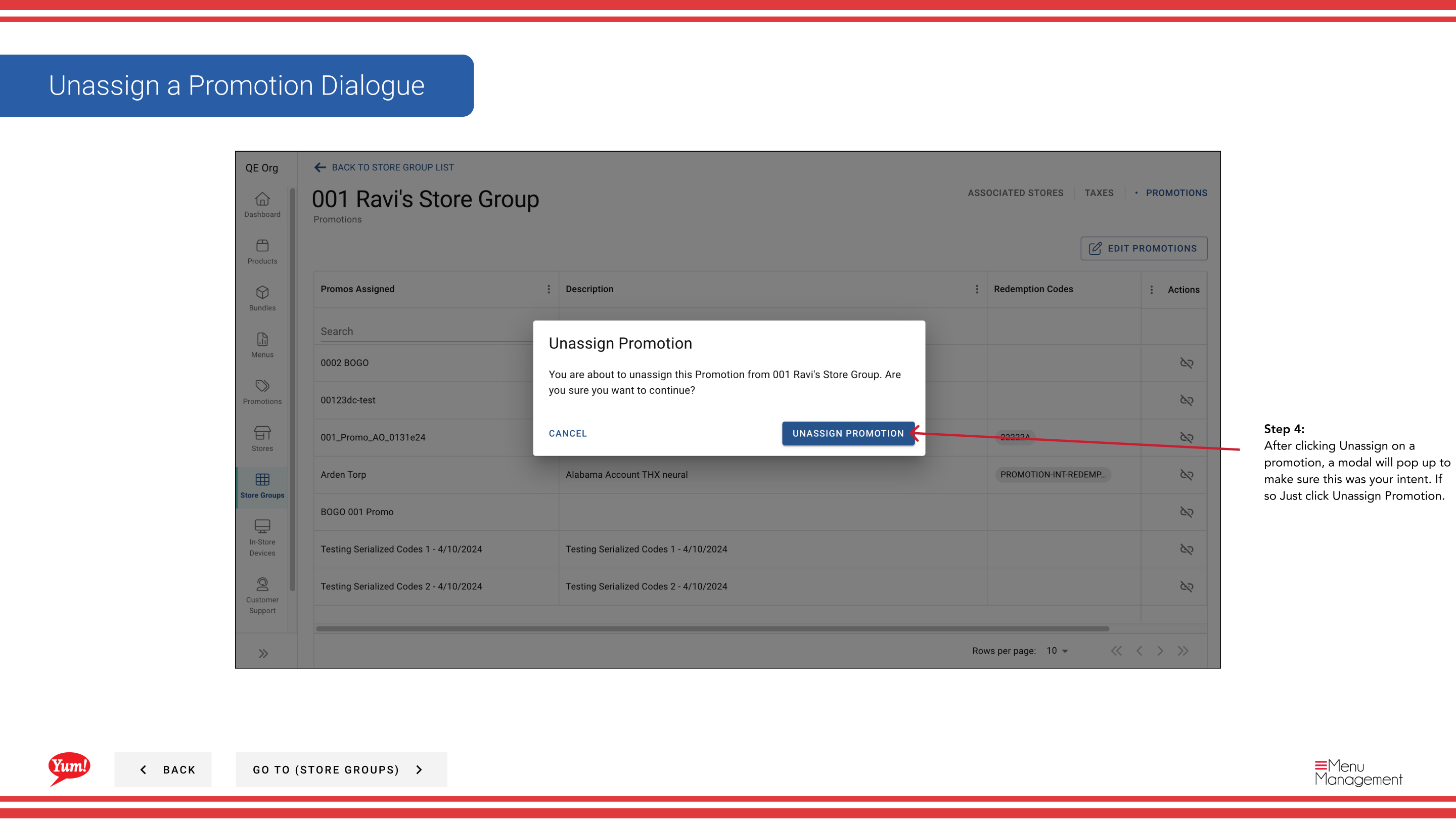
Step 4: A confirmation dialog will appear. Click Unassign Promotion to confirm removal of the promotion from this store group.
Unassigning a promotion immediately deactivates it across all stores in this store group. Customers will no longer see this promotion on their digital ordering channels.
If you want to add or remove multiple promotions at once, use the Edit Promotions workflow instead.
Related guides
Part of the Admin Portal Guide · Section: Store Groups