Import Promotions for a Store Group
What this guide covers
Bulk-imports promotion assignments from one store group to another, used when setting up large promotion campaigns across many stores or duplicating promotions from an existing configuration.
Steps
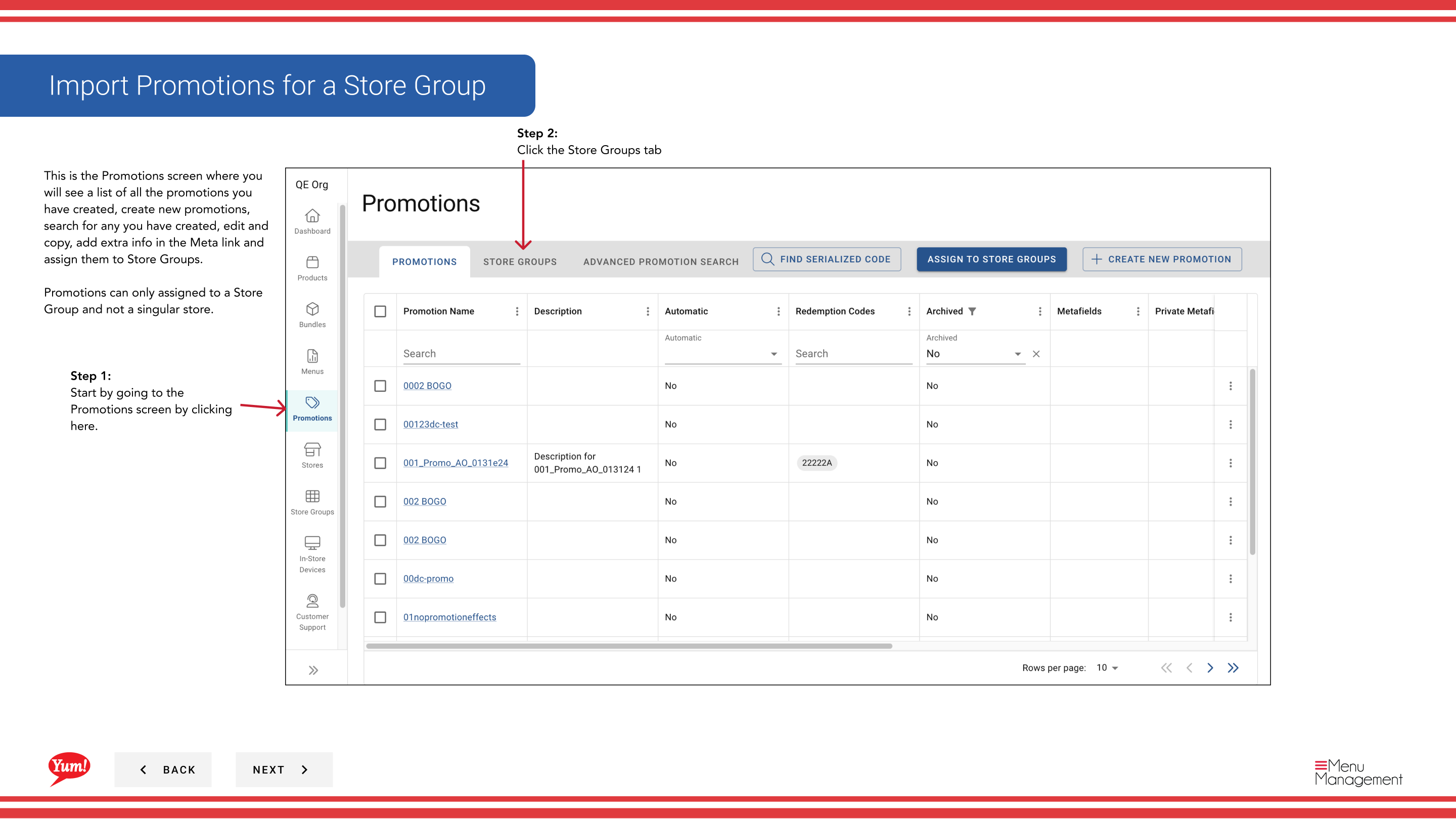
Step 1: Navigate to the Promotions section using the left-hand navigation menu.
Step 2: Click the Store Groups tab.
Step 3: Find the store group that will receive the promotions (the destination group). This is the group you want to import promotions into.
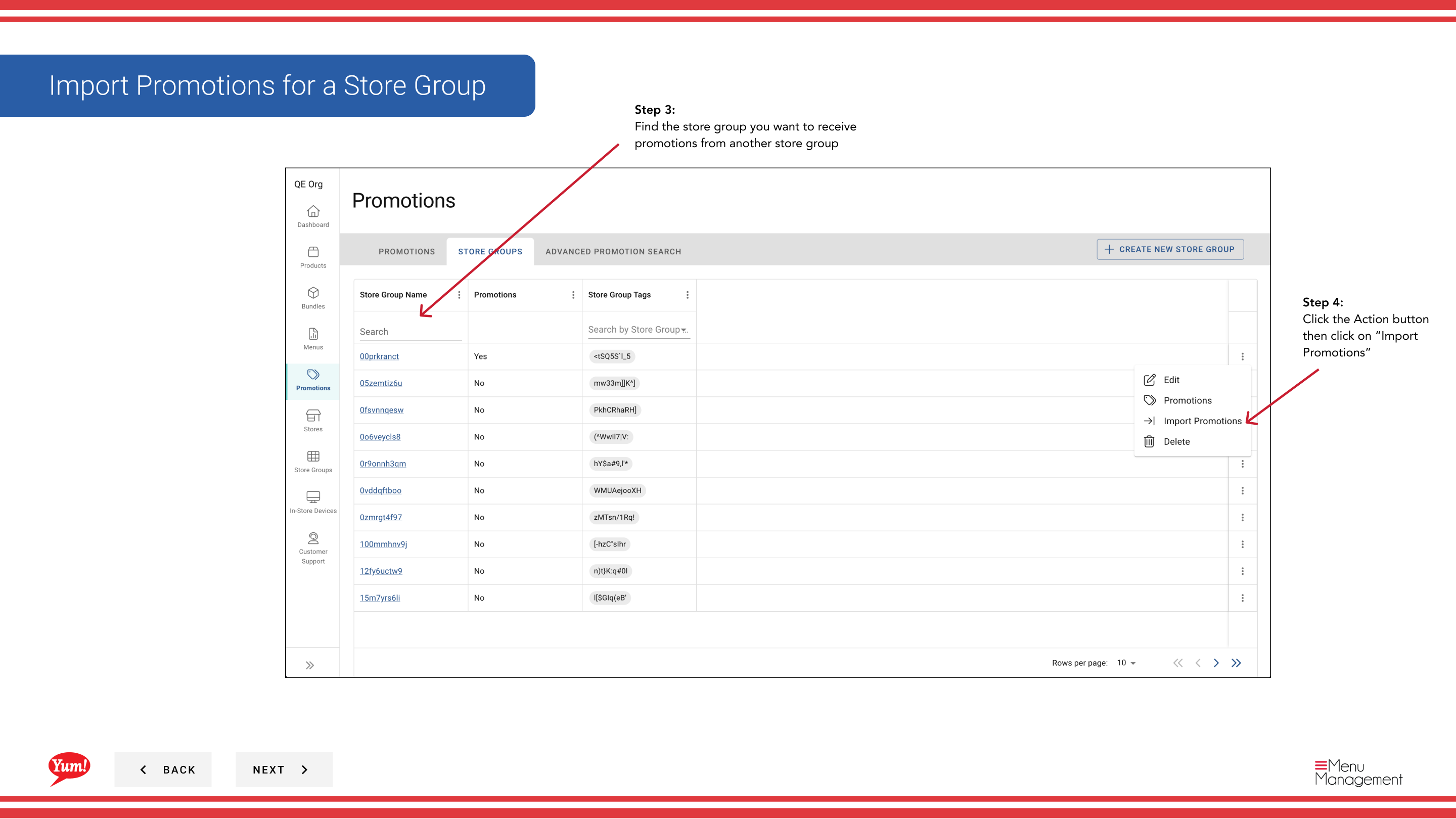
Step 4: Click the action menu button (three dots) next to the store group name, then select Import Promotions.
Step 5: A dialog will appear asking you to select the store group to import promotions from (the source group). Search for and select the store group that has the promotions you want to copy.
Step 6: Review the import summary and click Save to complete the import.
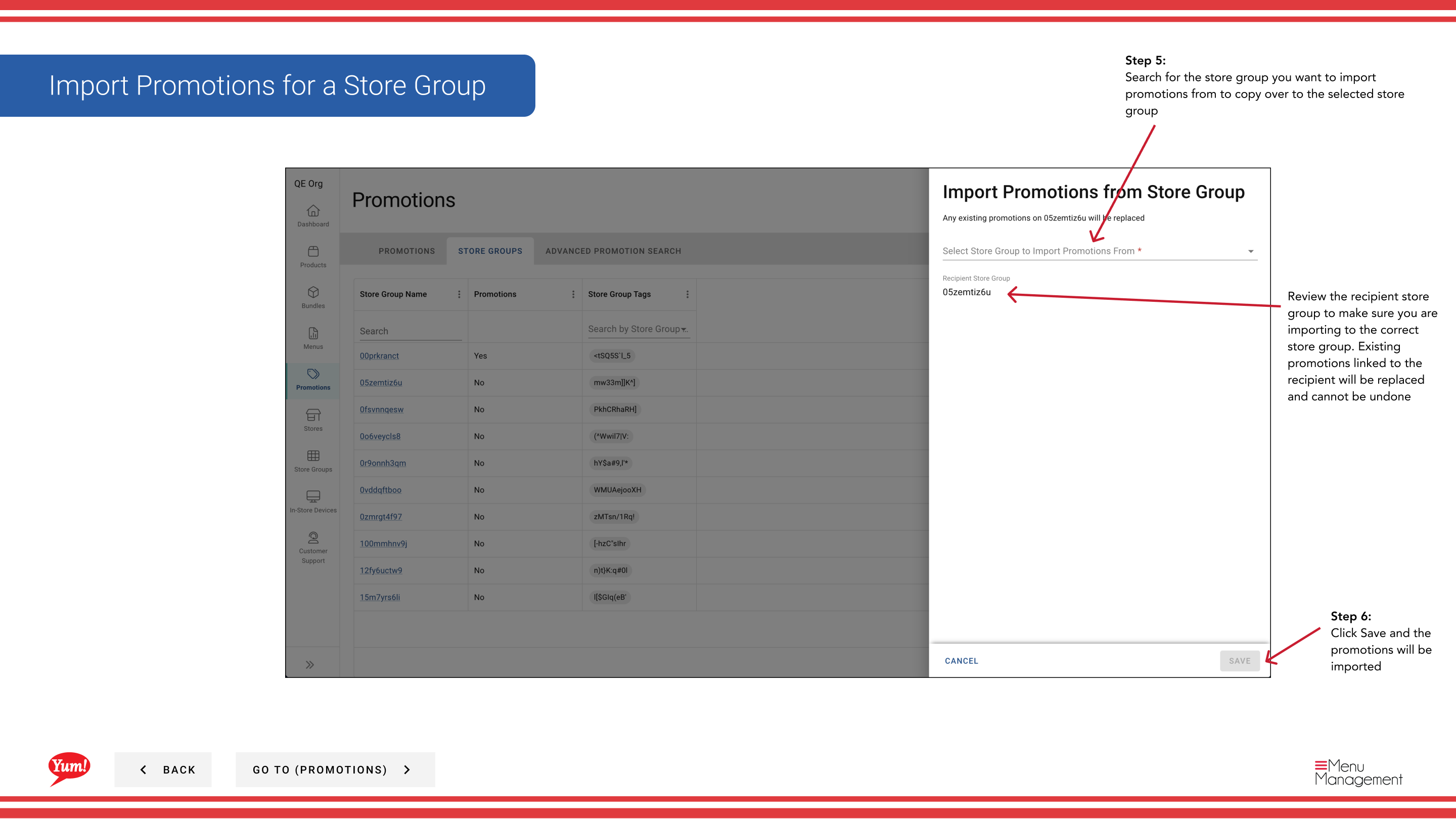
Important: Importing promotions will replace any existing promotions linked to the destination store group. The operation cannot be undone. Make sure you are importing to the correct store group before confirming.
If you want to import specific promotions rather than all of them, toggle off the “Import All” option and select individual promotions instead.
Related guides
- View Promotions for a Store Group
- Assign Promotions to Store Groups
- Import Promotions (Store Groups section)
Part of the Admin Portal Guide · Section: Promotions