View a Store’s Beneficiaries
What this guide covers
Lists the beneficiaries linked to a specific store for visibility and management.
Steps
Step 1: Navigate to the Stores section using the left-hand navigation menu.
Step 2: Search for the store by Name, Store Number, or Franchise Code using the search box.
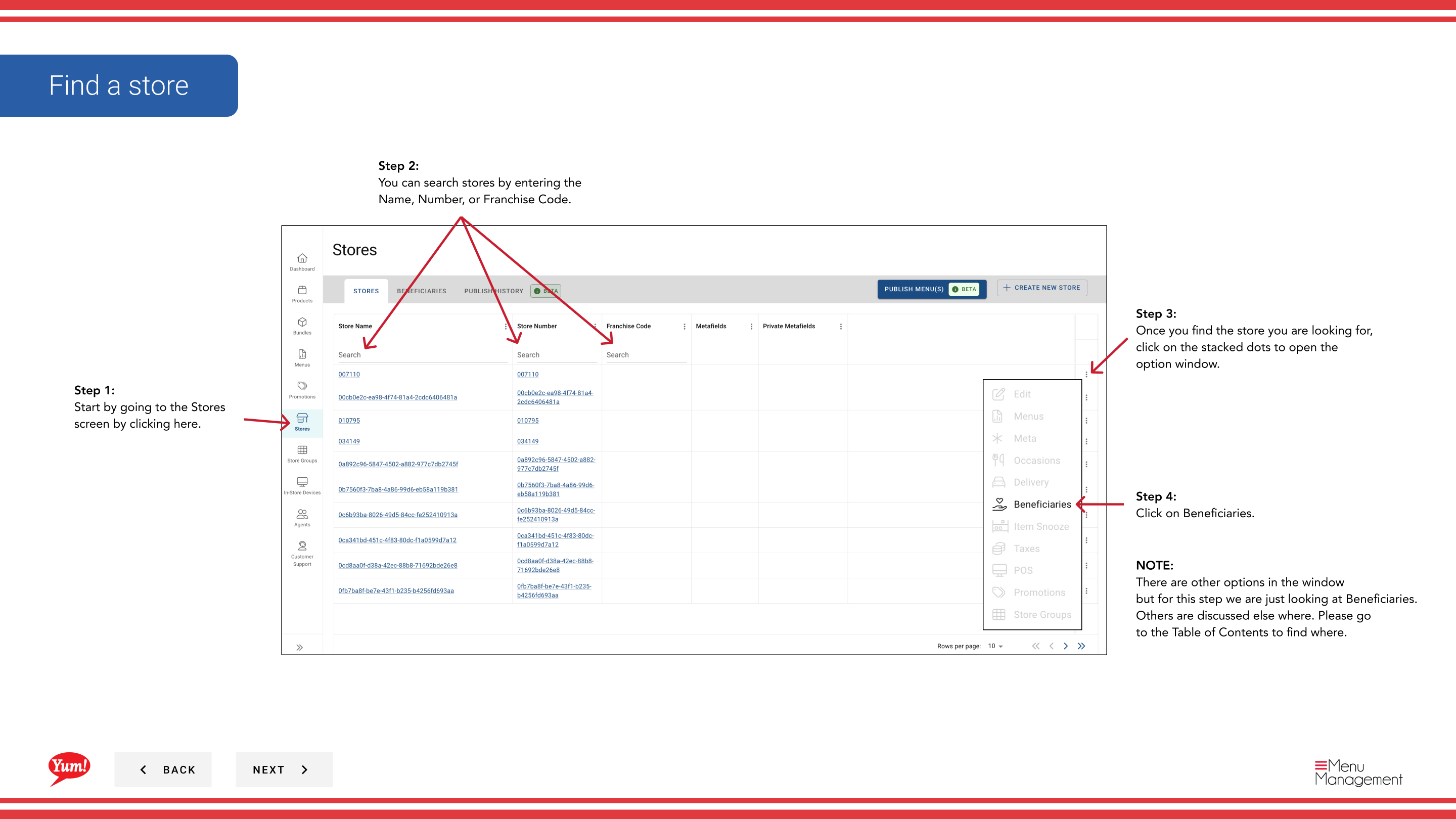
Step 3: Once you find the store, click the three-dot menu (•••) icon to open the options menu.
Step 4: Click Beneficiaries from the dropdown menu. This displays all beneficiaries associated with the selected store.
Step 5: Use the search box to filter beneficiaries by name if the list is long.
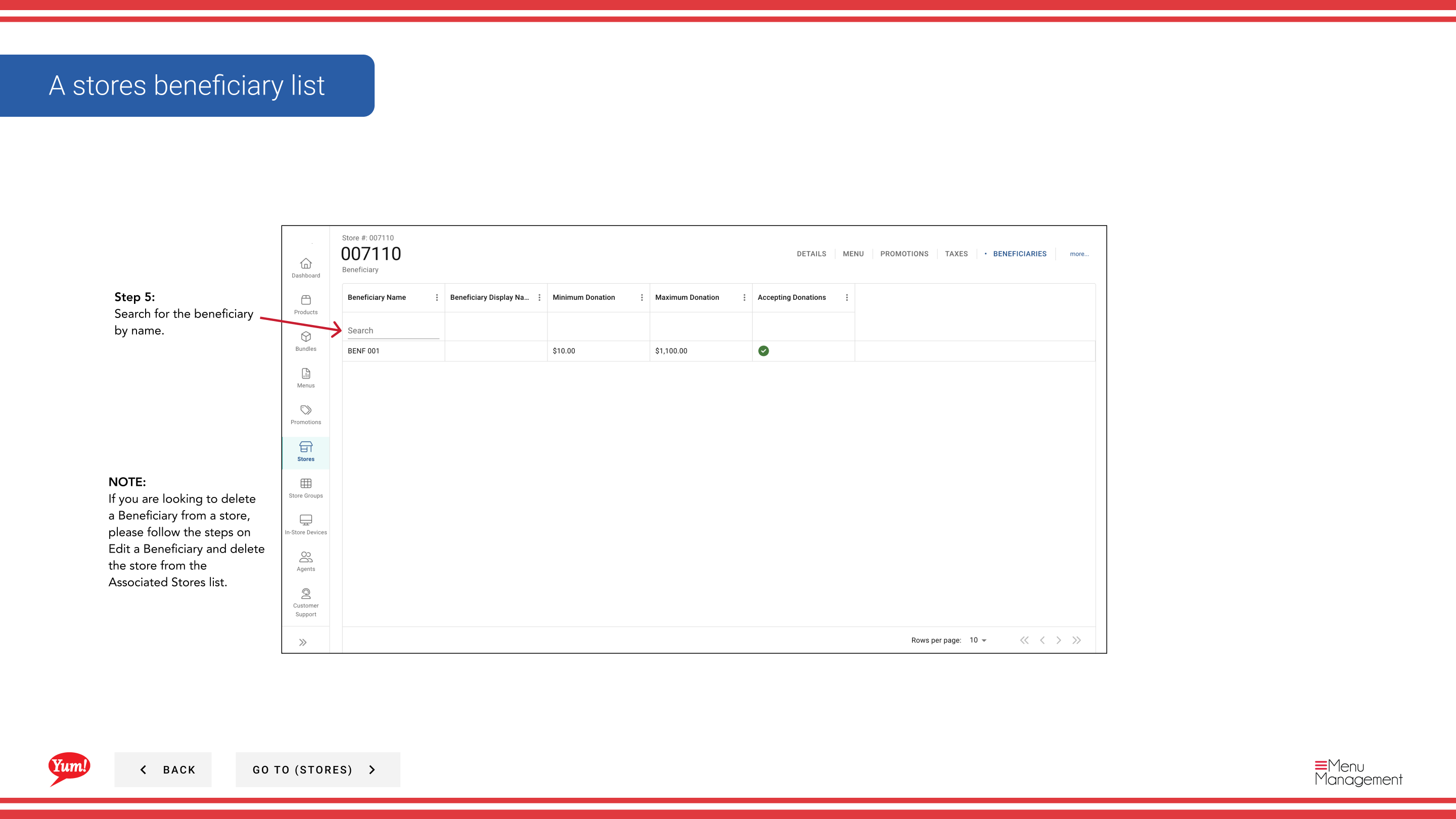
The table shows:
- Beneficiary Name — The name of the charity or cause
- Accepting Donations — Status indicator (green checkmark = active donations)
tip
To remove a specific store from a beneficiary, go to Edit/Delete a Beneficiary and unselect the store from the Associated Stores list.
Related guides
- Create a Beneficiary — Set up a new beneficiary
- Edit/Delete a Beneficiary — Update or remove beneficiaries
Part of the Admin Portal Guide · Section: Stores