Edit/Delete a Beneficiary
What this guide covers
Updates or removes an existing beneficiary record, including its name, donation status, and associated stores.
Steps
Step 1: Navigate to the Stores section using the left-hand navigation menu.
Step 2: Click the Beneficiaries tab at the top of the Stores page.
Step 3: Use the search box to find the beneficiary by name, or scroll through the list.
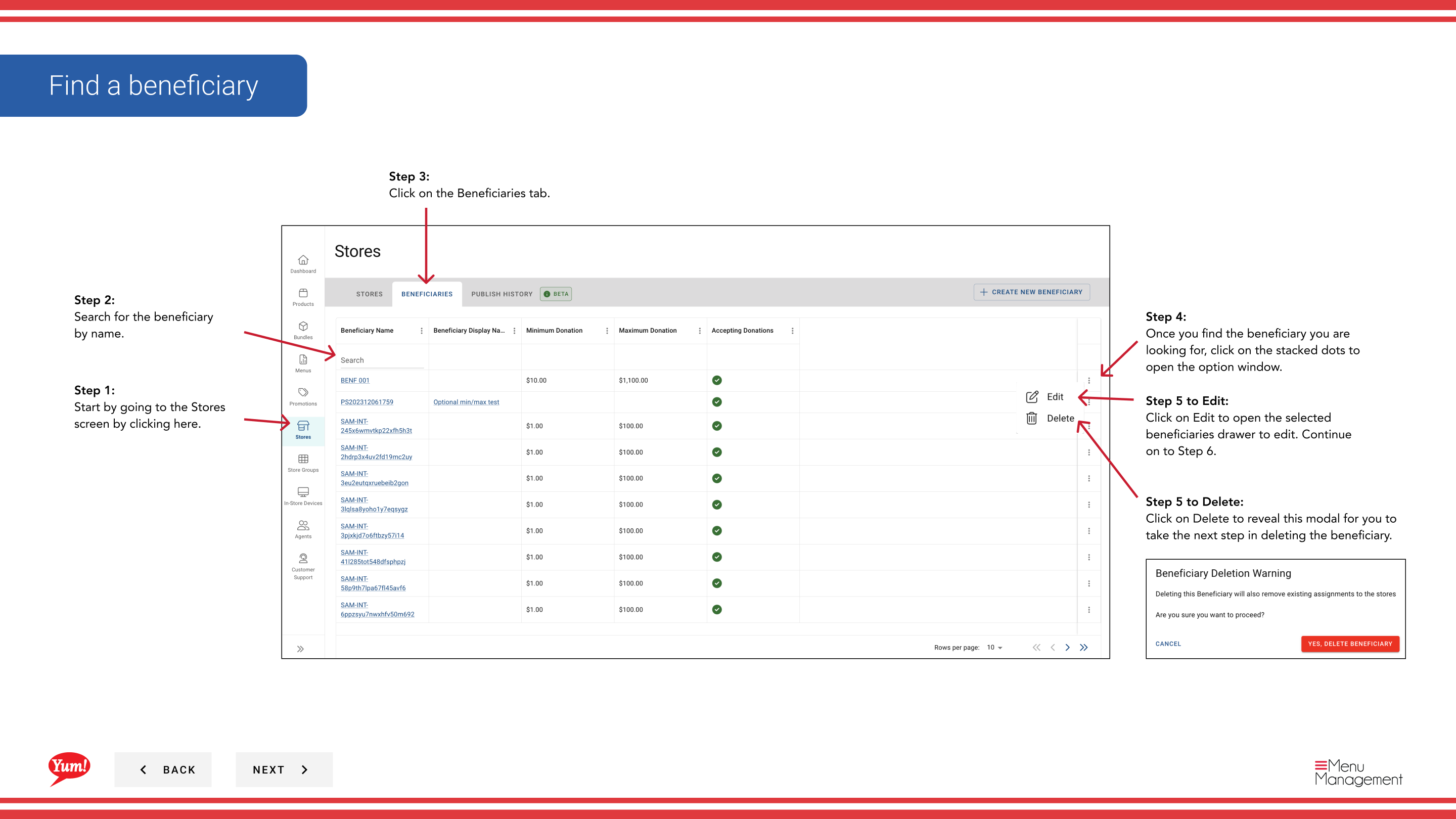
Step 4: Once you find the beneficiary, click the three-dot menu (•••) icon on the beneficiary's row to open the options menu.
To Edit:
Step 5: Click Edit to open the beneficiary details form.
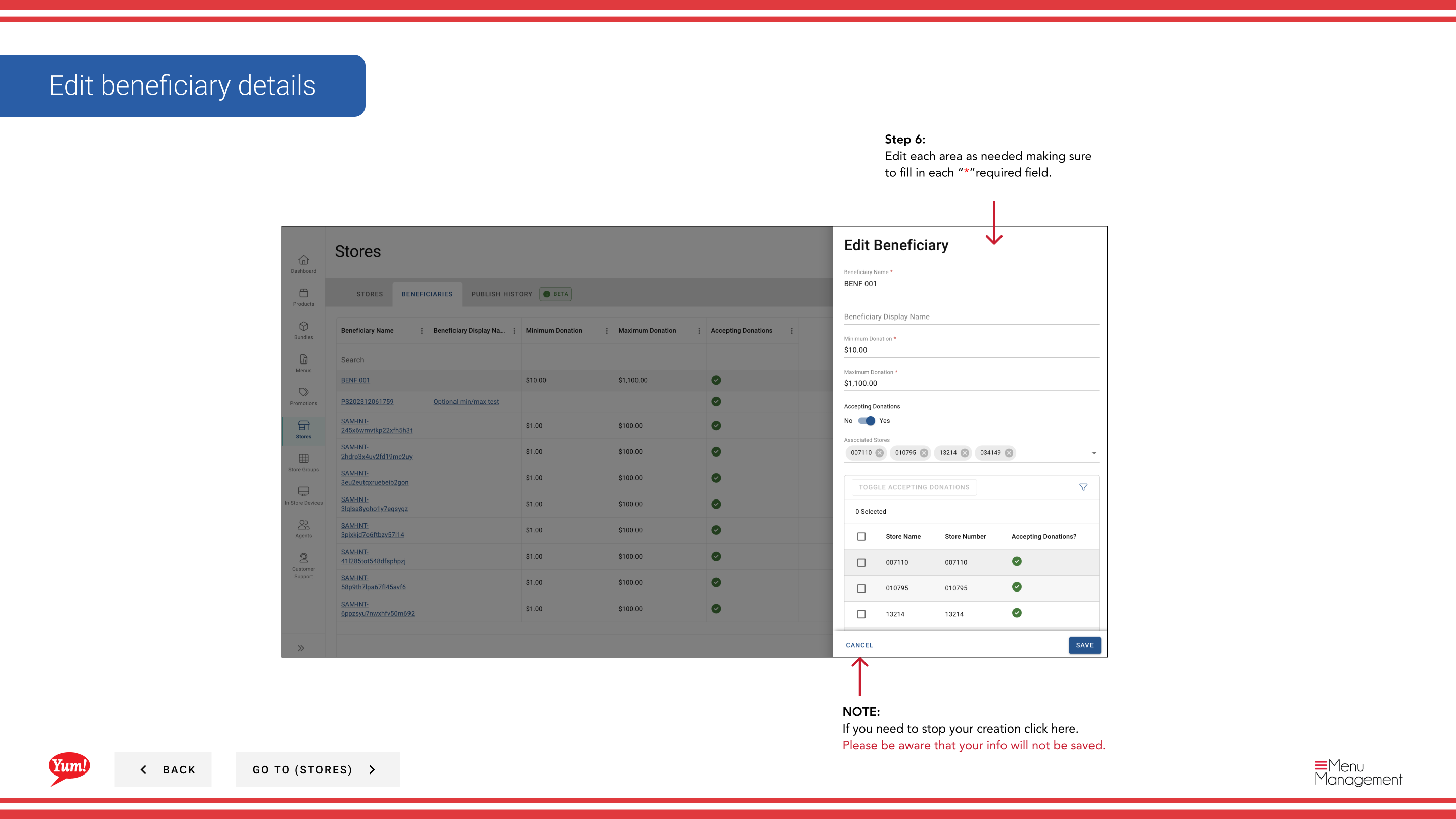
Step 6: Update the beneficiary fields as needed. All fields marked with * are required.
| Field | What to enter | Notes |
|---|---|---|
| Beneficiary Name * | Name of the charity or cause | e.g., “KFC Youth Foundation” |
| Accepting Donations | Toggle: Yes or No | Controls whether donations are active |
| Associated Stores | Select stores | Use search to add or remove stores from this beneficiary |
Step 7: Once changes are complete, click Save to update the beneficiary.
To Delete:
Step 5: Click Delete from the options menu.
Step 6: Confirm the deletion in the modal that appears by clicking Delete again. This action cannot be undone.
Deleting a beneficiary cannot be reversed. To temporarily disable a beneficiary, set Accepting Donations to No instead.
Clicking Cancel at any time discards unsaved changes (Edit mode only).
Related guides
- View a Store's Beneficiaries — See all beneficiaries linked to a store
- Create a Beneficiary — Set up a new beneficiary
Part of the Admin Portal Guide · Section: Stores