Pickup
How This Journey Works
A. Signed-In User
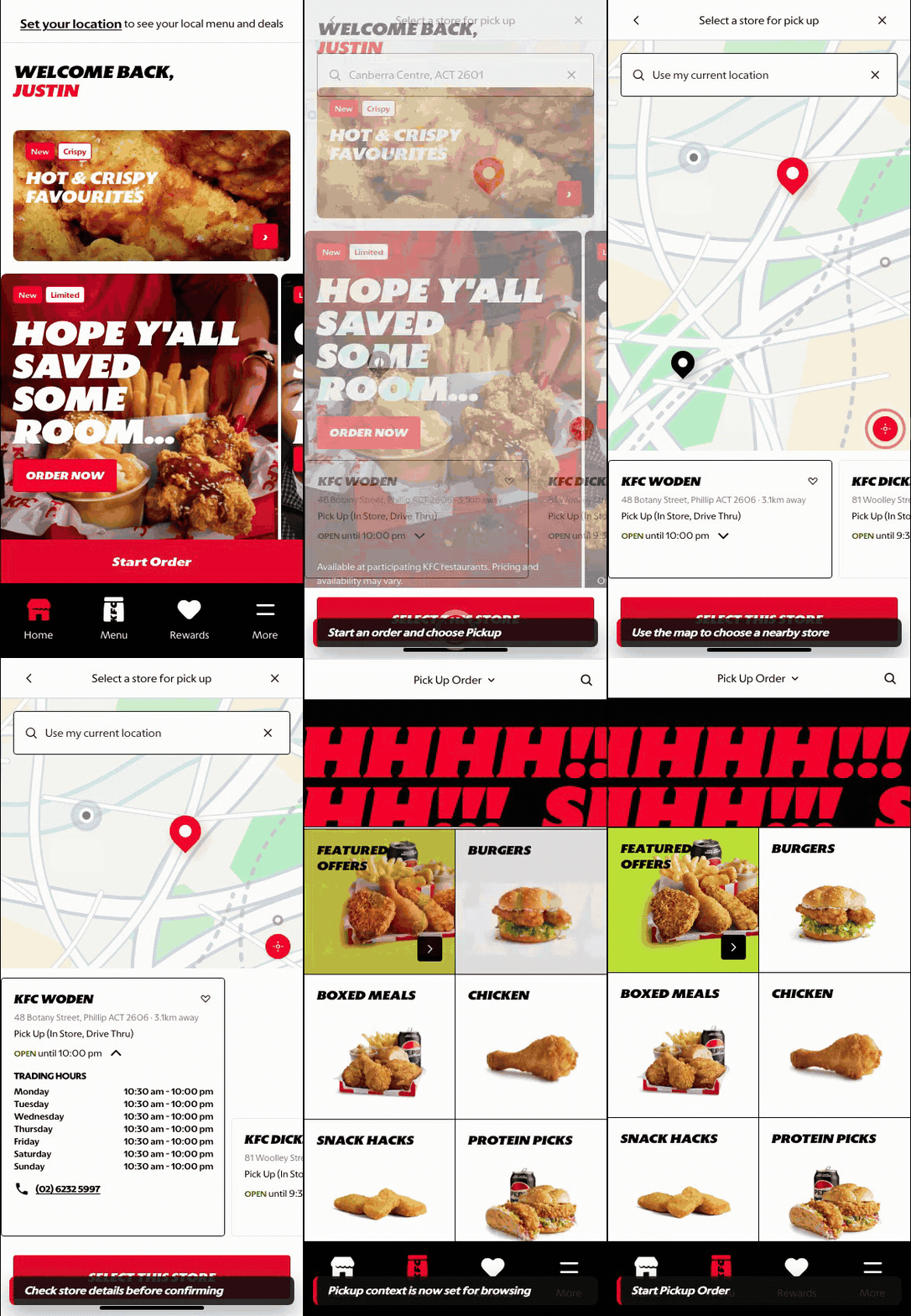
What this shows
- Uses existing customer context to move quickly into pickup setup.
- Connects store selection to localized menu, pricing, and pickup rules.
- Supports repeat behavior by preserving the customer journey after store selection.
B. Guest User
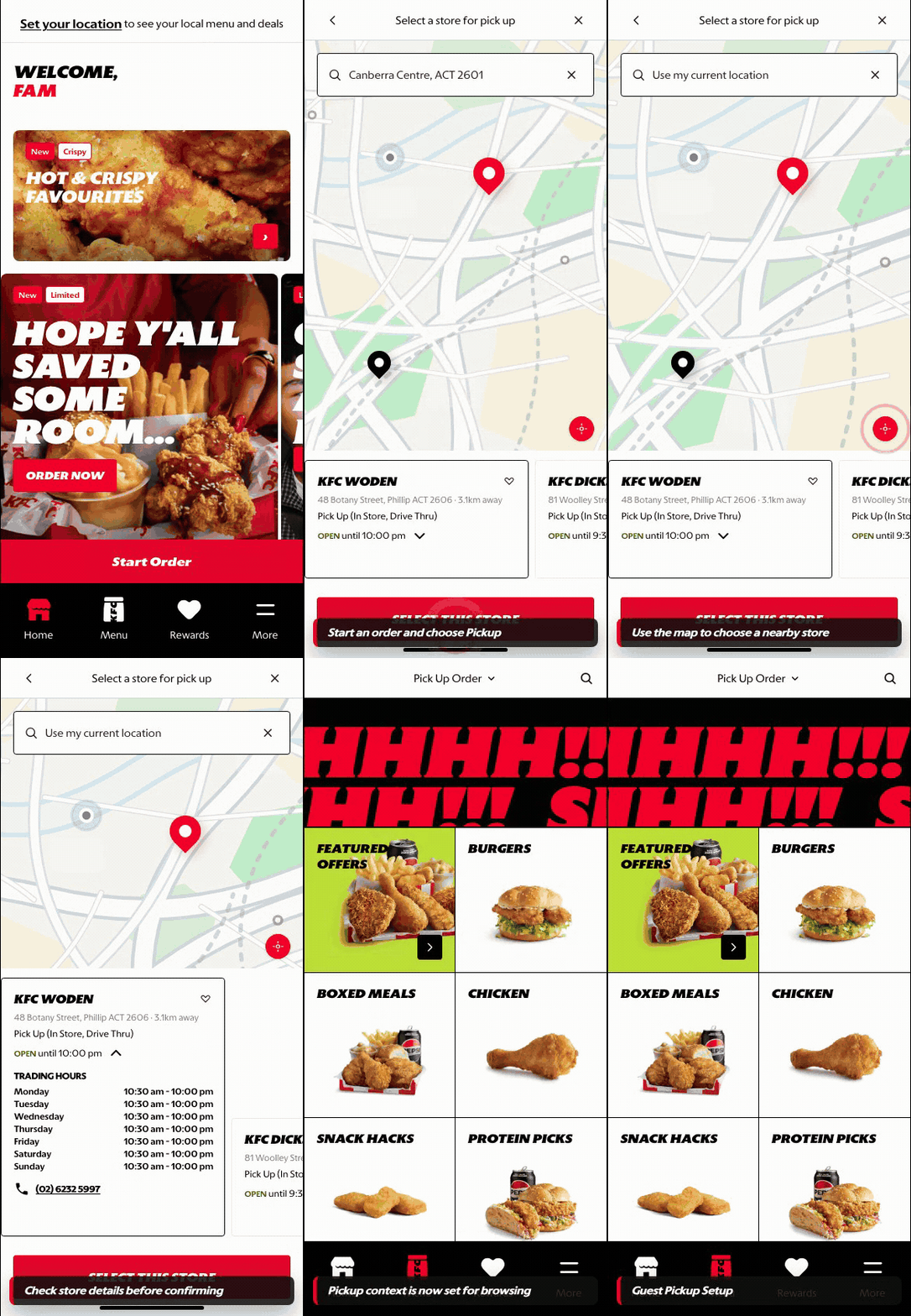
What this shows
- Allows store search, map review, and pickup setup without an account.
- Makes distance, store details, and selection actions visible before menu browsing.
- Preserves ordering intent while account-specific shortcuts remain unavailable.
Key difference: Signed-in users see account-aware shortcuts and rewards access. Guests can browse and build intent, but authentication is required for account-specific actions such as checkout, rewards redemption, or saved details.
Pickup is the order-mode path where the customer selects a store before browsing the menu. The store decision controls menu availability, service hours, fulfillment handoff options, and checkout rules.
Screen Capture Sequence
Pickup should be documented in both map/list and expanded-store states because the customer needs location confidence before committing to a store.
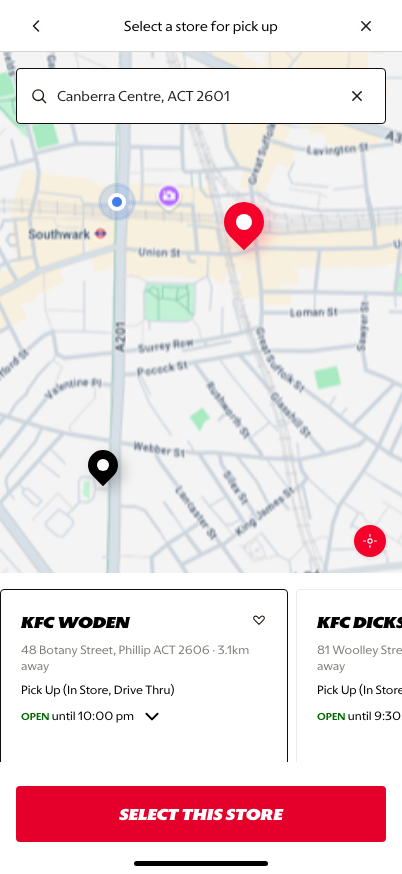
Map and store list: the customer can compare nearby stores, distance, status, and selection actions.
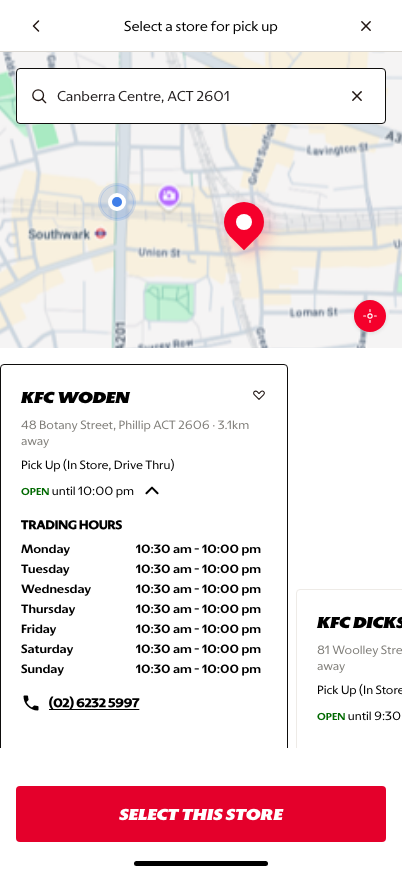
Expanded store detail: hours, address context, and fulfillment detail support the final store decision.
What This Feature Is
Pickup lets the customer choose where the order will be prepared and collected. In the prototype, the customer sees a map, search field, current-location control, nearby stores, distance, opening status, and a Select This Store action.
Why It Is Designed This Way
Pickup requires confidence in the selected store. The customer needs to know where the store is, whether it is open, how far away it is, and which handoff methods are supported before moving into the menu.
The map gives spatial confidence, while store cards keep the commercial decision simple. This avoids forcing customers to interpret a map only, while still giving enough location context for trust.
WIP: What Can Be Configured On This Screen
| Configurable Area | What Markets Should Be Able To Control | Current Documentation Status |
|---|---|---|
| Pickup availability | Whether pickup is enabled by market, store, daypart, or channel | WIP |
| Store card fields | Store name, address, distance, hours, handoff options, and favorite store behavior | WIP |
| Handoff methods | Counter, drive-thru, curbside, lockers, or market-specific collection points | WIP |
| Map provider | Map styling, pins, geolocation behavior, and store clustering | WIP |
| Store ranking | Nearest, open now, favorite, available menu, or campaign-prioritized stores | WIP |
| Unavailable states | Closed store, out-of-service store, no pickup nearby, or future-order-only messaging | WIP |
What This Screen Should Communicate
- The customer is choosing the physical store for pickup.
- Store availability and distance matter before menu browsing.
- The selected store will determine the menu and checkout context.
- The customer can search, use current location, or choose from nearby store cards.
Design Read On This Screen
- The map anchors the customer geographically.
- Store cards make comparison easier than pin-only selection.
- Opening status and distance reduce uncertainty before commitment.
- The persistent confirmation CTA makes the next step clear once a store is selected.