Assign a Patch (Add to Patch List)
What this guide covers
Adds a patch to a store's active patch list without removing existing patches. Patches are applied in order, with each patch layering its overrides on top of the base menu and previous patches.
Steps
Step 1: Navigate to the Menus section using the left-hand navigation menu.
Step 2: Click on the Patches tab to view all patches.
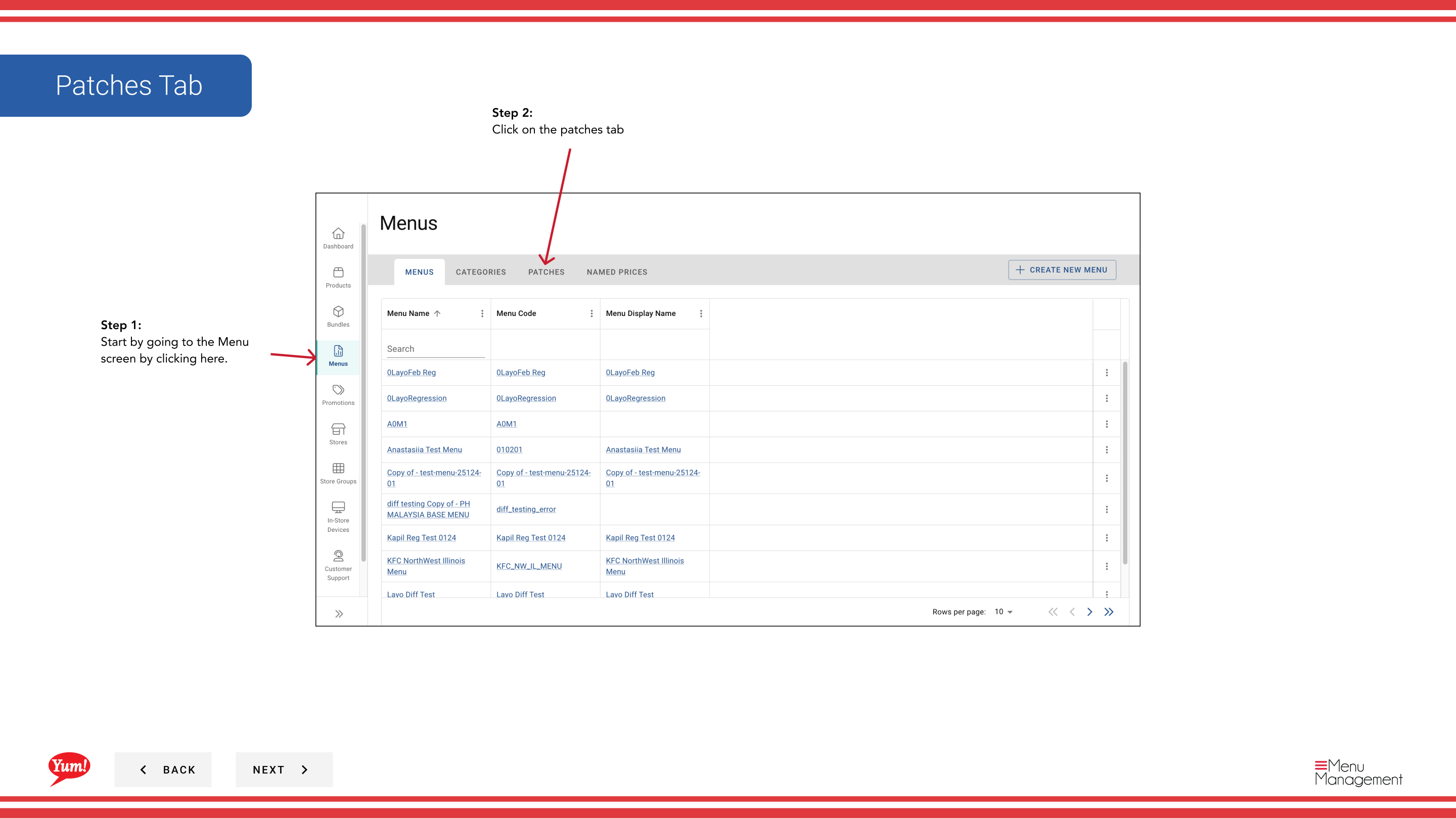
Step 3: Click the Create New button to begin a new patch assignment.
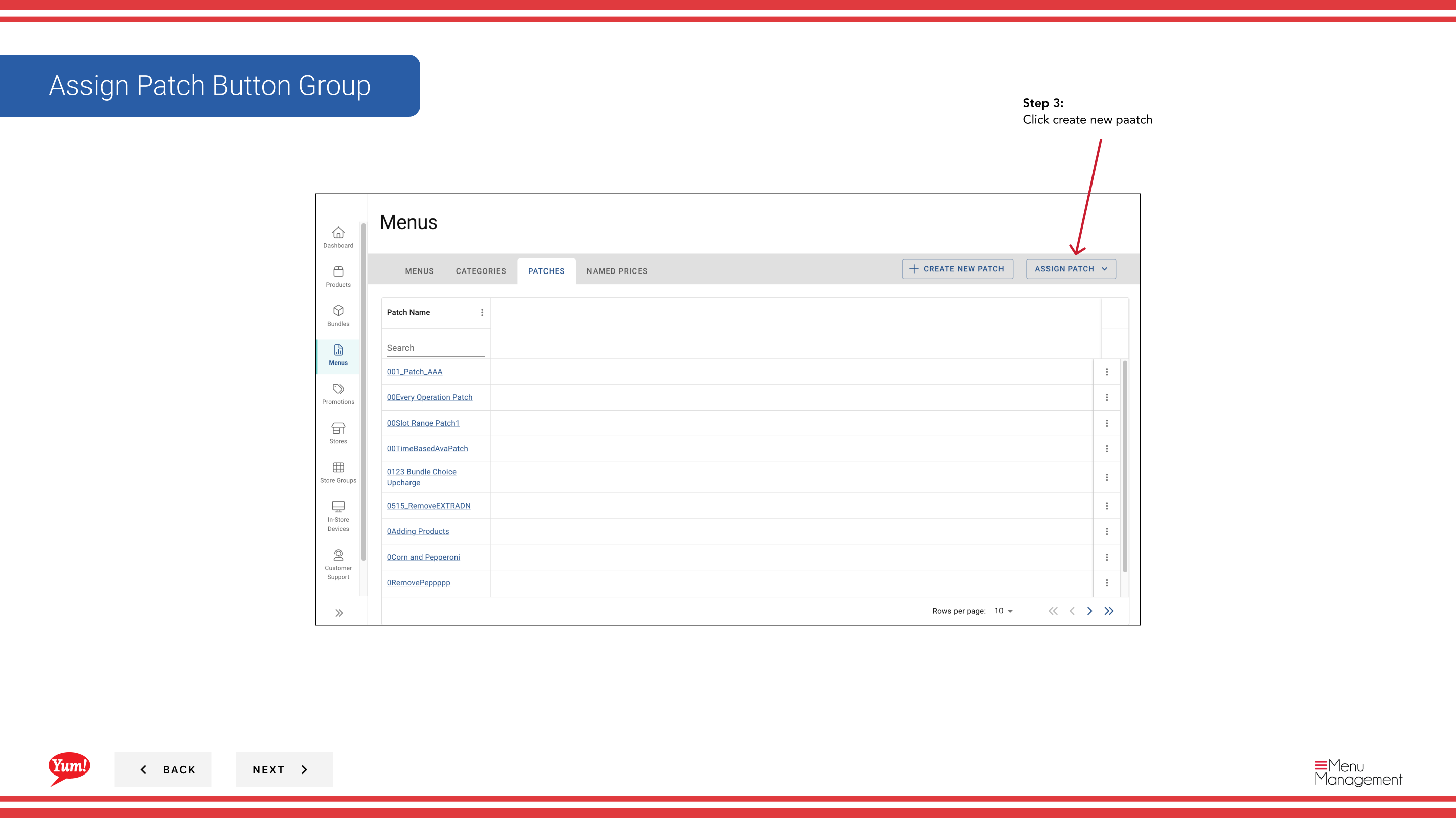
Step 4: Select Add Patch to List to add a patch to existing patch lists.
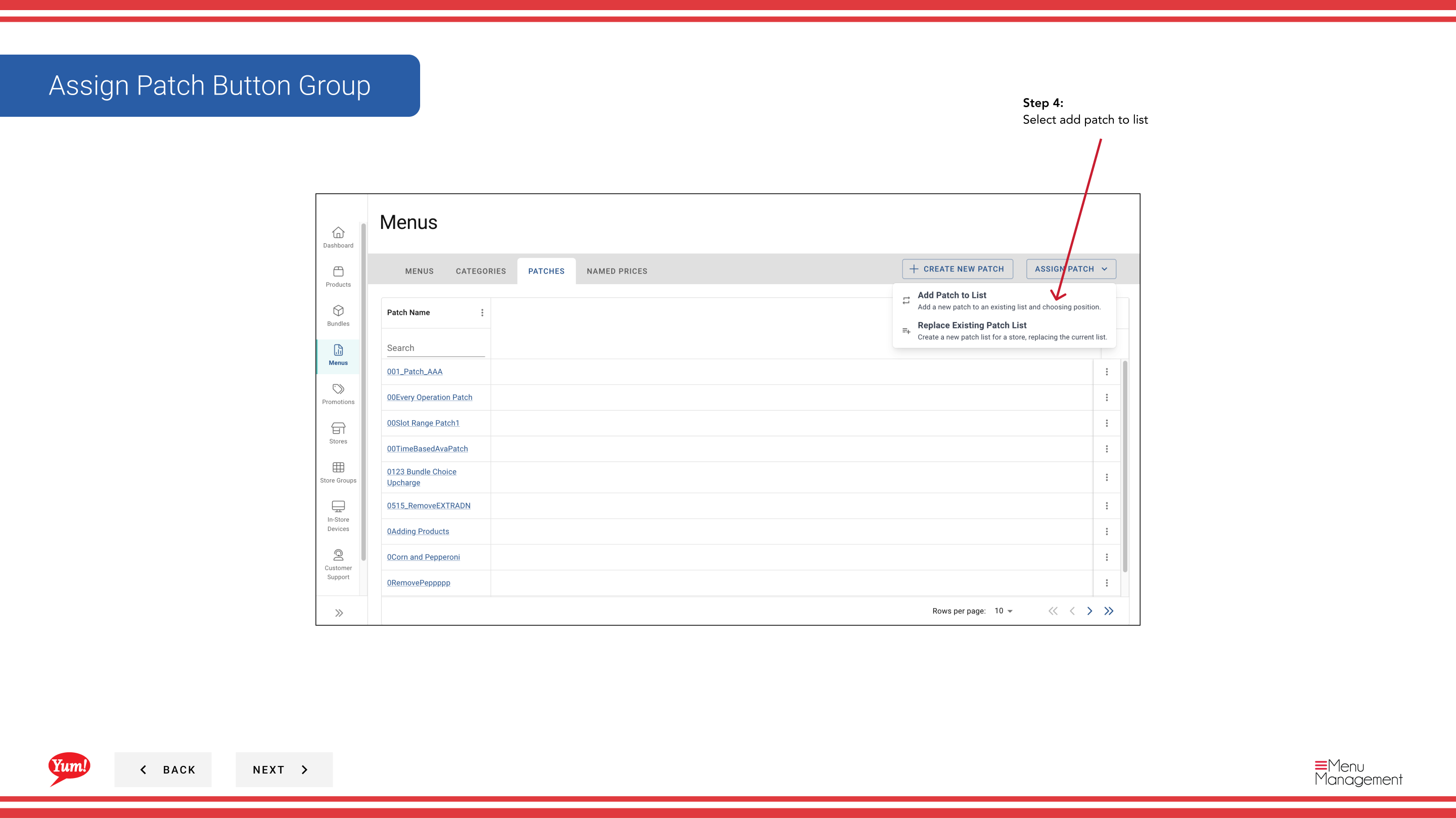
Step 5: Select the Patch you want to assign from the dropdown.
| Field | What to enter | Notes |
|---|---|---|
| Patch * | Select from the list of available patches | Choose the patch with the overrides you want to apply. |
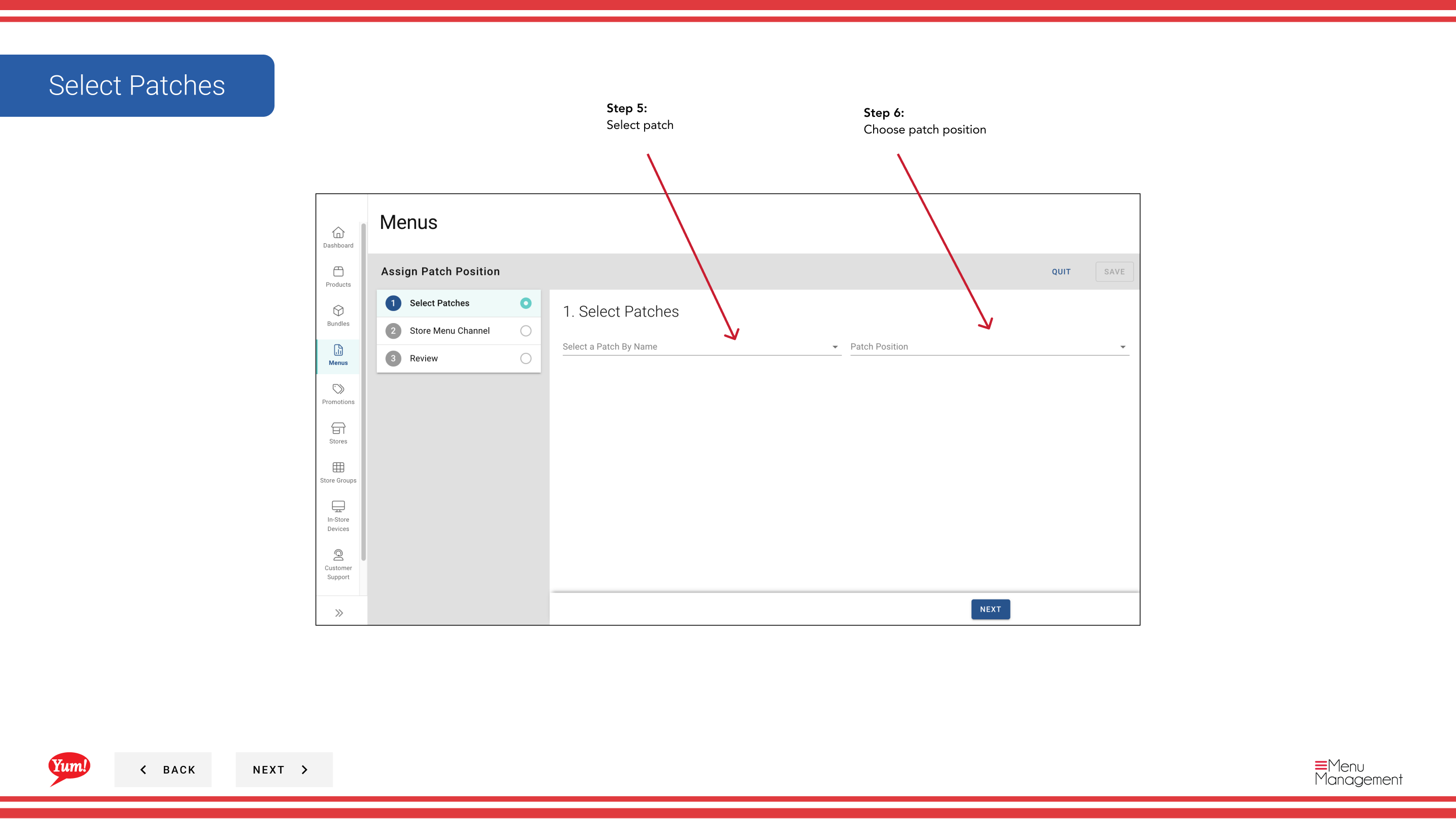
Step 6: Choose the Patch Position in the list. Patches are applied in order, so position matters if multiple patches target the same items.
| Field | What to enter | Notes |
|---|---|---|
| Position * | Select where in the patch list to add this patch | "First" applies this patch before others, "Last" applies it after. Choose based on the priority of your overrides. |
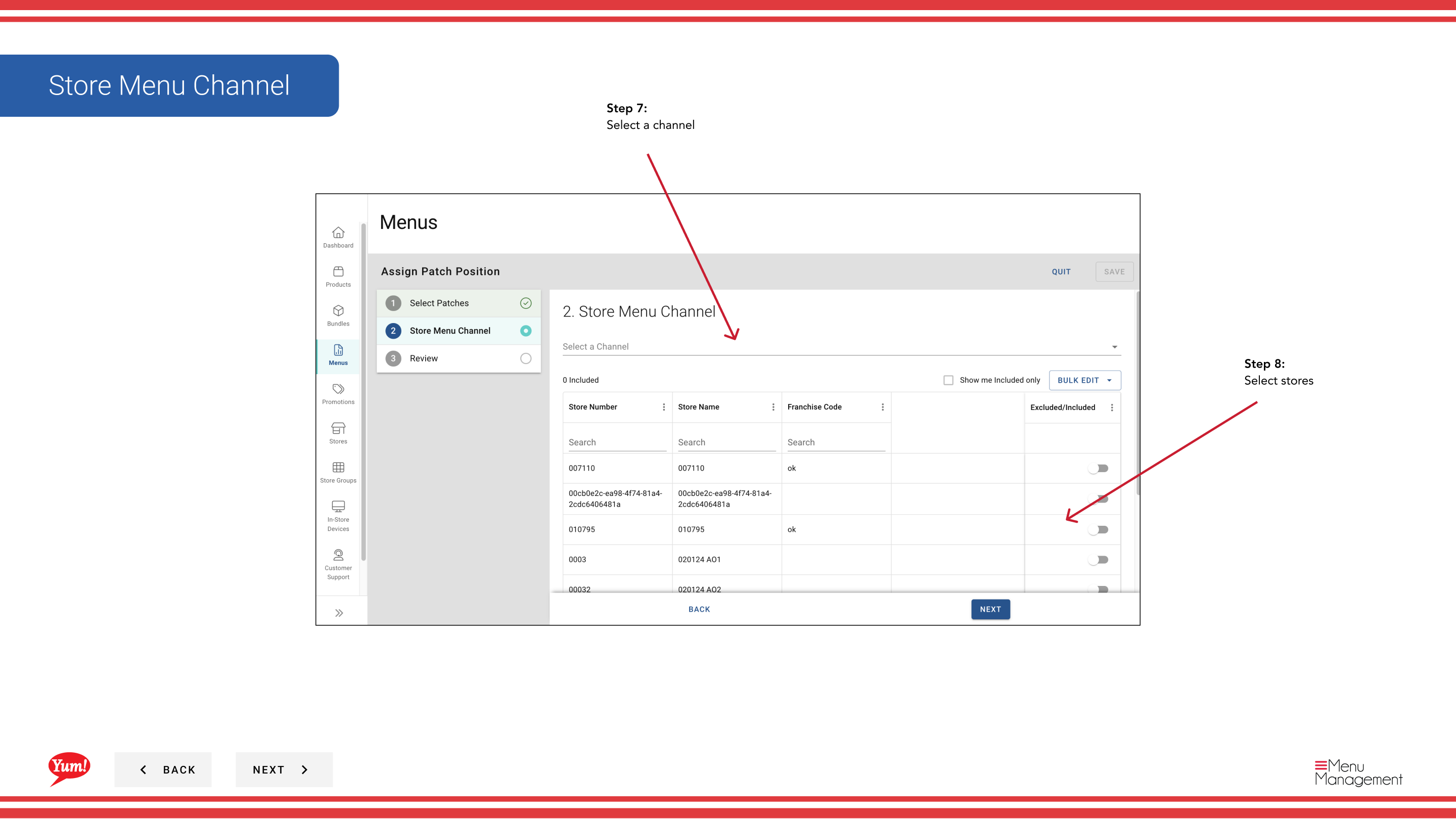
Step 7: Select the Channel where this patch assignment applies.
| Field | What to enter | Notes |
|---|---|---|
| Channel * | Select the ordering channel | e.g., "Web", "Mobile", "Delivery Platform". The patch will only apply on the selected channel. |
Step 8: Select the Stores that will receive this patch.
| Field | What to enter | Notes |
|---|---|---|
| Stores * | Select one or more stores | Use search to find stores, or select entire store groups. Only selected stores will get this patch. |
Step 9: Review your selections on the Summary page, then click Save to add the patch to the selected stores' patch lists.
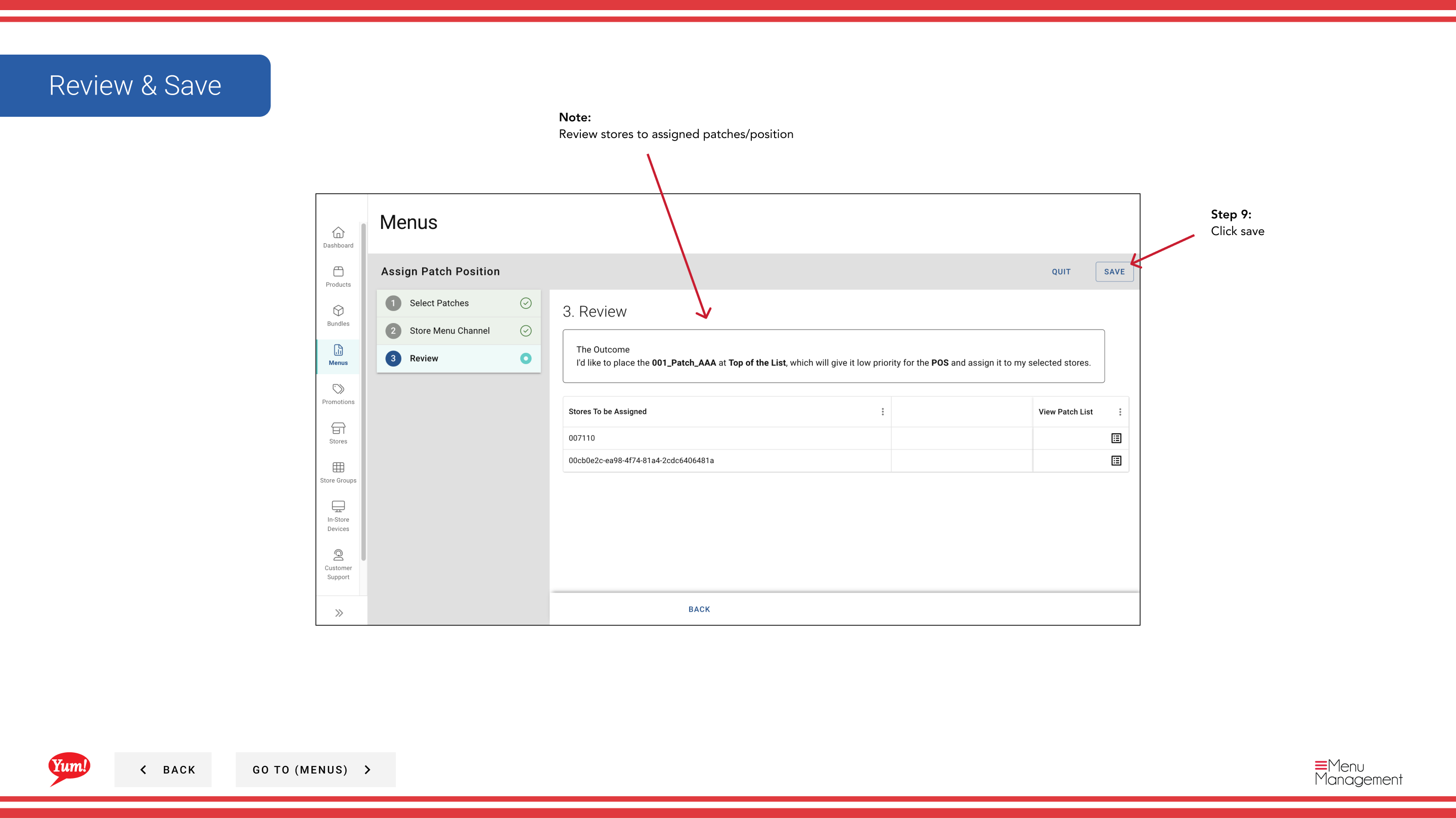
The patch is now added to the store's active patch list. If the store had other patches, this new patch is added in addition to them based on the position you selected.
Related guides
- Assign a Patch (Replace Existing List) — Replace a store's entire patch list
- Edit a Patch — Update a patch before assigning it
- Create a Patch — Create a new patch to assign
Part of the Admin Portal Guide · Section: Menus