Delete a Patch
What this guide covers
Permanently removes a patch from the system.
Steps
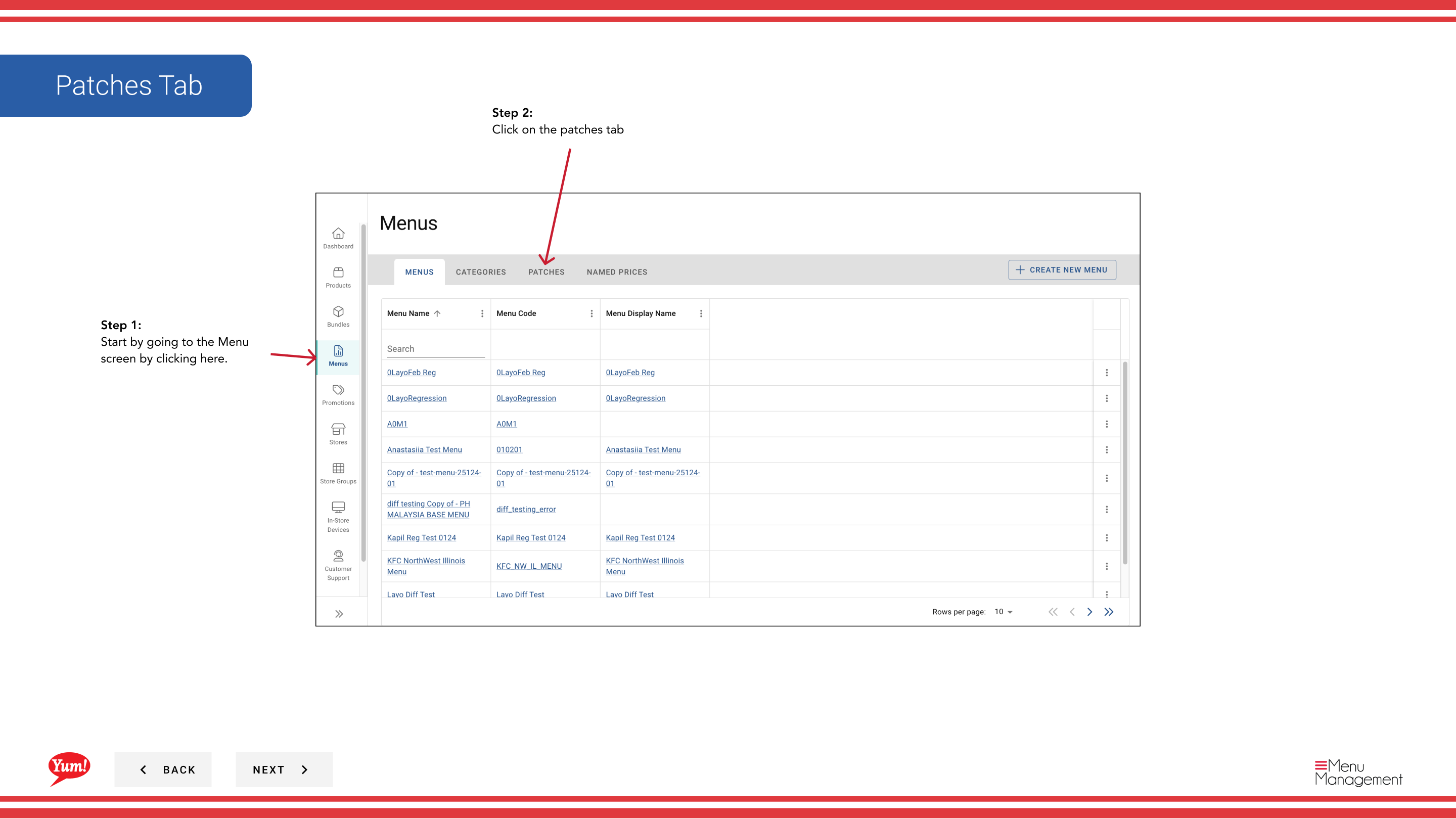
Step 1: Navigate to the Menus section using the left-hand navigation menu.
Step 2: Click on the Patches tab to view all patches.
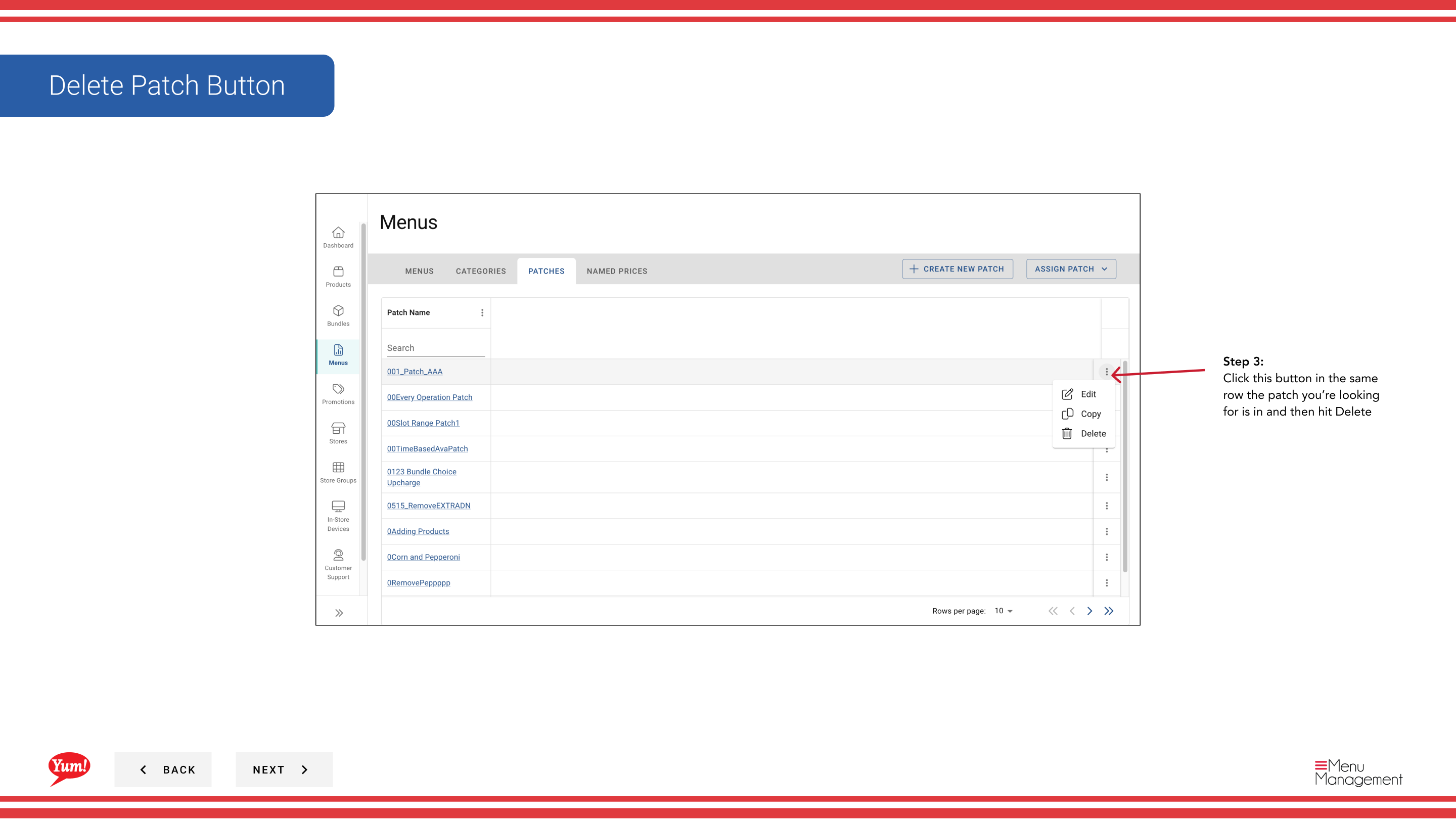
Step 3: Find the patch you want to delete, click the action menu (three dots) in the same row, and select Delete.
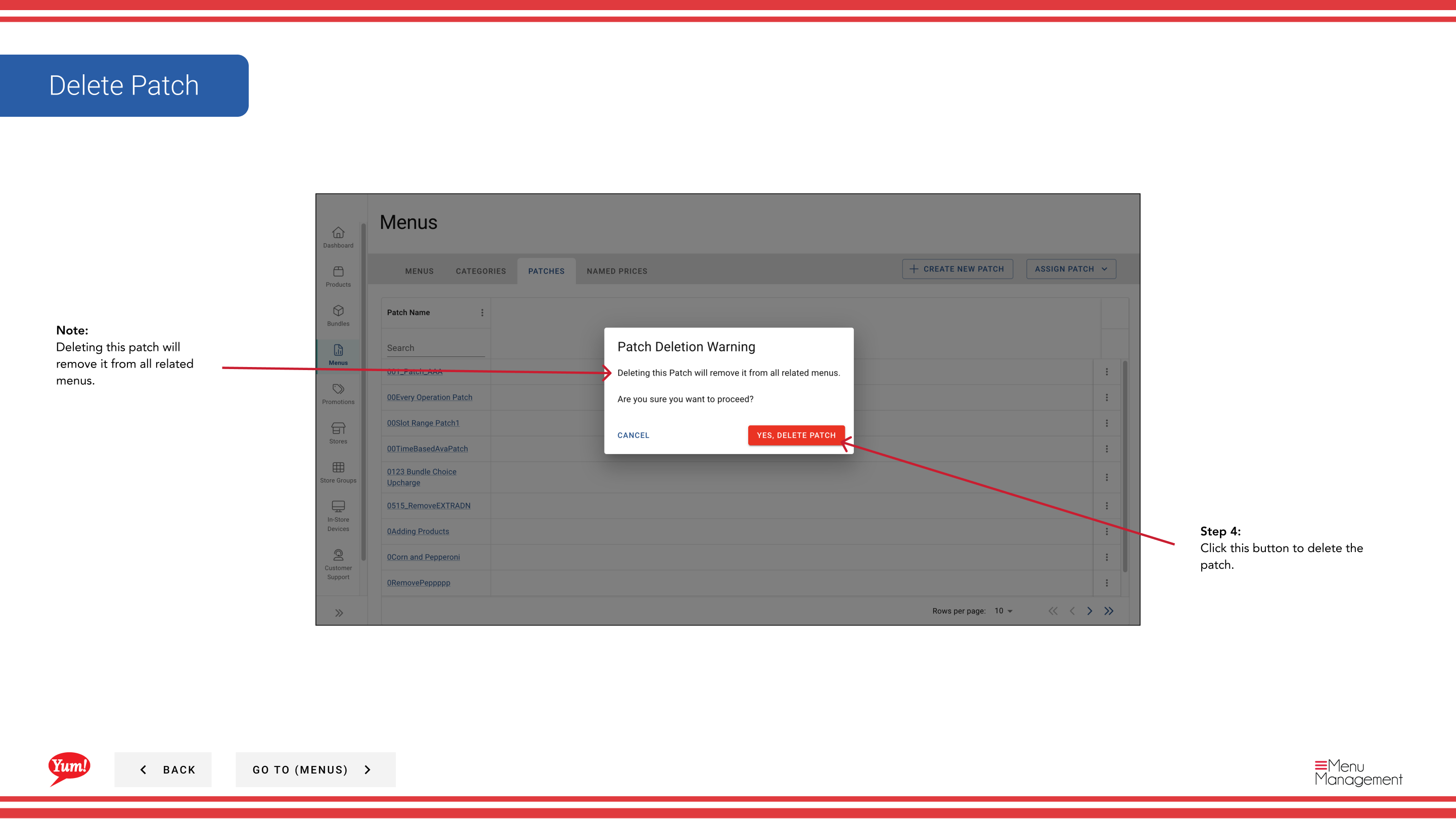
Step 4: A confirmation dialog will appear. Click Delete to permanently remove the patch.
caution
Deleting a patch will remove it from all stores where it is actively assigned. If the patch is in a store’s patch list, it will be removed from that list. This action cannot be undone.
Related guides
- Copy a Patch — Create a backup copy before deleting
- Edit a Patch — Edit a patch instead of deleting it
Part of the Admin Portal Guide · Section: Menus