Edit a Patch
What this guide covers
Updates an existing patch’s name, operations, or items.
Steps
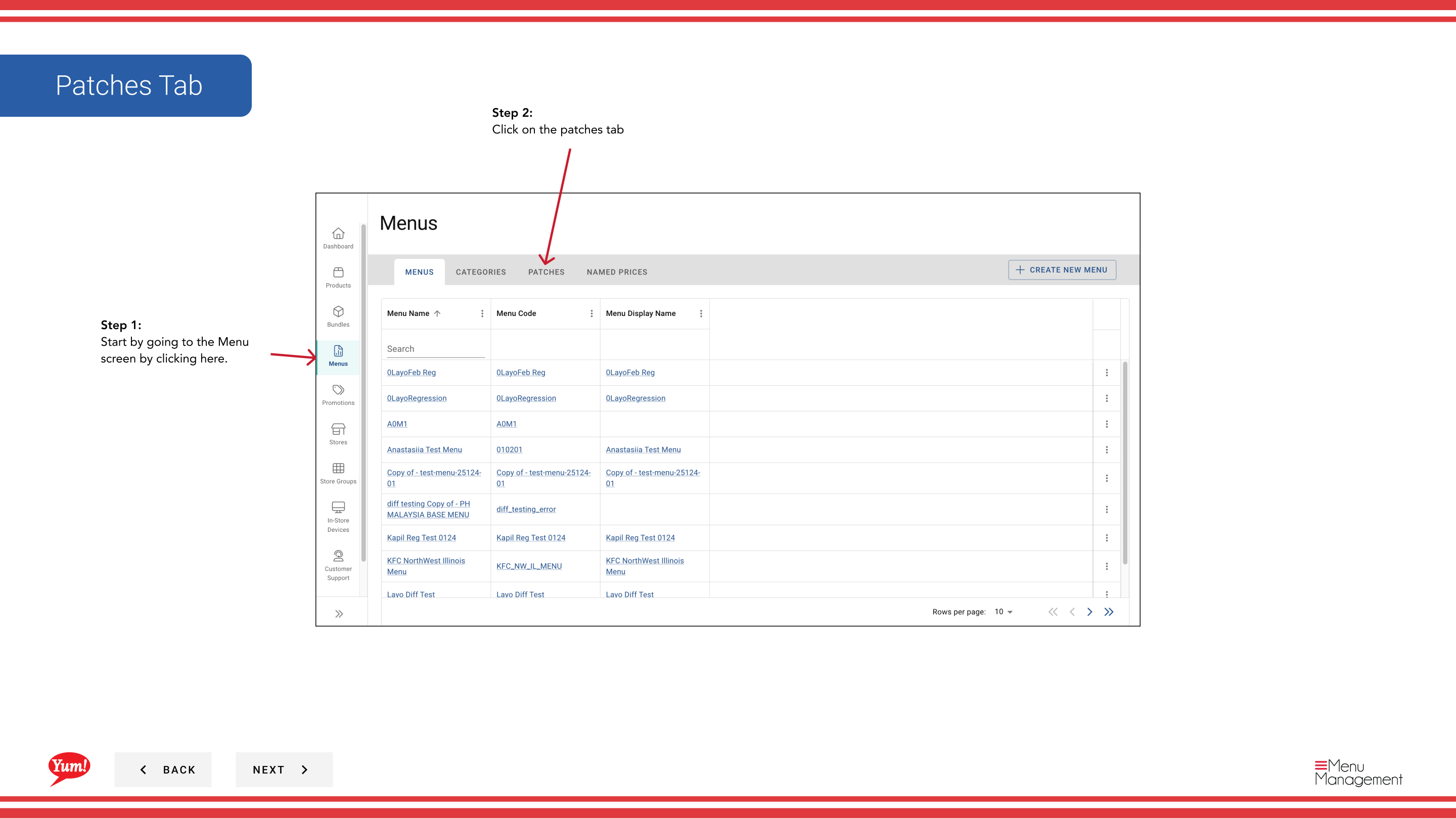
Step 1: Navigate to the Menus section using the left-hand navigation menu.
Step 2: Click on the Patches tab to view all patches.
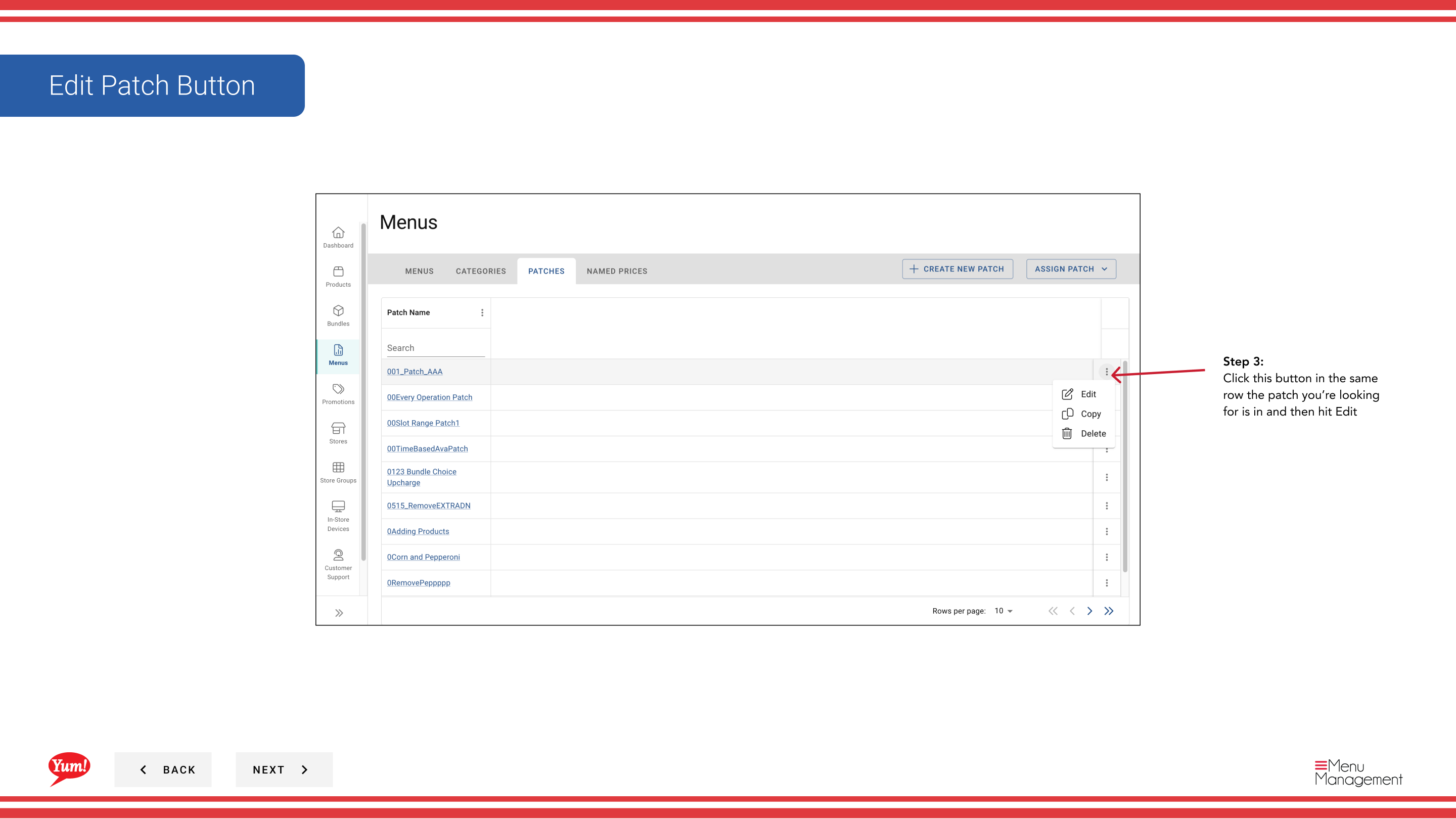
Step 3: Find the patch you want to edit, click the action menu (three dots) in the same row, and select Edit.
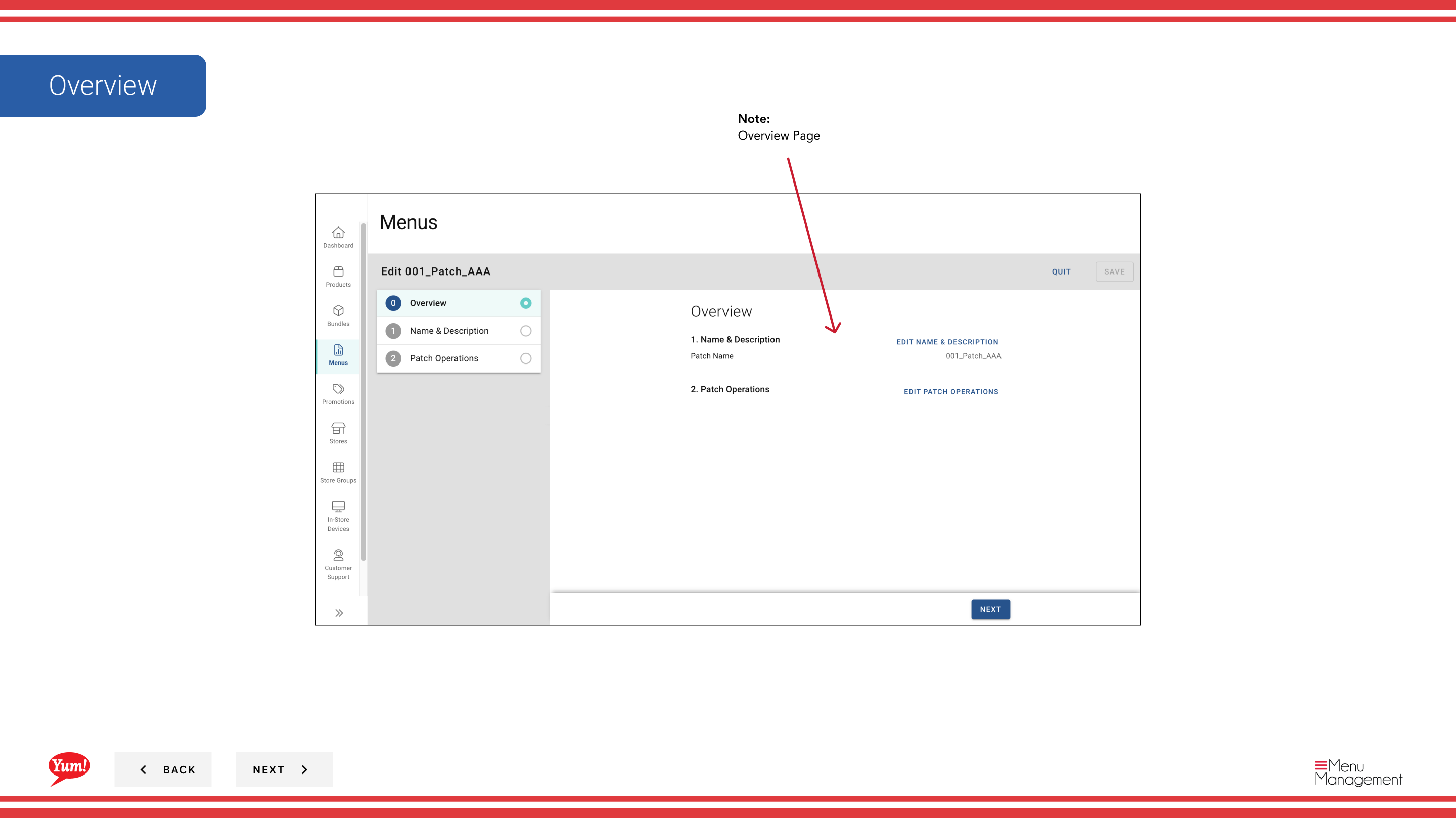
Step 4: On the Overview tab, you can update the patch name.
| Field | What to enter | Notes |
|---|---|---|
| Patch Name | A descriptive name for what this patch changes | e.g., “Sydney Q1 Pricing Override”, “Halal Menu Availability Fix”. Update if the scope or purpose has changed. |
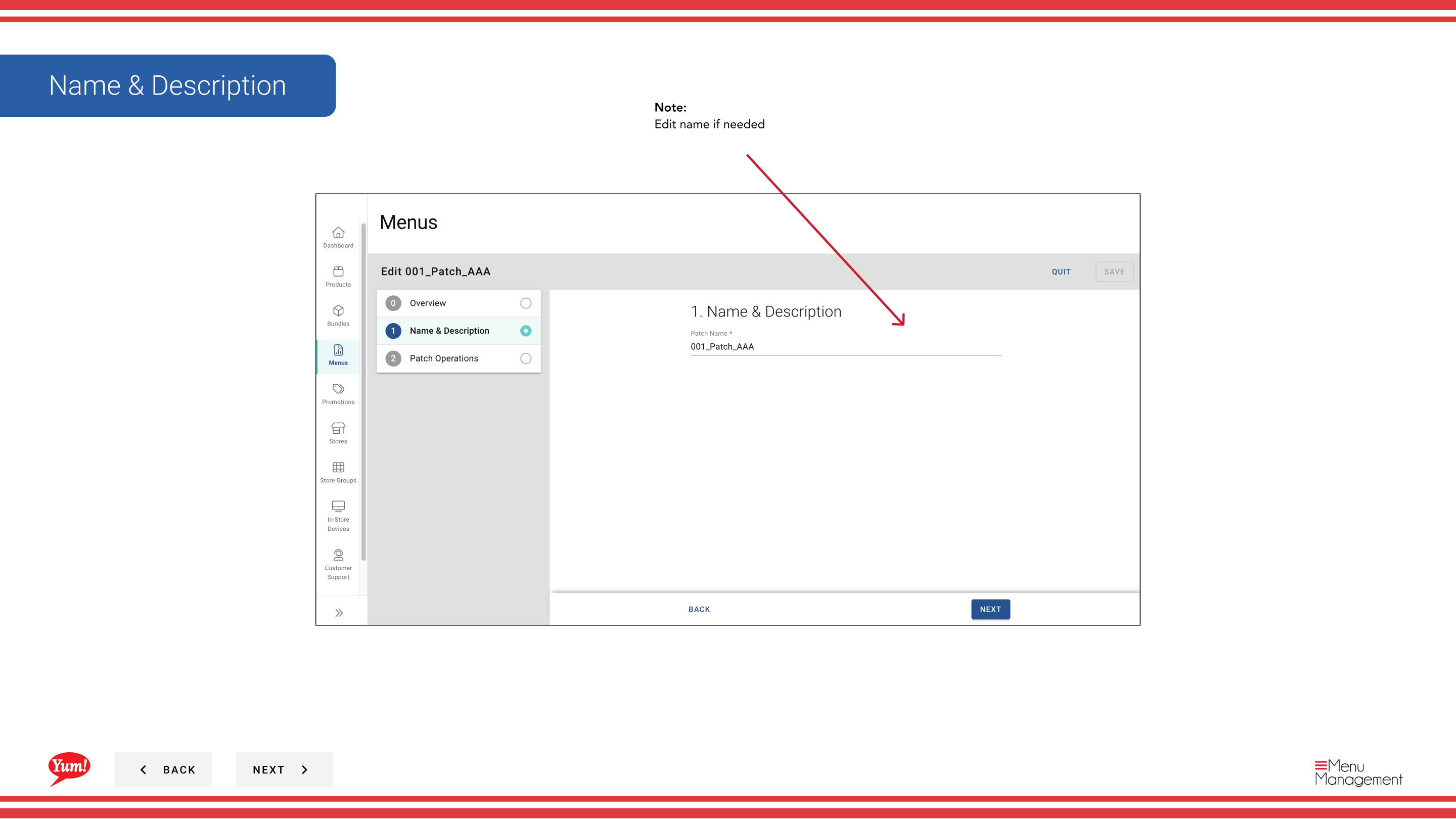
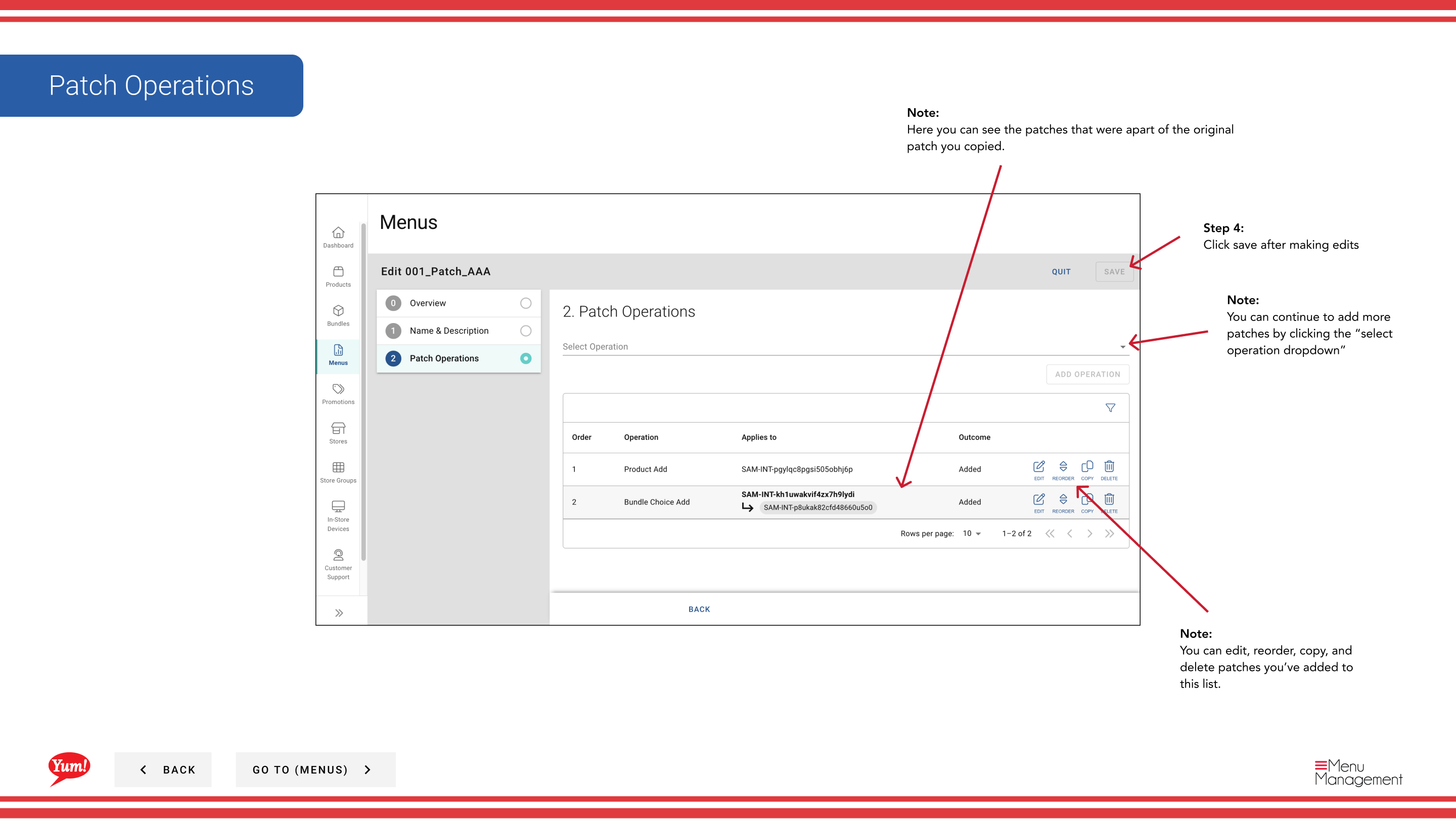
Step 5: View and modify the operations in the Operations section. You can:
- Edit an operation by clicking it and updating the items or settings
- Reorder operations by dragging
- Copy an operation
- Delete an operation
- Add new operations by clicking Add Operation
Step 6: Once you have made all changes, click Save to apply them.
note
Changes to a patch only affect stores where it is actively assigned. Patches that are not yet assigned or have been removed from a store’s patch list will not be affected.
Related guides
- Copy a Patch — Duplicate this patch
- Delete a Patch — Remove this patch
- Assign a Patch (Add to Patch List) — Assign this patch to stores
Part of the Admin Portal Guide · Section: Menus