Edit Named Price
What this guide covers
Updates an existing named price value or name. All products using this price will automatically reflect the updated value.
Steps
Step 1: Navigate to the Menus section using the left-hand navigation menu.
Step 2: Click the Named Prices tab to view all named prices.
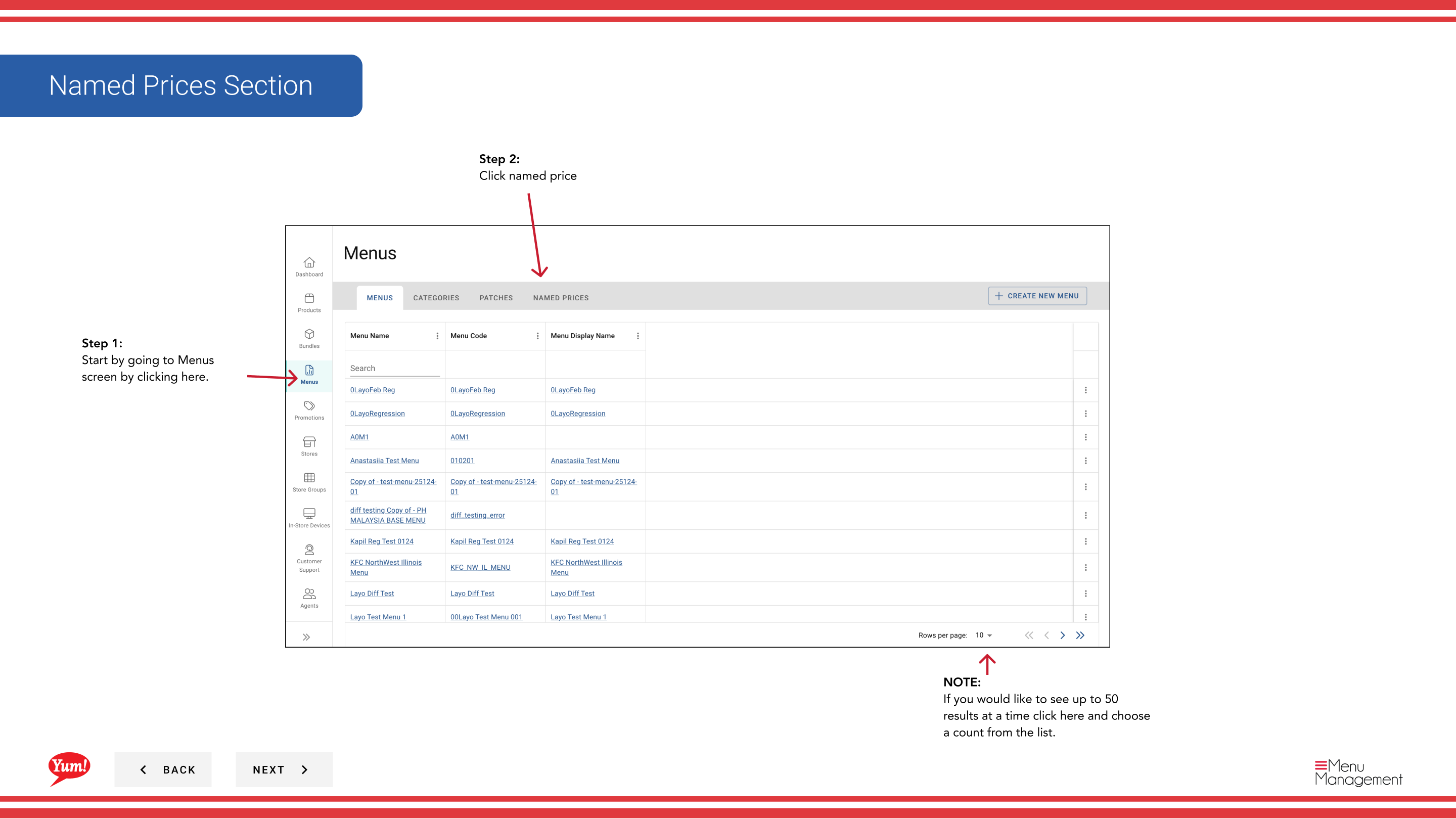
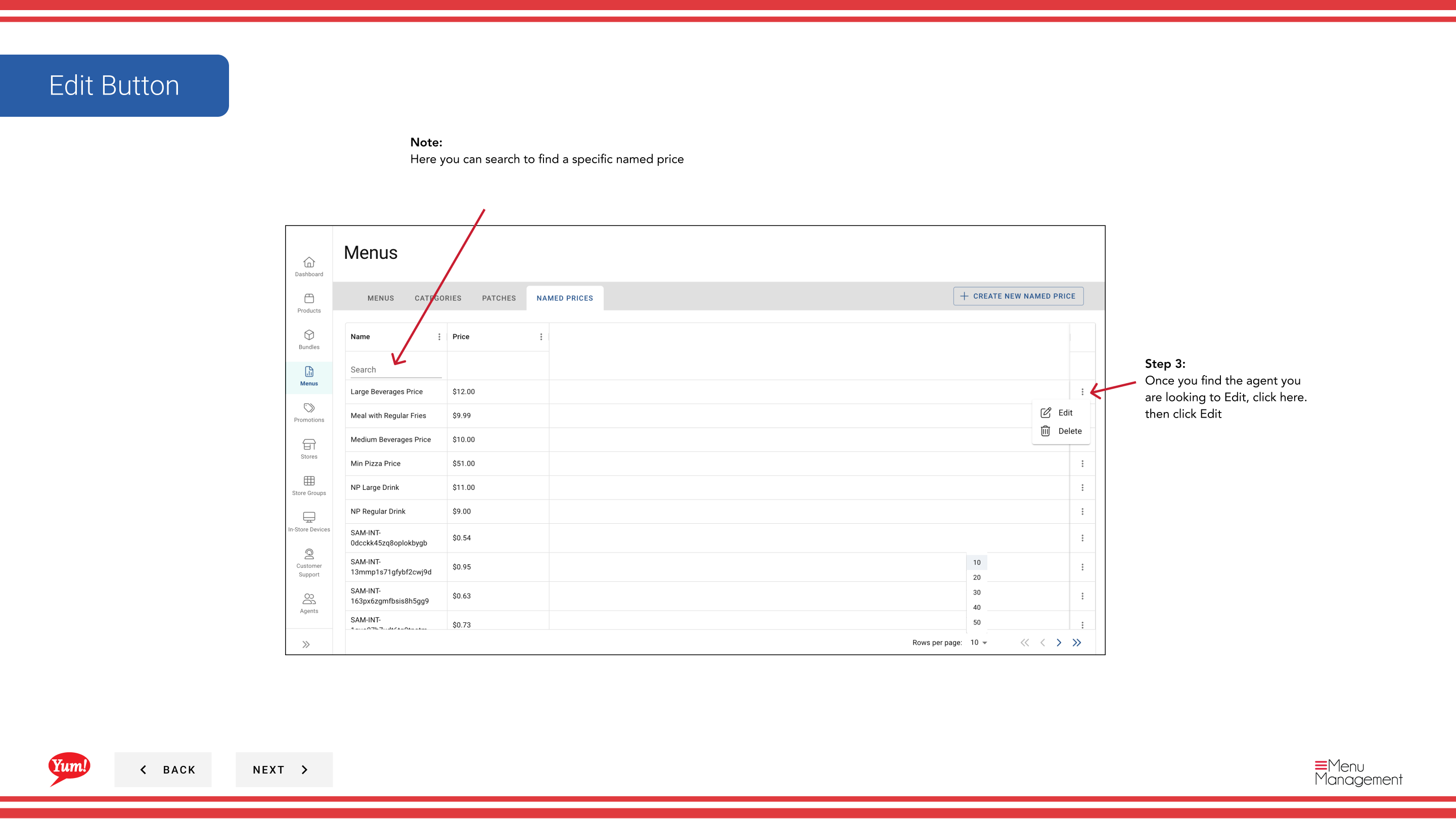
Step 3: Find the named price you want to edit in the list. You can use the search box to locate it or adjust the number of results displayed per page.
Step 4: Click the action menu (three dots) in the same row, then select Edit.
Step 5: Update the named price details as needed:
| Field | What to enter | Notes |
|---|---|---|
| Name | A label that identifies this price point | e.g., "Student Lunch Price", "Happy Hour Price". Change if the purpose of this price has changed. |
| Price | The monetary amount in your market's currency | Enter numbers only — e.g., 4.99, 12.50. Update to reflect the new price. All products using this named price will be updated automatically. |
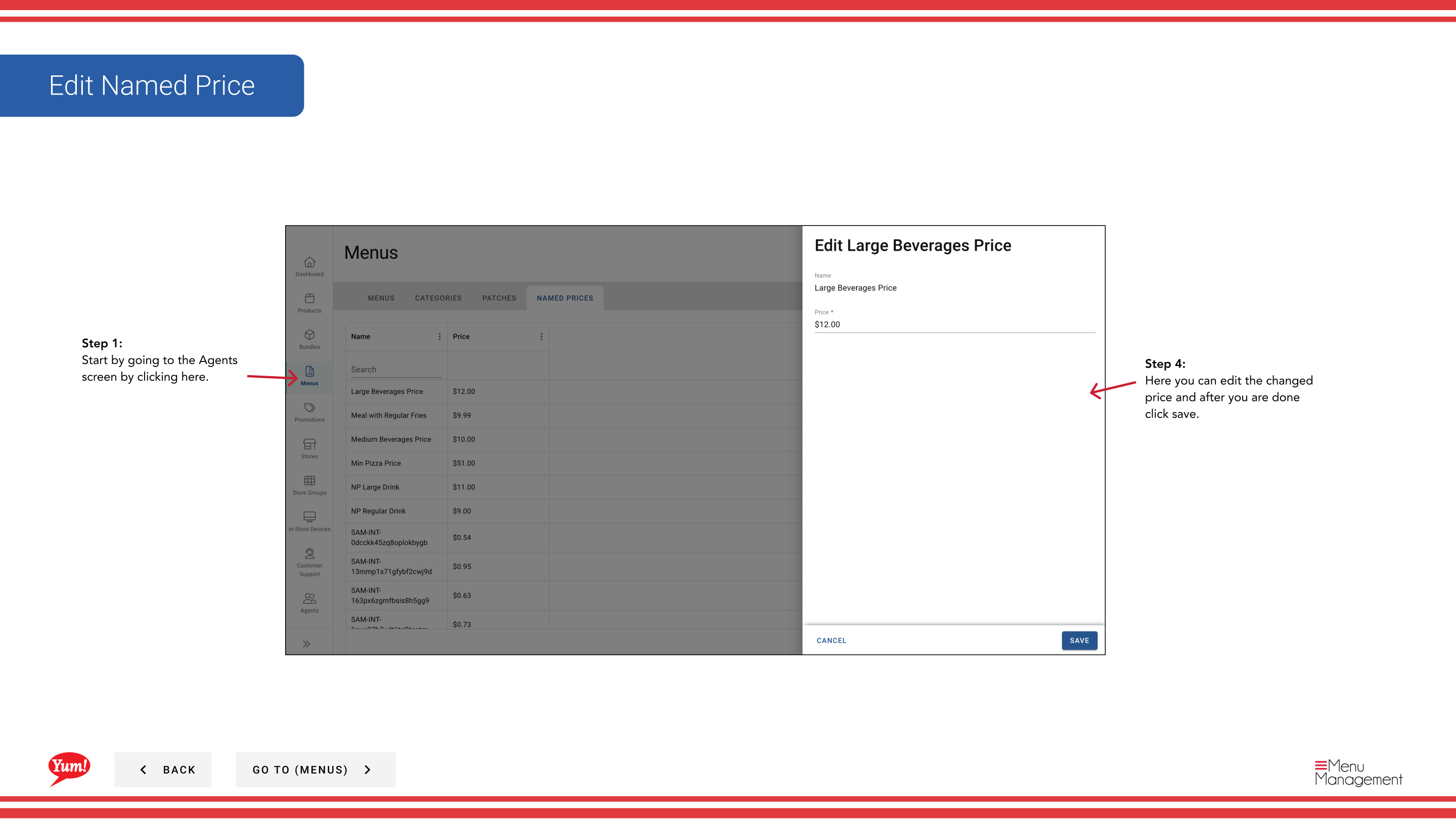
Step 6: Once you have made your changes, click Save to apply them.
When you update a named price, all products and variants using that price are updated immediately. The change takes effect once the menu is republished.
Related guides
- Create a Named Price — Create a new named price
- Delete Named Price — Remove a named price
Part of the Admin Portal Guide · Section: Menus