Create a Weight
What this guide covers
Defines a weight or portion size configuration for a product, used in markets where items are tracked or priced by weight.
Steps
Step 1: Navigate to the Products section using the left navigation menu.
Step 2: Click the Weights tab.
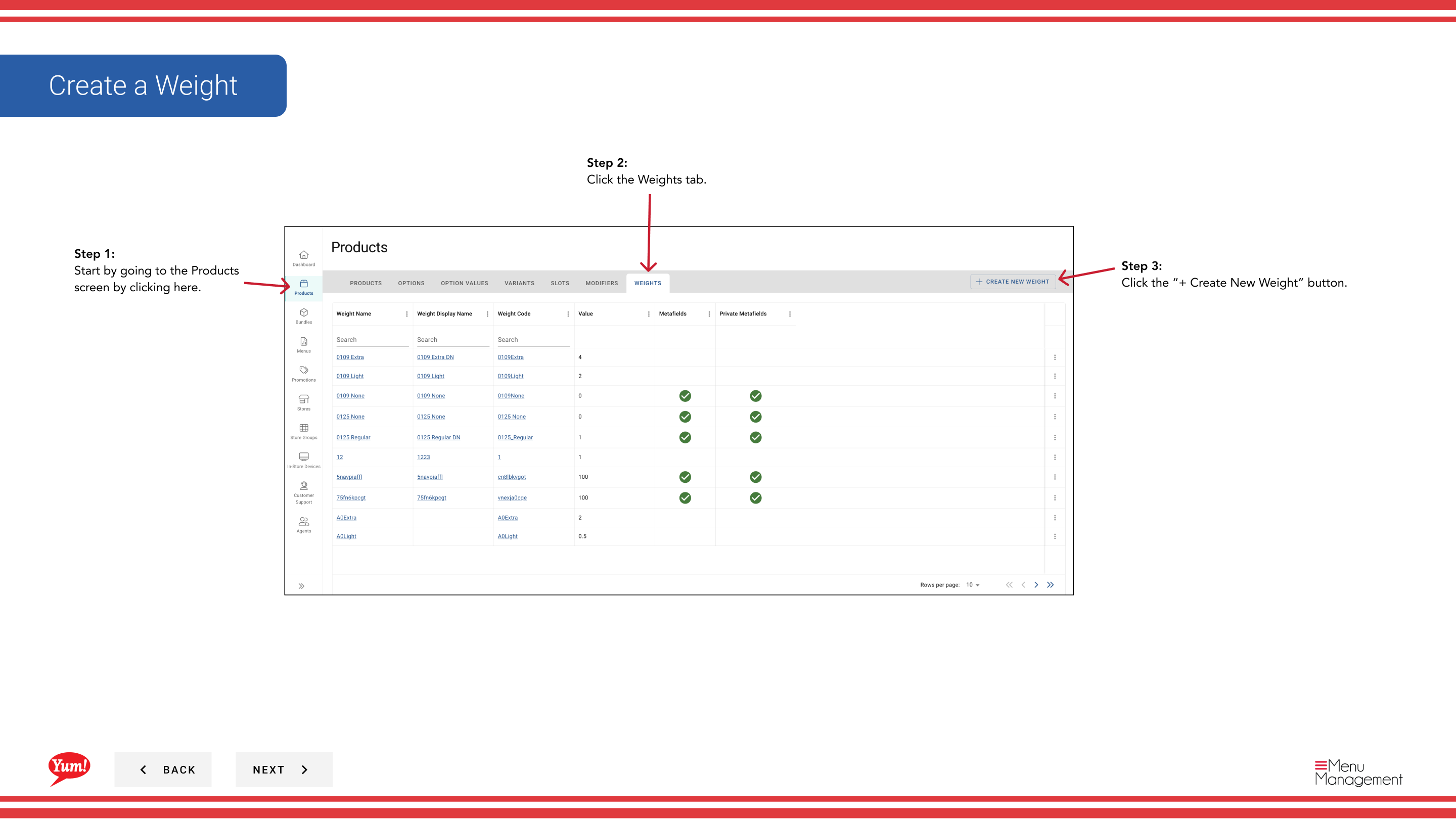
Step 3: Click the + Create New Weight button.
Step 4: Fill in the weight details. Fields marked with * are required.
| Field | What to enter | Notes |
|---|---|---|
| Weight Code * | Unique identifier for this weight | Use uppercase letters, numbers, and hyphens (e.g., “WT-REGULAR”) |
| Weight Name * | Describes the portion size | e.g., “Regular”, “Large”, “Double” |
| Max Weight Value | Numeric maximum weight value | e.g., “500” (in grams or your unit) |
| Default | Toggle to mark as default | Only one weight should be marked as default per option |
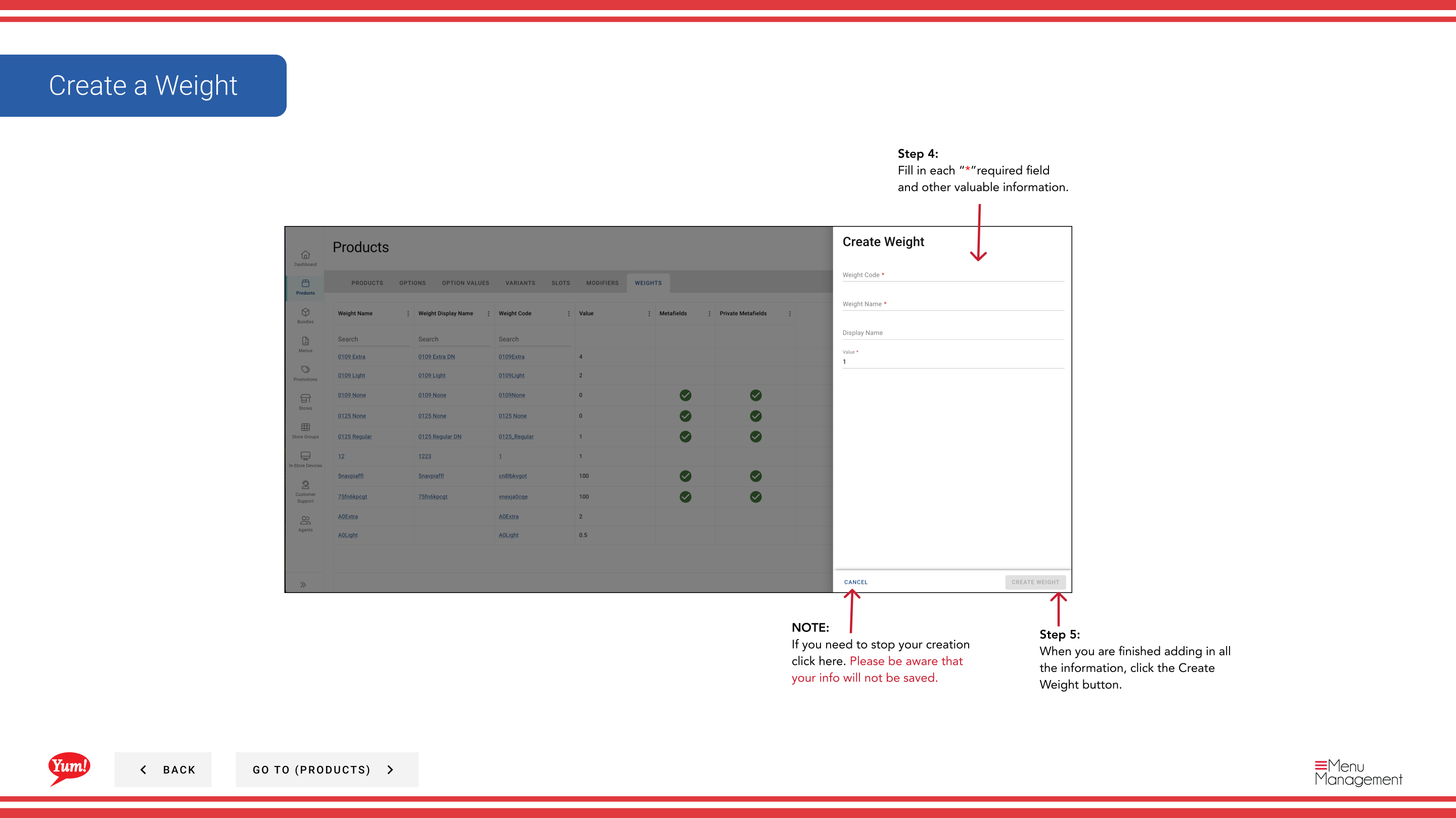
Step 5: When you are finished adding all the information, click the Create Weight button.
Notes
caution
Clicking Cancel discards all unsaved information.
tip
The Weight Code must be unique and cannot be changed after creation.
tip
Toggle Default to Yes to make this the pre-selected weight option for customers.
Part of the Admin Portal Guide · Section: Products