Edit a Product
What this guide covers
Updates an existing product's information such as name, description, images, pricing, or availability to reflect menu changes, corrections, or branding updates without recreating the item.
Steps
Step 1: Navigate to the Products section using the left navigation menu.
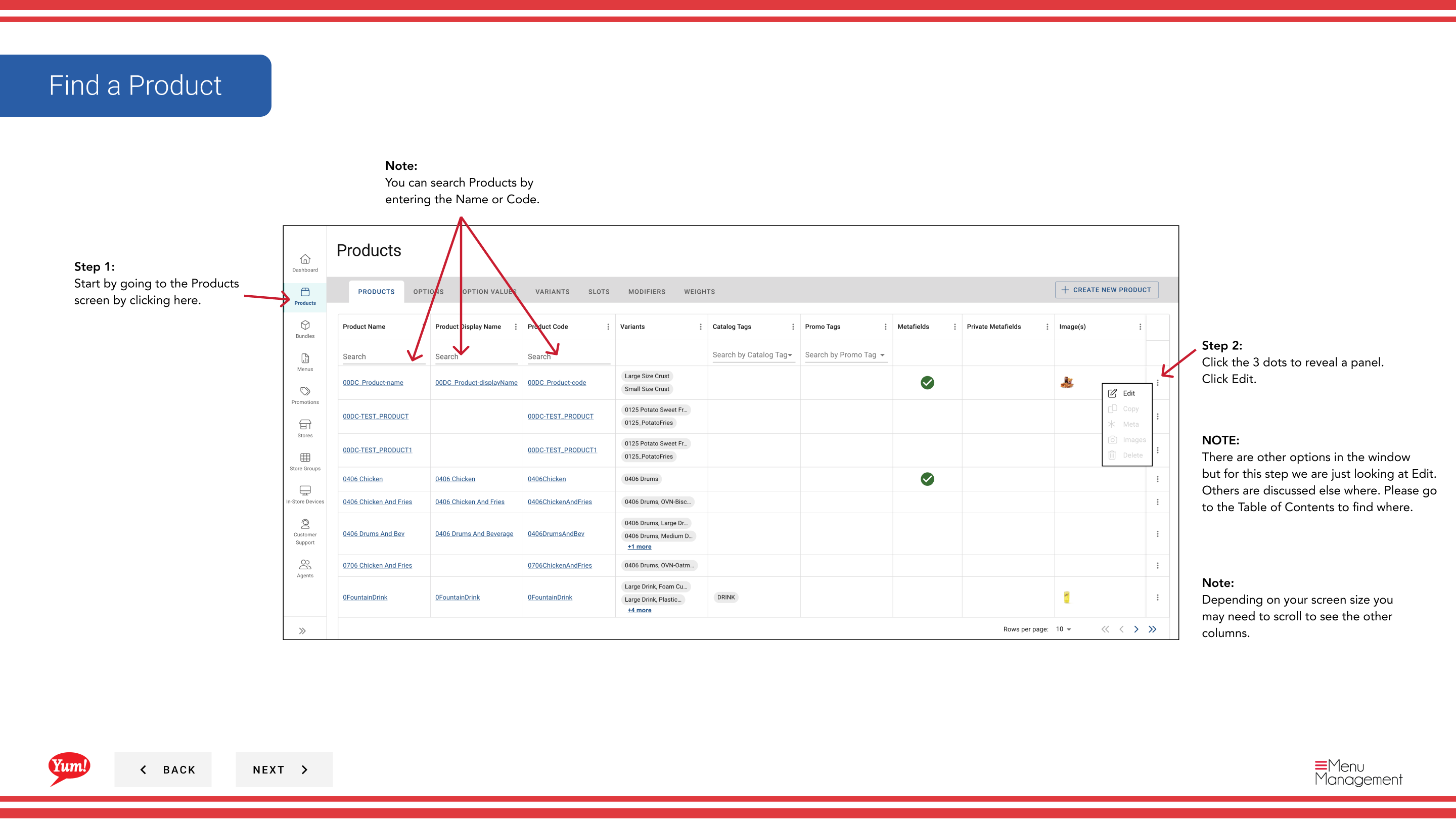
Step 2: Find the product you want to edit. You can search by entering the Product Name or Product Code in the search field.
Step 3: Click the three-dot menu next to the product name, then select Edit.
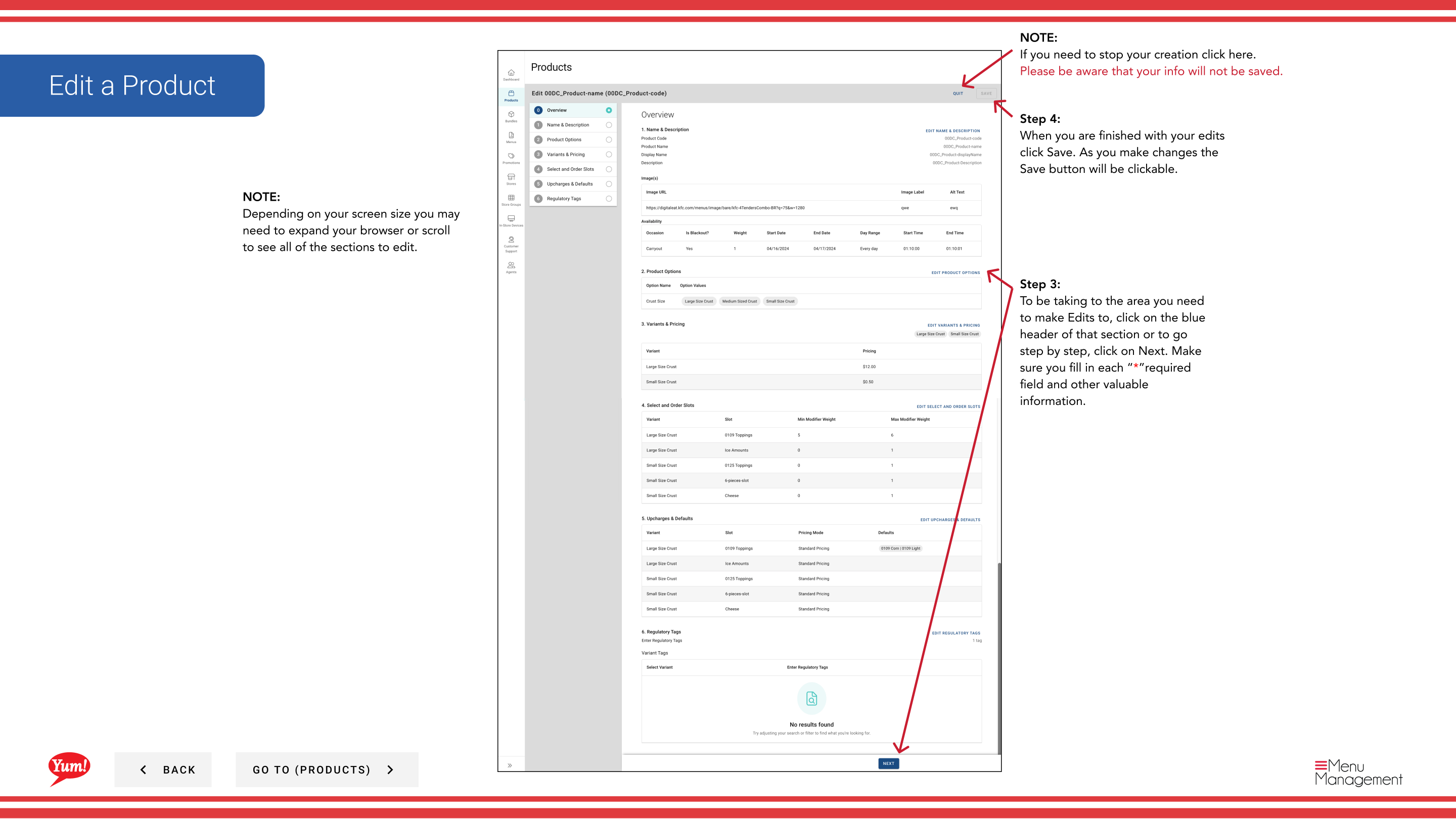
Step 4: You will see the edit form with all pages from the creation process. To jump directly to a section, click on the blue section header (e.g., “Basic Information”, “Options”, “Variants”). To navigate step-by-step, click Next.
Step 5: Make your changes. Fields marked with * are required. Only the Save button will be active when you have made changes.
Step 6: When you have finished your edits, click the Save button.
Notes
Clicking Cancel discards all unsaved changes.
You can search products by Product Name or Product Code to quickly find the item you want to edit.
Click the blue section headers to jump directly to the section you want to edit instead of navigating step-by-step.
Part of the Admin Portal Guide · Section: Products