Edit a Variant
What this guide covers
Updates a product variant's code, pricing, slots, availability, nutrition info, allergens, exclusions, or images after the product has been created.
Steps
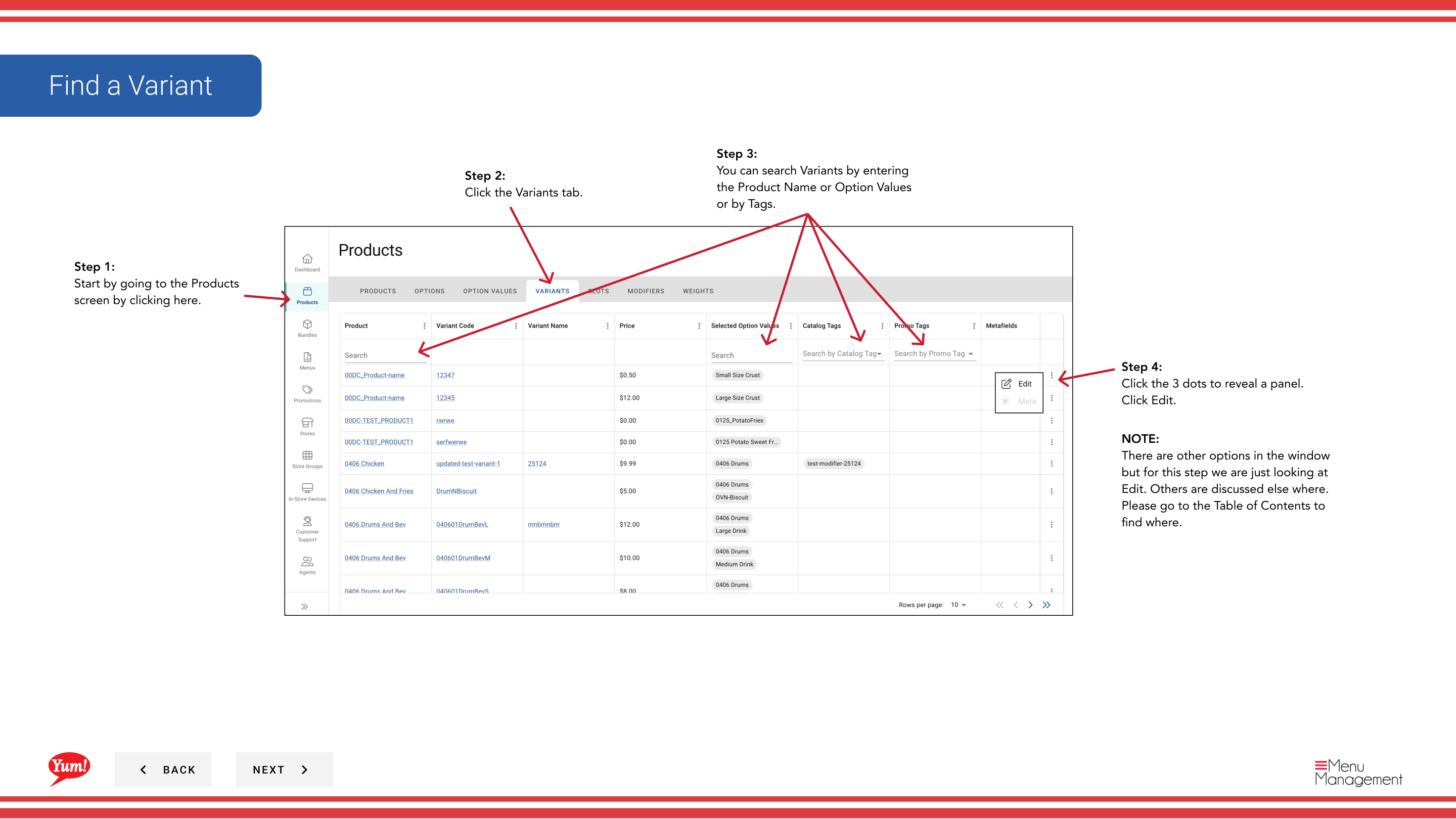
Step 1: Navigate to the Products section using the left navigation menu.
Step 2: Click the Variants tab.
Step 3: Search for the variant you want to edit by entering the Product Name, Option Values, or Tags in the search field.
Step 4: Click the three-dot menu next to the variant, then select Edit.
Step 5: You will see the variant edit form with blue section links. Click on any blue link to jump directly to that section:
- Basic Information — Edit the variant code
- Pricing — Add or edit variant pricing
- Slots — Add or edit slot assignments
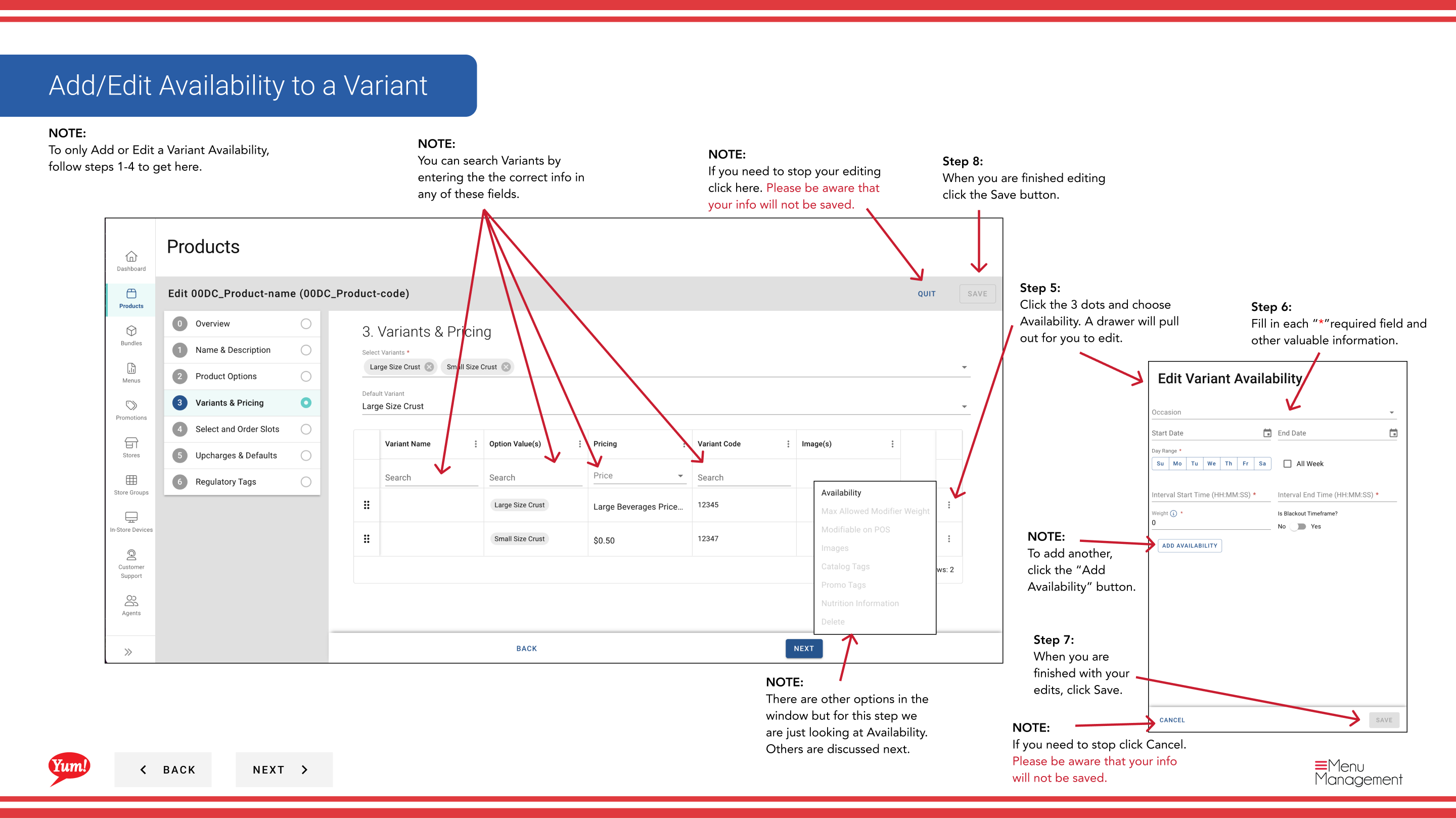
- Availability — Set time-based availability windows
- Nutrition — Add nutritional information
- Allergens/Exclusions — Check applicable allergens
- Images — Add or edit variant images
Step 6: Update the variant details as needed. Fields marked with * are required.
Variant Code
Click inside the Variant Code field to edit it. Click Save when done. Clicking Cancel will not save the code.
Pricing
Click in the price box to reveal the price entry field. Enter the price and click Save.
Availability
Click Availability to set time-based windows (e.g., “Breakfast 6am–11am”). Click Add Availability to add multiple windows. Click Save when done.
Nutrition Information
Click the three-dot menu next to nutrition entries and select Edit to update, or click Add Nutrition Information to add new entries. Click Save when done.
Allergens/Exclusions
Check all the boxes that apply to this variant. Click Save when done.
Images
Click Add Image to upload images. Toggle Primary Image to Yes if this should be the main display image. Click Save when done.
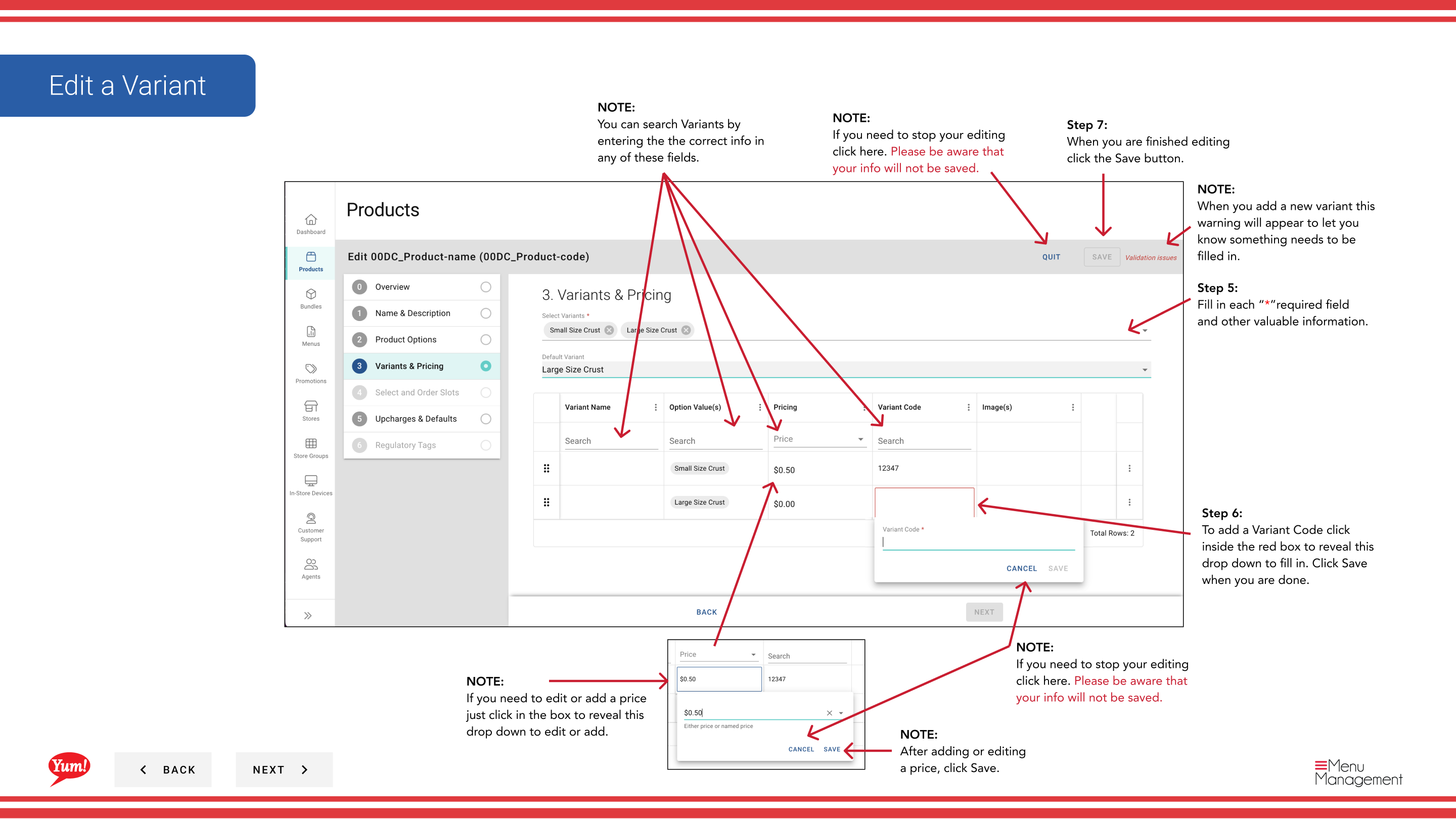
Step 7: When you are finished with all edits, click the Save button in each section. The Save button works the same way across all drawers.
Notes
Clicking Cancel in any drawer discards all unsaved changes in that section.
You can jump directly to a section by clicking the blue section link instead of scrolling.
You can search variants by Product Name, Option Values, or Tags to quickly find the item you want to edit.
After adding or editing pricing, click Save before moving to another section.
Toggle Primary Image to Yes to set this image as the main display image for this variant.
Part of the Admin Portal Guide · Section: Products