Copy a Product
What this guide covers
Duplicates an existing product as a starting point, reducing data entry when creating similar items in the catalogue.
Steps
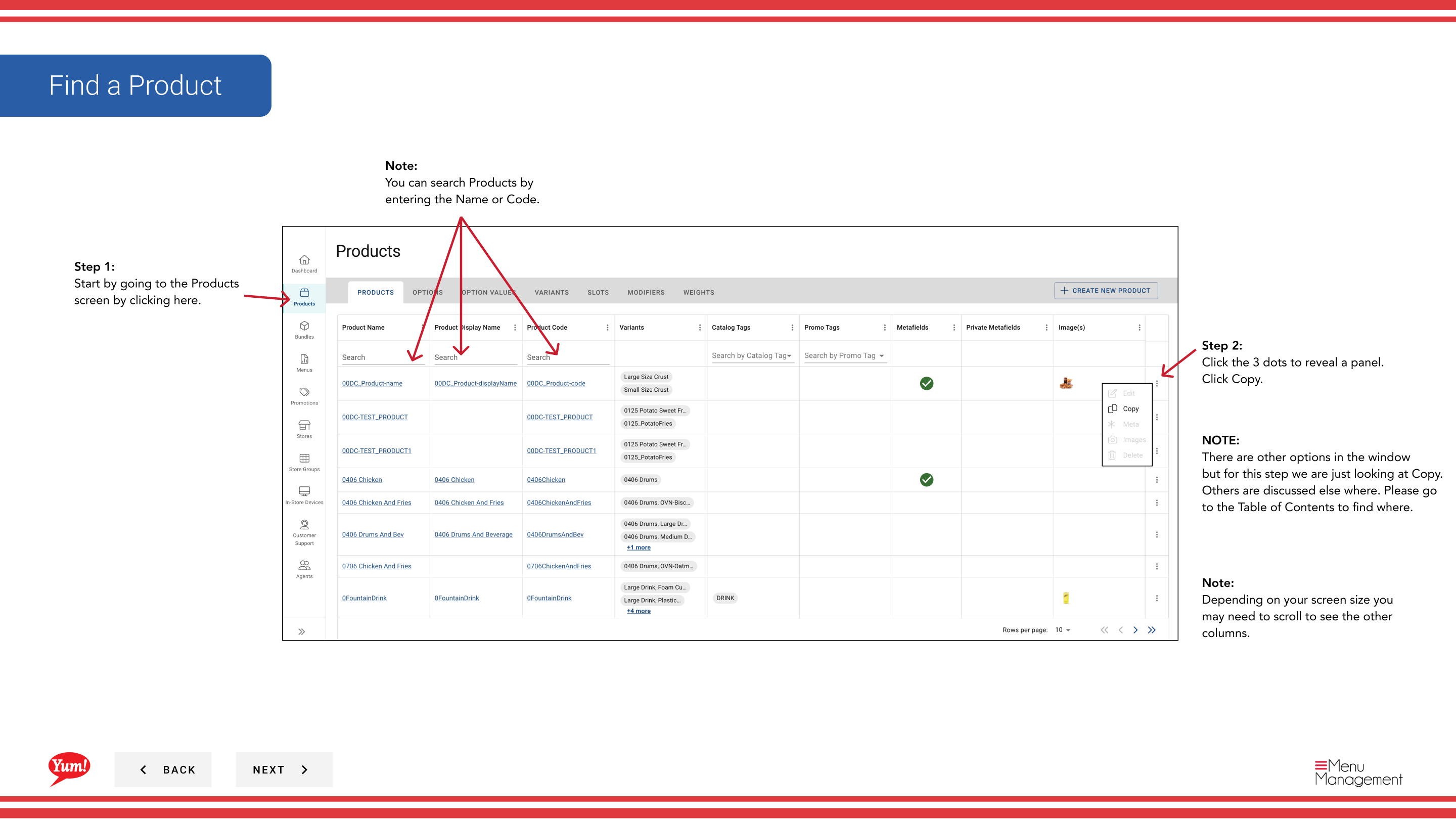
Step 1: Navigate to the Products section using the left navigation menu.
Step 2: Find the product you want to copy. You can search by Product Name or Product Code.
Step 3: Click the three-dot menu next to the product name, then select Copy.
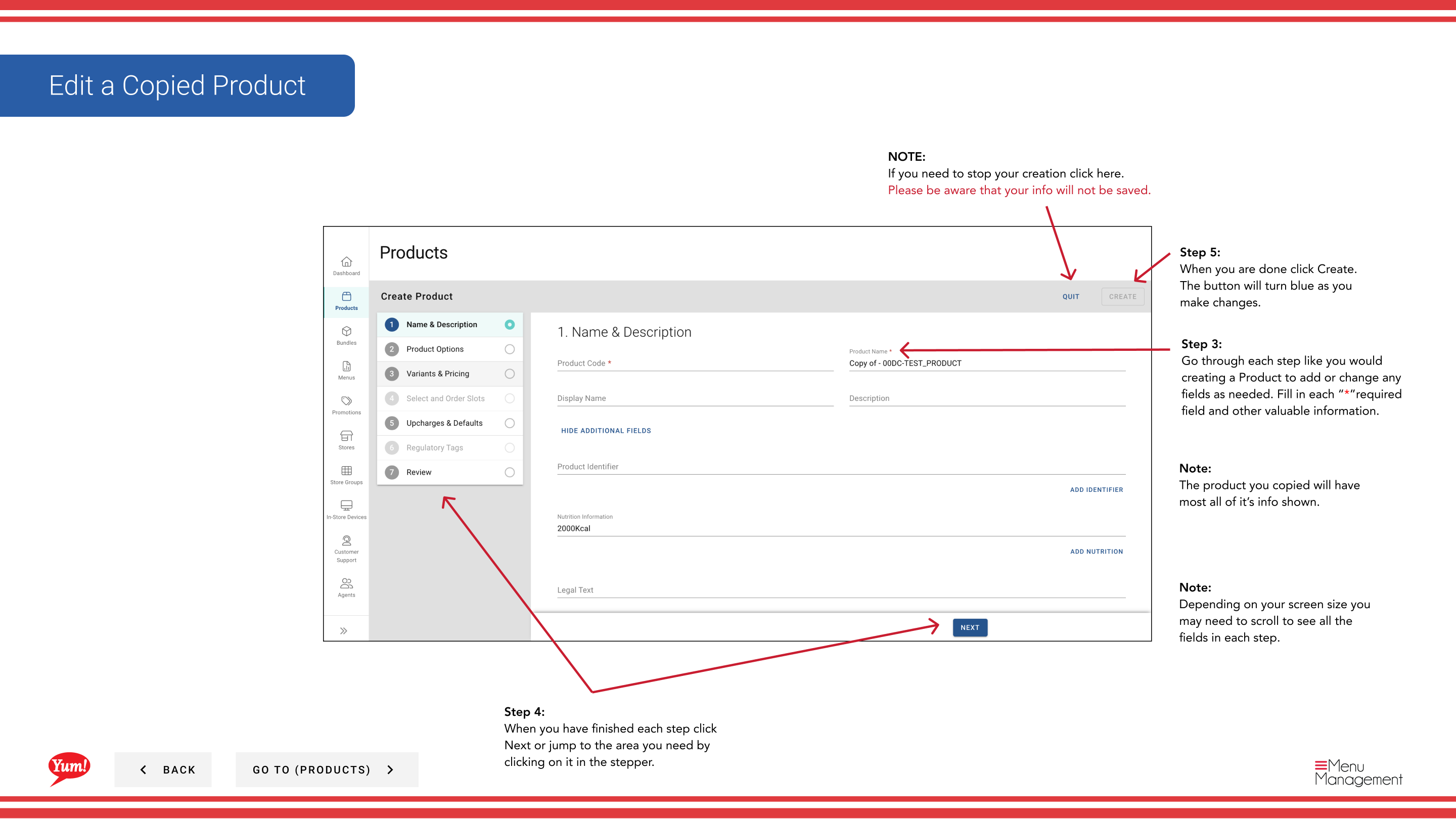
Step 4: The copy form will appear with most of the original product’s information already filled in. Modify any fields as needed.
Step 5: Follow the same steps as creating a new product. Go through each page (Basic Information, Options, Variants, Slots, Bulk Actions, Tags, Review) by clicking Next or jump directly to a section by clicking its blue header.
Step 6: When you have finished making your changes, click the Create button. The button will only be clickable after you have made changes.
Notes
You can search products by Product Name or Product Code to quickly find the item you want to copy.
Click the blue section headers to jump directly to the section you want to modify instead of navigating step-by-step.
Clicking Cancel discards all unsaved changes.
Part of the Admin Portal Guide · Section: Products