Copy a Modifier
What this guide covers
Duplicates a modifier to quickly build similar add-ons without re-entering all information.
Steps
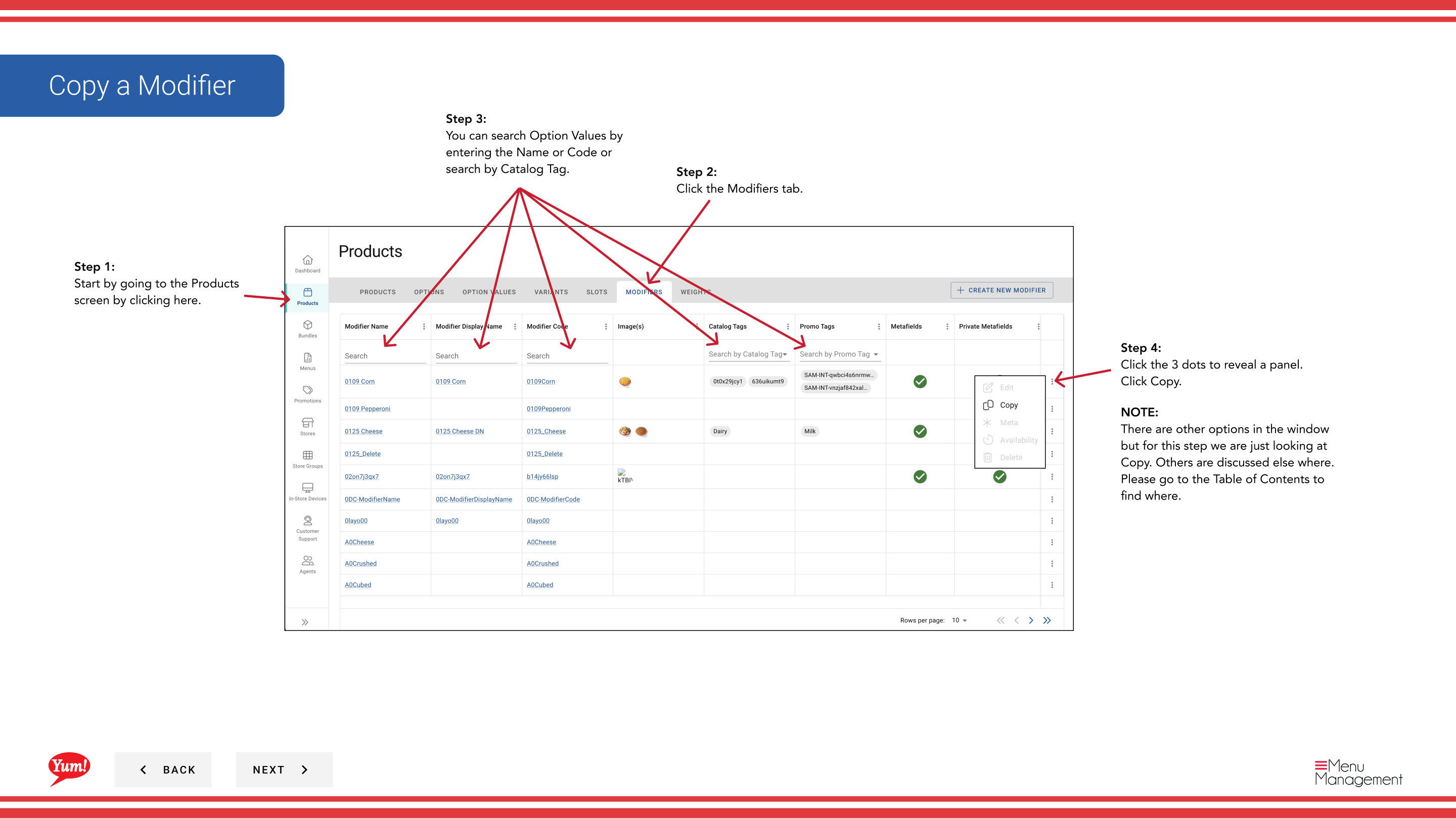
Step 1: Navigate to the Products section using the left navigation menu.
Step 2: Click the Modifiers tab.
Step 3: Search for the modifier you want to copy by entering the Name, Code, or Catalog Tag in the search field.
Step 4: Click the three-dot menu next to the modifier, then select Copy.
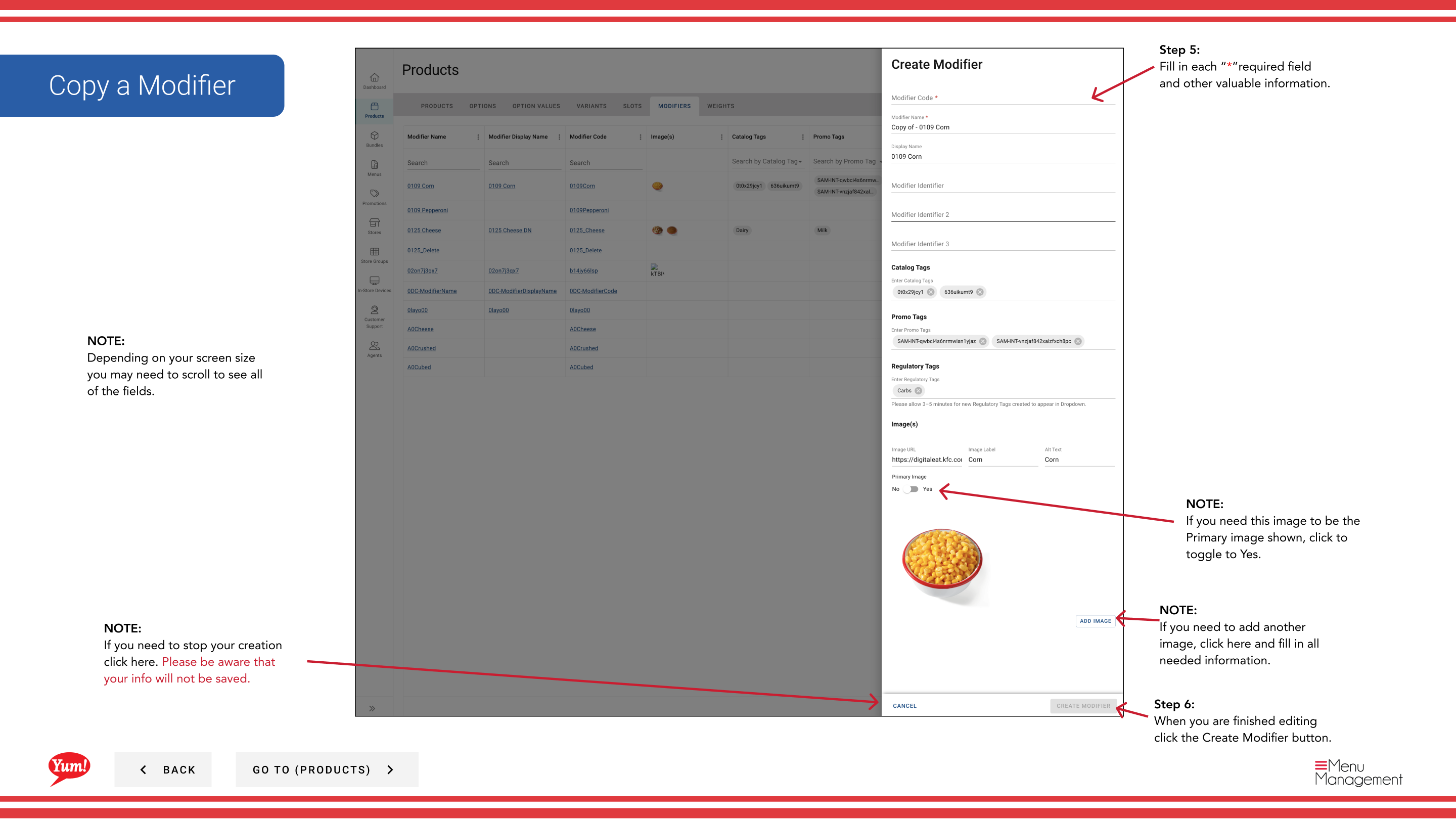
Step 5: The copy form will appear with the original modifier's information. Update the fields as needed. Fields marked with * are required.
| Field | What to enter | Notes |
|---|---|---|
| Modifier Code * | Unique identifier for the new modifier | Must be different from the original (e.g., “MOD-EXTRA-CHEESE-COPY”) |
| Modifier Name * | Name shown to customers | Can be the same or customized |
| Price | Additional charge for this modifier | Enter 0 if there is no extra charge |
| Image | Optional image for this modifier | Toggle Primary Image to Yes if needed. Click Add Another Image to add more. |
Step 6: When you are finished editing, click the Create Modifier button.
Notes
The Modifier Code must be unique. You cannot use the same code as the original modifier.
You can search modifiers by Name, Code, or Catalog Tag.
Clicking Cancel discards all unsaved changes.
Part of the Admin Portal Guide · Section: Products