Delete a Modifier
What this guide covers
Permanently removes a modifier from the system when it is no longer needed.
Steps
Step 1: Navigate to the Products section using the left navigation menu.
Step 2: Click the Modifiers tab.
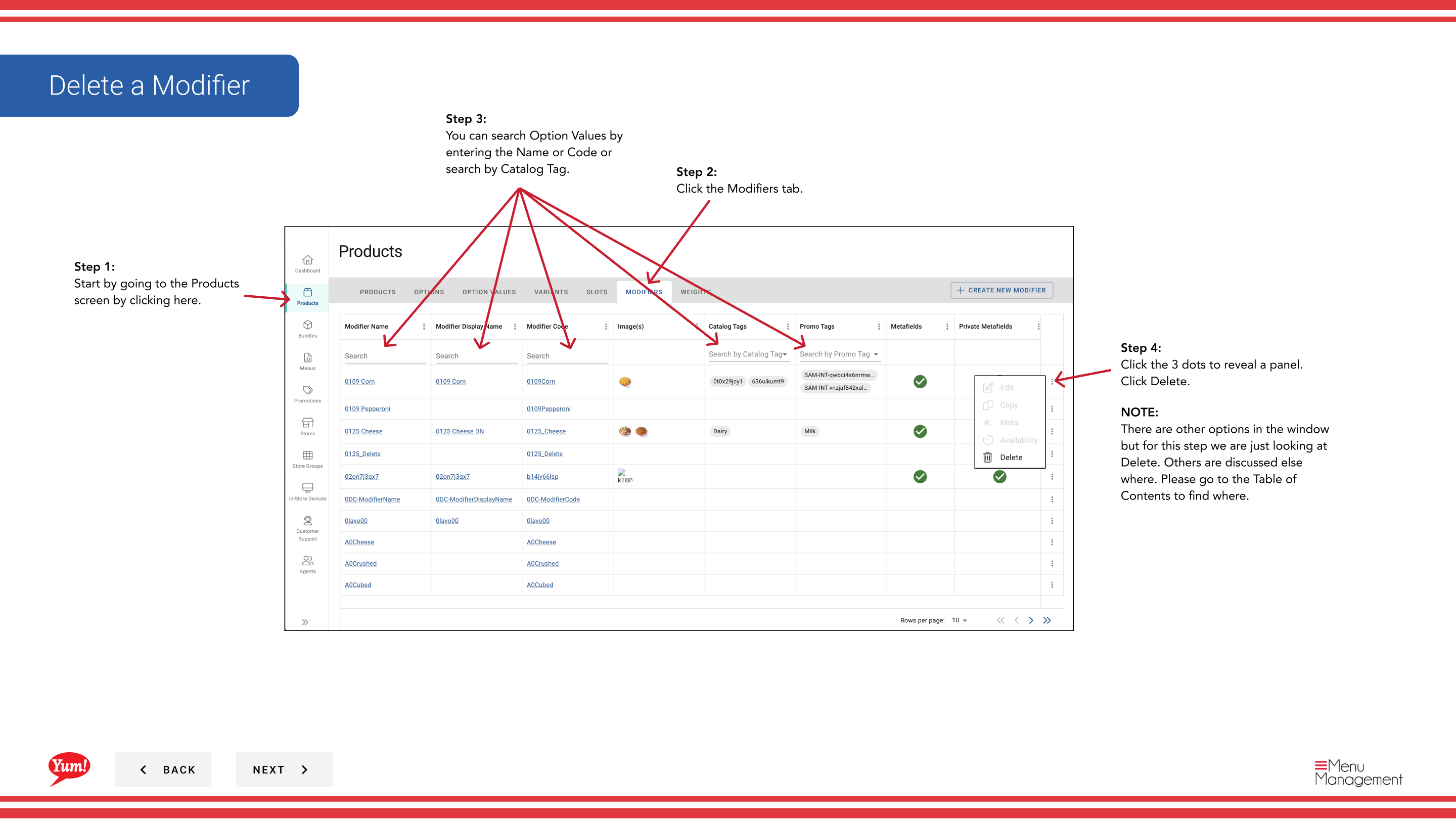
Step 3: Search for the modifier you want to delete by entering the Name, Code, or Catalog Tag in the search field.
Step 4: Click the three-dot menu next to the modifier, then select Delete.
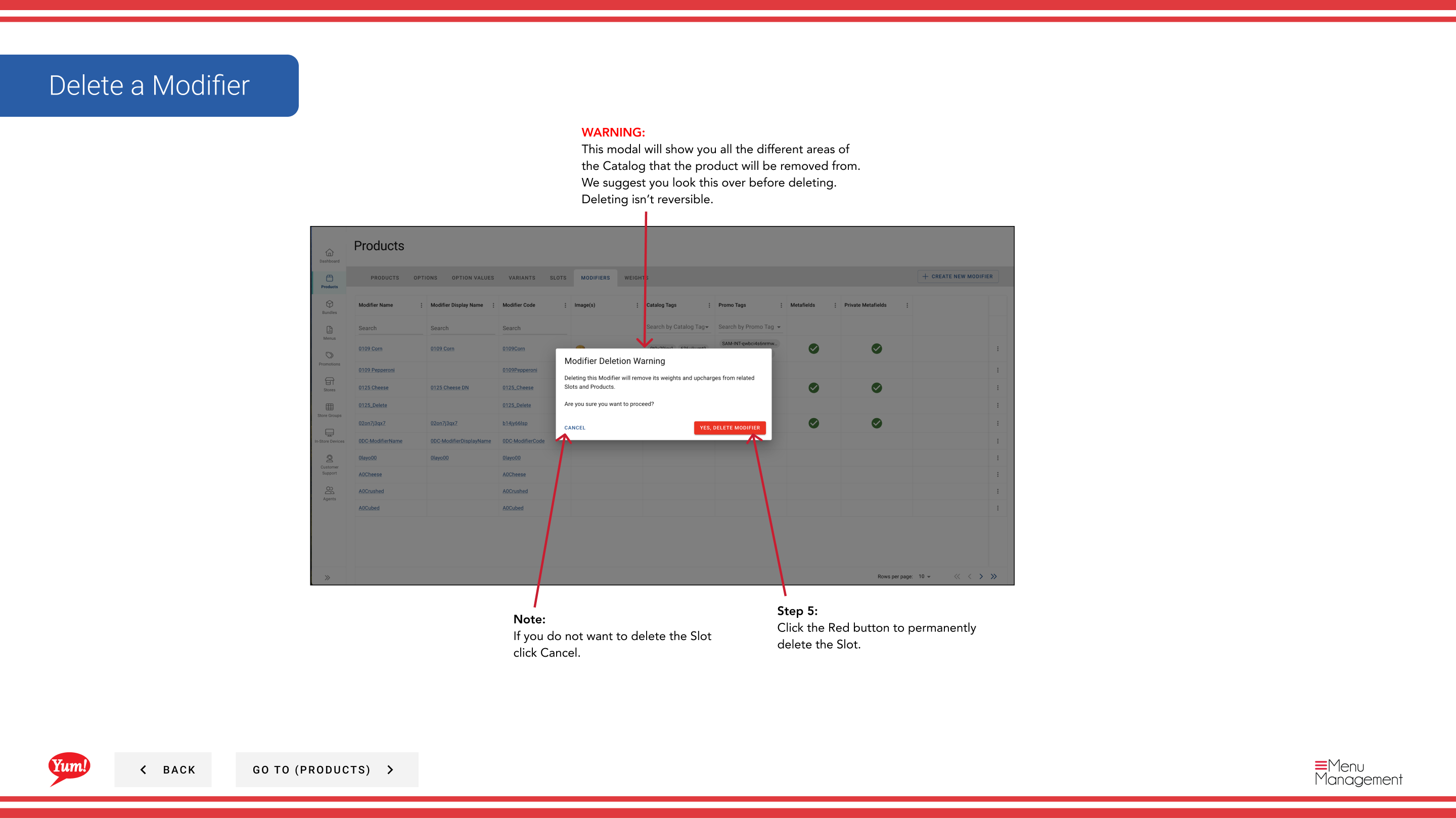
Step 5: A confirmation modal will appear showing all the areas of the system where this modifier is used. Review this carefully to ensure you are deleting the correct modifier.
Step 6: Click the red Delete button to permanently remove the modifier.
Notes
Deleting a modifier is permanent and cannot be undone. The modifier will be removed from all slots and products that use it.
You can search modifiers by Name, Code, or Catalog Tag to quickly find the item you want to delete.
Click Cancel if you do not want to proceed with deletion.
Part of the Admin Portal Guide · Section: Products