Edit Item Availability
What this guide covers
Sets time-based availability windows for a product or modifier, controlling when it appears on the menu and is available for ordering (e.g., “Breakfast 6am–11am”).
Steps
Step 1: Navigate to the Products section using the left navigation menu.
Step 2: Click the Modifiers tab.
Step 3: Search for the modifier by entering the Name, Code, or Catalog Tag in the search field.
Step 4: Click the three-dot menu next to the modifier, then select Availability.
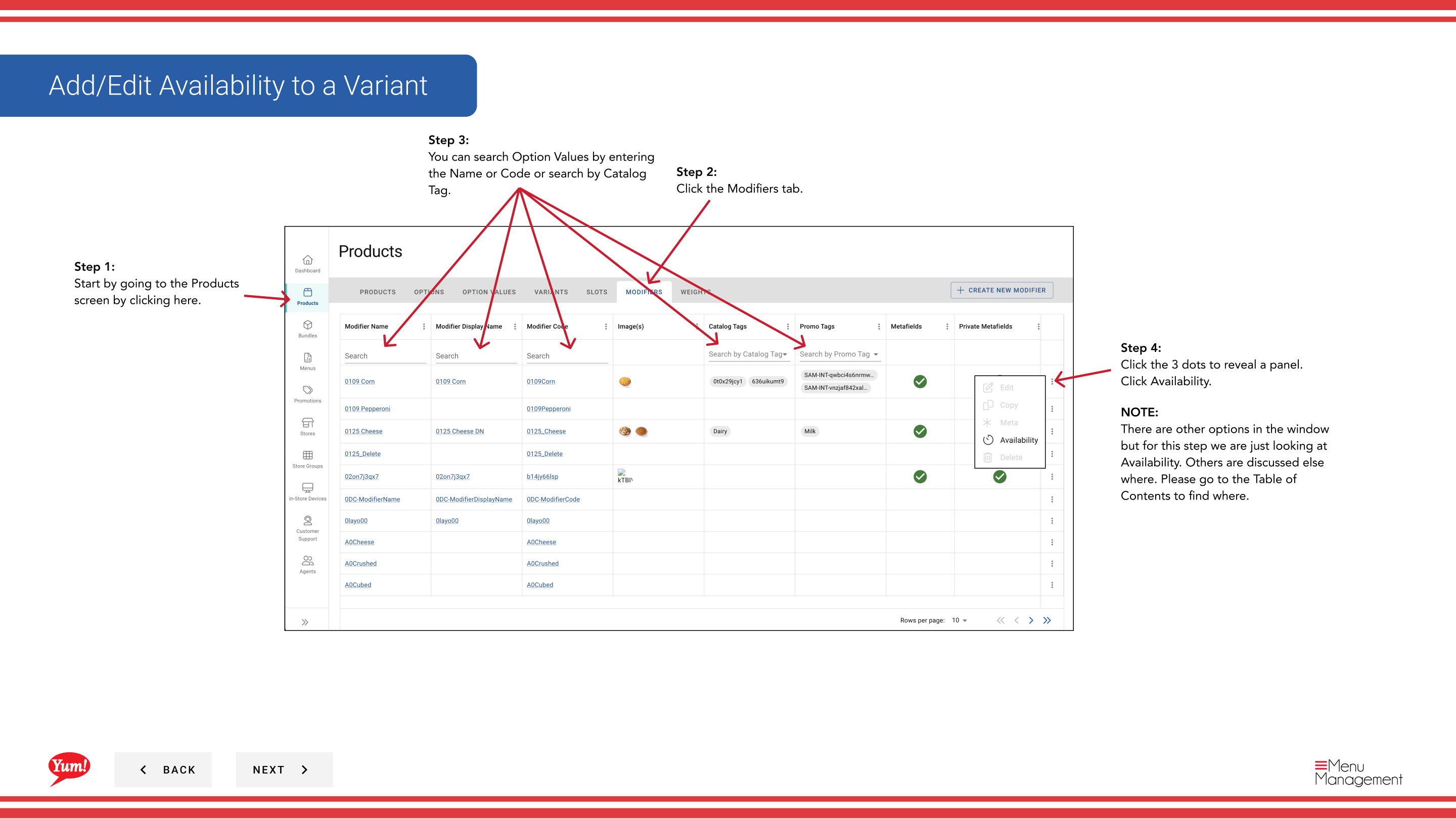
Step 5: A drawer will open showing availability time windows.
Step 6: Fill in the availability details for each time window:
| Field | What to enter | Notes |
|---|---|---|
| Occasion | When this item is available | e.g., “Breakfast”, “Lunch”, “Dinner” |
| Start Time | When availability starts | e.g., “06:00” (6:00 AM) |
| End Time | When availability ends | e.g., “11:00” (11:00 AM) |
Step 7: When you are finished with your edits, click Save.
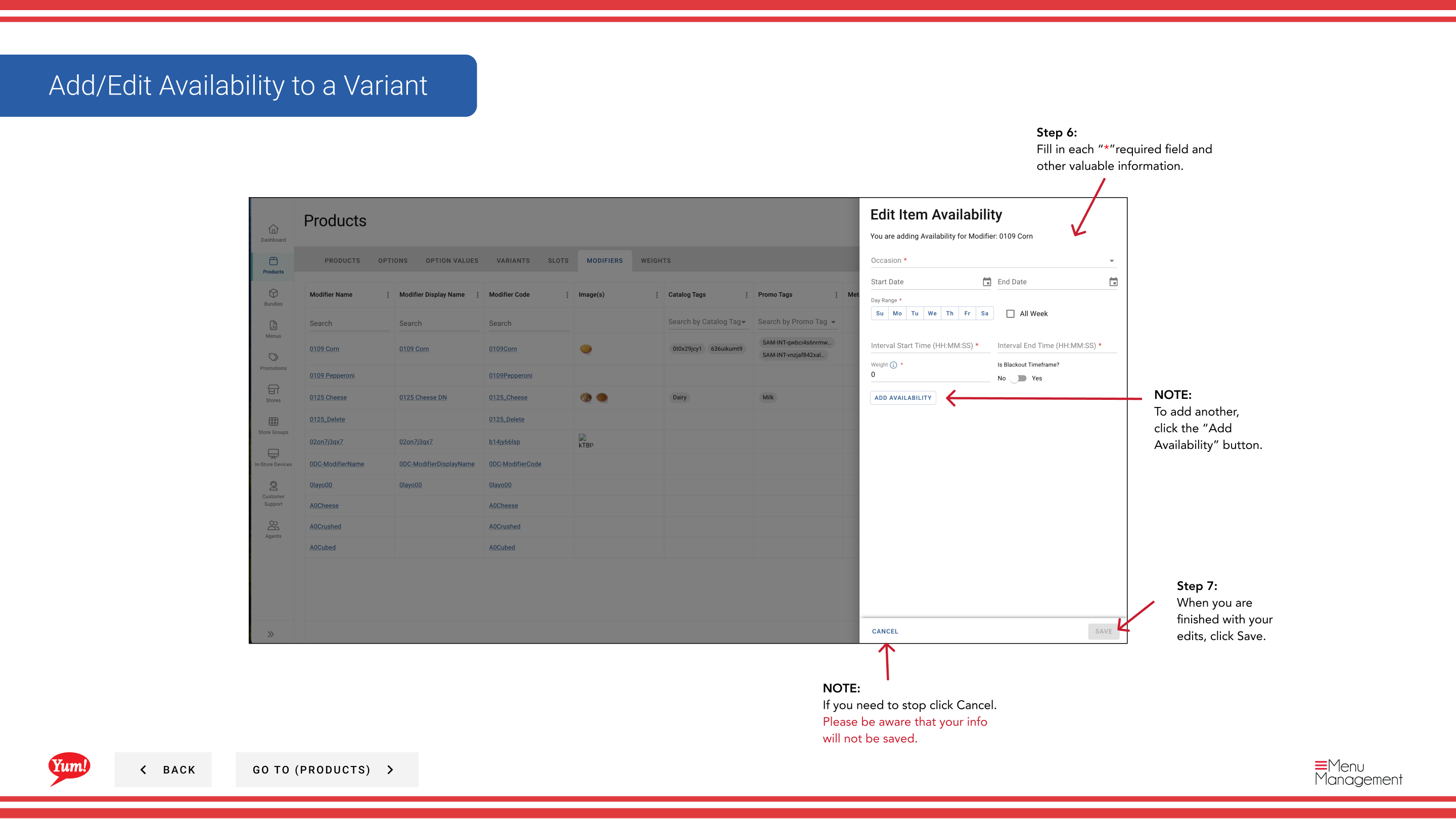
Step 8: To add another availability window, click the Add Availability button and repeat Steps 6-7.
Notes
Clicking Cancel discards all unsaved changes.
You can add multiple availability windows (e.g., separate Breakfast and Lunch periods).
Leave the availability section blank if the item should be available all day.
Part of the Admin Portal Guide · Section: Products