Set Order Mode
How This Journey Works
A. Signed-In User
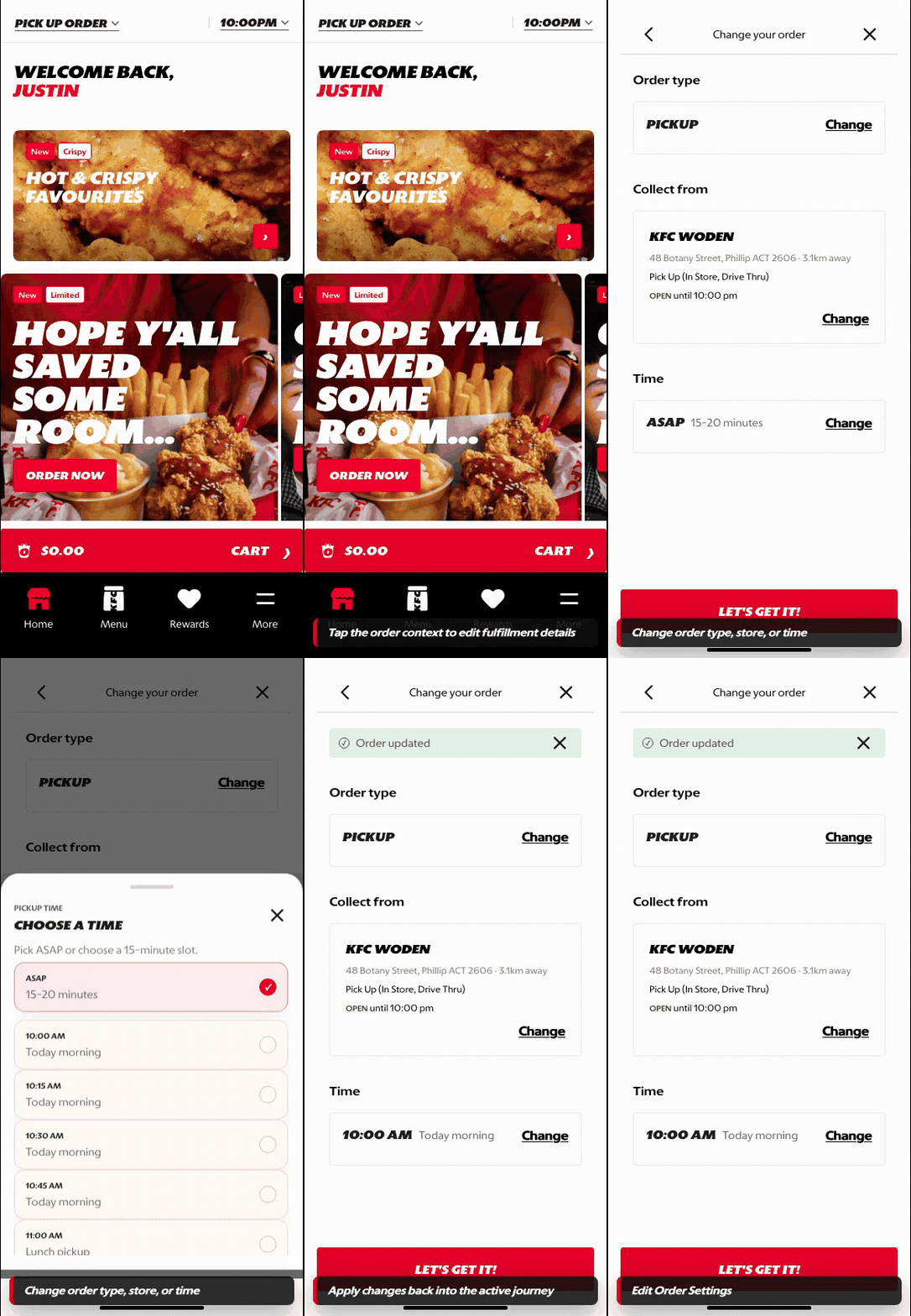
What this shows
- Lets returning customers adjust a saved fulfillment context.
- Uses known store or address context to reduce repeated setup work.
- Keeps the order mode change close to the homepage and cart context.
B. Guest User
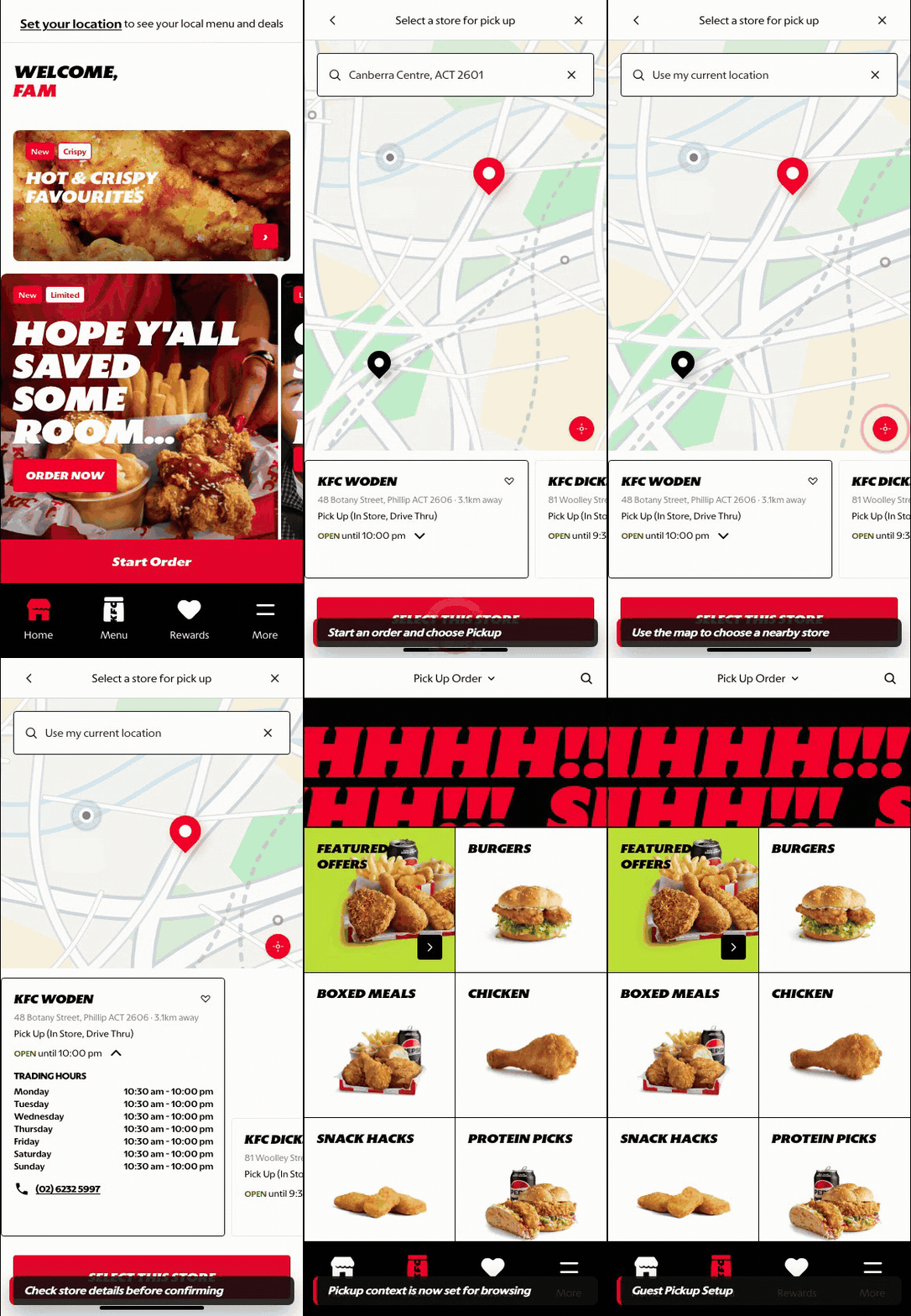
What this shows
- Starts with a fresh pickup or delivery decision.
- Guides the customer into store or address selection before menu browsing.
- Allows browsing intent to continue once the fulfillment context is set.
Key difference: Signed-in users see account-aware shortcuts and rewards access. Guests can browse and build intent, but authentication is required for account-specific actions such as checkout, rewards redemption, or saved details.
Set Order Mode is the moment where the customer chooses how they want to receive the order. In the prototype, this begins from the homepage location prompt or Start Order CTA and opens a focused order-mode sheet.
Screen Capture Sequence
This screen is a compact bottom sheet rather than a long scroll page. The key capture is the state where the homepage context remains visible behind the order-mode decision.
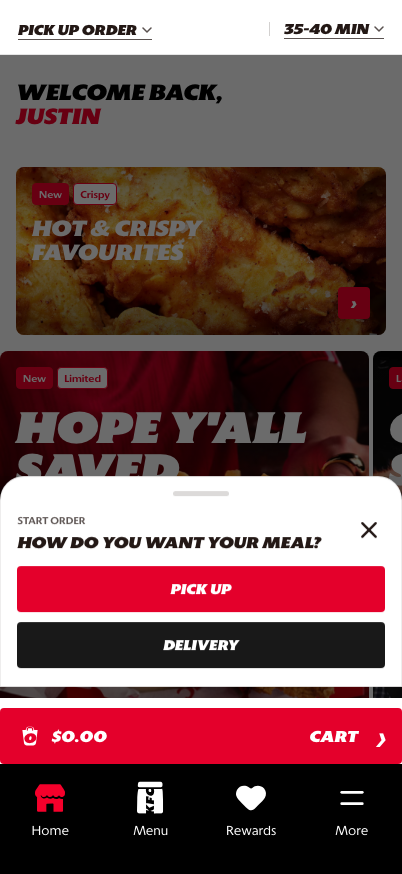
Order-mode sheet: the customer chooses pickup or delivery before local menu, pricing, and checkout rules are resolved.
What This Feature Is
Set Order Mode captures the customer's fulfillment intent before the platform shows a local menu. It is the gate between general discovery and a context-aware commerce journey.
The mode selection creates the rules that downstream screens need:
- whether the order is for pickup or delivery,
- which store or address should be used,
- which menu, prices, service hours, and promotions are eligible,
- which checkout and post-order steps should appear later.
Why It Is Designed This Way
The customer can browse inspiration on the homepage without context, but ordering requires a store, fulfillment type, and timing. Asking for order mode early prevents the customer from building a cart against unavailable items, incorrect prices, or unsupported fulfillment options.
The sheet pattern keeps the decision focused. It does not take over the whole experience until the customer chooses a mode, which keeps the homepage feeling like the starting point rather than a blocking form.
WIP: What Can Be Configured On This Screen
| Configurable Area | What Markets Should Be Able To Control | Current Documentation Status |
|---|---|---|
| Available modes | Pickup, delivery, dine-in, catering, or future order availability | WIP |
| Mode labels | Market-specific naming such as Pick Up, Collect, Delivery, or Order Ahead | WIP |
| Mode ordering | Which fulfillment option appears first by market or channel | WIP |
| Eligibility rules | Store hours, service zones, delivery provider availability, or disabled modes | WIP |
| Entry copy | Sheet title, supporting copy, and unavailable-state messaging | WIP |
| Default context | Whether returning customers see their last-used mode preselected | WIP |
What This Screen Should Communicate
- The customer is about to define the order context.
- Pickup and delivery are separate journeys with different requirements.
- The customer can still back out without losing the homepage browsing state.
- The platform needs this choice before it can show the right menu and checkout flow.
Design Read On This Screen
- The bottom sheet keeps the task lightweight and reversible.
- Large mode buttons make the first decision obvious on mobile.
- The sheet sits on top of the homepage to preserve continuity from discovery into ordering.
- This step should remain short; address, store, and schedule complexity belongs in the mode-specific subpages.