Copy Promotion
What this guide covers
Duplicates an existing promotion as a starting point for a new one, reducing setup time for similar offers.
Steps
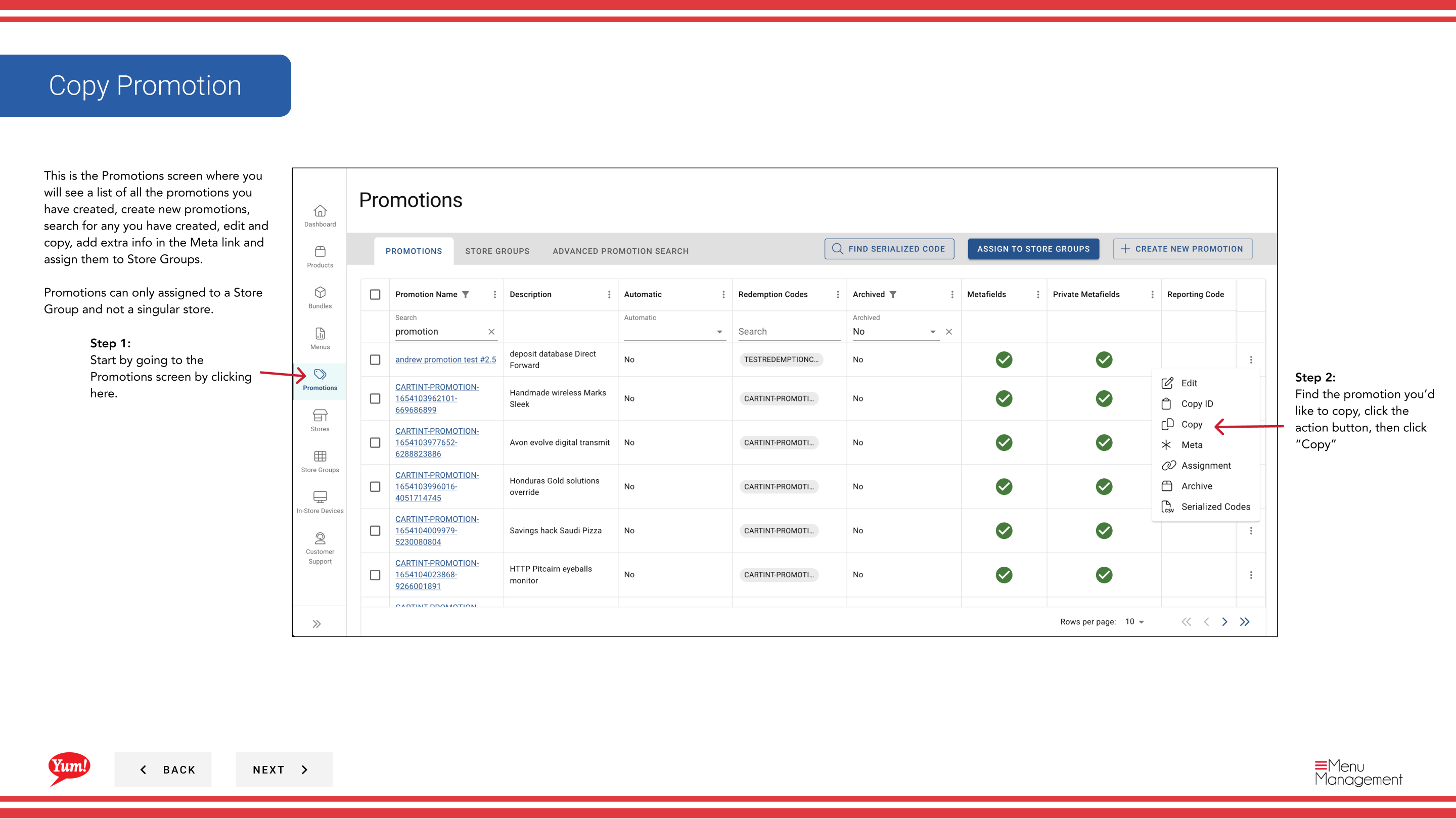
Step 1: Navigate to the Promotions section using the left-hand navigation menu.
Step 2: Find the promotion you want to copy. Click the action menu button (three dots), then select Copy.
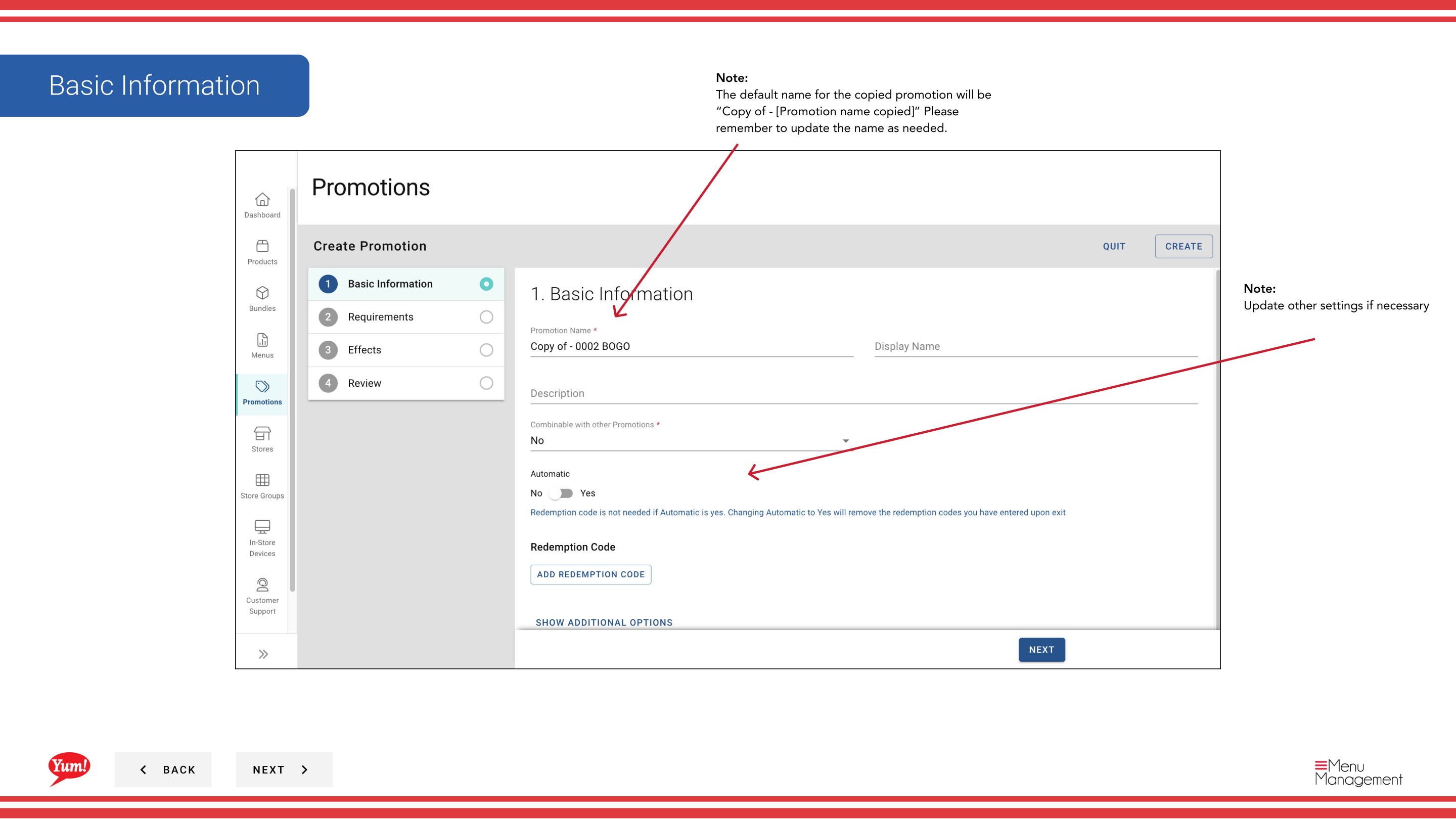
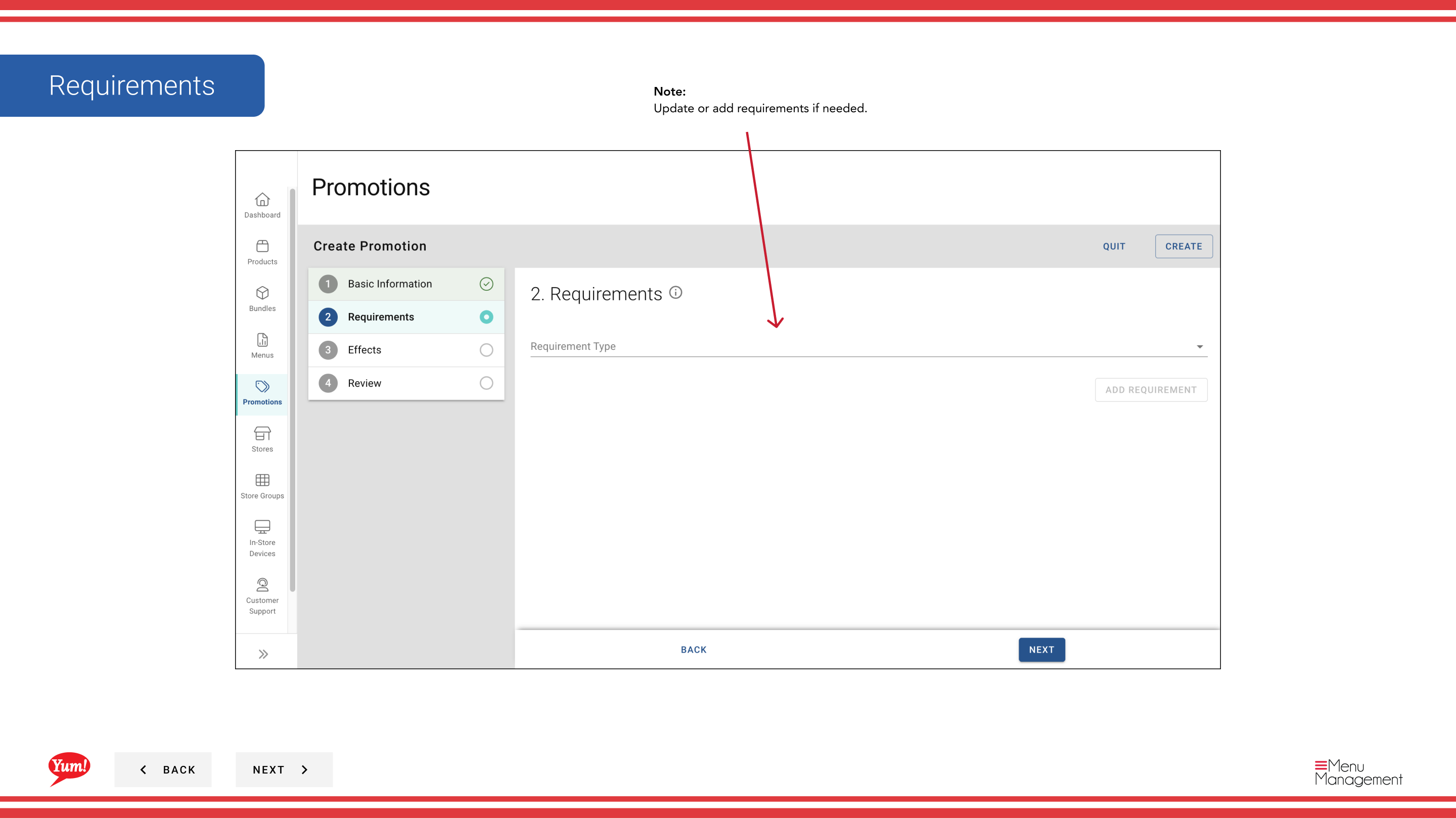
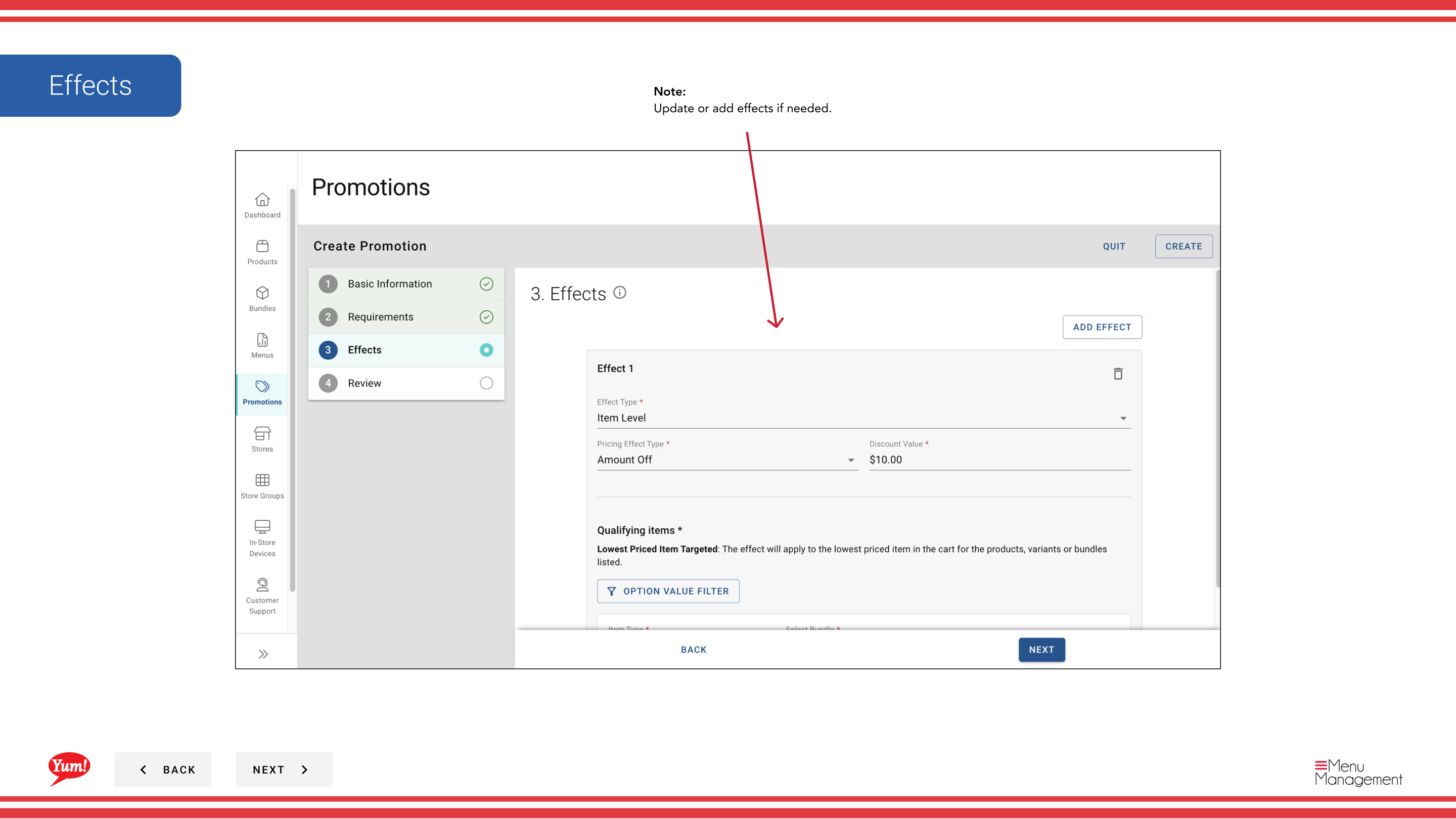
Step 3: The Promotion Wizard will open with all the details from the original promotion pre-filled. Update the promotion details as needed:
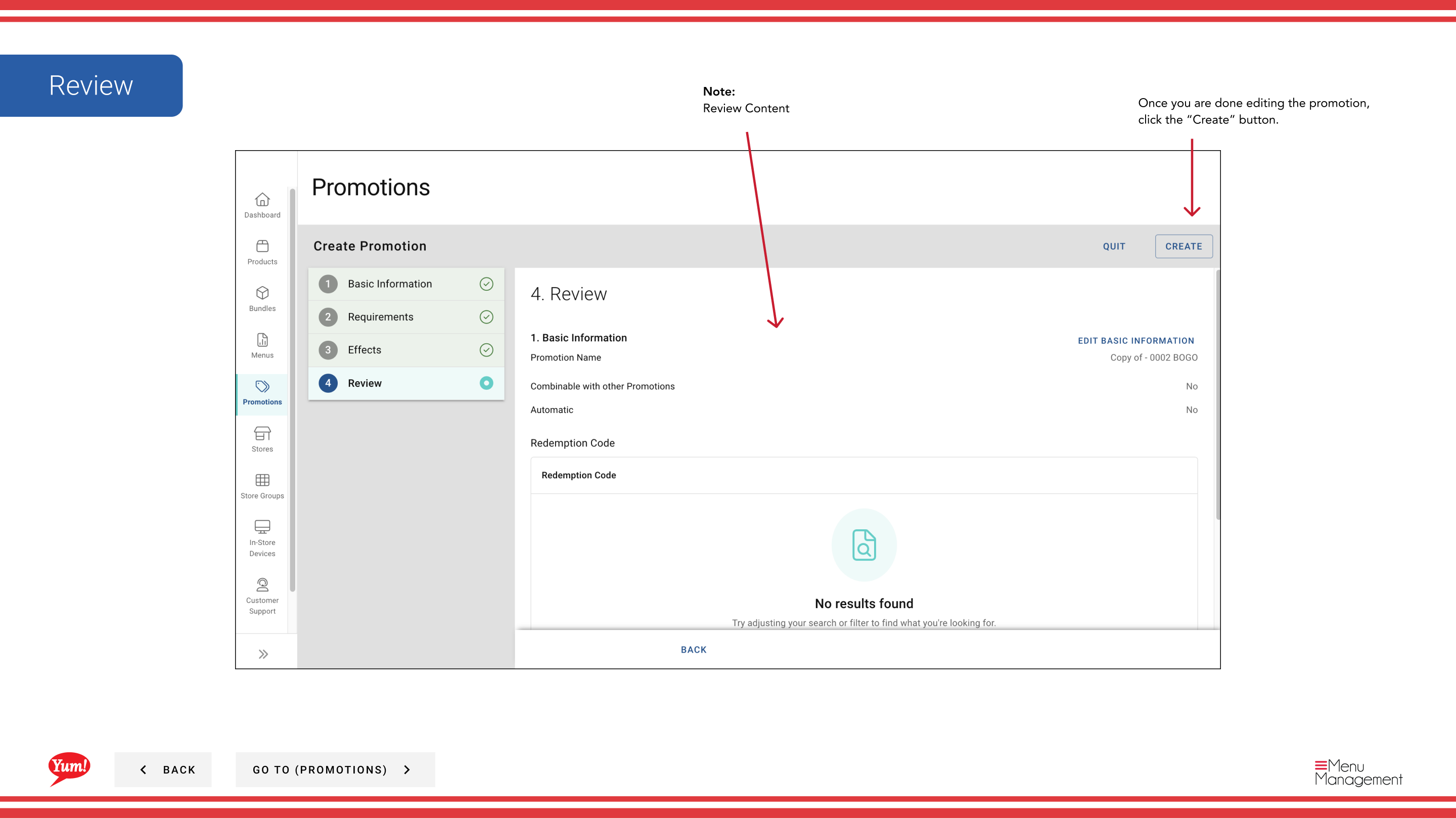
- Promotion Name — The copied promotion defaults to “Copy of - [Original Name]”. Change this to a unique name.
- Display Name — Update if needed.
- Description — Update if needed.
- Promotion Flow — Change if needed.
- Requirements — Add, remove, or modify as needed.
- Effects — Add, remove, or modify as needed.
Step 4: Review all your changes and click the Create button to save the new promotion.
note
The copied promotion is independent of the original. Changes made to either promotion will not affect the other.
Related guides
Part of the Admin Portal Guide · Section: Promotions