Product Detail Page (PDP)
How This Journey Works
A. Signed-In User
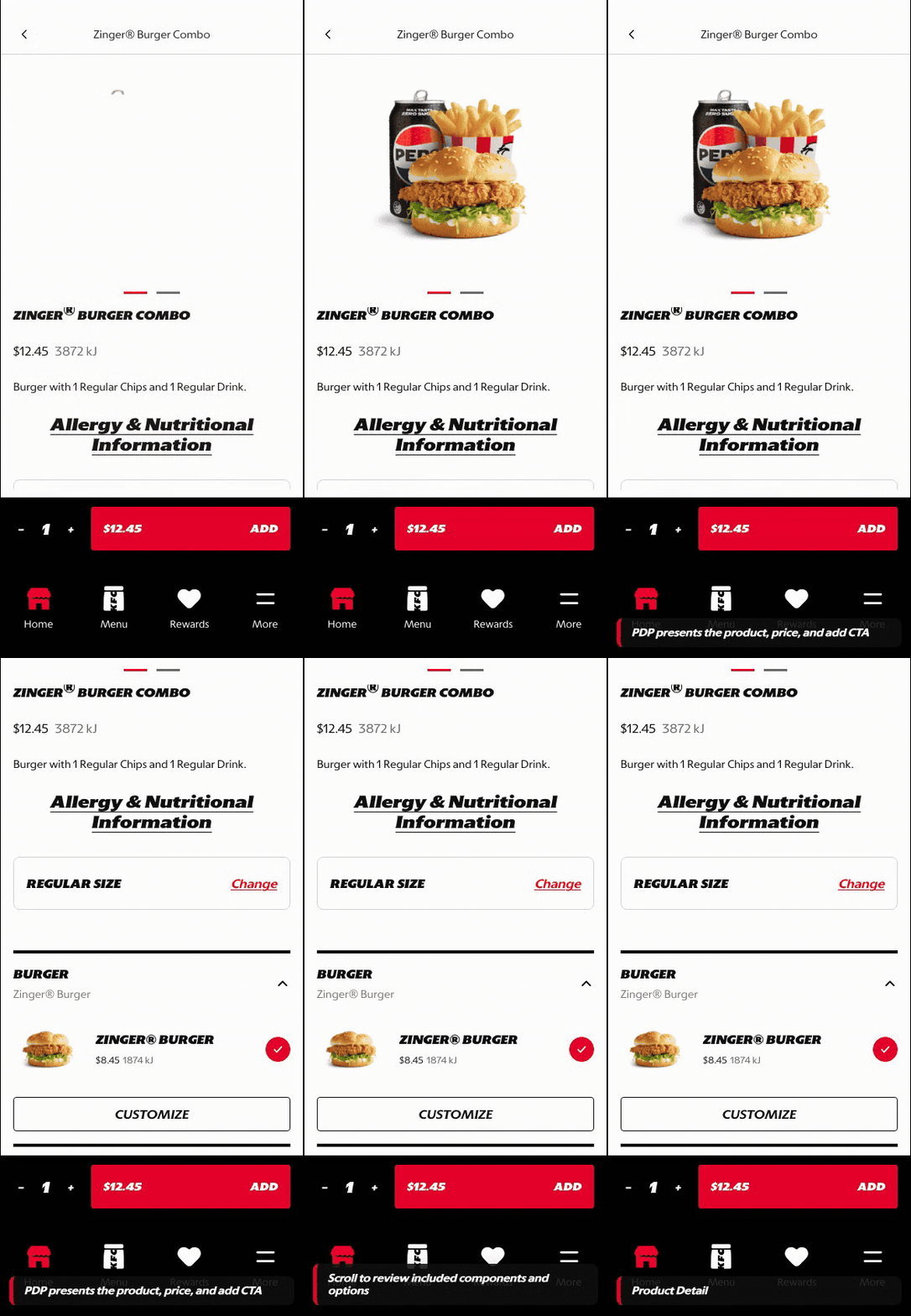
What this shows
- Shows product detail, price, quantity, and add-to-cart entry in one decision surface.
- Keeps the product tied to the selected store or delivery context.
- Allows customization and nutrition review before cart commitment.
B. Guest User
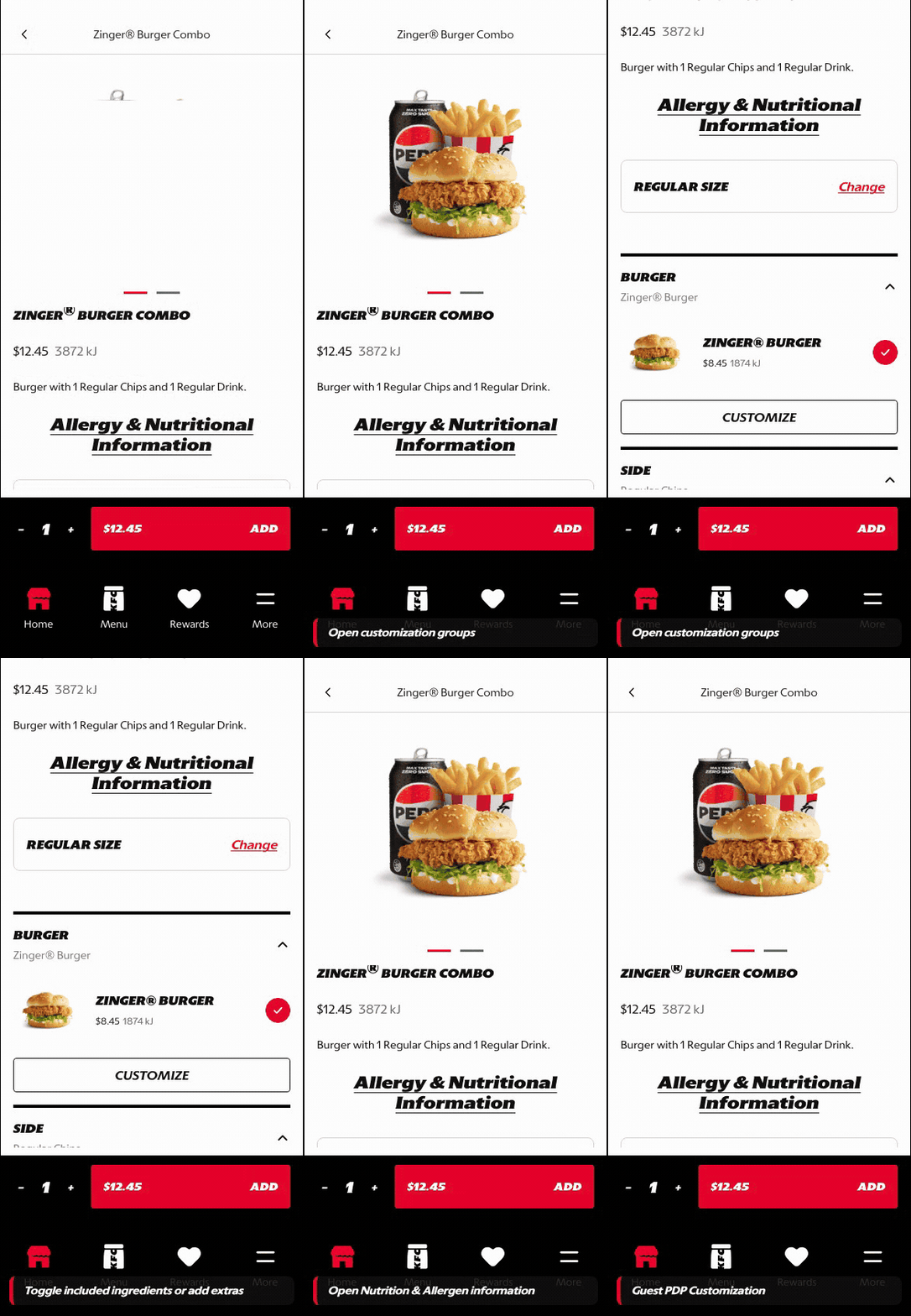
What this shows
- Lets guests inspect and customize a product before authentication.
- Preserves configured product intent as the customer moves toward cart or checkout.
- Defers account-specific actions until they are required by the flow.
Key difference: Signed-in users see account-aware shortcuts and rewards access. Guests can browse and build intent, but authentication is required for account-specific actions such as checkout, rewards redemption, or saved details.
The Product Detail Page is where the customer moves from product comparison into one selected item. It explains the product, exposes price and nutrition context, and starts the customization path.
Screen Capture Sequence
PDP should be captured as a layered customization sequence because the customer moves from product confirmation into size, component, and bundle decisions.
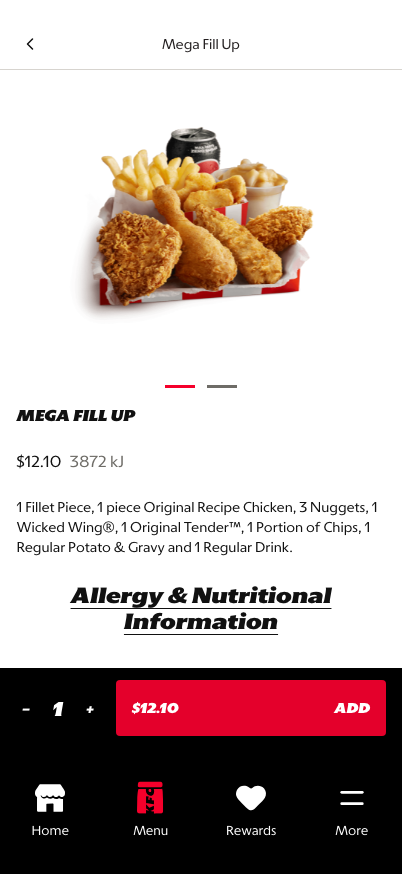
Top state: product confirmation, price, quantity, and primary add-to-cart action.
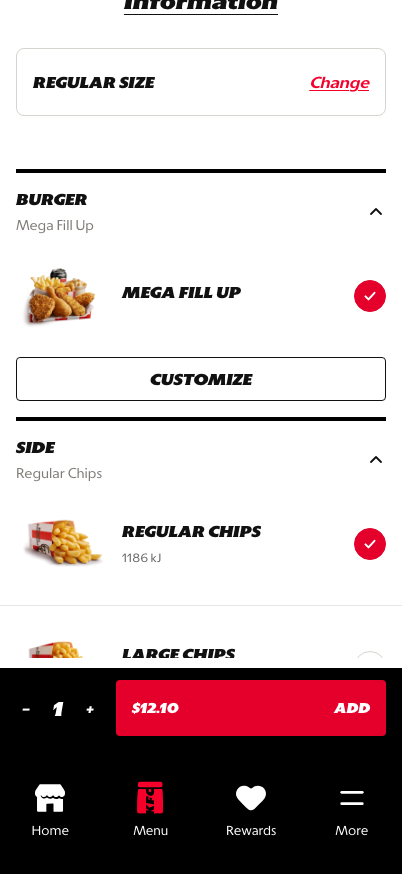
Size and information: meal size, nutrition, and supporting product detail become visible on scroll.
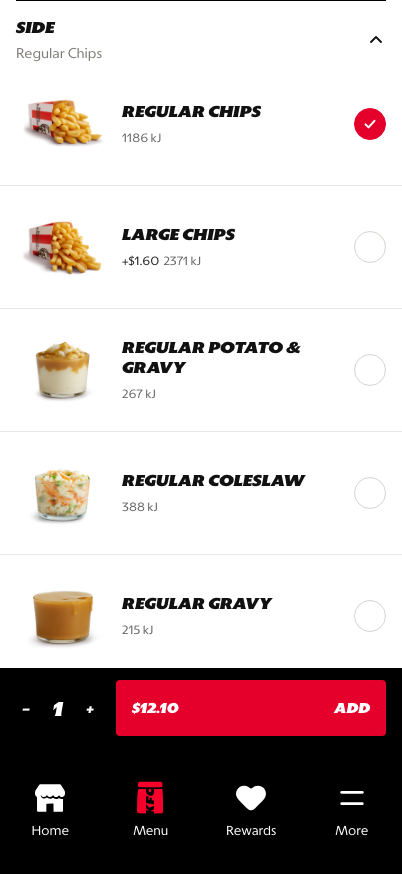
Component groups: bundle parts are shown as editable sections with selected defaults.
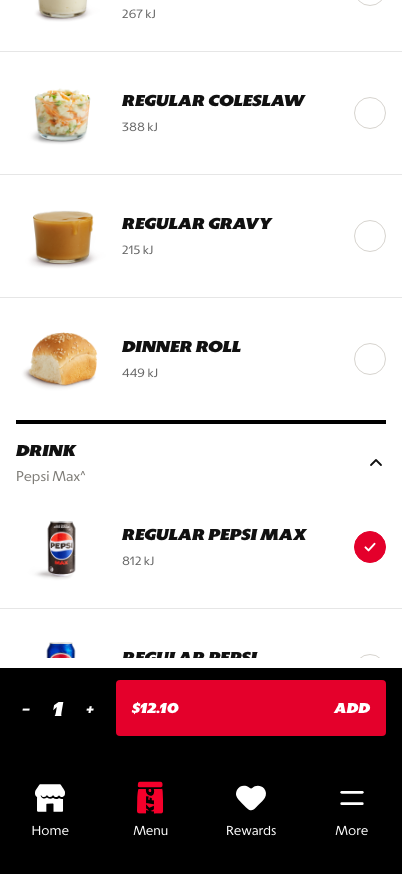
Deeper customization: lower sections expose component editing while the PDP remains structured.
What This Feature Is
PDP is the selected-product decision surface. It confirms what the customer chose from the PLP and gives them the controls needed to adjust the item before adding it to cart.
In the current prototype, PDP supports:
- product hero and summary,
- price and energy display,
- allergy and nutrition information,
- quantity stepper,
- meal size selection,
- component groups such as burger, side, and drink,
- default selections,
- deeper customization entry points,
- persistent add-to-cart action.
Why It Is Designed This Way
PDP has to balance confidence and control. The customer needs enough product detail to trust the choice, but not so much complexity that customization feels like a form.
The prototype uses progressive customization. The first layer confirms the product and price. The next layer shows major meal components. Deeper controls are only opened when the customer chooses to customize a component.
Customization Levels
| Level | Customer Decision | Example In Prototype | Why It Matters |
|---|---|---|---|
| Level 1: Product confirmation | Confirm the selected item and base price | Tower Burger Combo PDP top section | Keeps the customer oriented after PLP selection |
| Level 2: Meal size | Choose regular, large, or available size variants | Regular Size section with Change action | Size impacts price, included components, and value perception |
| Level 3: Component groups | Review included parts of the meal | Burger, side, and drink sections | Makes bundles understandable without forcing every modifier open |
| Level 4: Component customization | Edit an individual component | Customize action inside Burger or component section | Supports personalization while keeping the main PDP readable |
| Level 5: Add-ons / cross-sell | Add extra items after base product is configured | Complete Your Meal / add-ons sheet | Moves from product completion into basket growth |
WIP: What Can Be Configured On This Screen
| Configurable Area | What Markets Should Be Able To Control | Current Documentation Status |
|---|---|---|
| PDP layout | Hero treatment, description length, price placement, and nutrition visibility | WIP |
| Size logic | Available sizes, default size, price deltas, and size labels | WIP |
| Component groups | Which groups appear, order, required/optional state, and default selections | WIP |
| Modifier rules | Add, remove, swap, quantity, paid modifiers, and nested customization | WIP |
| Nutrition/allergen | Data visibility, market labels, legal requirements, and source of truth | WIP |
| Add CTA | Label, price behavior, disabled states, and cart handoff | WIP |
What This Screen Should Communicate
- The customer is editing one selected product.
- Price and quantity remain visible while the customer customizes.
- Defaults are already selected, but the customer can change them.
- Customization is layered so the page remains understandable.
- The customer can confidently add the configured item to cart.
Design Read On This Screen
- The PDP top section confirms the product before exposing deeper choices.
- Component sections make a meal legible as parts instead of one opaque bundle.
- The
Customizeaction keeps advanced editing available without overwhelming the page. - Persistent add-to-cart controls keep purchase momentum visible during customization.